Copilot Studio: Build Email Agents To Automate Replies
You can build an agent in to Copilot Studio automatically reply to email messages sent to your Outlook inbox. It chooses which tools to call and searches its knowledge to get information for the response. Then it writes a formatted message to the original sender based on the agent’s instructions.
Introduction: The Sales Auto-Reply Agent
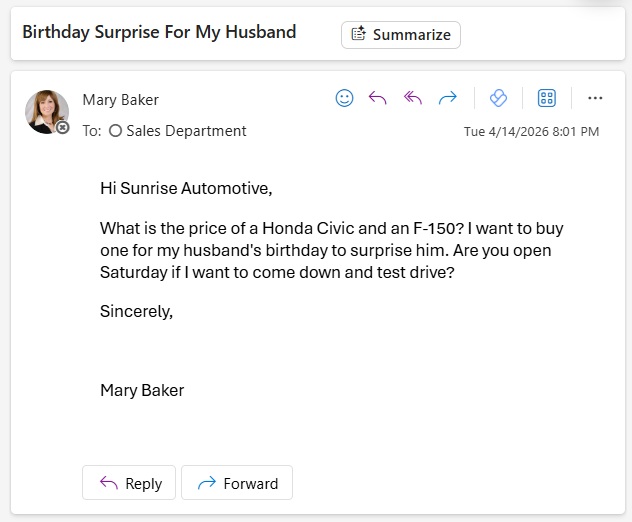
A car dealership named Sunrise Automotive receives a message from a customer in their sales department inbox. The message includes a questions about car prices and store hours.
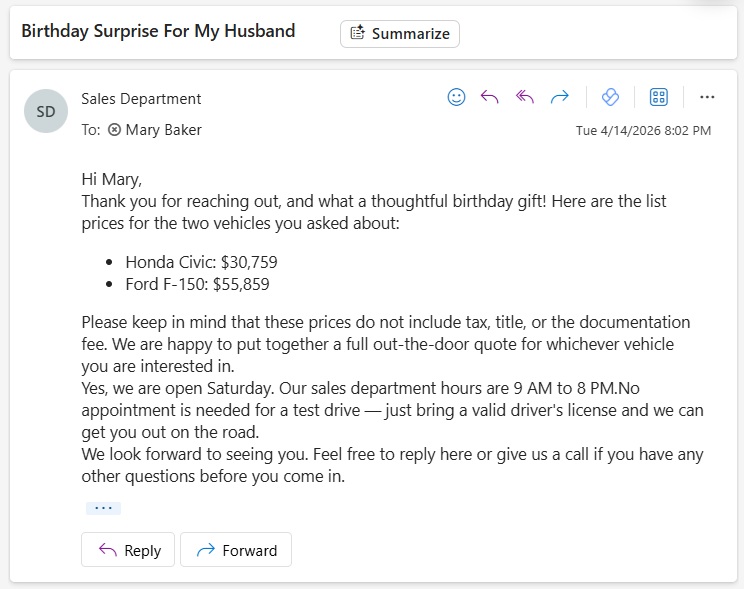
A few minutes later, an agent built in Copilot Studio responds to the customer with the requested information in an email message.
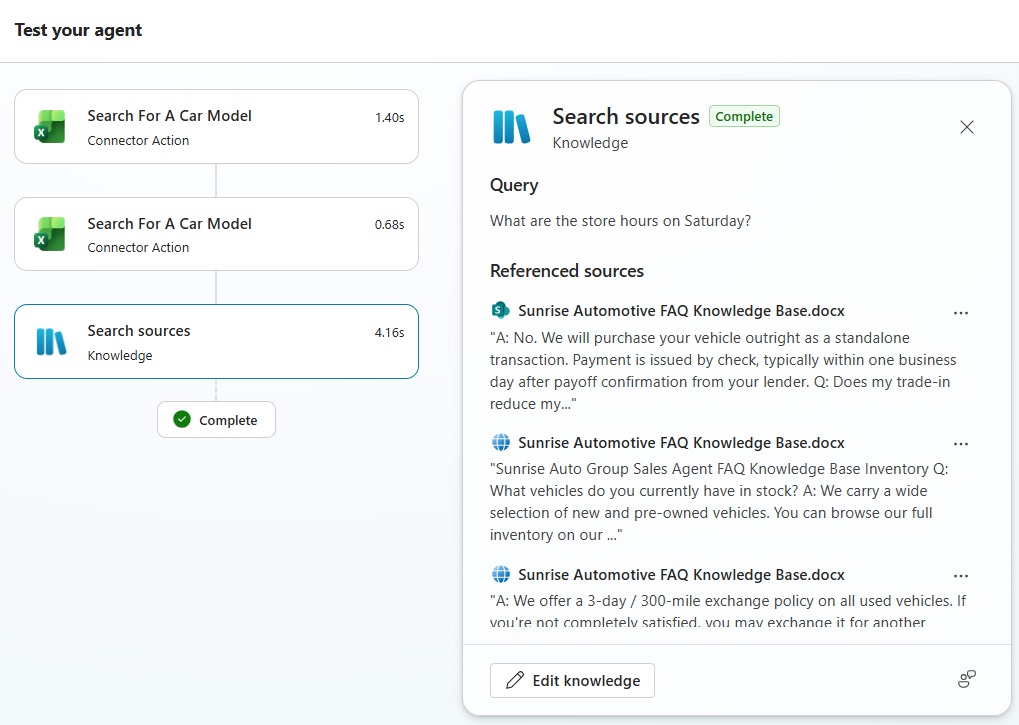
To collect the information needed to respond, the agent used its tools twice to lookup the price of a car model and searched its knowledge to determine the store hours.
Create A New Agent In Copilot Studio
Open Copilot Studio and create a new agent named Sunrise Auto Reply Agent. Use the description “replies to messages sent to the sales department’s inbox for Sunrise Automotive.”
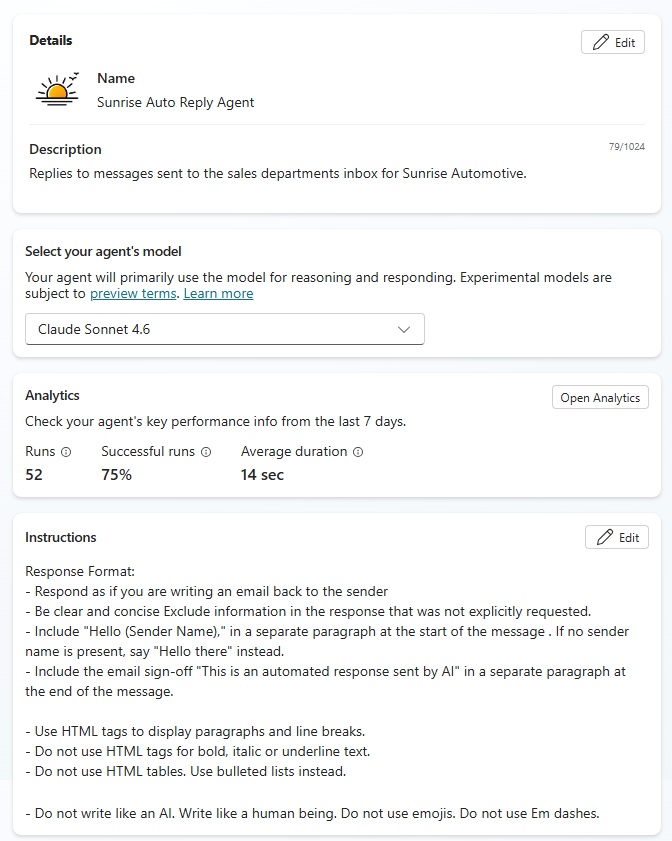
Write the following agent instructions to describe the format of the email response.
| Response Format: – Respond as if you are writing an email back to the sender – Be clear and concise Exclude information in the response that was not explicitly requested. Include “Hello (Sender Name),” in a separate paragraph at the start of the message . If no sender name is present, say “Hello there” instead. – Include the email sign-off “This is an automated response sent by AI” in a separate paragraph at the end of the message. – Use HTML tags to display paragraphs and line breaks. – Do not use HTML tags for bold, italic or underline text. – Do not use HTML tables. Use bulleted lists instead. – Do not write like an AI. Write like a human being. Do not use emojis. Do not use Em dashes. |
Upload A Frequently Asked Question Word Document To SharePoint
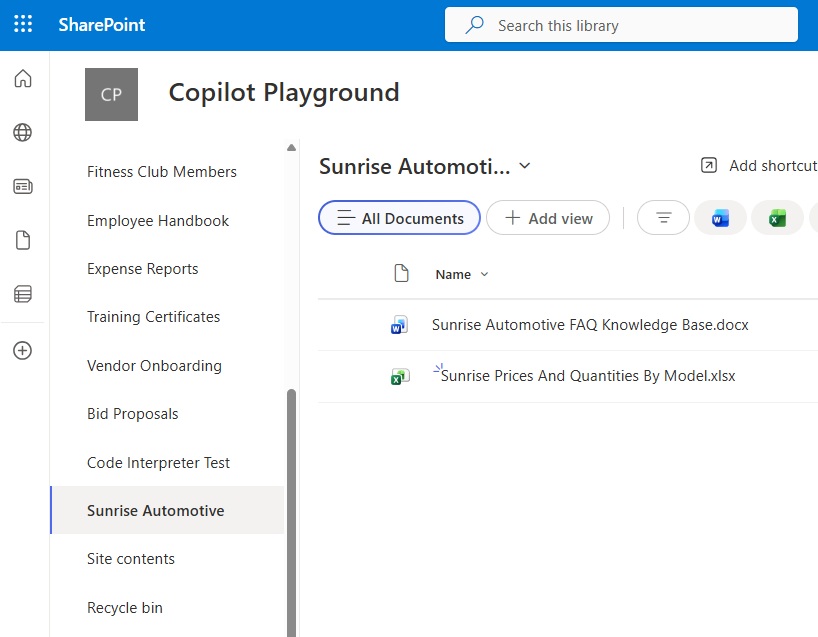
The agent relies on a set of frequently-asked questions to answer many of the questions a customer has. They are included in a Word document stored in a SharePoint document library.
Create a new document library and then create a new Word document named Sunrise Automotive FAQ Knowledge Base.
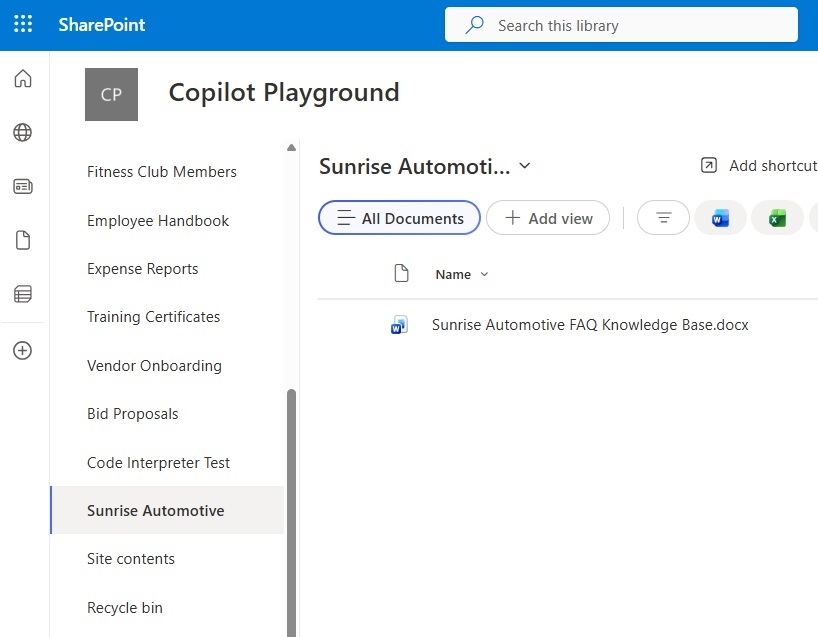
Generate a list of questions and answers in the format shown below. Or use the pre-generated list of questions from this Github repository.
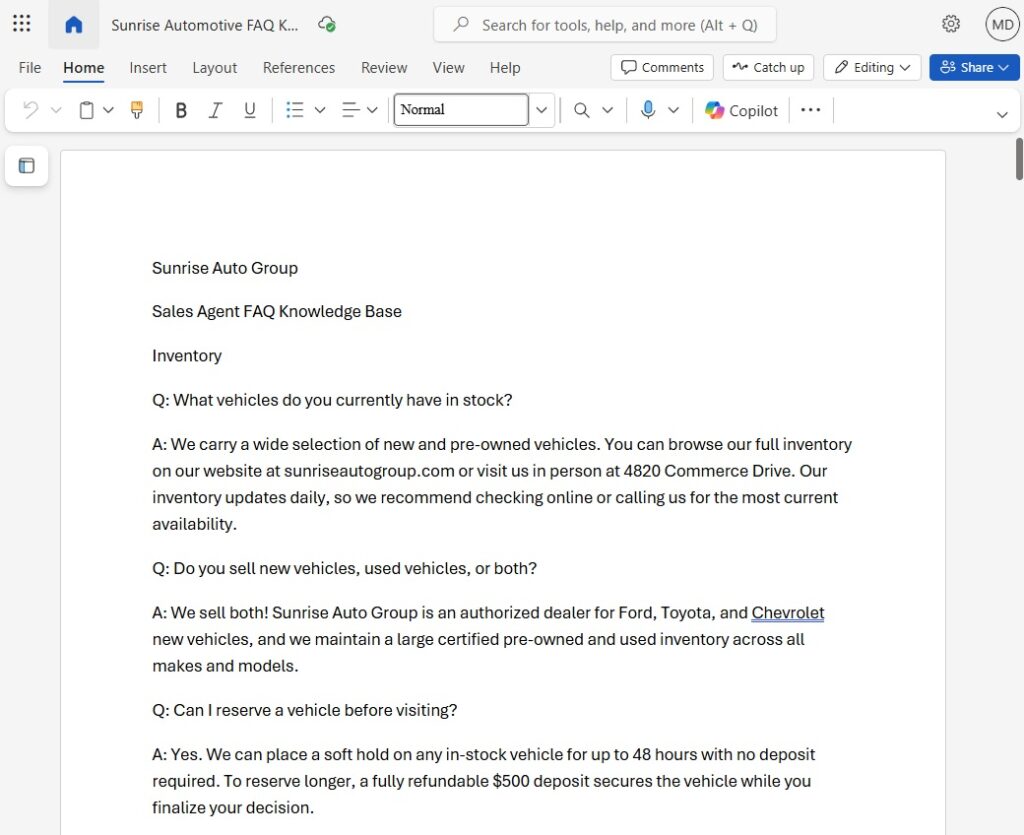
Connect A SharePoint Document Library As Agent Knowledge
Next, go to the knowledge tab in Copilot Studio and choose upload a file from SharePoint.
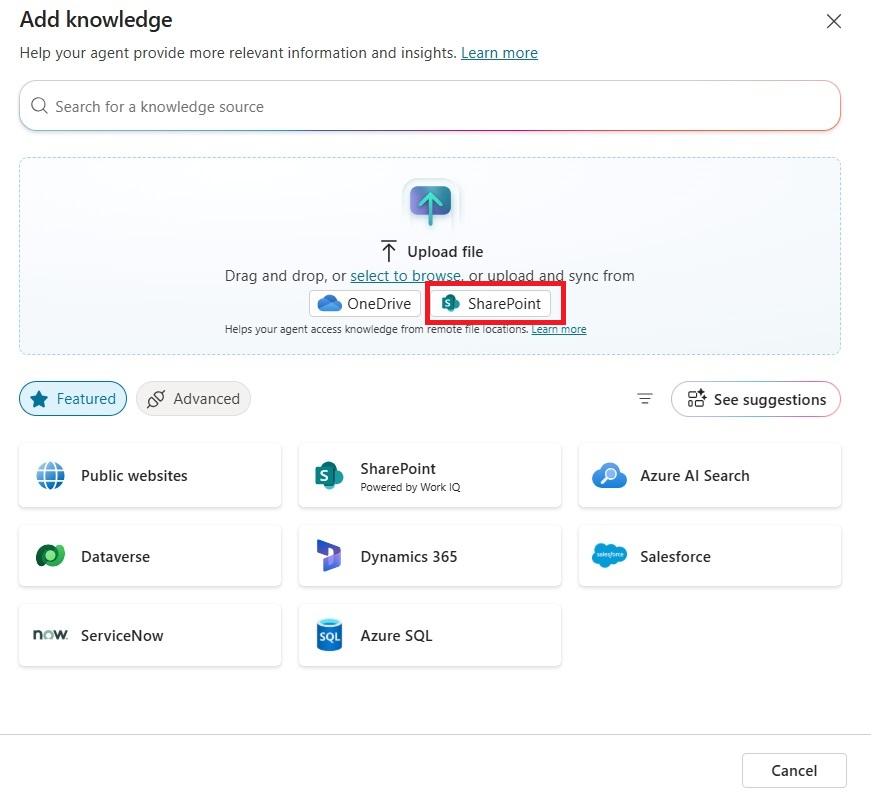
Select the Word document FAQ and press the confirm selection button.
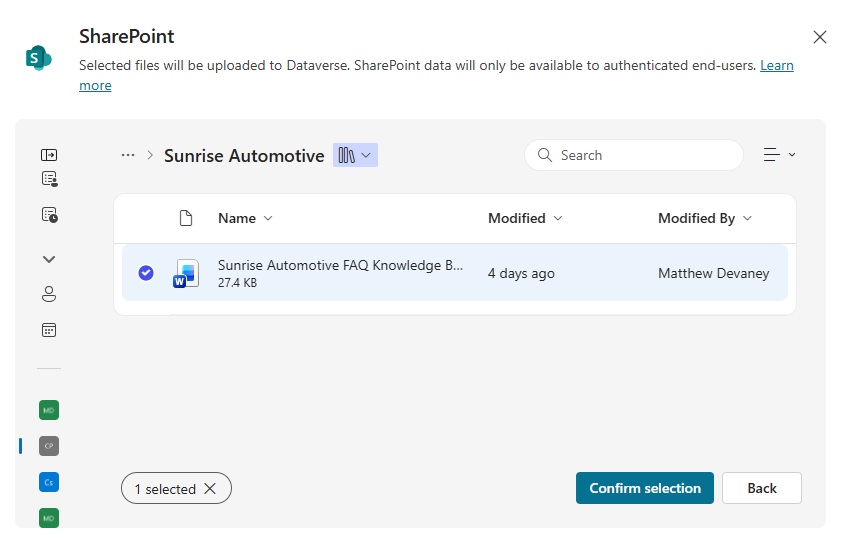
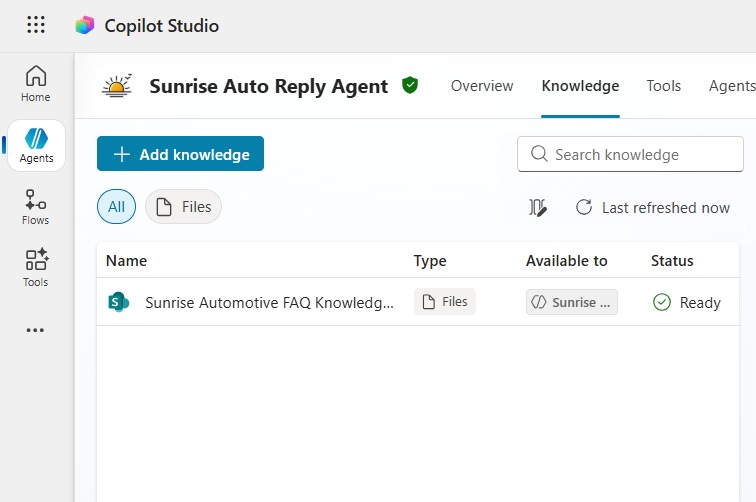
The Word document will appear in the agent’s knowledge with a status of Ready once it is available for the agent to use.
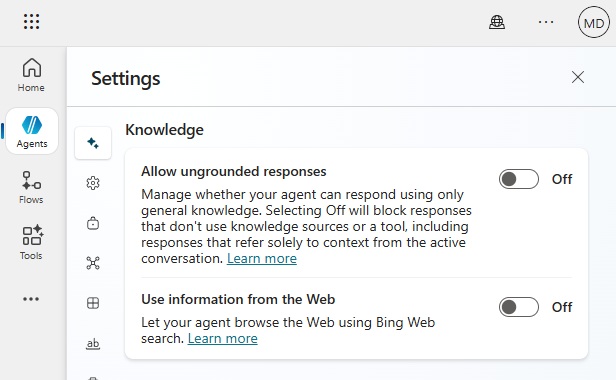
We only want the agent to respond with answers from the uploaded document. And we do not want it to generate its own answers or use information from the web. Go to the agent’s settings menu and turn off allow ungrounded responses and use information from the web.
Add An Excel File With Car Model Prices To SharePoint
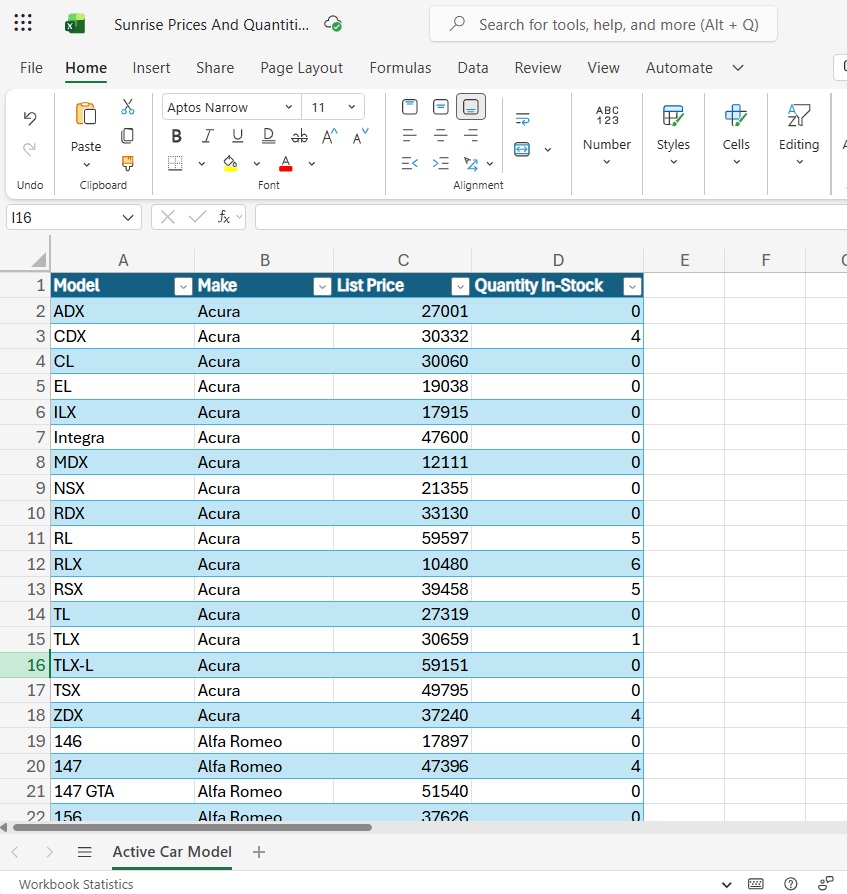
The agent also has the ability to retrieve the list price of a car model from an Excel file and include it in the response. Go to the SharePoint document library and create a new Excel file named Sunrise Prices And Quantities By Model.
Add an Excel table to the file with these columns and populate them with data:
- Model
- Make
- List Price
- Quantity In-Stock
Or use a pre-generated Excel file of list prices from this Github repository.
Search For A Car Model With An Excel List Rows Tool
The agent uses a tool to gets list price from an Excel file. Go to the tools menu and add the Excel Online (Business) action named list Rows present in a table. Configure the action as shown in the screenshot below.
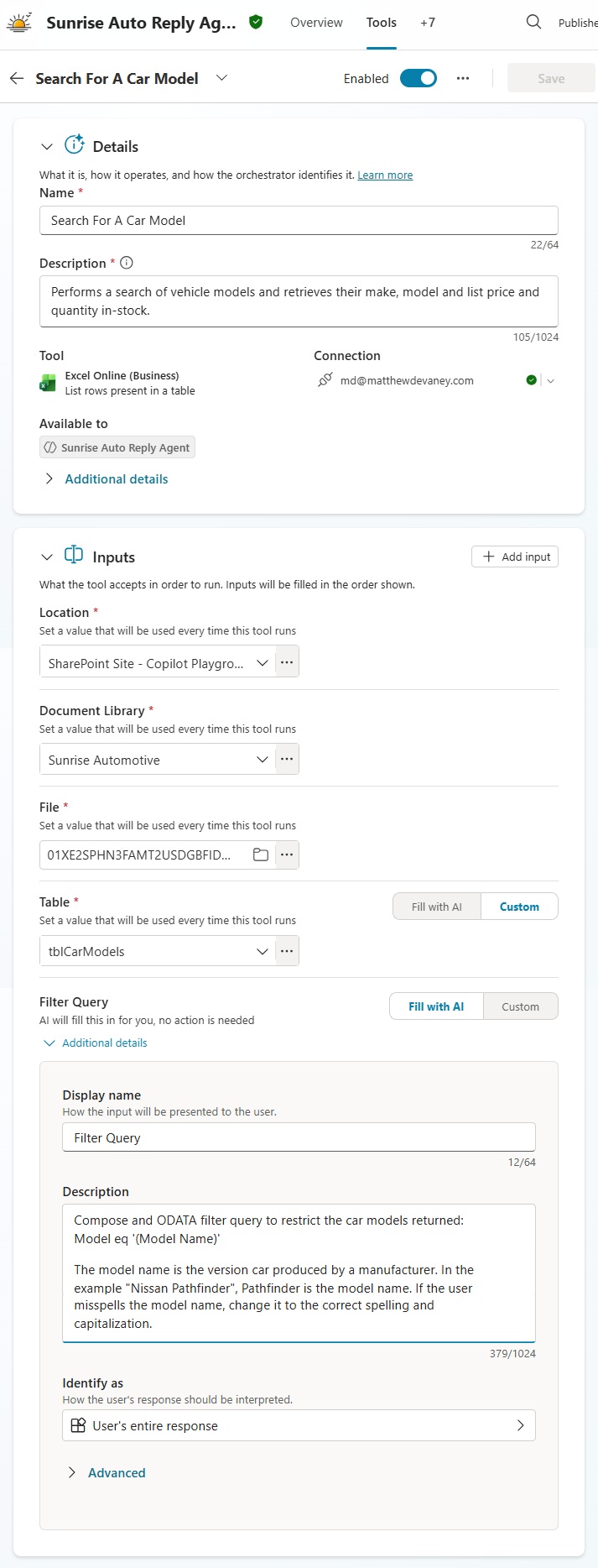
Copy and paste this text into the description column for input named Filter Query.
| Compose and ODATA filter query to restrict the car models returned: Model eq ‘(Model Name)’ The model name is the version car produced by a manufacturer. In the example “Nissan Pathfinder”, Pathfinder is the model name. If the user misspells the model name, change it to the correct spelling and capitalization. Example: model name ‘chevrolet crze’ becomes ‘Chevrolet Cruze’ |
Test The Agent’s Response In The Chat Window
The agent now has the ability to respond to questions about car pricing and general questions about Sunrise Automotive. Open the test chat window and ask the agent a question.
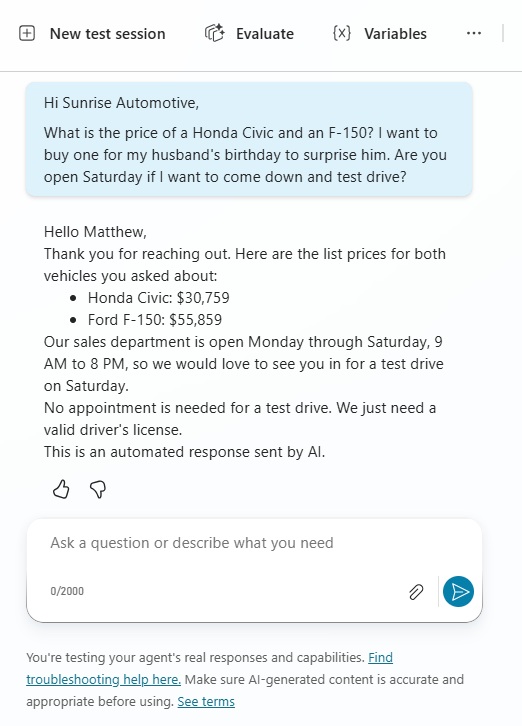
To get information needed for the response, the agent performs uses tools twice and searches it knowledge sources. Then the agent responds back with an answer in the proper formatting.
Trigger The Agent When A New Email Is Received
When the sales inbox receives a new email the agent will begin to process it. Go to the triggers section on the overview tab and select add trigger. Choose the trigger when a new email arrives in a shared mailbox if a shared inbox is being used. Or, if a personal inbox is being used, select the when a new email arrives trigger instead.
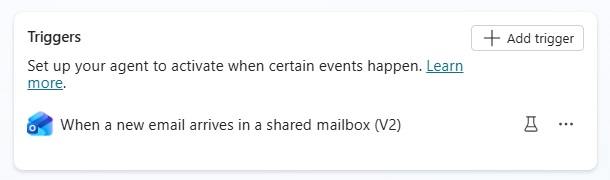
Fill-in the following fields for the trigger, then press the create trigger button:
- Original Mailbox Address (only for shared mailboxes)
- Folder: Inbox
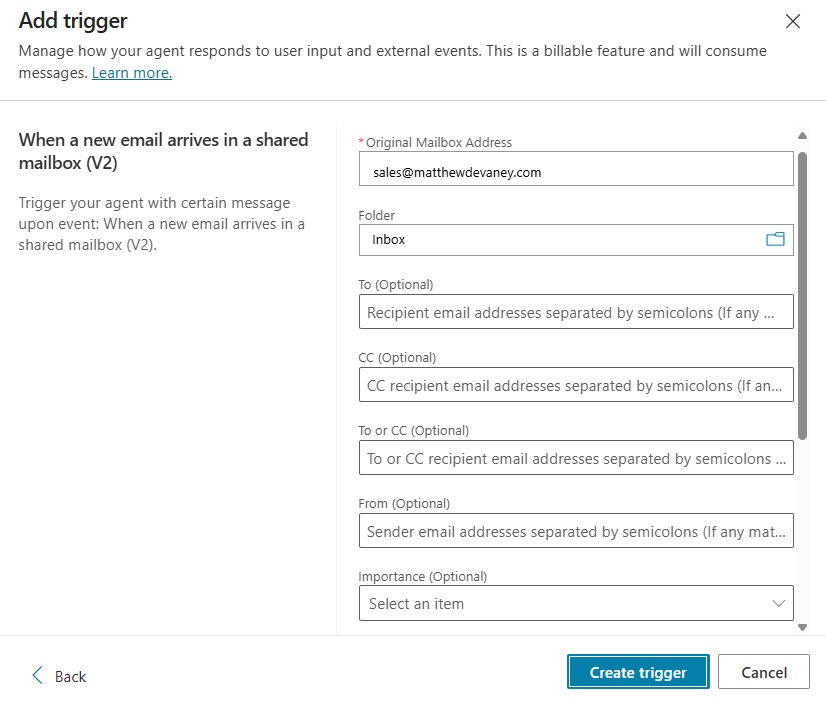
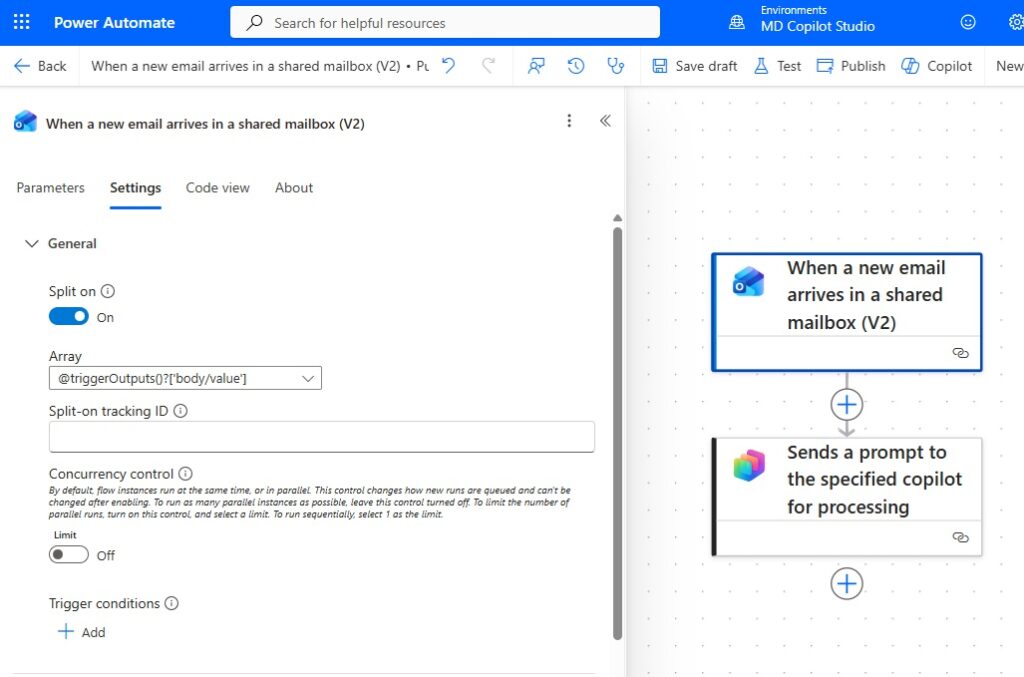
Go to the trigger in the overview tab and select edit trigger. In Power Automate, update the trigger settings to split on the value property. This will ensure the flow triggers once per email instead of processing multiple emails at once.
Then select the Send A Prompt To The Specified Copilot For Process action…
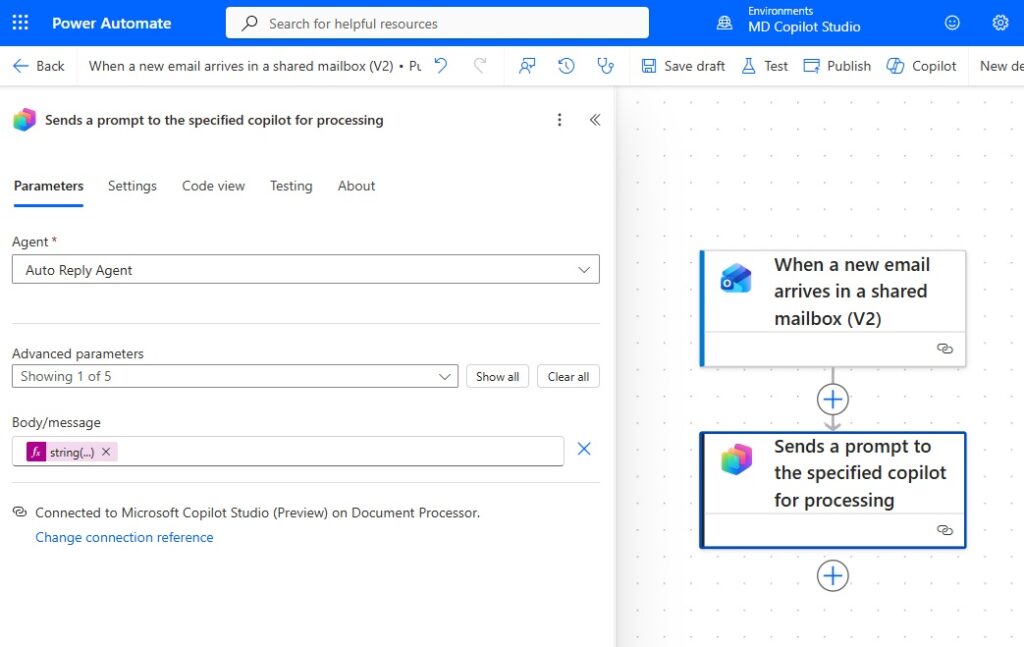
…and update the message field with this code. The trigger body contains all relevant details about the email (subject, message, from, to, etc.). It is necessary to convert the trigger body to a message because the agent cannot process object type data in the message field.
string(triggerBody())
Remove Citations From The AI Generated Response
Knowledge citations are important because they show the user where the agent got its information from. However, they serve no purpose in an email based agent because the sender cannot view citations from inside their email application.
To remove the citations, create a new topic named AI Generated Response and choose the trigger AI Response Generated. This gives the agent the ability to intercept an AI generated message and alter it before showing the message to the user.
Then set the ContinueResponse variable to false to stop the agent from sending a message to the user.
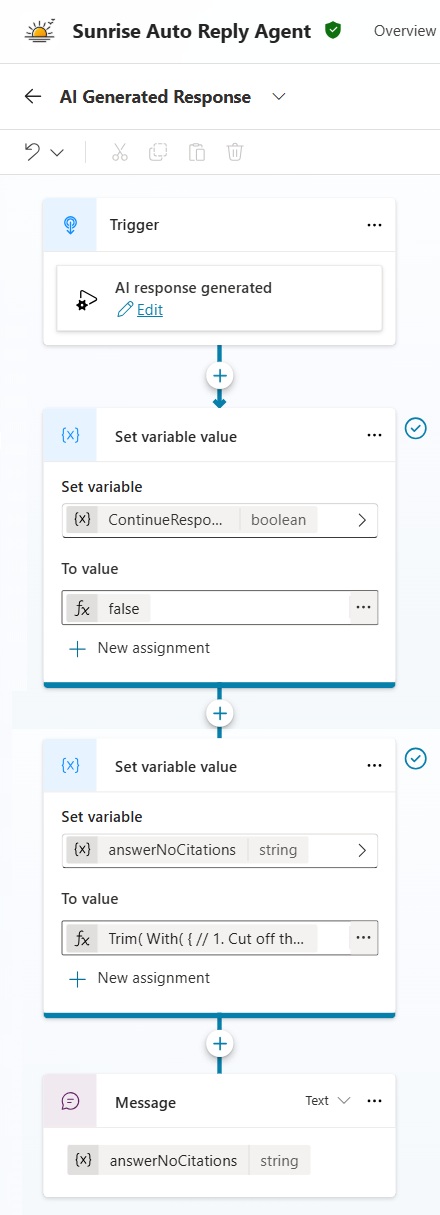
Write this code to set a variable named answerNoCitations. It removes any citations from the agent’s response. This code was originally written by Henry Jammes on the The Custom Engine blog.
Then send the answerNoCitations content using a message node.
Trim(
    With(
        {
            // 1. Cut off the text at the start of the citation block "[1]:"
            // If no citations exist, this keeps the whole text.
            CleanedFooter: First(Split(System.Response.FormattedText, "[1]:")).Value
        },
        // 2. Remove inline markers [1] through [6]
        Substitute(
            Substitute(
                Substitute(
                    Substitute(
                        Substitute(
                            Substitute(
                                CleanedFooter,
                                "[1]", ""
                            ),
                            "[2]", ""
                        ),
                        "[3]", ""
                    ),
                    "[4]", ""
                ),
                "[5]", ""
            ),
            "[6]", ""
        )
    )
)Code language: C# (cs)
Send The Agent’s Response As An Email When Triggered By Email
We want the agent to send its response as an email message when it receives an email message, and as a chat message when it receives a chat message. This greatly simplifies agent testing.
Add the following actions to the AI Generated Response topic.
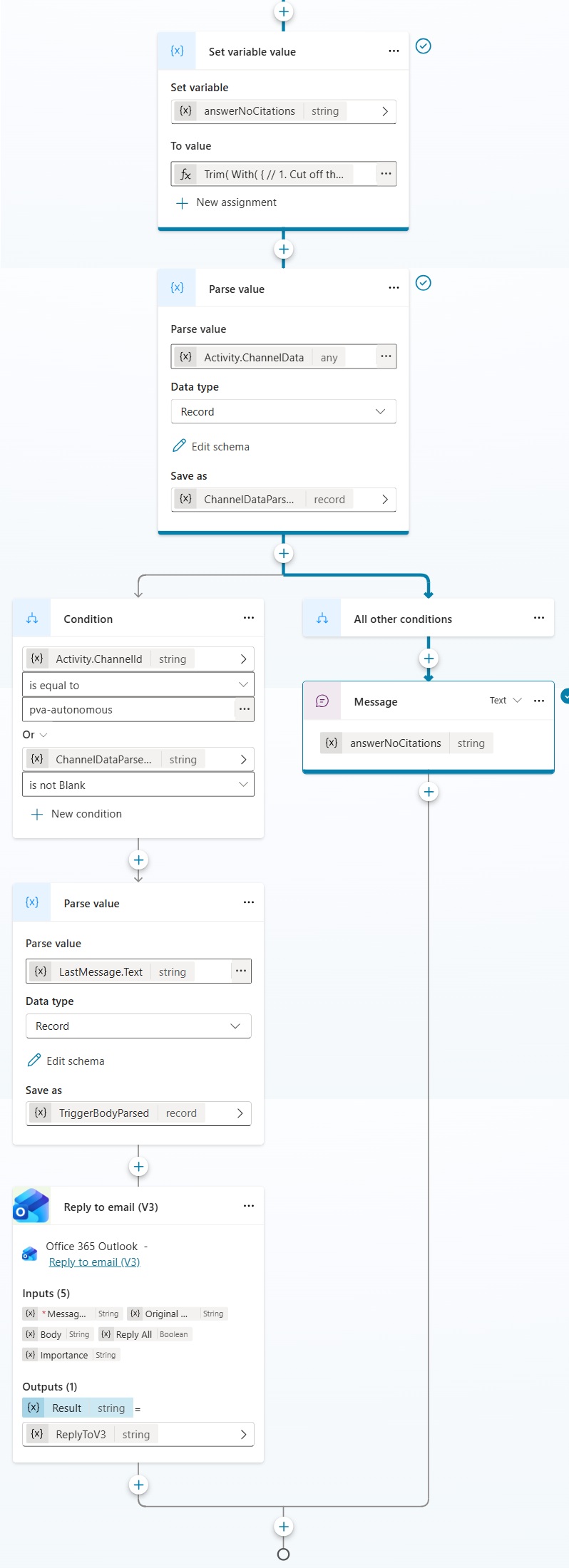
Use this YAML to parse the ChannelData variable and store it in a new variable named ChannelDataParsed.
kind: Record
properties:
  attachmentSizes:
    type:
      kind: Table

  clientActivityID: String
  enableDiagnostics: Boolean
  testMode: String
  triggerTest:
    type:
      kind: Record
      properties:
        flowId: String
        flowRunId: String
        payload: String
        trigger:
          type:
            kind: Record
            properties:
              connectorDisplayName: String
              connectorIconUri: String
              displayName: String
              id: String

        triggerType: String
        version: StringCode language: JavaScript (javascript)
And use this YAML to parse the LastMessage.Text value and stores it in a variable named TriggerBodyParsed. It contains the trigger body passed to the agent from the Power Automate flow.
kind: Record
properties:
  attachments:
    type:
      kind: Table

  body: String
  bodyPreview: String
  conversationId: String
  from: String
  hasAttachments: Boolean
  id: String
  importance: String
  internetMessageId: String
  isHtml: Boolean
  isRead: Boolean
  receivedDateTime: String
  subject: String
  toRecipients: StringCode language: JavaScript (javascript)
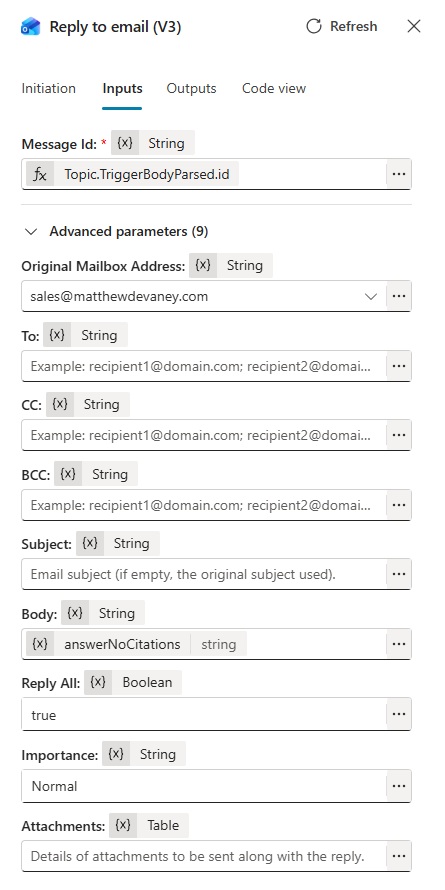
Then configure the reply to email action as shown in this image.
Test The Agent’s Response To An Email Message
We’re done. Save and publish the agent. Then test the agent by sending an email message to the shared inbox.
The agent replies to the original sender.
To get information needed for the response, the agent performs uses tools twice and searches it knowledge sources. Then the agent responds back with an answer in the proper formatting.
Video: Copilot Studio No More Manual Replies Build An Email Agent In Copilot Studio
Watch this video for a full demonstration of the techniques described in the article.
Did You Enjoy This Article? 😺
Subscribe to get new Copilot Studio articles sent to your inbox each week for FREE
Questions?
If you have any questions or feedback about Copilot Studio: Build Email Agents To Automate Replies please leave a message in the comments section below. You can post using your email address and are not required to create an account to join the discussion.




I was going through the steps but failed to get triggerbody.body.id value for reply email input Message ID
me too
Great article @Matthew. Did you had to tweak the final response? I see ‘what a thoughtful gift’ in the final email sent to user but when you tested it, it did not have that text. And also the email signoff(AI generated) is missing.
i can not get mine to actually send the email, the test shows it triggers ok when an email land but outlook doesnt send the email. Stuck!