10 Things I Love About Copilot Studio Workflows

You can use Copilot Studio workflows to orchestrate agents and use them as part of a pre-determined process with a trigger and actions. Workflows behave just like Power Automate flows, but there are several new features which add capabilities and improve the developer’s quality of life. In this article I’m going to share my favorite workflows features with you.
1. Canvas Style Editor Makes It Easy To Navigate Workflows
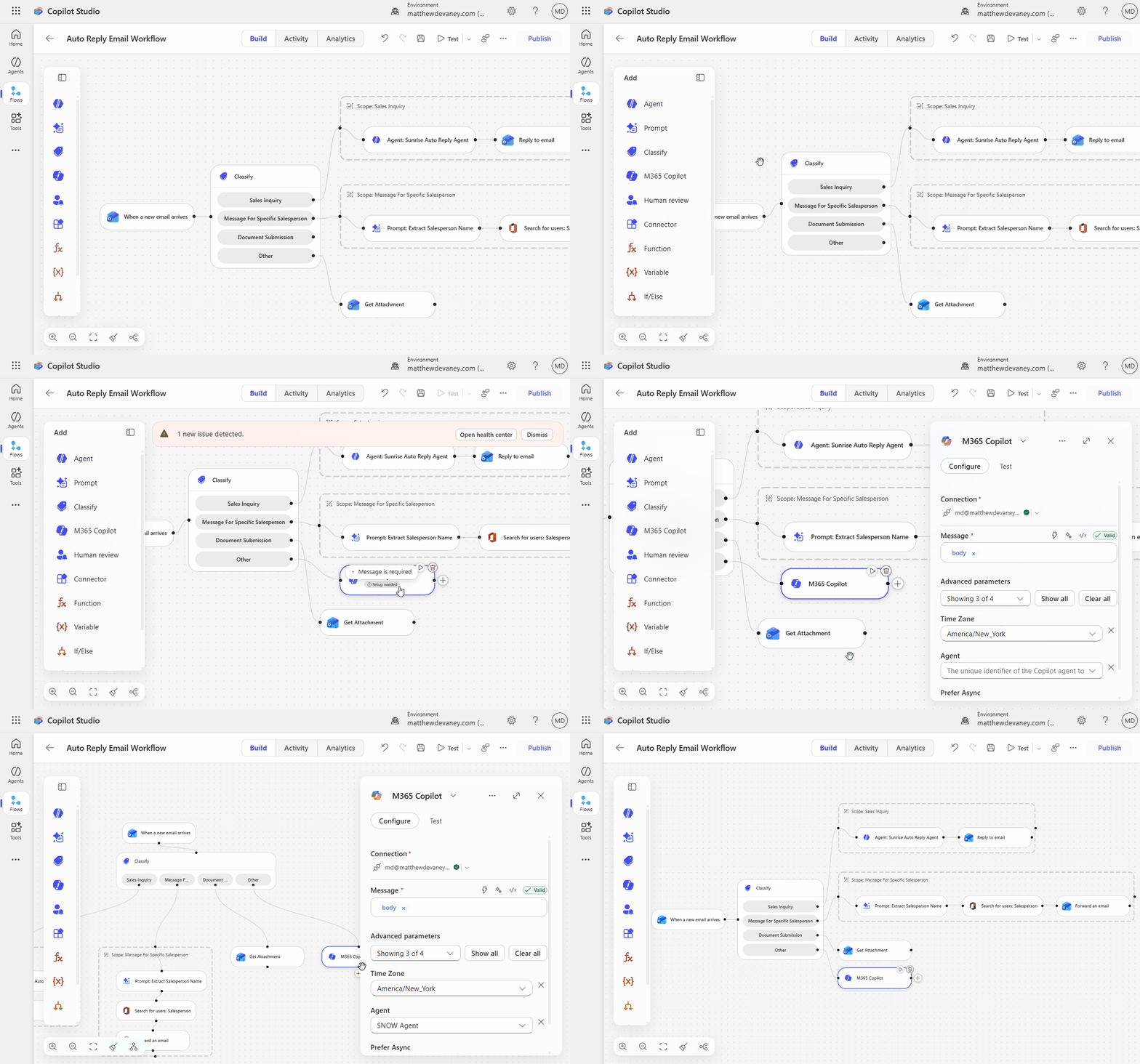
The infinite canvas style editor allows you to zoom and pan freely around the workflow you’ve built. Individual flow actions can be repositioned by drag and drop. If workflows get messy, you can quickly re-organize them by pressing the tidy-up button. And there is the ability to switch between vertical and horizontal flow direction with one-click.
2. Agents Built In M365 And Copilot Studio Can Be Called By Workflows
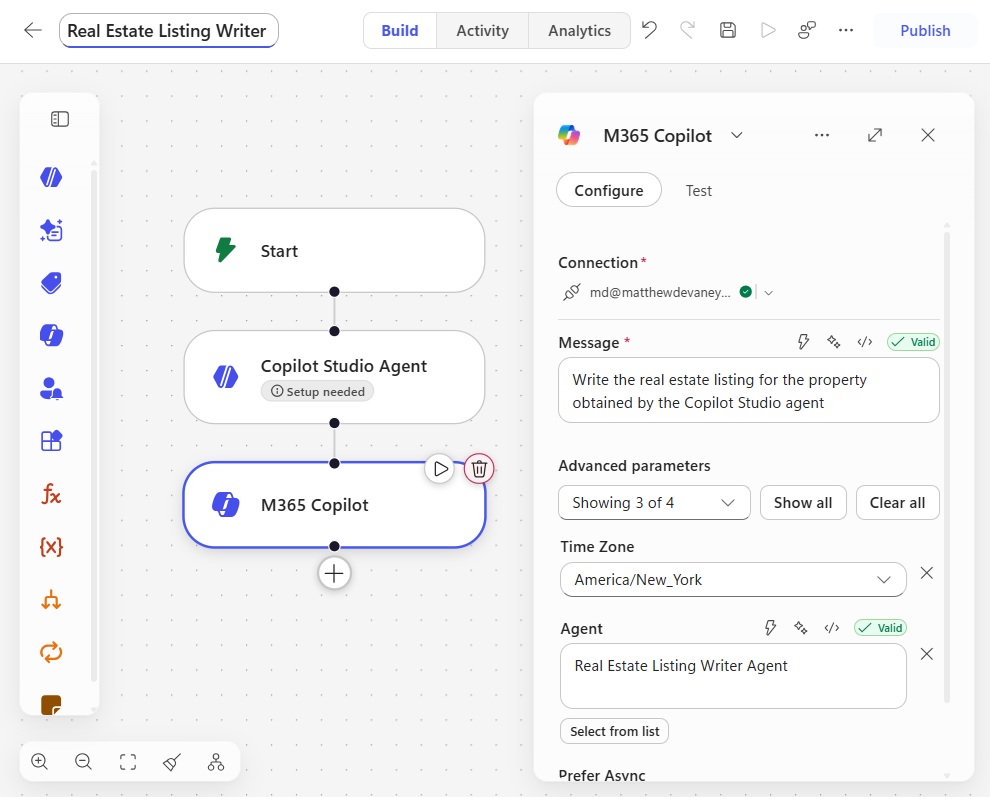
Whether you’ve created an agent in Microsoft 365 or Copilot Studio, it can be called by workflows. M365 Agent Builder is a tool for quickly building simple declarative agents. M365 agents live outside of Power Platform, but with Copilot Studio workflows, you can now orchestrate them as part of a business process. There’s no need to rebuild an M365 agent as a Copilot Studio agent.
3. Classify And Extract Actions Simplify Common Prompt Use-Cases
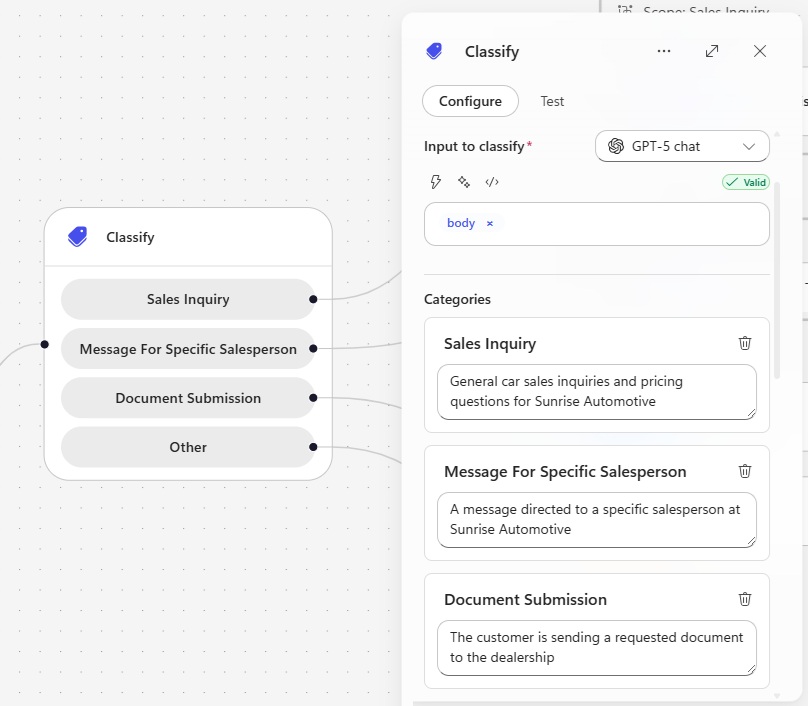
The two most common types of prompts I write are to classify a body of text into a category and to extract specific information from a document. Now I don’t have to write them from scratch each time. In Copilot Studio workflows, there are pre-configured actions for named “classify” and “extract.”
With the classify action, you supply text as an input, define multiple categories, and provide examples matched with their proper classification.
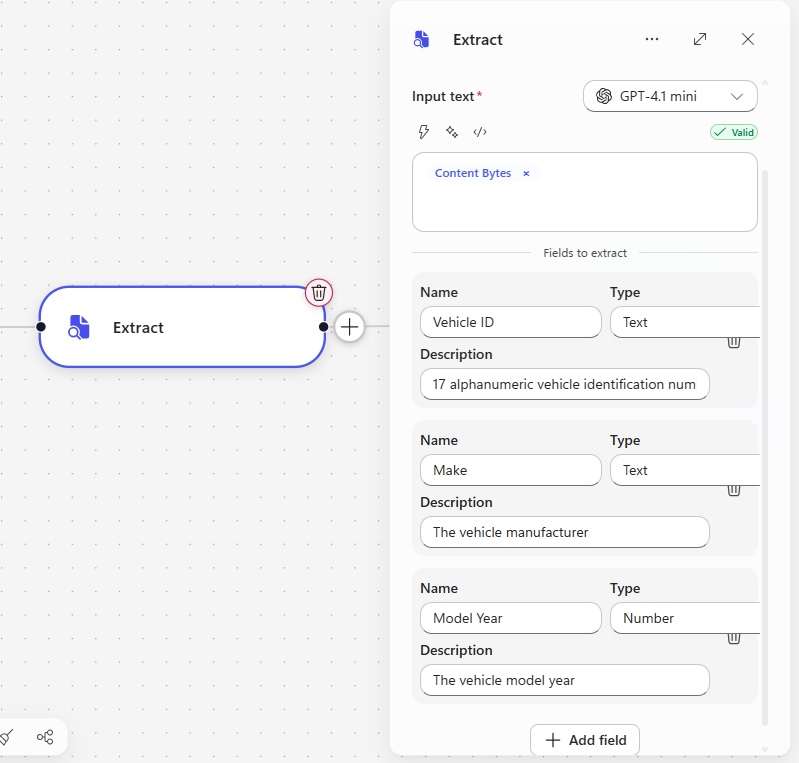
And with the extract action, you feed it a document, choose field names and data types, then you describe the data you want to extract in natural language. You don’t have to train a custom document model in AI Builder.
4. IF Blocks And Variable Blocks Have Multiple Conditions And Assignments
IF Blocks and Variable blocks get an upgrade over Power Automate in Copilot Studio workflows. IF blocks now allow multiple else if conditions. Whereas in Power Automate condition actions there are only two branches: yes or no.
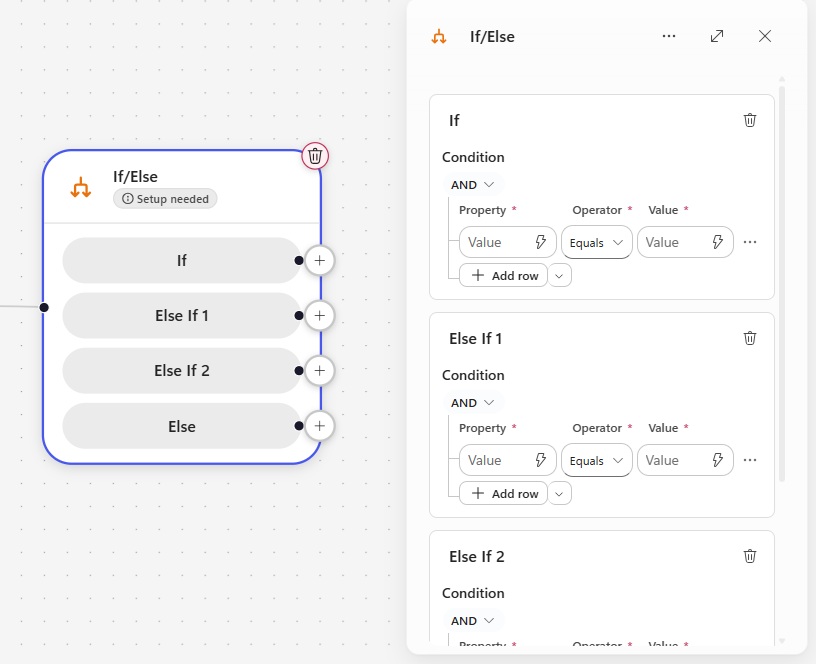
Similarly, multiple variables can now be initialized and set in a single variable block. This is a great improvement over Power Automate where flows become cluttered long-chains of many variable actions just to initialize them.
5. Test Individual Workflow Actions Without Running The Full Workflow
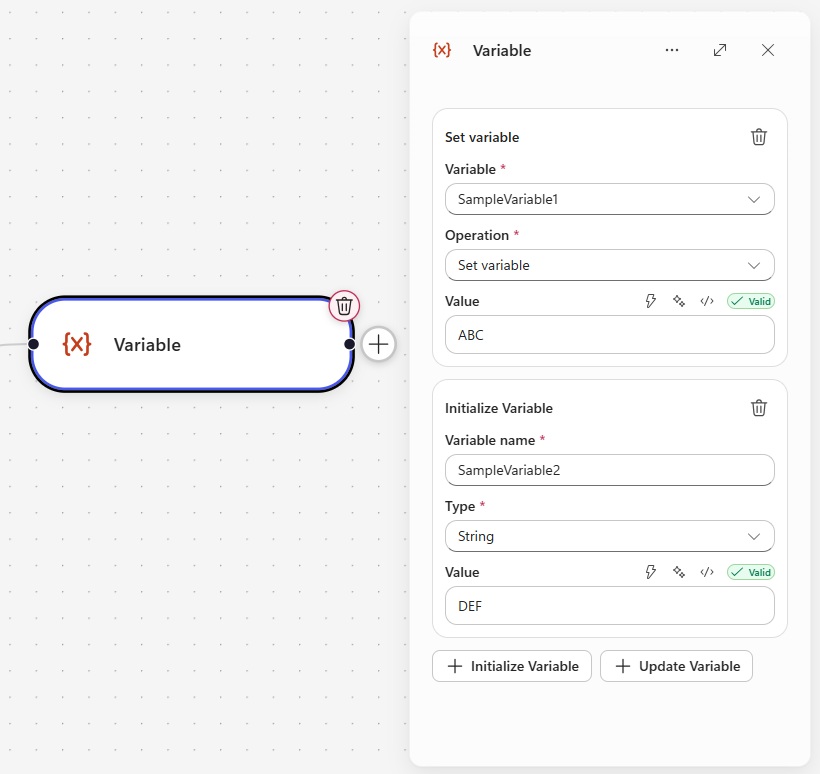
You can test Copilot Studio workflows by running the full workflow or by testing an individual workflow action. The ability to test individual actions massively speeds up the testing process because you do not need to wait for the flow to execute. Nor do you have to add a temporary terminate action to stop the workflow early. As a bonus, you can also load the values from any previous run.
6. Restore A Workflow To A Past Version Using Version History
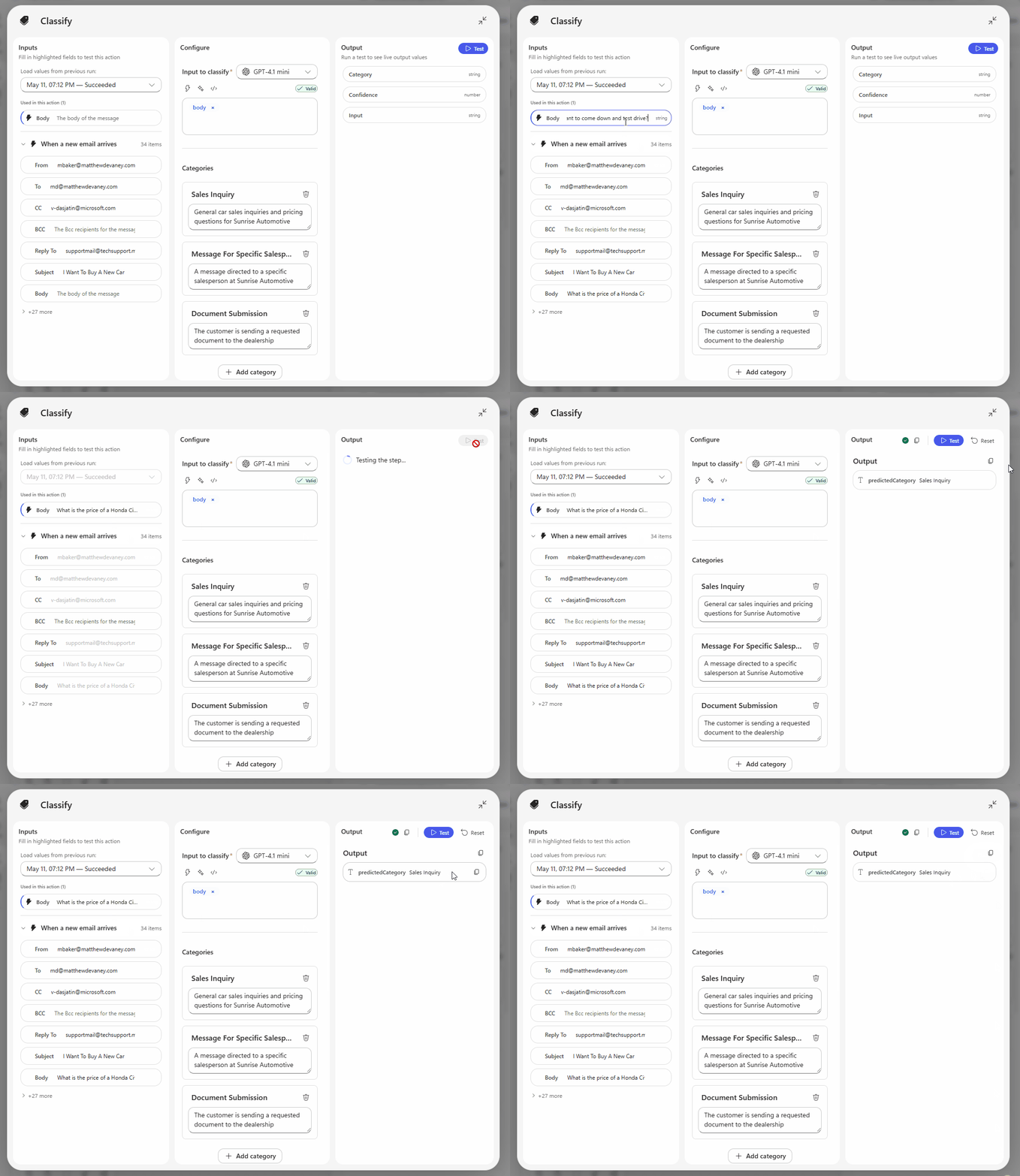
Finally, we have a built-in version history for automations on the Power Platform. Each time a Copilot Studio workflow is published, it is automatically saved, allowing you to restore a previous version or view a comparison with the current version. I am no longer scared to delete a flow while troubleshooting because now I can easily go back to what I had before.
7. Don’t Build Agents, Instead Build Skills
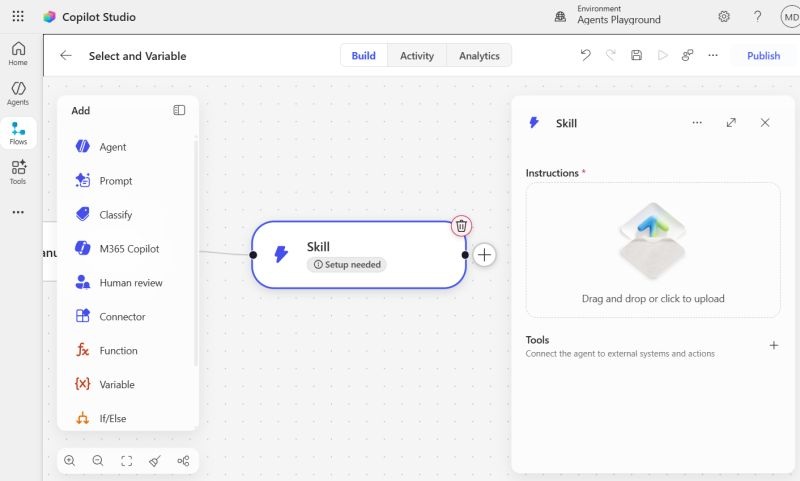
There’s a mysterious new Skill feature I found in Copilot Studio that was removed just after launch. I do not know for sure, but I suspect its a way to use Agent Skills inside of Copilot Studio workflows. The instructions could be similar to a SKILL.md file and the add tools menu showed all available MCP servers. Why build an agent when all you need is a lightweight skill instead?
8. Leave A Note In The Workflow Editor
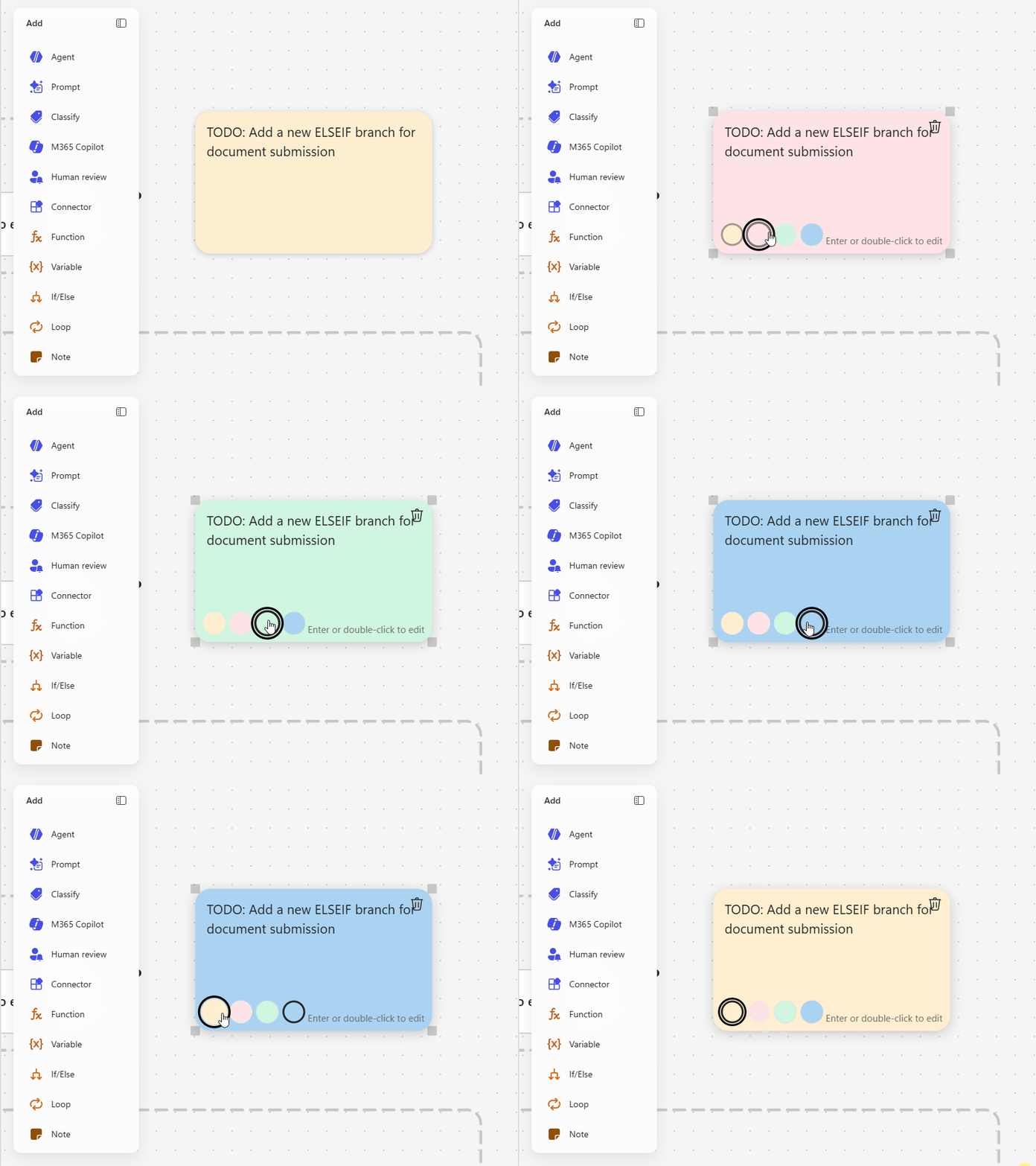
Commenting on individual workflow actions is a thing of the past. Now we can drag and drop sticky notes onto the canvas and write a message in them. There are also multiple colors to choose from. Nice!
9. Generate A Formula With Natural Language Writing Expression Assistant
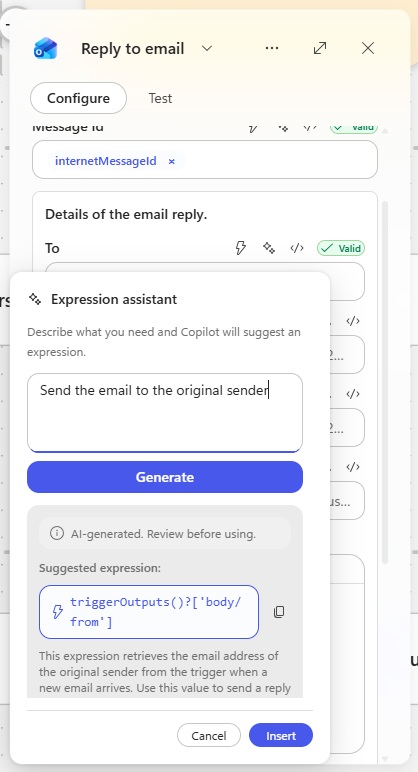
Can’t figure out the correct formula to write using the Power Automate expressions language? No problem. You can click the expression assistant for any field in an action and describe what you want in natural language. This more targeted use AI to help build workflows has been more successful for me than the Copilot sidecar was in the past.
10. Request Information From A Human In The Loop
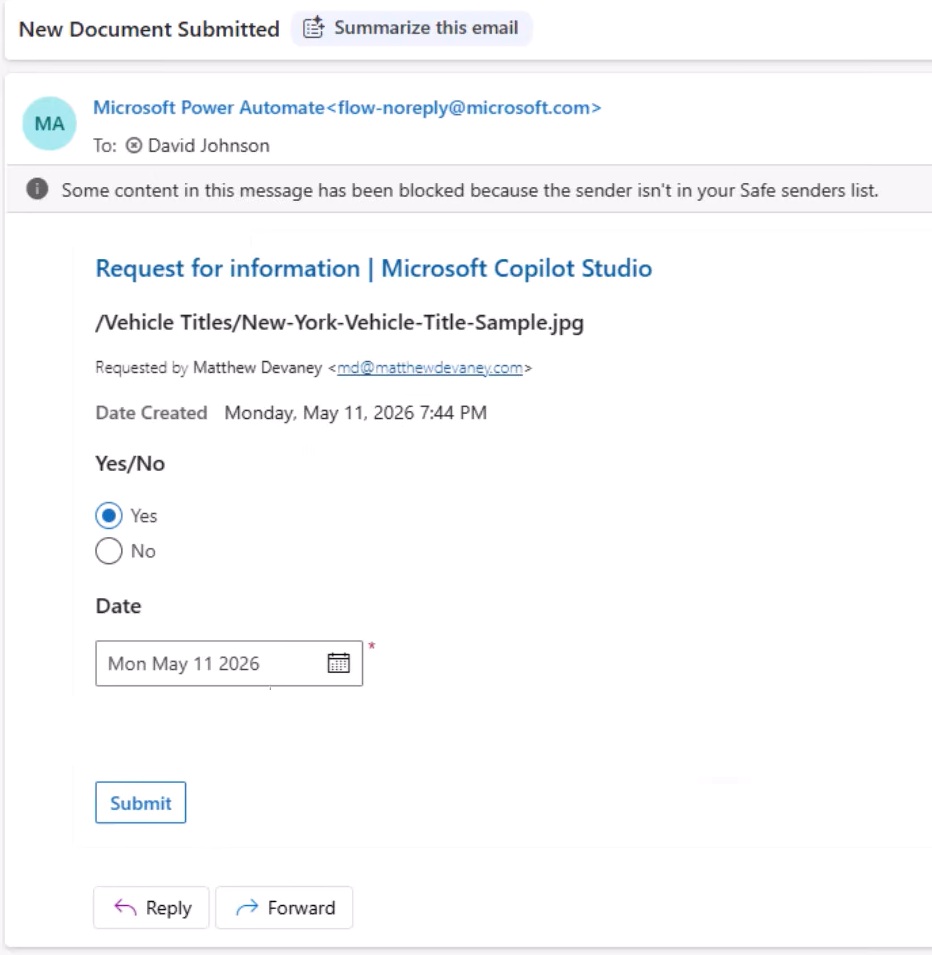
When things don’t go as planned, or the agent encounters a high-risk scenario, a human worker can be brought into the process to provide their own judgement. You can provide a title, message, and assign the review task to a user and define what inputs they must give.
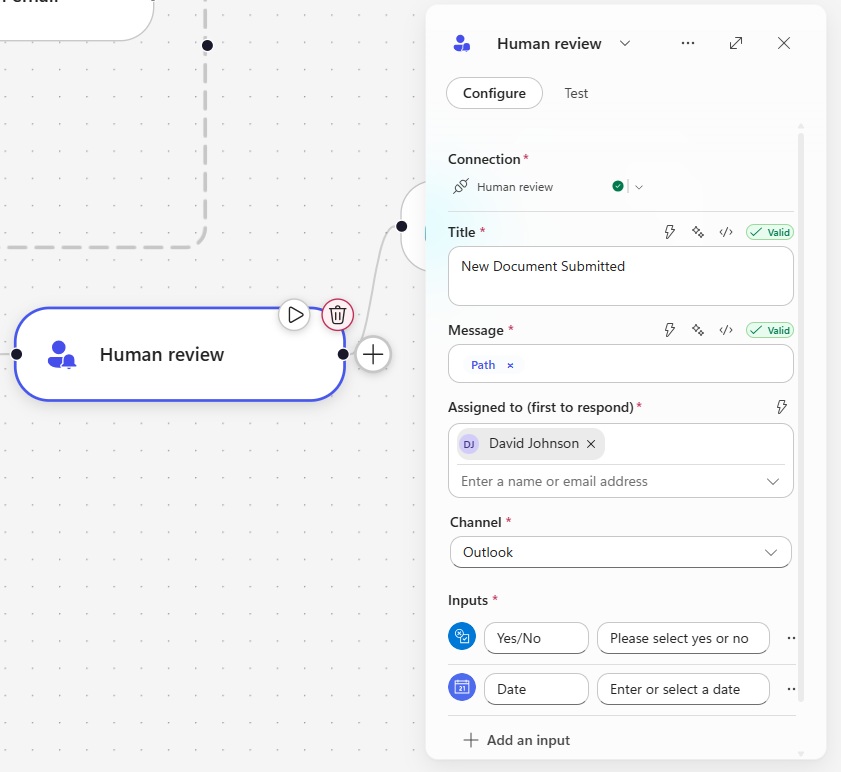
Then the agent sends an interactive form as an email to the reviewer’s inbox or as adaptive card in Microsoft Teams. Once the human presses the submit button, the agent receives the response and continues onto the next action.
Video: NEW Workflows Feature In Copilot Studio (20-Min Full Demo)
Want to see all of the Copilot Studio workflows features covered in this article and more? Watch this video for a full demonstration.
Did You Enjoy This Article? 😺
Subscribe to get new Copilot Studio articles sent to your inbox each week for FREE
Questions?
If you have any questions or feedback about 10 Things I Love About Copilot Studio Workflows please leave a message in the comments section below. You can post using your email address and are not required to create an account to join the discussion.






Great video, as always. Thank you for your clear explanations, and carefully curated examples. Can’t wait to try this.