How To Fuzzy Search Dataverse Tables In Copilot Studio

Fuzzy search can be performed on Dataverse tables in Copilot to return results to an agent when there is not a perfect match. This technique is important to know because users expect answers even if they misspell words. It relies upon Dataverse’s built in search engine named Dataverse Search which provides ranked search results along with a score. As the developer, you define which columns in a table to search, which columns to return in the result set and Dataverse takes care of the rest.
Introduction: The Car Pricing Retrieval Agent
The customers of a car dealership use an agent built in Copilot Studio to lookup vehicle pricing. They type in the model of car they are interested in and the agent retrieves the price, even when there is not a perfect match.

The agent performs a fuzzy search on the car models table using Dataverse Search. Each result returned to the agent includes a score: the higher the score, the better the match.
Create Dataverse Tables For Car Models And Individual Cars
We will begin by creating two Dataverse tables:
- Car Models: a specific version of a vehicle produced by a car manufacturer
- Car: an individual car in the dealership’s inventory
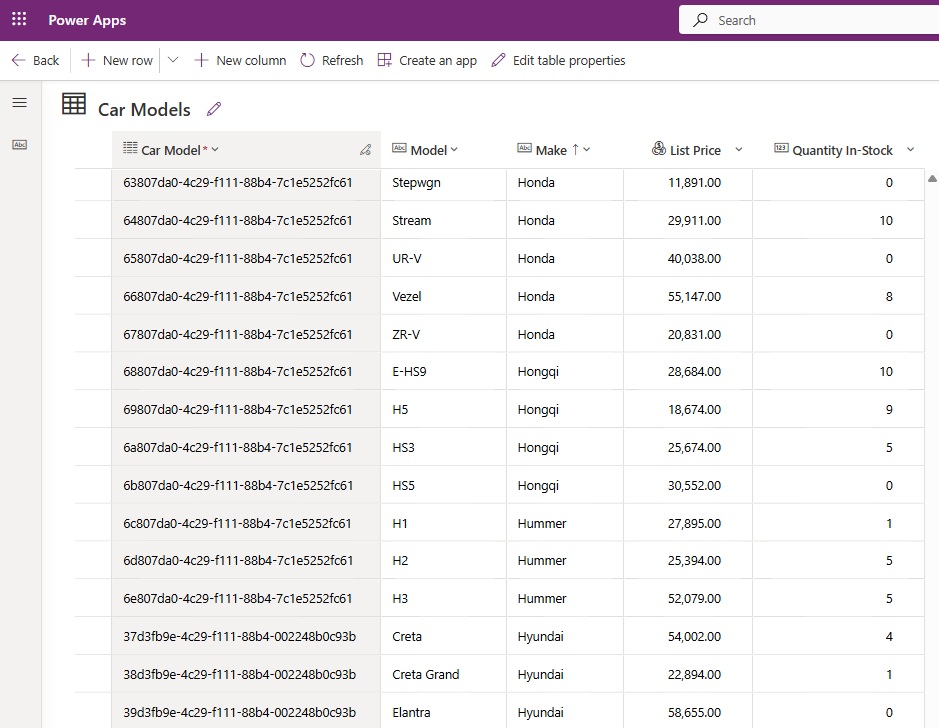
The car models table includes the following columns:
- Model: the version of car produced by the manufacturer (primary column)
- Make: the manufacturer who made the car (single-line text)
- List Price: the manufacturers recommended selling price (currency)
- Quantity In-Stock: the count of current cars in inventory (number)
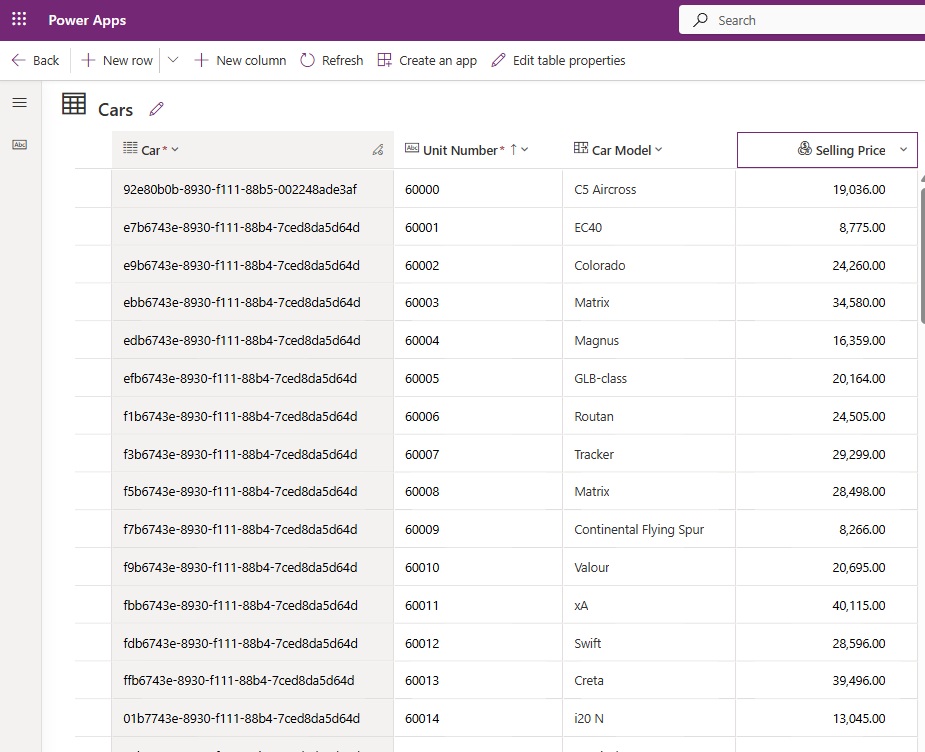
And the cars table has these columns:
- Unit Number: a unique 5 digit number assigned by the dealership to identify the car (primary column)
- Car Model: the version of car produced by the manufacturer (lookup)
- Selling Price: the price of the vehicle in inventory
Write The Agent Instructions And Select The Model
Open Copilot Studio and create a new blank agent named Car Pricing Retrieval Agent. This agent will fetch the price of a car model even when there are misspellings. Then, later on we will also add the ability to get the price range of individual cars in inventory.
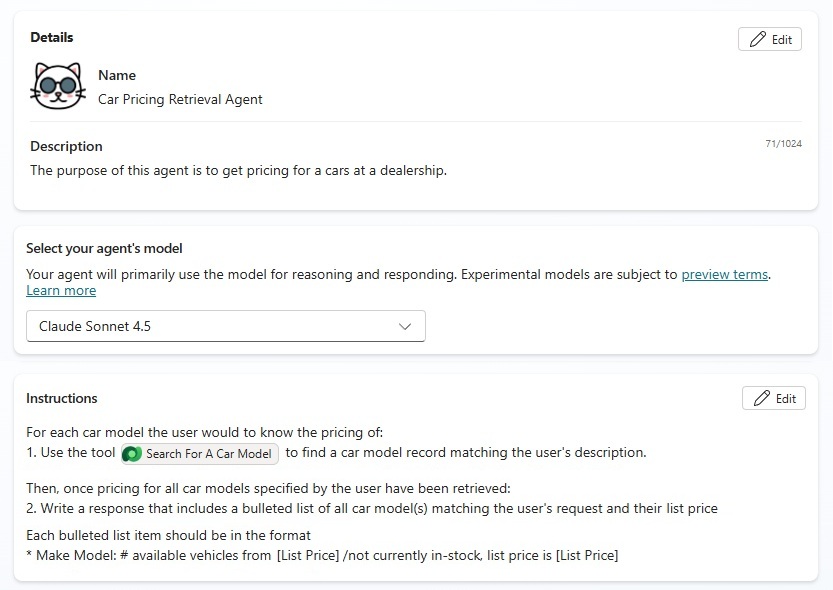
Include the following instructions:
| For each car model the user would to know the pricing of: 1. Use the tool [Search For A Car Model] to find a car model record matching the user’s description. Then, once pricing for all car models specified by the user have been retrieved: 2. Write a response that includes a bulleted list of all car model(s) matching the user’s request and their list price. Each bulleted list item should be in the format: * Make Model: # available vehicles , list price is [List Price] /not currently in-stock, list price is [List Price] Rules: – Never provide both the price range and a list price for the same car model. |
Add The Perform An Unbound Action Tool For Dataverse
We want to use the built-in Dataverse Search feature to perform fuzzy matching on car model records and return a set of results to our agent. The search rows action found in Power Automate is not available in Copilot Studio, so we use an unbound action named searchquery instead.
To do this, add a new Perform an unbound action in the selected environment (Dataverse) tool to the agent and give it the name “Search For A Car Model.”
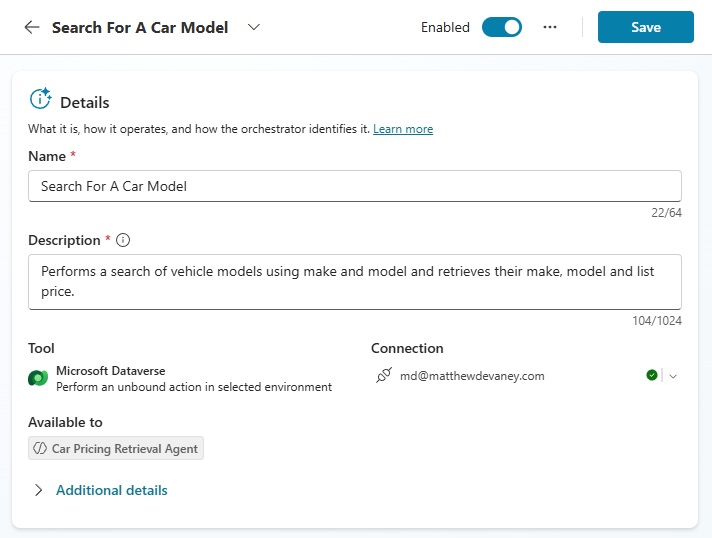
Use the following inputs for the tool:
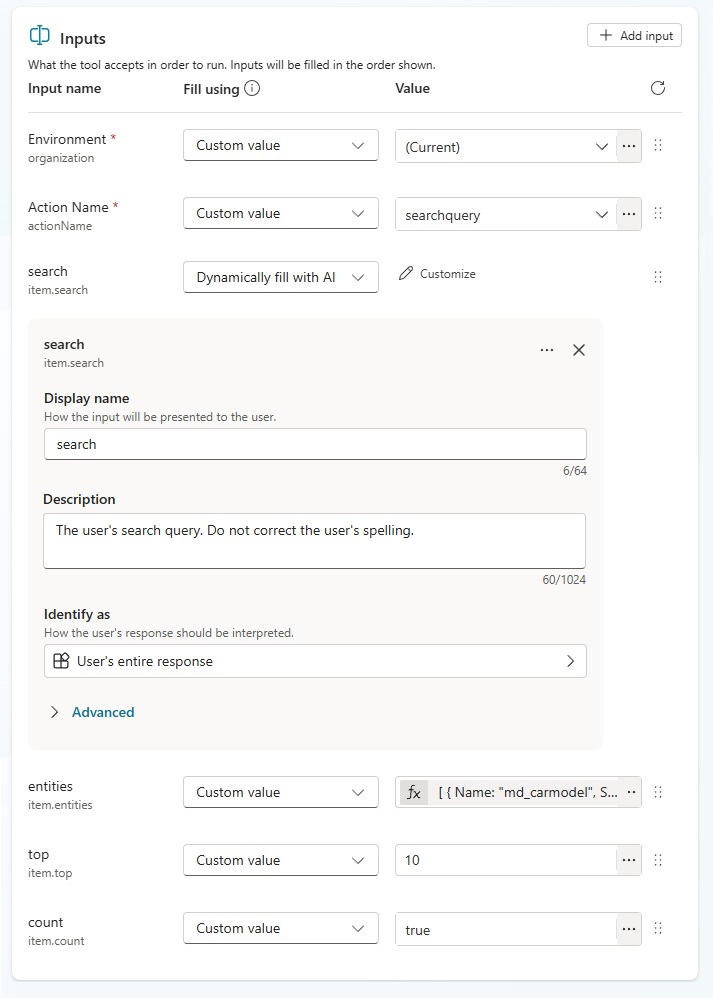
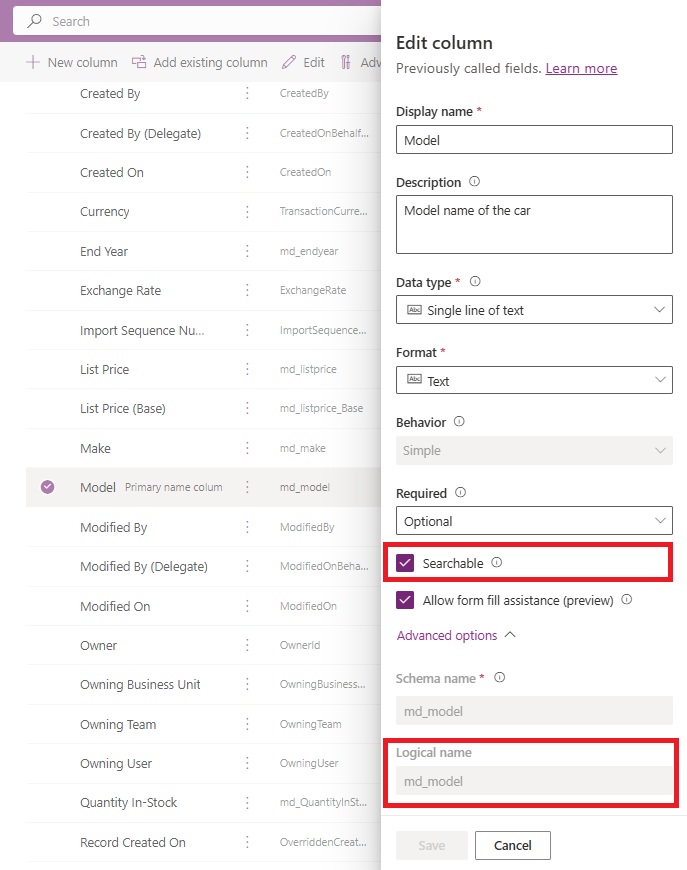
The entities property requires a JSON array to define which table to search, the columns search will be performed on, and the columns included in the results set. The logical names of both the table and its columns must be provided, not the display names.
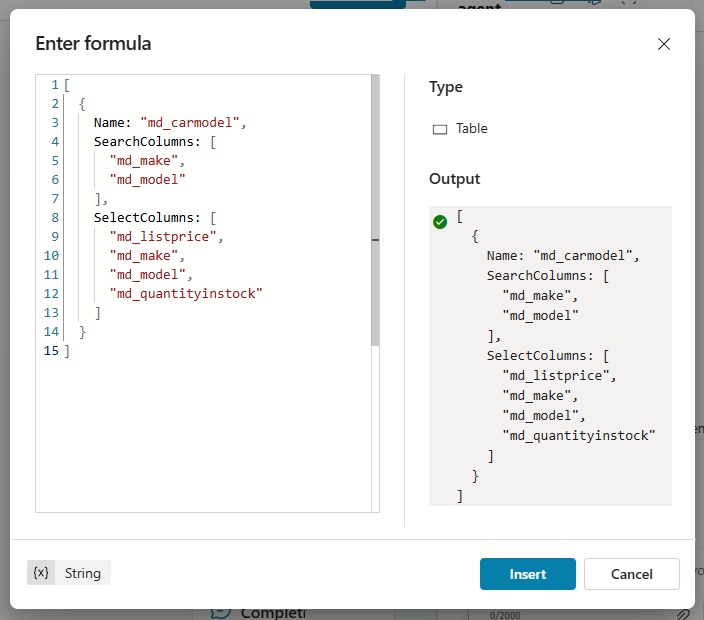
Copy and paste this JSON array into the entities field as a formula.
[
  {
    Name: "md_carmodel",
    SearchColumns: [
      "md_make",
      "md_model"
    ],
    SelectColumns: [
      "md_listprice",
      "md_make",
      "md_model",
      "md_QuantityInStock",
      "md_quantityinstock"
    ]
  }
]Code language: JavaScript (javascript)
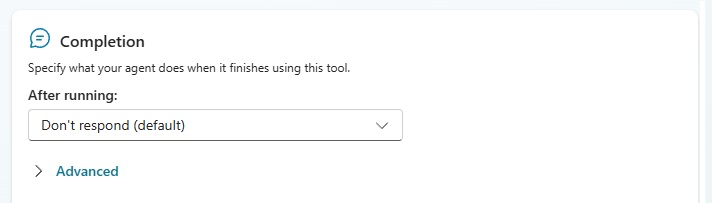
The agent will use the tool multiple times if there are multiple car models being search. Therefore, we do not want the agent to respond after each tool call. Leave the completion settings as don’t respond.
Enable Tables And Columns To Appear In Search Results
Only tables and columns which have been enabled for search can be used by the agent’s search query tool to lookup results. To turn on search for a table, go to the properties menu…
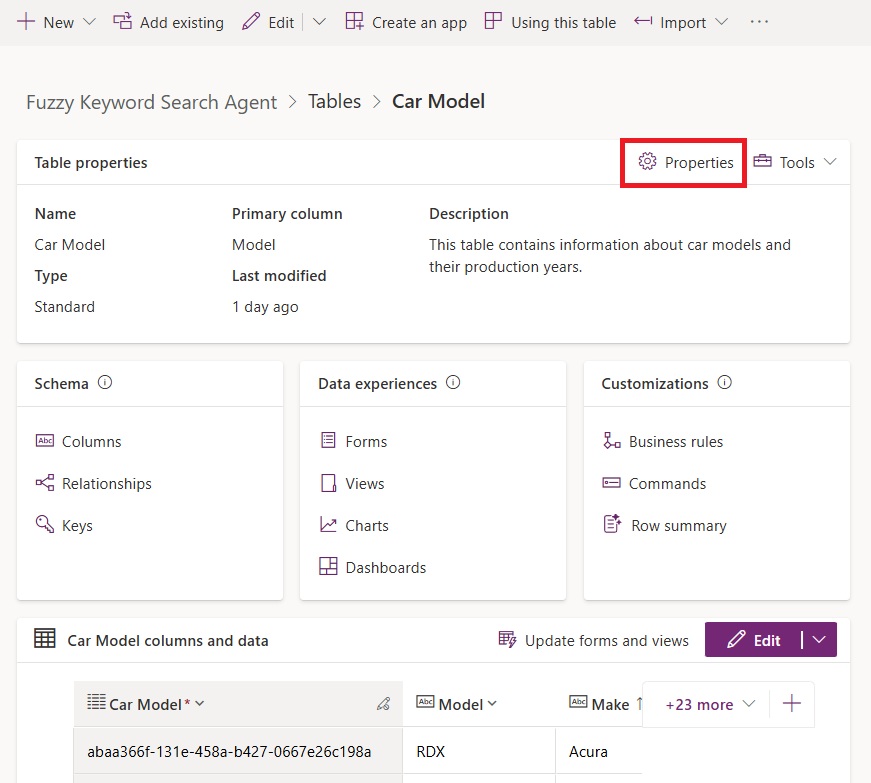
…and the check the box named appear in search results.

Then go to each column you want to be searchable and enable the Searchable setting. In this case, we only want the model and make columns of the car models table to be searchable. The list price and and the quantity in-stock columns will appear in the results set, but they do not need to be searchable.
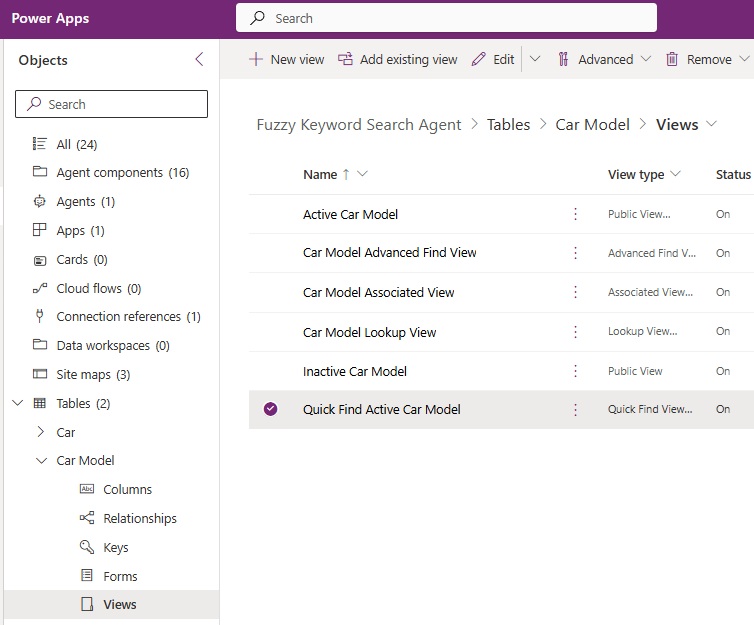
We must also update the car model table’s quick find view with the searchable columns and define the columns available to return in the result set. Go to views and open the Quick Find Active Car Model view.
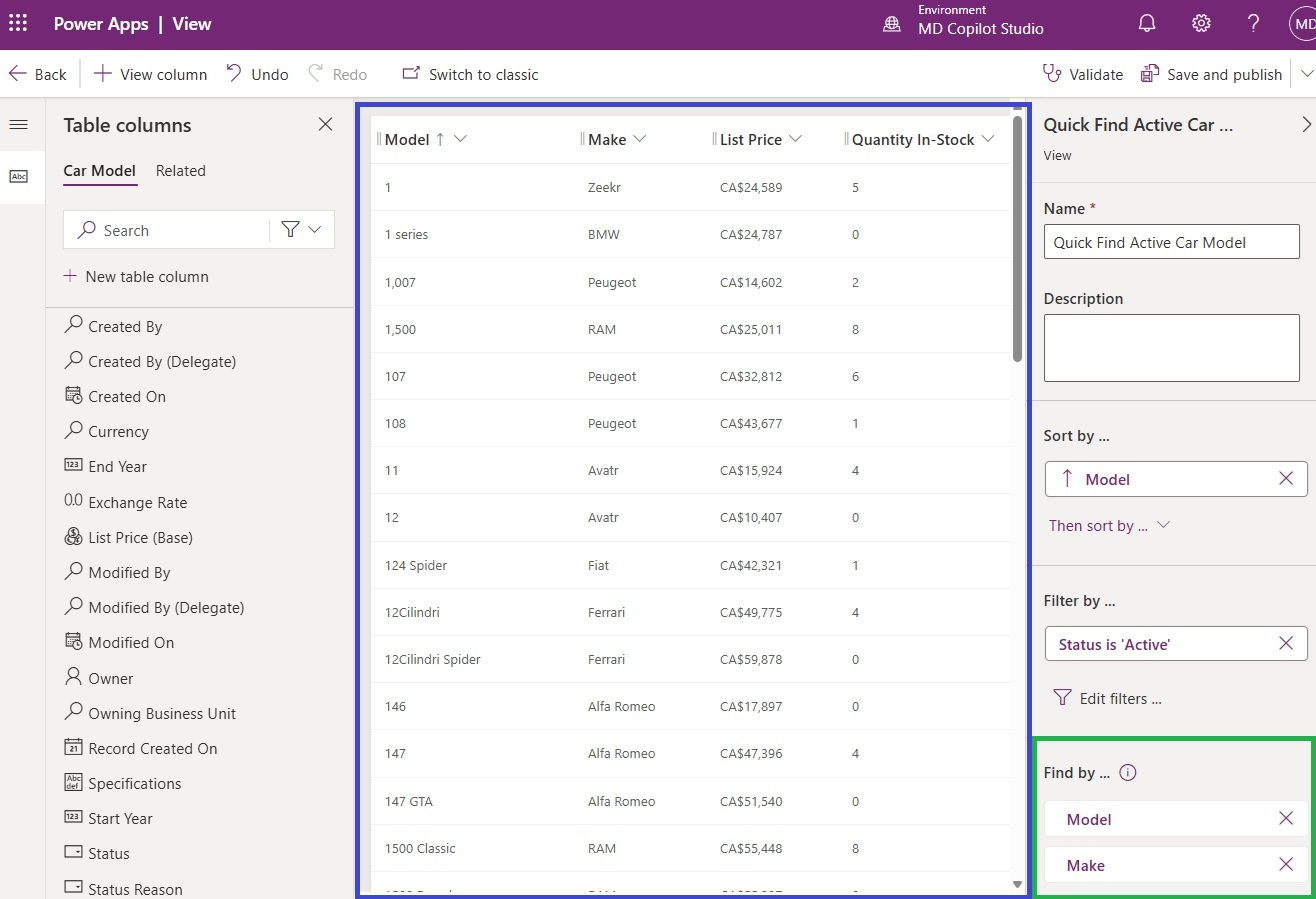
Add the searchable columns to the find by area (green box) and the columns to be returned in the result set to the view grid (blue box).
It’s worth noting there is only one quick find view for each a table in the environment. Therefore, multiple agents & applications could potentially use the same view. This is why we must define the fields our our specific agent will use in the entities JSON array.
Test The Agent’s Ability To Perform A Fuzzy Search
Now that search is enabled we are ready to test our agent. We can ask the agent about multiple car models at once and it returns the list price along with the number of cars available in inventory.
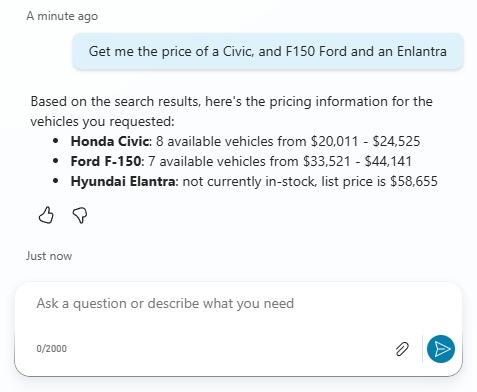
In this example, Elantra is misspelled and Ford F-150 excludes the dash symbol and has the words in a different order.
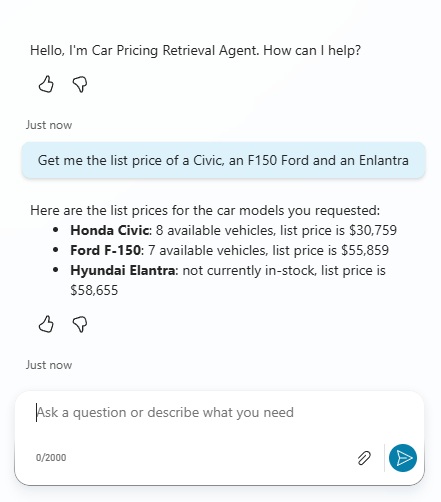
Notice that the agent calls the Search For A Car Model tool once per car model found in the user’s query.
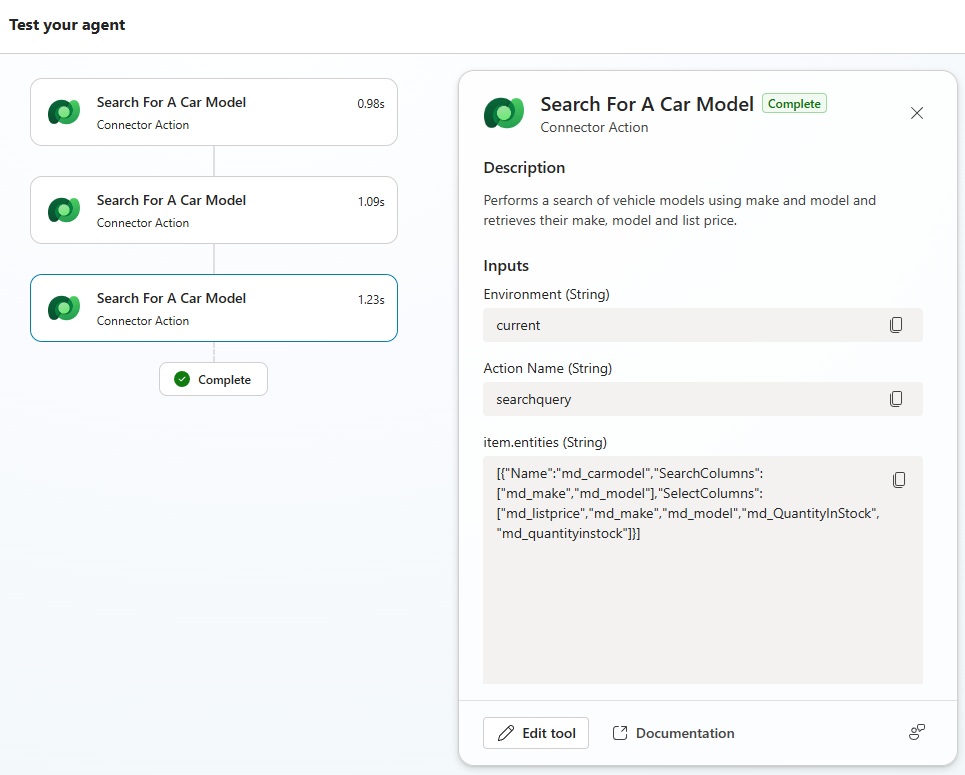
Review The Perform A Search In Dataverse Tool’s Response
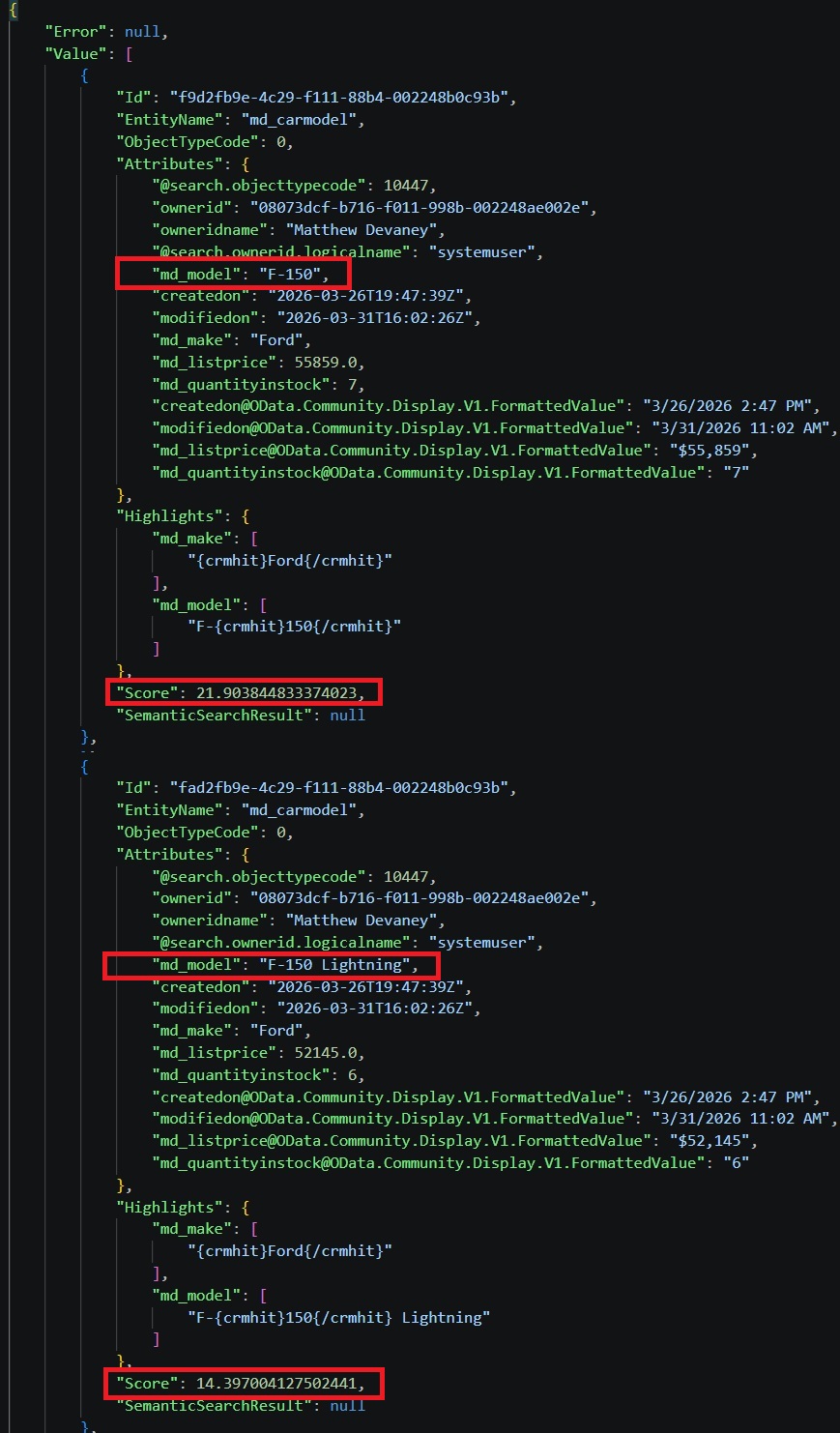
To understand how Dataverse search works, select any tool call in the activity map and copy & paste its response into a text editor. You will notice it contains an array of search results, along with a score. The higher the score the better the match. Also, the highlights column indicates which columns the query matched on.
At the end of the response we can see the original query and the altered query. The altered queries have multiple combinations of words in the original query and known alternate phrasings.
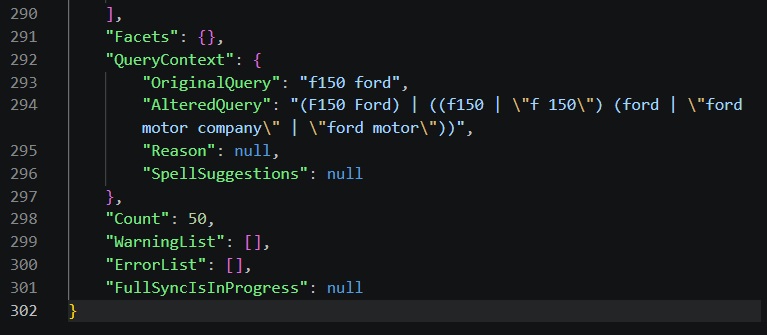
Find The Price Range Matching Cars In A Related Table
Now that we’ve completed a simple example, we will extend the agent further.
Let’s assume customers of the car dealership would prefer to know the actual prices of cars in inventory rather than the list price for a model. Therefore, after identifying the car model we should fetch the price range of matching vehicles in the cars table.
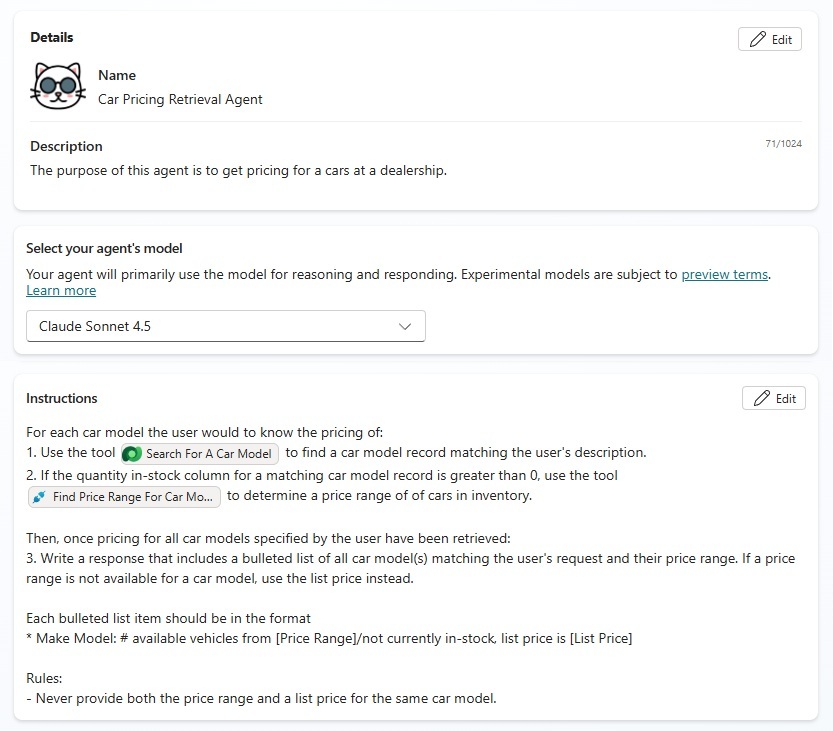
Go to the overview tab and replace the agent’s current instructions with these instructions:
| For each car model the user would to know the pricing of: 1. Use the tool [Search For A Car Model] to find a car model record matching the user’s description. 2. If the quantity in-stock column for a matching car model record is greater than 0, use the tool [Find Price Range For Car Model In Available Inventory] to determine a price range of of cars in inventory. Then, once pricing for all car models specified by the user have been retrieved: 3. Write a response that includes a bulleted list of all car model(s) matching the user’s request and their price range. If a price range is not available for a car model, use the list price instead. Each bulleted list item should be in the format: * Make Model: # available vehicles from [Price Range]/not currently in-stock, list price is [List Price] Rules: – Never provide both the price range and a list price for the same car model. |
Determine The Price Range Of Matching Cars Using An Agent Flow
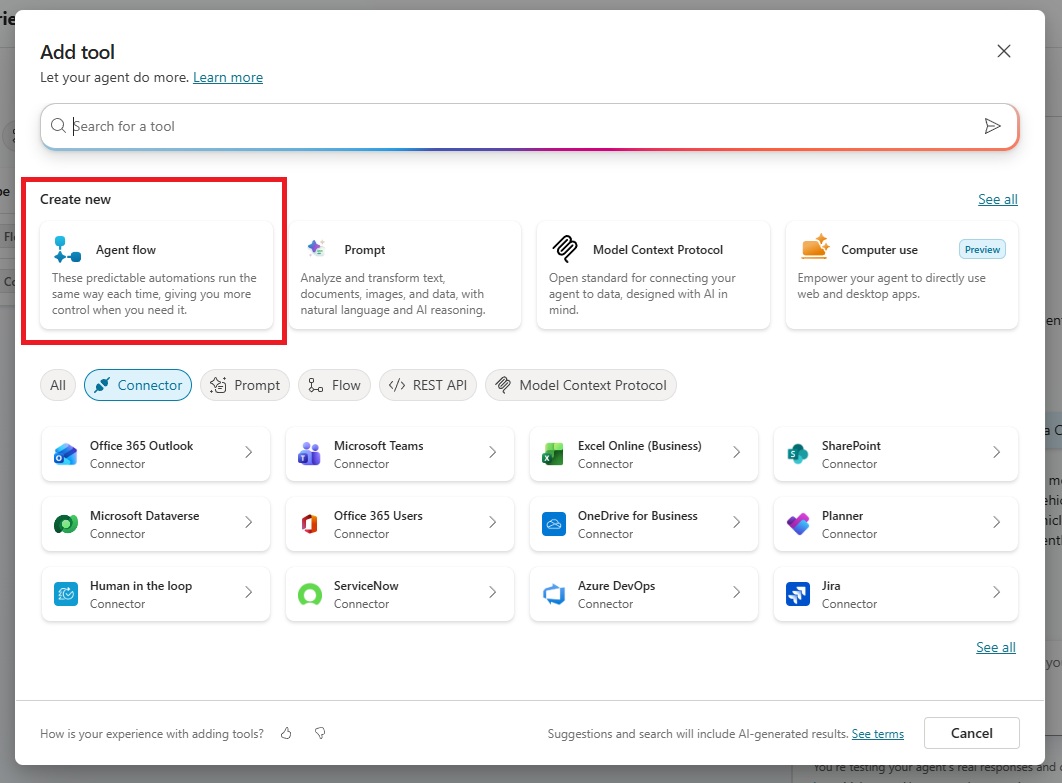
To get the price range of cars matching a specific model, we will need to perform multiple actions in sequence. This means we will need to create an agent flow. Open the tools menu and create a new agent flow.
Add the following actions to the agent flow and configure them as shown in the image below:
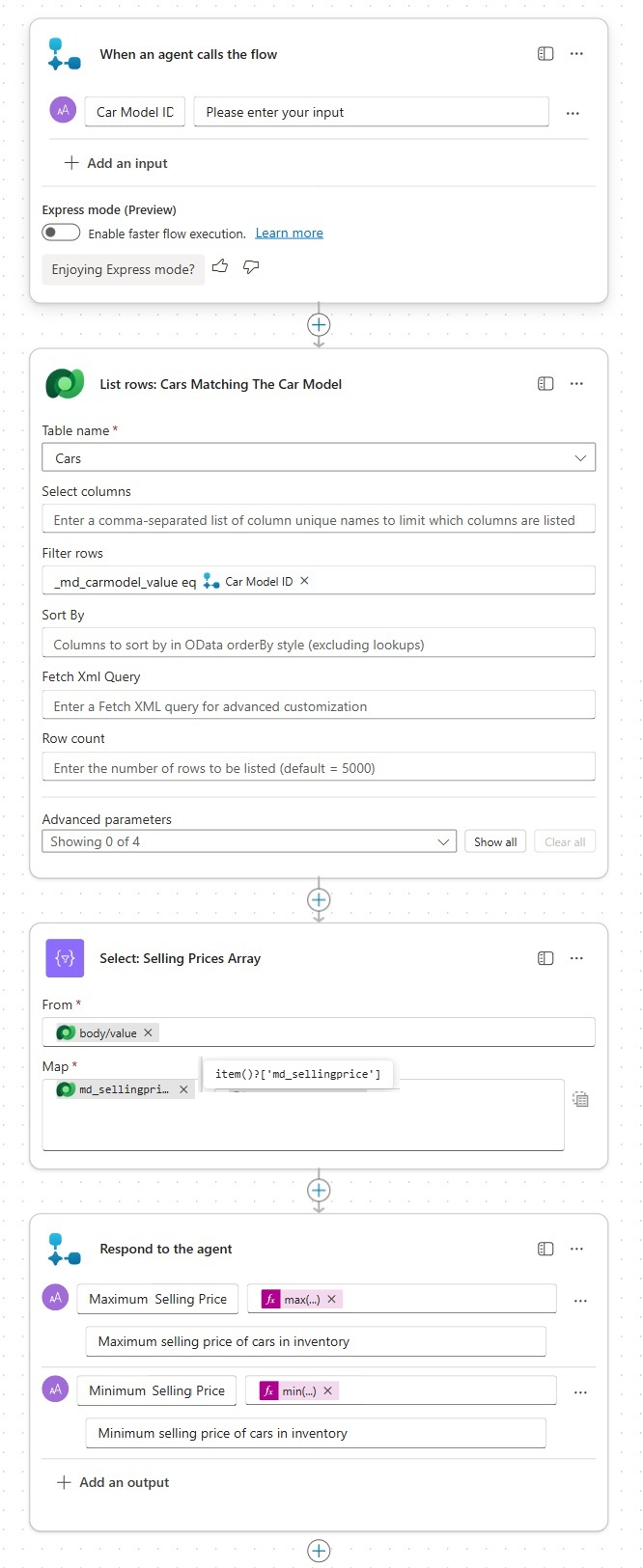
Use the max function to calculate the greatest value in the array of selling prices.
max(body('Select:_Selling_Prices_Array'))Code language: JavaScript (javascript)
And use the min function to determine the lowest value in the array of selling prices.
min(body('Select:_Selling_Prices_Array'))Code language: JavaScript (javascript)
Then save and publish the agent flow and return to the agent to complete the tool setup.

Evaluate The Agent’s Ability To Find The Price Range
That’s all we must to do to calculate the price range for cars in inventory. Test the agent with a query that includes multiple vehicles, some intentional misspellings, and car models with 0 cars in inventory. The result should be similar to the screenshot below.
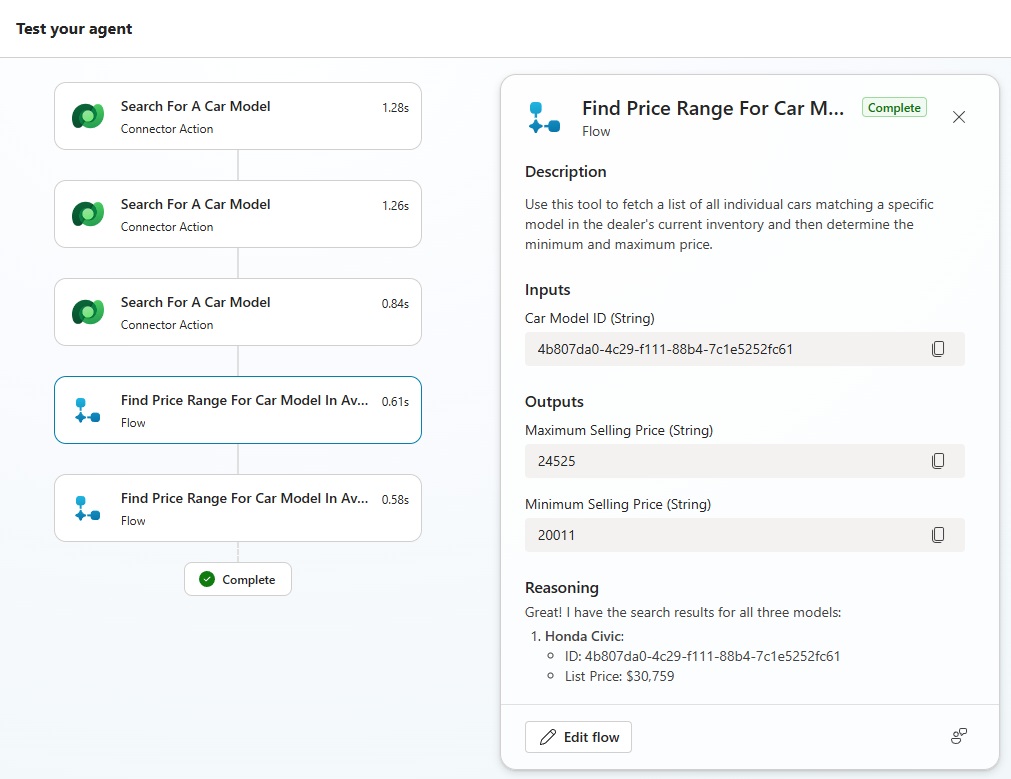
The activity map shows the agent made 5 tool calls:
- Search For Car Model (x3) to get the matching car model
- Find Price Range For Car Model In Available Inventory (x2) only for cars with quantity in stock greater than 0.
Video: Typo-Proof Your Copilot Studio Agent With Dataverse Search
Watch this video for a full demonstration of the techniques described in this article.
Did You Enjoy This Article? 😺
Subscribe to get new Copilot Studio articles sent to your inbox each week for FREE
Questions?
If you have any questions or feedback about How To Fuzzy Search Dataverse Tables In Copilot Studio please leave a message in the comments section below. You can post using your email address and are not required to create an account to join the discussion.







Do we have similar search capability in ServiceNow. I had added standard CMDB table in knowledge source. Now I need to do fuzzy match. ServiceNow is added into knowledge source via power platform connector