Copilot Studio: Ask For Human Review On AI Decisions

You can create an agent in Copilot Studio that asks for human-review when making a decision. This is especially helpful when the agent encounters an unexpected situation or when its too risky for an agent to decide alone. The agent can contact a human through an email message in Outlook or a chat message in Teams. Then once it receives the response it can be used to guide the agents next actions.
Introduction: The Loan Application Reviewer Agent
A bank uses the loan application reviewer agent to determine whether to accept or reject loan applications based on the intended purpose of the loan. When the reviews a loan purpose that is not in the list of pre-allowed/pre-flagged categories it sends the loan application to a human loan officer for review.

The loan officer receives an email message with the items for review. Then, when the loan officer submits the form the agent receives the response and uses it to decide what to do next.
Setup The SharePoint Lists And Forms
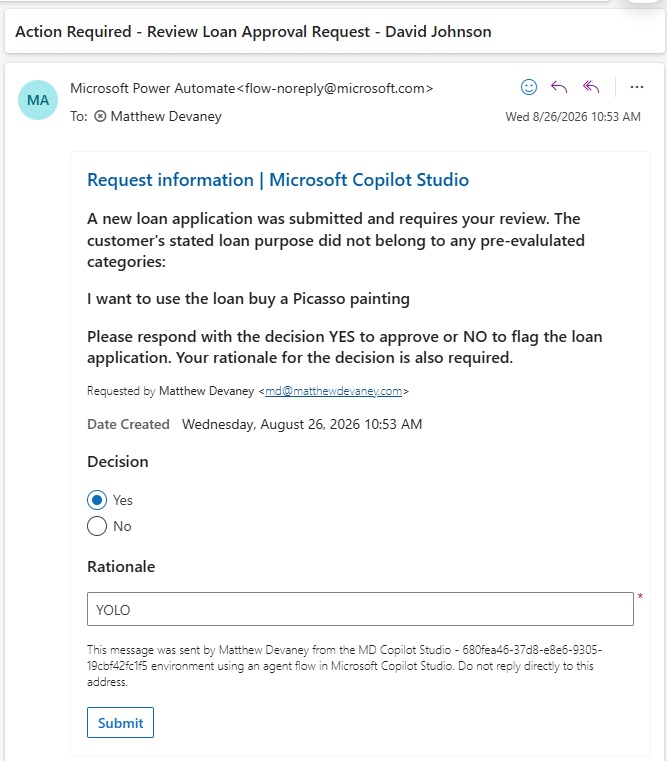
The bank loan application agent uses two SharePoint lists. The first SharePoint list is named Bank Loan Applications. Create this SharePoint list with the following columns and data types:
- Full Legal Name (text)
- Loan Amount Requested (number)
- Loan Purpose (text)
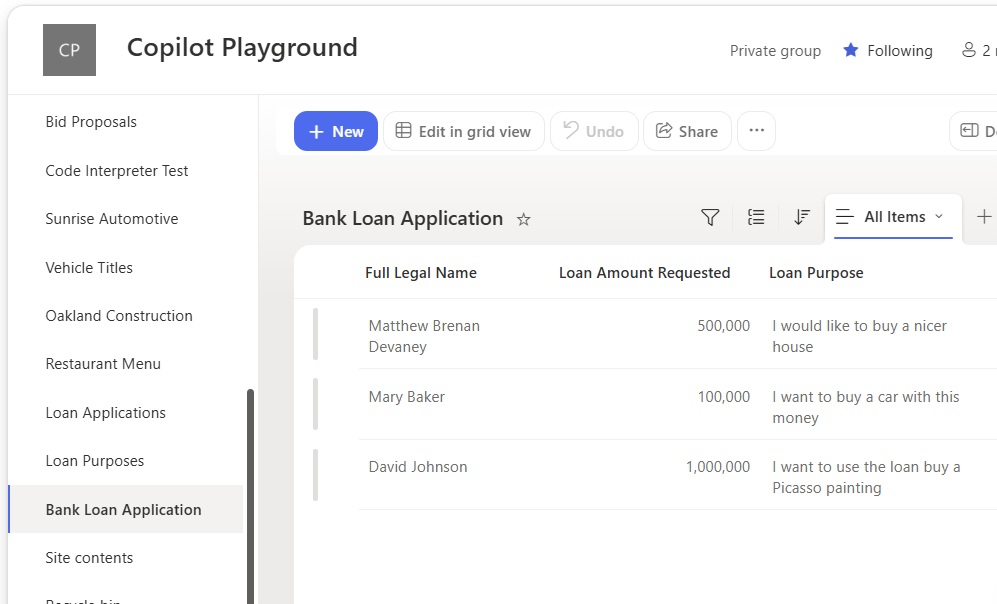
Next, we will create a form for the Bank Loan Applications SharePoint list to collect information from customers who want a loan.
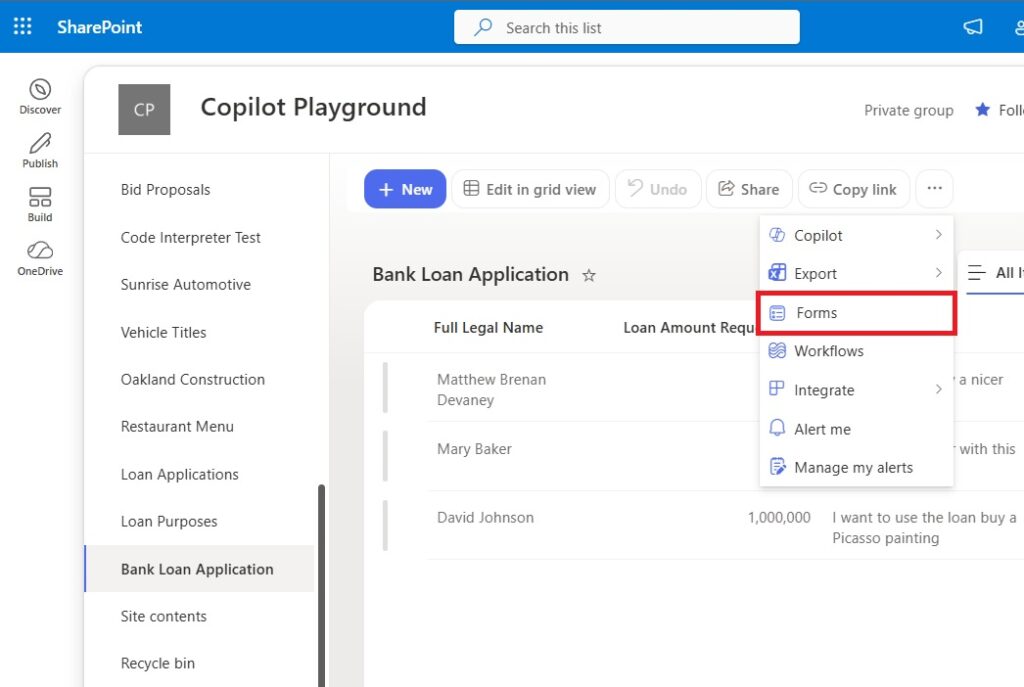
Add all 3 fields from the SharePoint list to the Bank Loan Application Form. Then save and exit the form creation menu.
Then, create a second SharePoint list named Loan Purposes. Add the following columns with these data-types:
- Purpose (text)
- Category (choice: Allowed, Flagged)
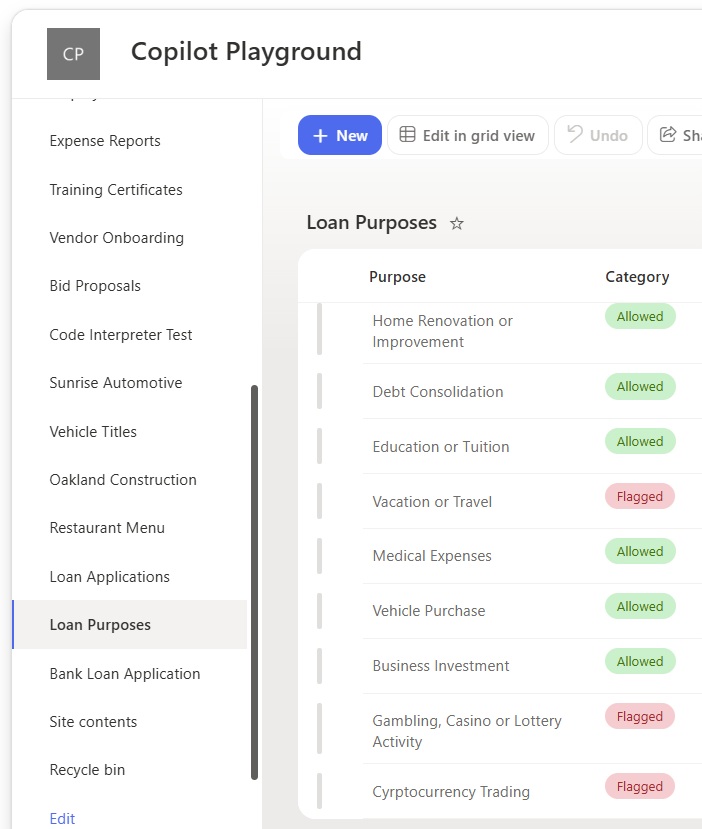
The Loan Purposes SharePoint list holds a set of pre-evaluated reasons for taking a loan and whether they are allowed or should be flagged. Populate the SharePoint list with data from the table below.
| Purpose | Category |
| Home Renovation or Improvement | Allowed |
| Debt Consolidation | Allowed |
| Education or Tuition | Allowed |
| Vacation or Travel | Flagged |
| Medical Expenses | Allowed |
| Vehicle Purchase | Allowed |
| Business Investment | Allowed |
| Gambling, Casino or Lottery Activity | Flagged |
| Cyrptocurrency Trading | Flagged |
Trigger The Workflow When A New Item Is Created In SharePoint
Open Copilot Studio and create a new workflow named Loan Application Reviewer. We want to trigger the workflow when the bank loan applicaiton form is submitted.
Choose the trigger type connector and select the Bank Loan Applications list. Then set the limit columns by view property to All Items.

Get The SharePoint List Items For Loan Purposes
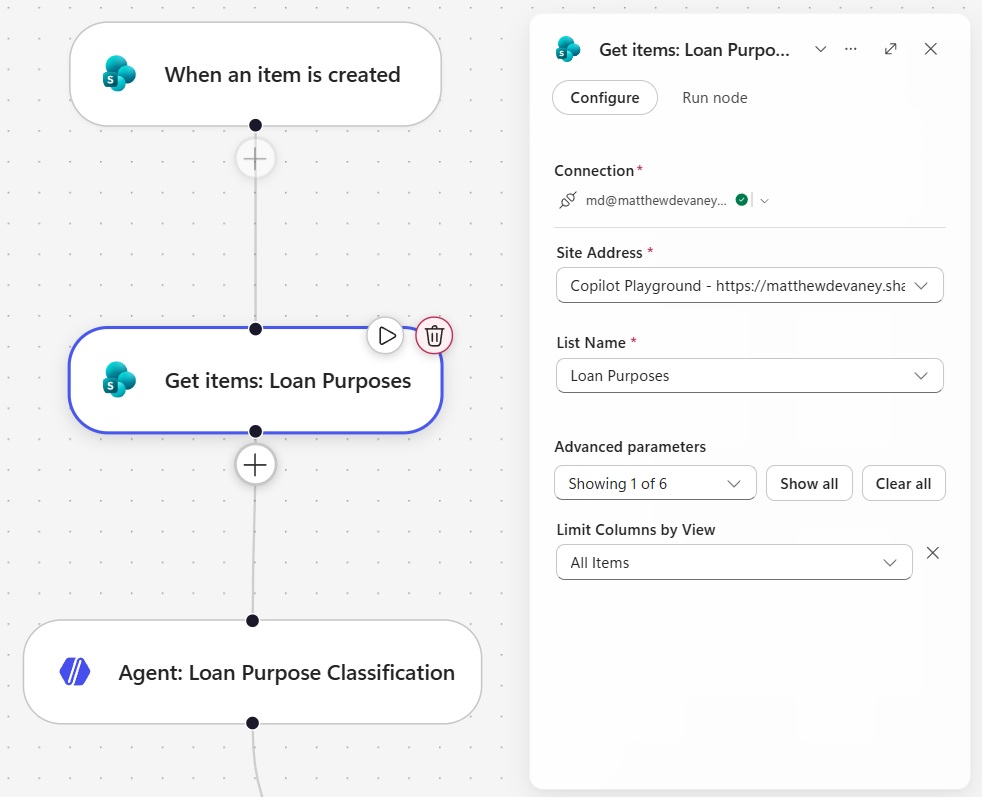
The agent will review the loan purpose on from the application against the list of pre-evaluated loan purposes. To do this, we need to send the full list of loan purposes and their categories to the agent.
Insert the SharePoint – Get Items action and select the Loan Purposes list. Set the limit columns by view property to All Items.
Create An Agent To Check If Human-Review Is Needed
An agent will evaluated whether the loan application is accepted, rejected, or needs human-review before a loan decision can be made. Add an agent node to the workflow and select an AI model.

Copy and paste these instructions into the agent. Replace the values in brackets with dynamic values.
| Your goal is to review the customer’s loan purpose and determine which category it belongs to: Approved, Flagged, or Human-Review. Steps: 1. Read the customer’s stated purpose for the loan: [Loan Purpose] 2. Look for a matching purpose in the supplied list: [Value] 3. Determine the purpose and category to be returned * If there is a matching purpose in the supplied list, return the EXACT purpose from the list and its matching category * If there is not any matching purpose in the supplied list, return an empty string (e.g. “” and the category “Human-Review”) 4. Return the value [Loan Purpose] |
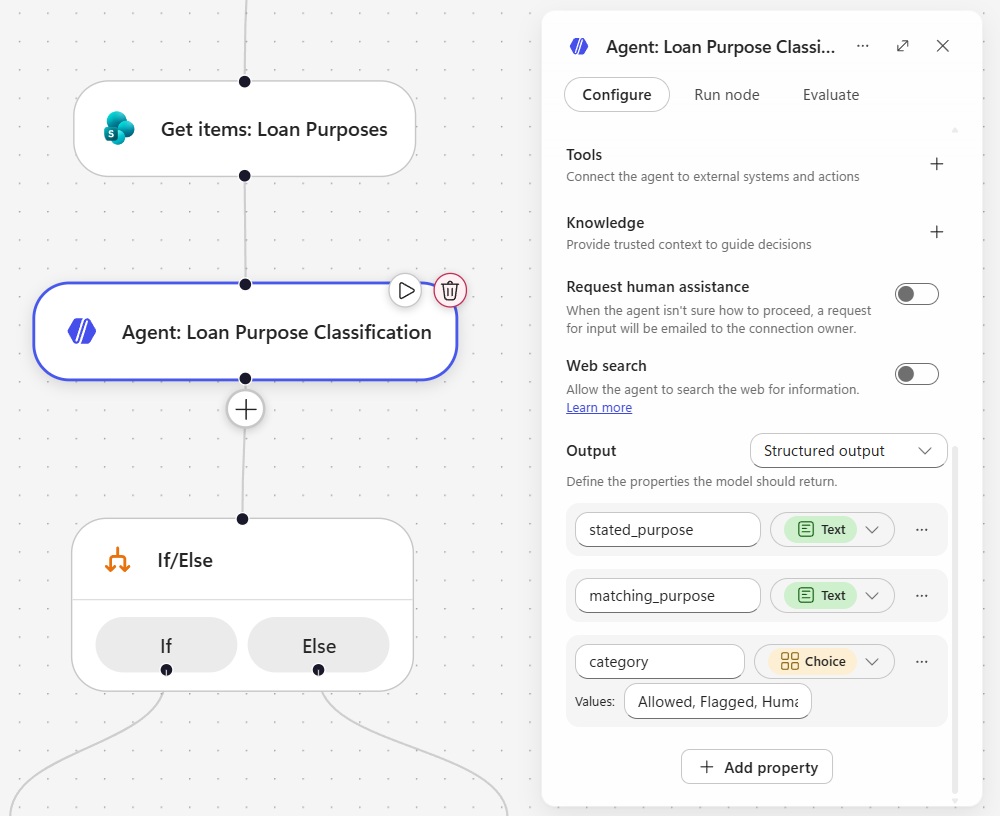
We always want the agent to output its response in the same format. Choose structured output and add the following properties:
- stated_purpose (text)
- matching_purpose (text)
- category (choice: Allowed, Flagged, Human-Review)
Define If/Else Action Conditions For Human-Review
After the agent runs, it will output a property named category with the value Allowed, Flagged, or Human-Review. When the category is Human-Review the application will be sent to a loan officer for review. Otherwise, the bank will rely on the agent’s decision to approve or reject the application.
Add an IF block to the workflow and set the condition to Category equals “Human-Review”.

Add A Human-Review Action To Send An Outlook/Teams Message
The human review action will send an Outlook or Teams message to the loan officer when their input is needed. Insert a human review action into the IF branch with the title “Action Required – Review Loan Approval Request – [Full Legal Name]”.

Copy and paste the following message into the human review action.
| A new loan application was submitted and requires your review. The customer’s stated loan purpose did not belong to any pre-evalulated categories: [stated_purpose] Please respond with the decision YES to approve or NO to flag the loan application. Your rationale for the decision is also required. |
Assign the human review action to a reviewer and choose the channel Outlook. Then add the following two input fields:
- Decision (yes/no)
- Rationale (text)

Update The SharePoint List With The Loan Decision Information
Once the human review action is completed, the agent will record the decision in the SharePoint list. Go to the SharePoint list and create these additional columns:
- Decision (choices: Allowed, Flagged)
- Is Human-Reviewed (yes/no)
- Human-Review Rationale (multiple lines of text)
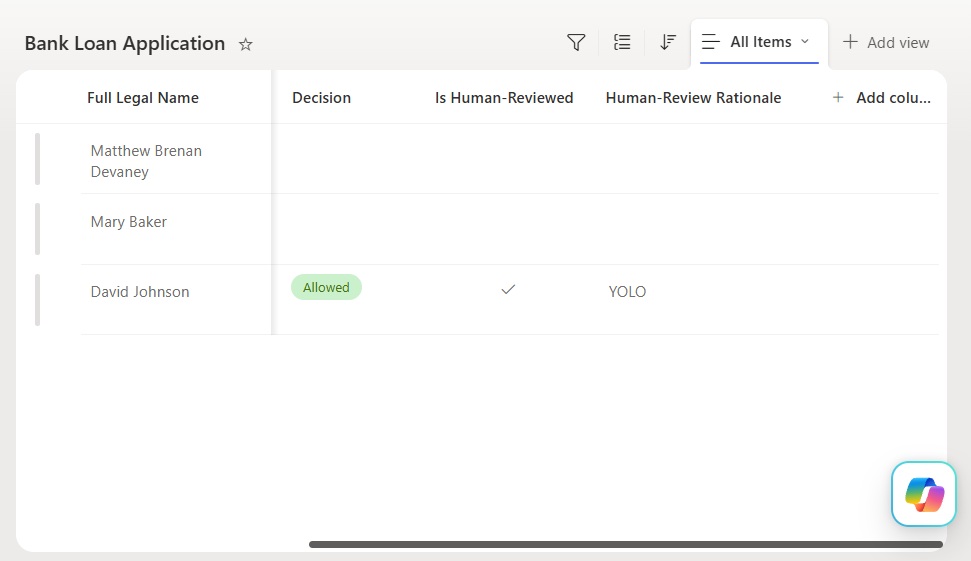
After the human review action, insert a SharePoint – Update List Item action. Choose the Bank Loan Application list and use the ID value from the workflow trigger.

Set the Decision field value to the following expression to dynamically choose Allowed or Flagged based on the human review action’s outcome. Note that the decision field is named boolean, and despite that name, is a text data type.
| @{if(equals(body(‘Human_review__Loan_Purpose’)?[‘boolean’],’Yes’),’Allowed’,’Flagged’)} |
Then set the Is Human Reviewed field to Yes and Human-Review Rationale field to to the dynamic value from the human review action.

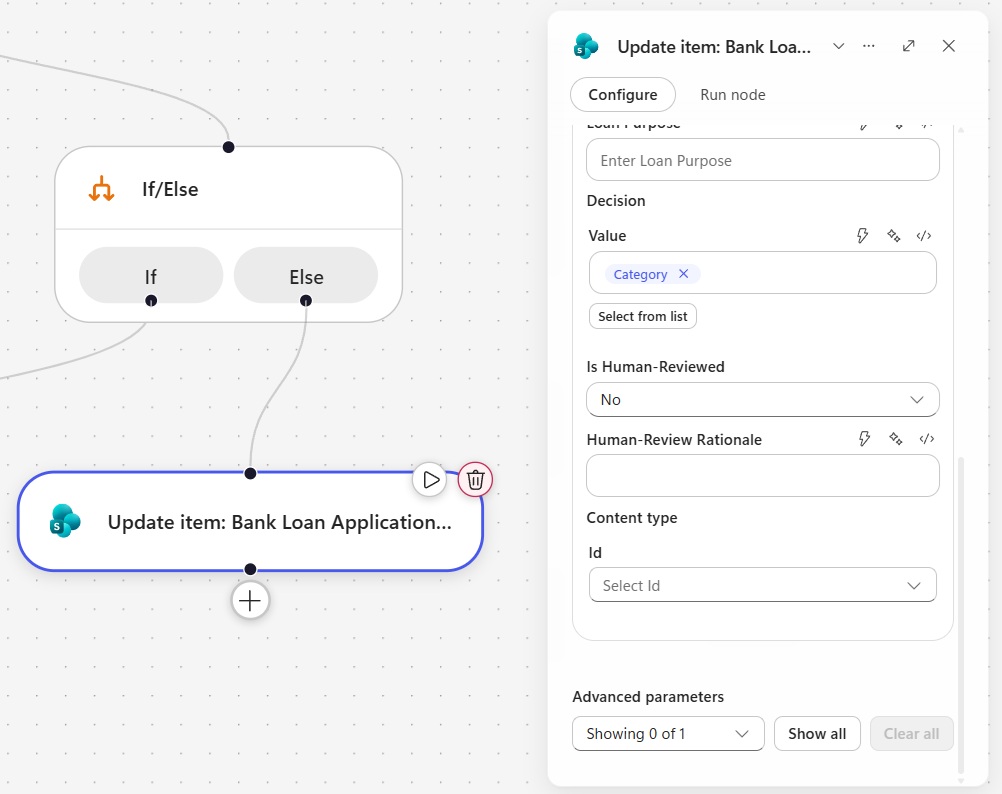
Then, add another SharePoint – Update List Item action to the Else branch. Choose the same SharePoint list and Item ID. Set the Decision field value to the dynamic value of the agent’s category property. Then set the Is Human-Reviewed field to No. Leave the Human-Review Rationale field blank.
Test The Bank Loan Application Reviewer Agent
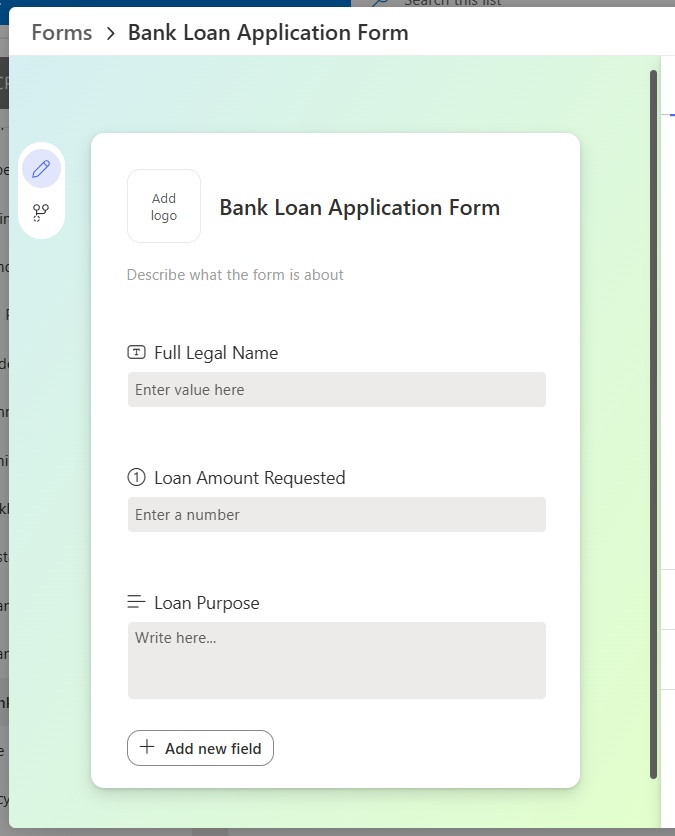
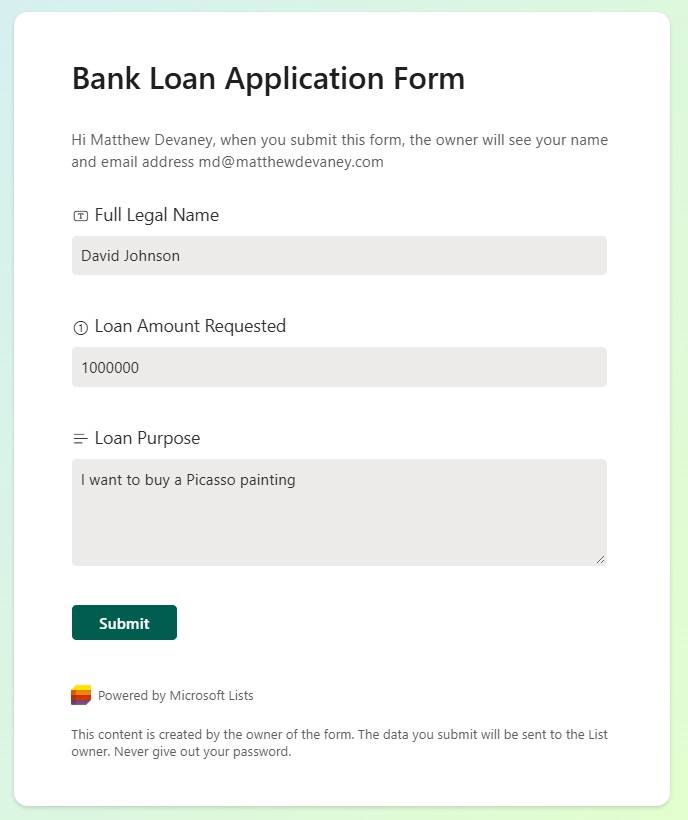
We’re done. Save and publish the workflow. Then open the Bank Loan Application and submit it with the following information.
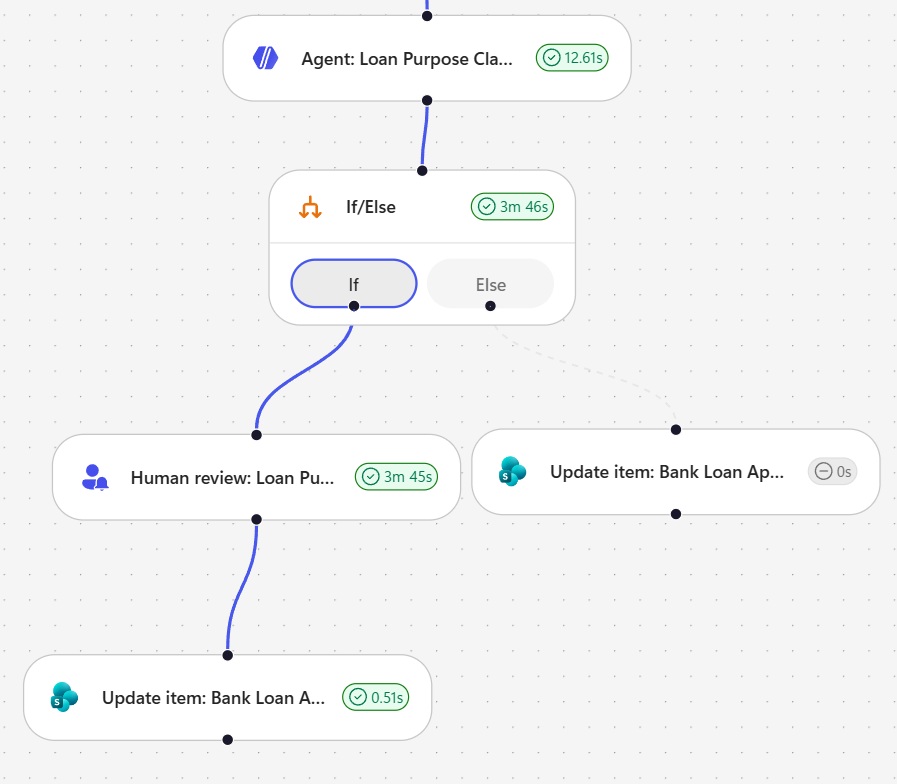
The workflow runs in Copilot Studio and the agent decides the loan application should be human-reviewed.
The loan officer receives an email message to help the agent make a decision on the loan application. Fill-in the form with the following values and press submit.
The agent waits for the loan officer’s response. Then once it receives the form submission it moves onto the next step.
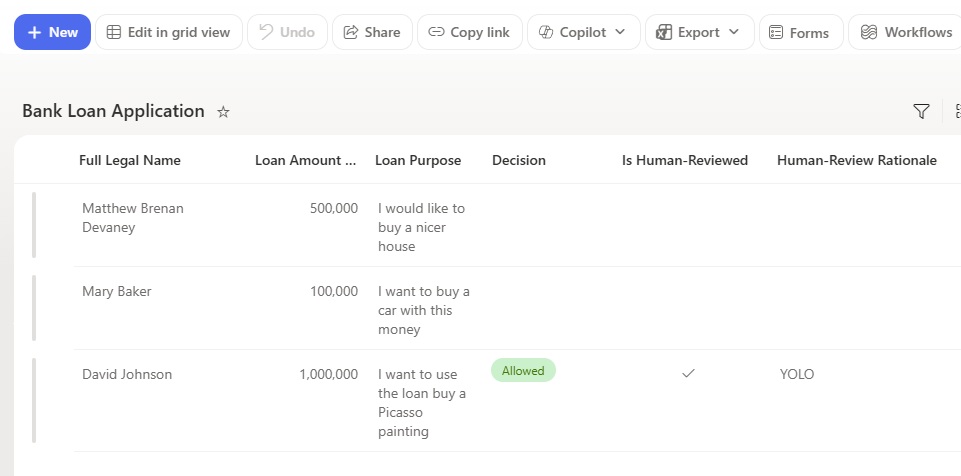
Finally, the agent records the loan decision in the bank loan application SharePoint list.
Video: Copilot Studio Add Human Review to Your AI Agents
Watch this video for a full walkthrough of how to build the agent described in this article
Did You Enjoy This Article? 😺
Subscribe to get new Copilot Studio articles sent to your inbox each week for FREE
Questions?
If you have any questions or feedback about Copilot Studio: Ask For Human Review On AI Decisions please leave a message in the comments section below. You can post using your email address and are not required to create an account to join the discussion.