How To Create Agent Skills In Copilot Studio

In Copilot Studio you can use agent skills to unlock all sorts of functionality that is not found in Power Platform connectors. Skills are able to use any of the 50+ python packages included in the new agent runtime to do things like edit Word & Excel files, create data visualizations and more. And agents skills can also give your agents reusable, domain specific expertise just like in Github Copilot and Claude Code.
Introduction: The Agent Skill To Generate A PDF
The Vehicle Document Creator agent has the ability to create several document types, including a certificate of origin pdf. The user sends a message to the chat window with the document details.
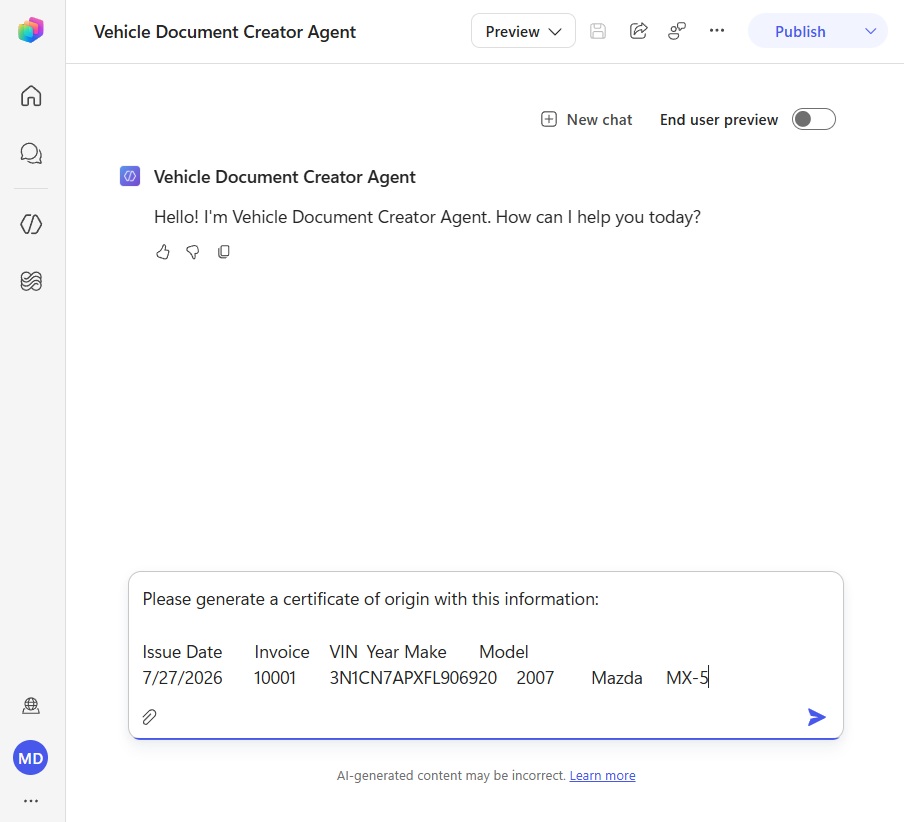
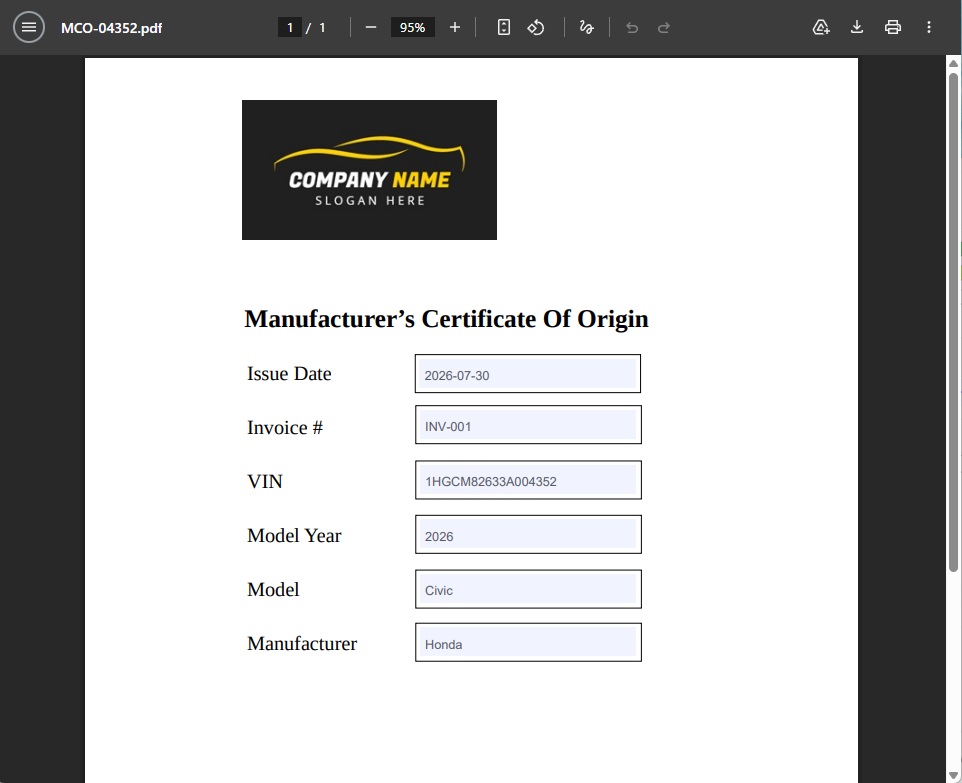
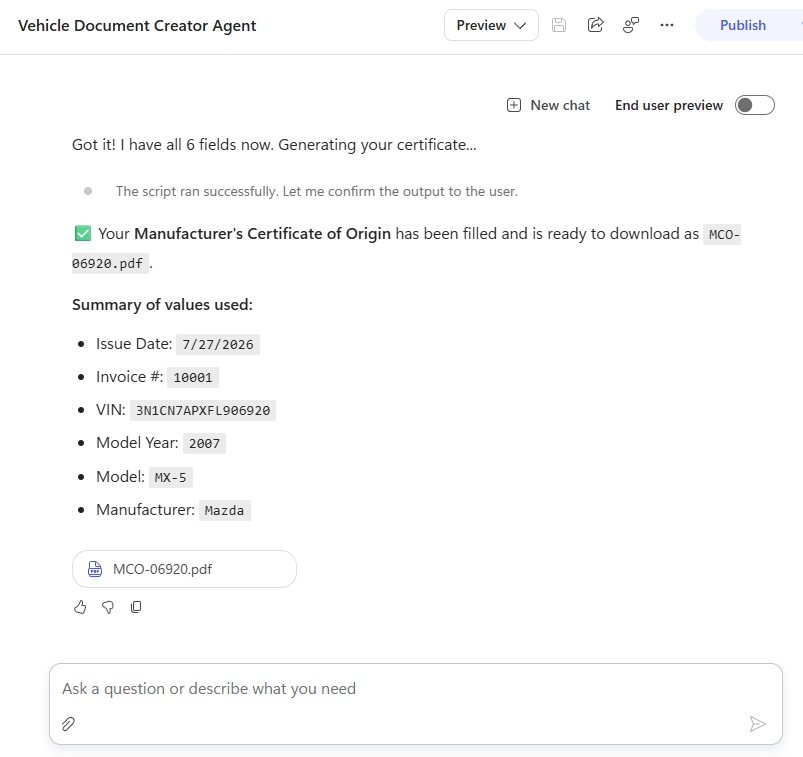
Then the agent generates the PDF using an agent skill named certificate-of-origin and outputs it to the chat. The final result looks like this.
Start A New Skill Creator Agent In Copilot Studio
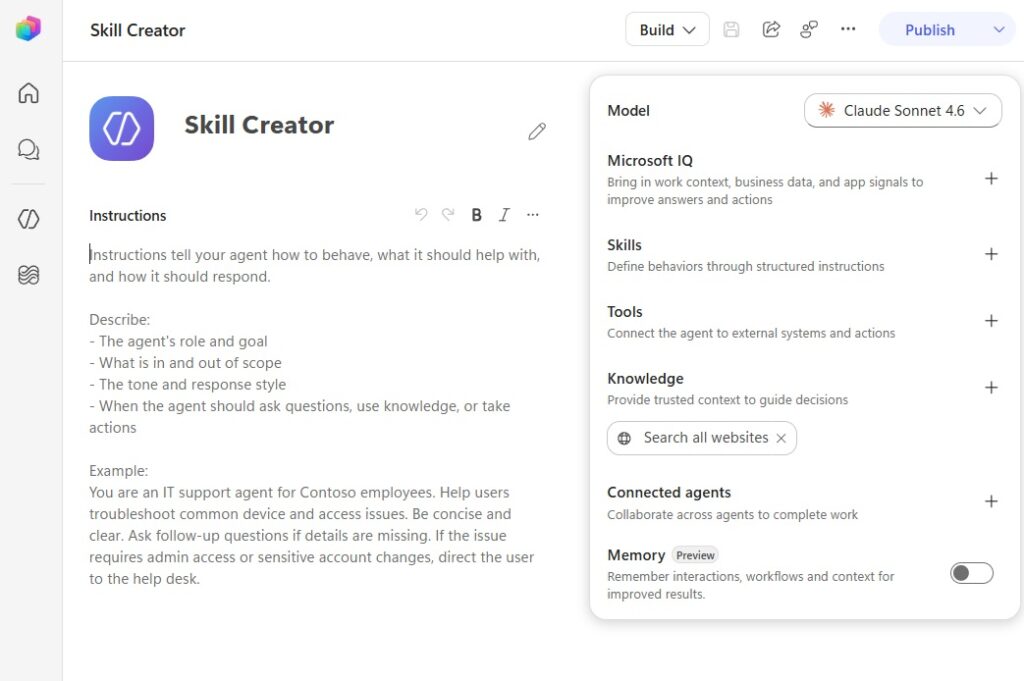
Open Copilot Studio and create a new agent named Skill Creator. Do not give it any instructions, tools or knowledge. Save and publish the agent.
Chat With The Skill Creator Agent To Build The Skill
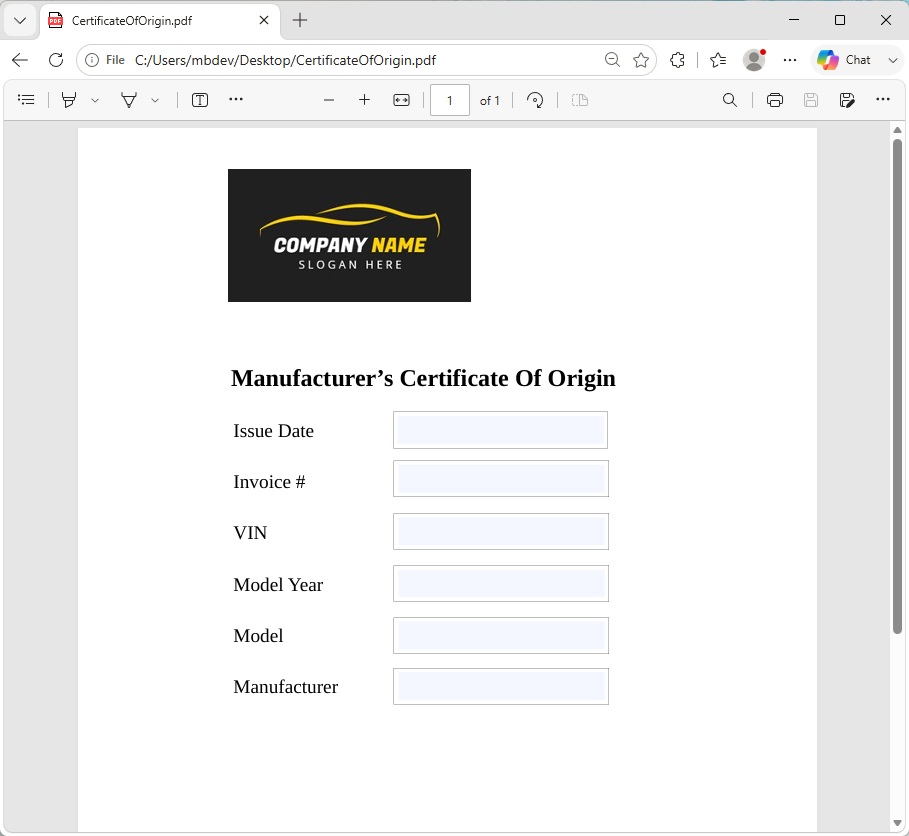
We want the skill to fill-in a blank manufacturer’s certificate of origin pdf and output the result to the chat window. Download a copy of the blank certificate of origin pdf from my Github repository.
Go to the preview screen and chat with the agent to build the skill.
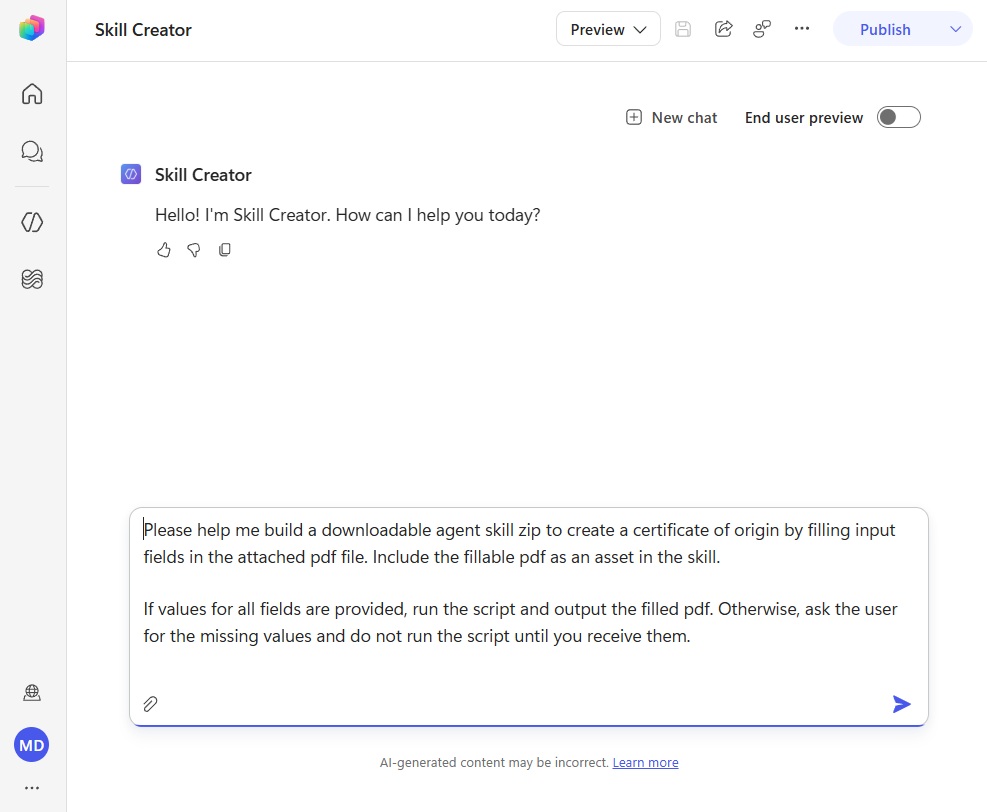
Send the Skill Creator agent this exact message.
| Please help me build a downloadable agent skill zip to create a certificate of origin by filling input fields in the attached pdf file. Include the fillable pdf as an asset in the skill. If values for all fields are provided, run the script and output the filled pdf. Otherwise, ask the user for the missing values and do not run the script until you receive them. I want to review the full skill.md and any scripts you’ve created before you output the agent skill zip to chat. Do not send me the zipped skill file until I tell you it’s ready. |
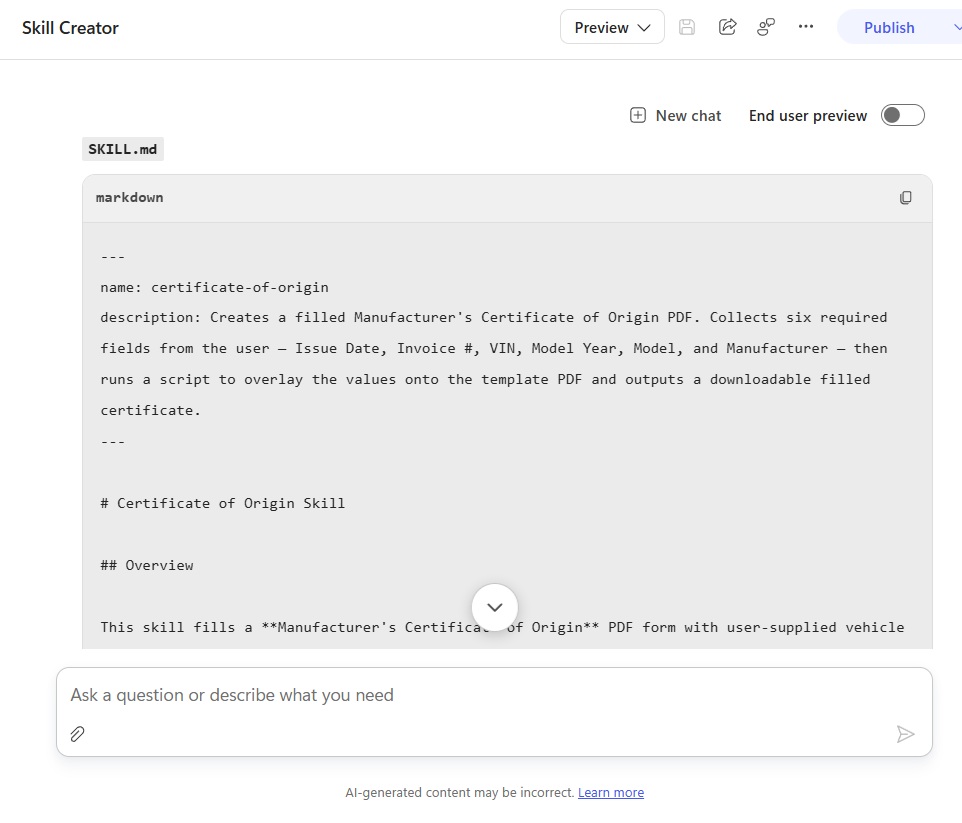
The agent responds with the full instructions generated for the SKILL.md file.
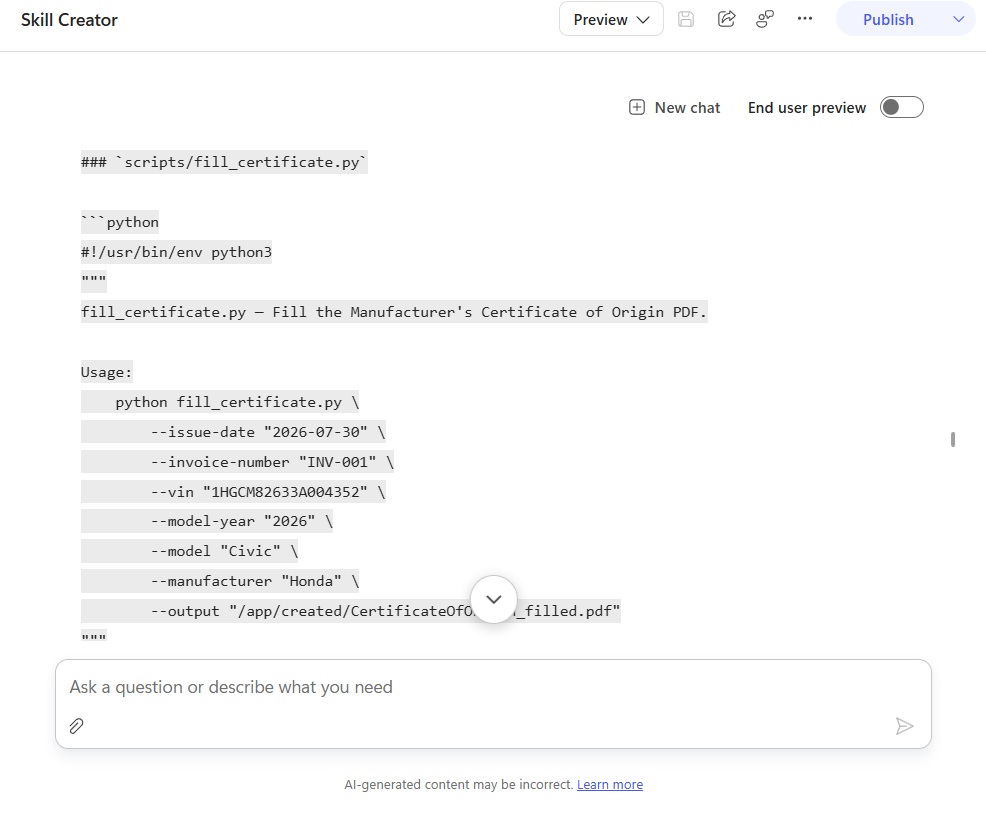
And it also outputs the Python code used in the script to fill the blank pdf.
Request Changes To The Python Script And Instructions
The Skill Creator agent should not be trusted to build a perfect skill on the first try. Thoroughly review all instructions in the SKILL.md file. And look at all of the code generated in the python script. To make the reviewing the code easier we can copy and paste it into VS Code.
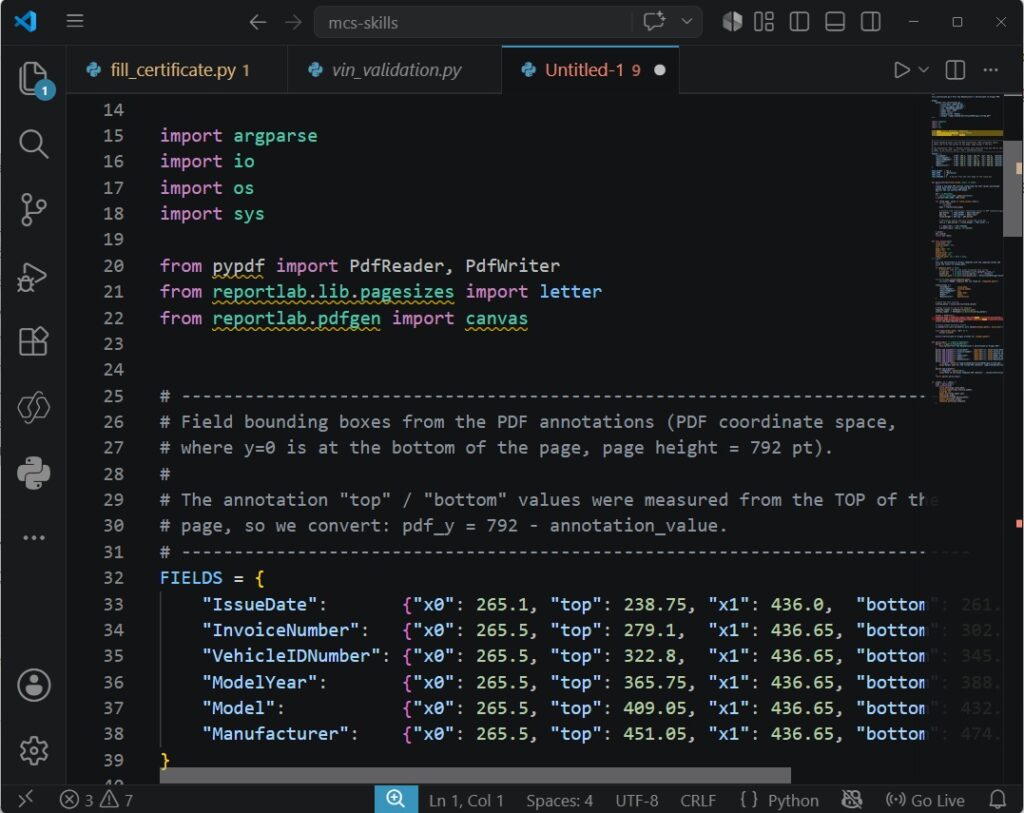
After we have reviewed the instructions and scripts, we can ask the agent to make changes.
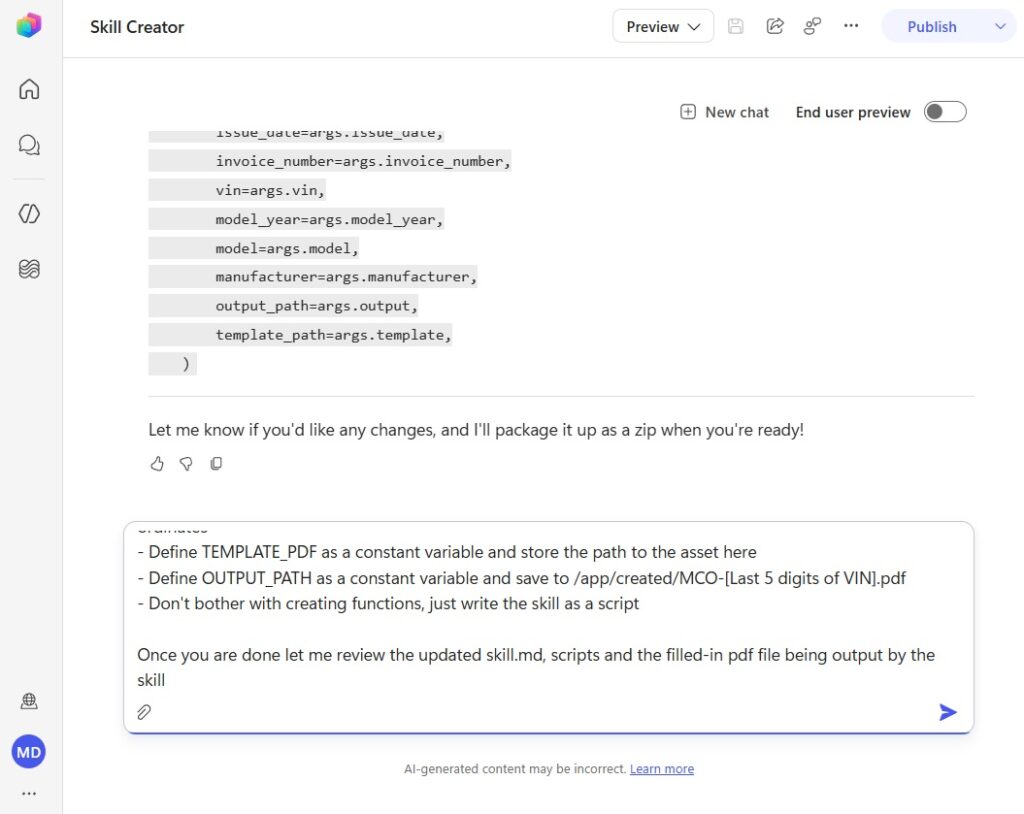
This is an example of the changes we might want to request for our agent skill.
| Update the skill and scripts to make the following changes: – The output PDF should be named MCO-[Last 5 digits of VIN] – Determine the fieldnames and then use them to fill-in the PDF document instead of using field layout co-ordinates – Define TEMPLATE_PDF as a constant variable and store the path to the asset here – Define OUTPUT_PATH as a constant variable and save to /app/created/MCO-[Last 5 digits of VIN].pdf – Don’t bother with creating functions, just write the skill as a script Once you are done let me review the updated skill.md, scripts and the filled-in pdf file being output by the skill |
Review The PDF Generated By The Agent In Copilot Studio
Before we tell the agent to output the agent skill, we ought to review the pdf output. Select the PDF icon in the chat to download the file.
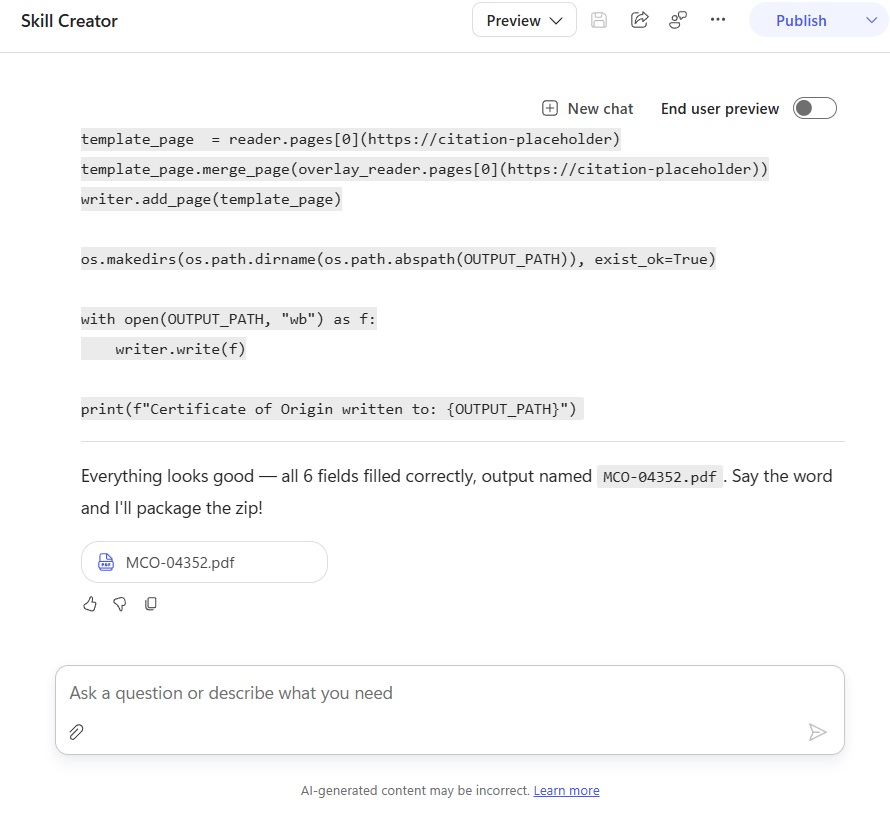
When we open the file, we can see the certificate of origin is filled with sample values. This means the script will successfully populate the blank pdf’s fields.
Download The Agent Skill Zip File From The Chat Window
Now that we have confirmed, ask the agent to “package the skill zip file and put it into the chat to download.” Then download the agent skill zip file.
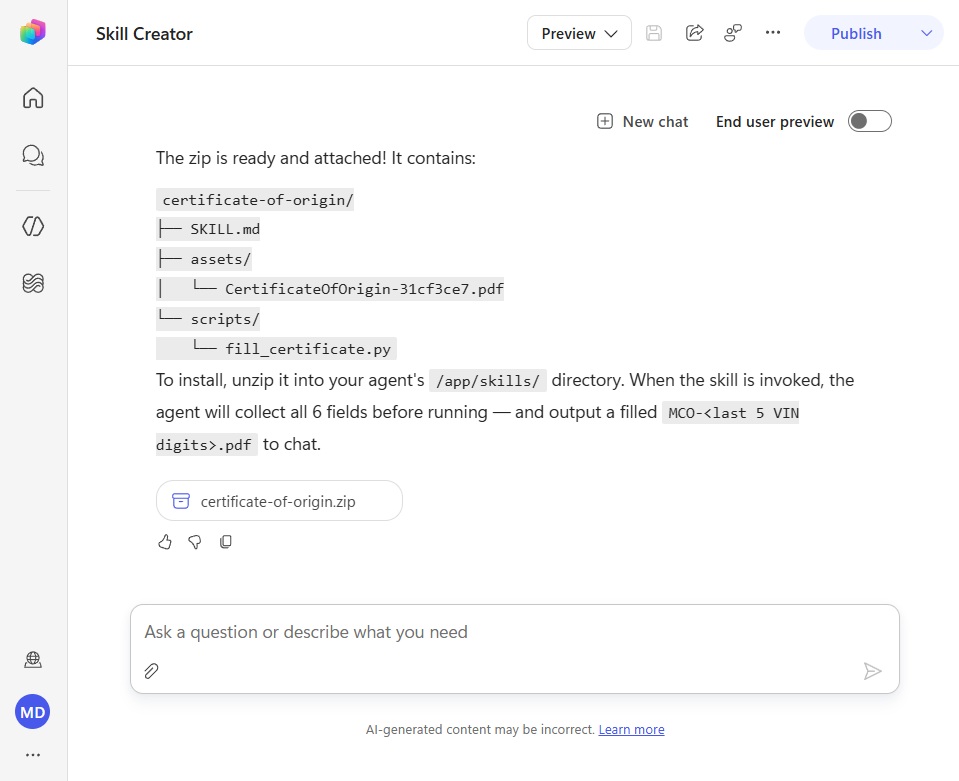
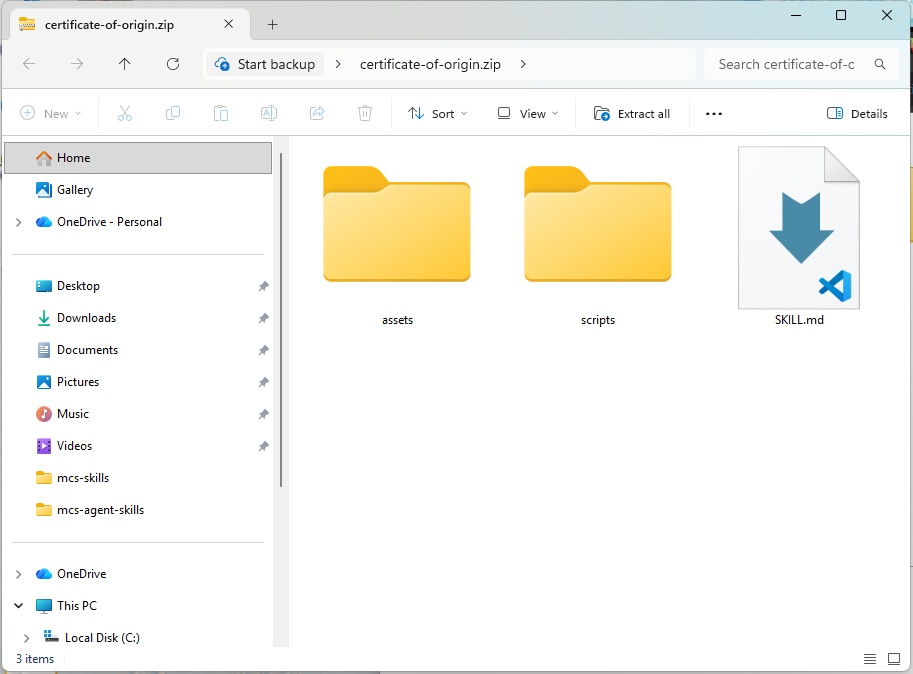
Ensure the zip file has a SKILL.md, an assets folder and a scripts folder in the root directory. For example, the image below shows these items in a folder named certificate of origin. Move the files down to the root level of the zip and delete the empty certificate of origin folder.
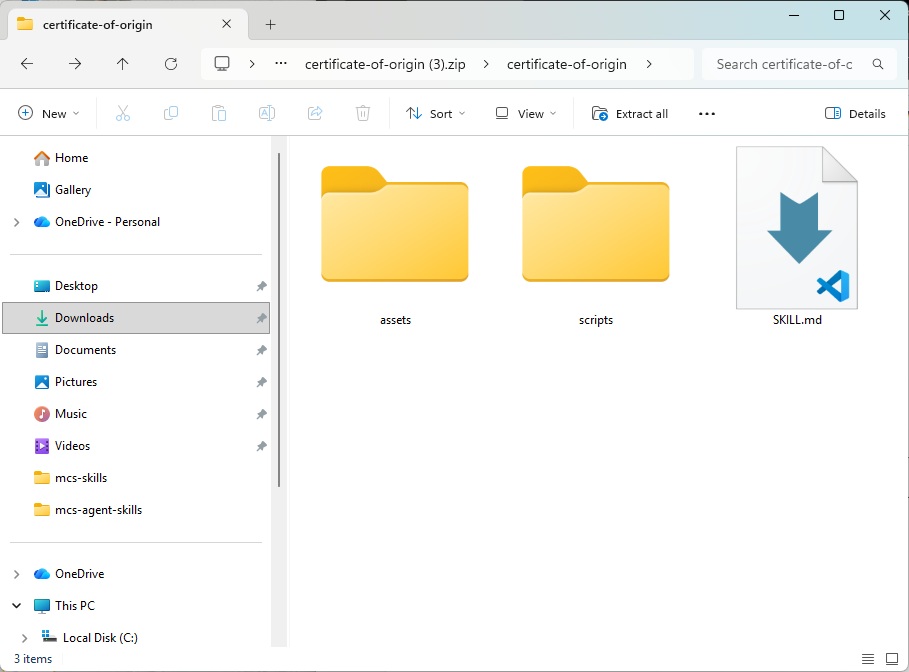
This is how the zip file contents should be organized instead.
Add The Agent Skill To A New Agent In Copilot Studio
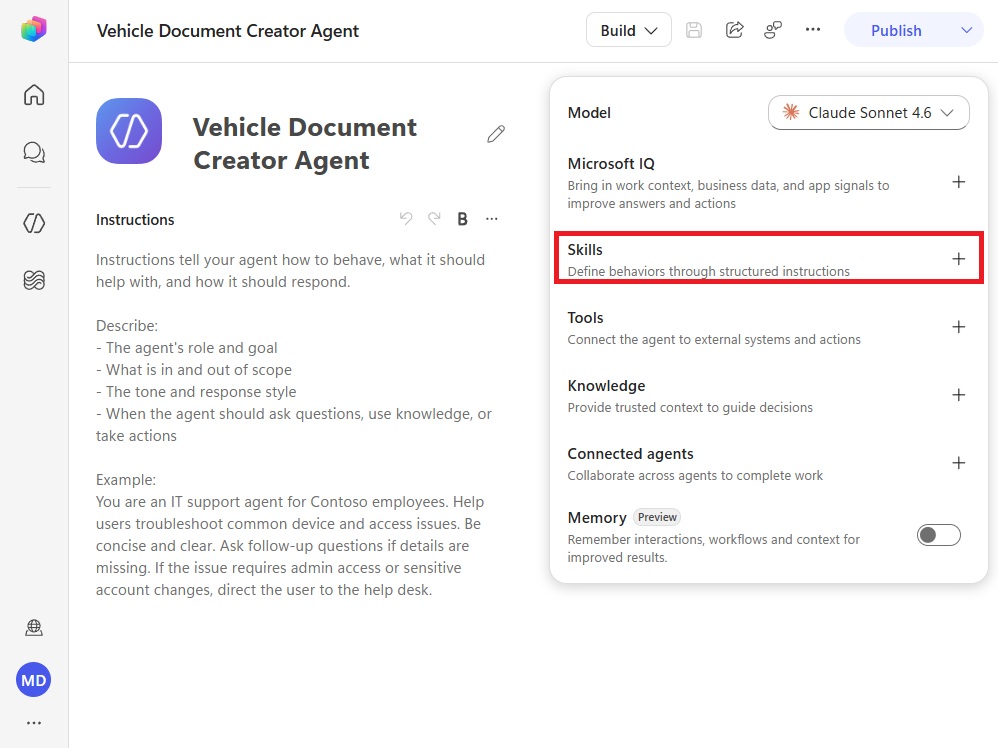
Create another new agent and name this one Vehicle Document Creator Agent. Select the Skills button in the agent’s build menu.
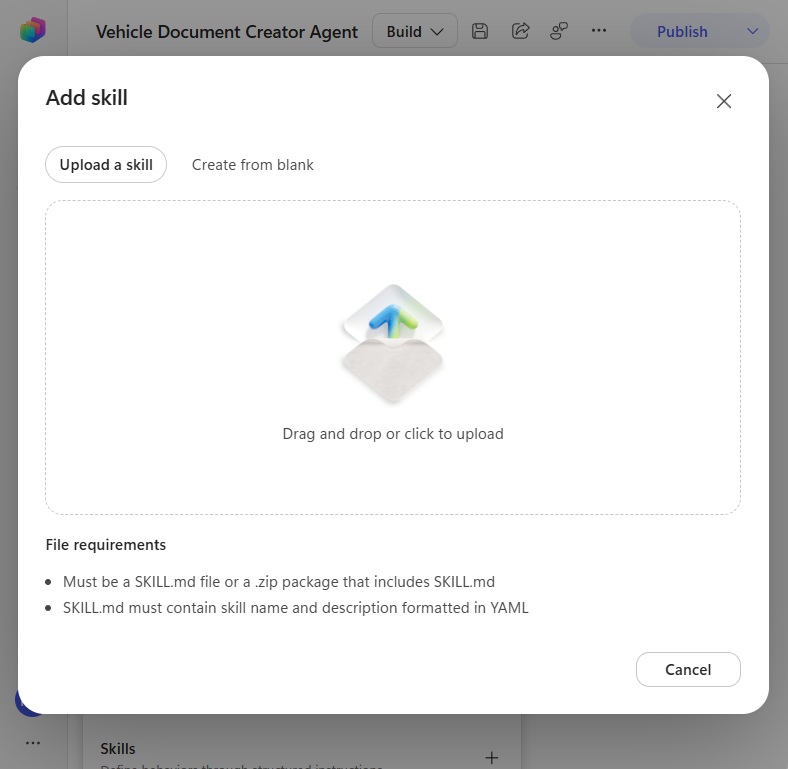
Then click on the drag and drop upload area and select the certificate-of-origin.zip file from the downloads folder.
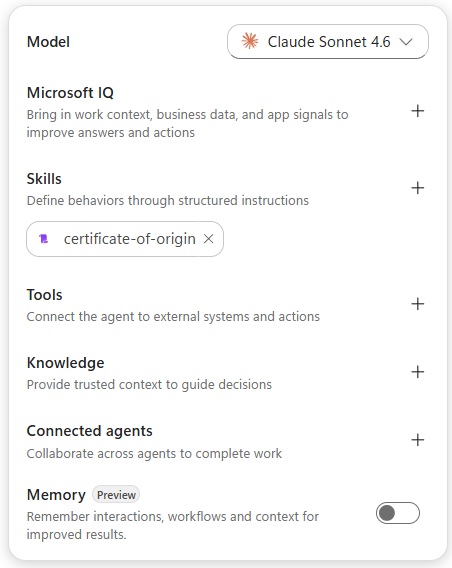
Now the certificate-of-origin agent skill appears inside the new agent.
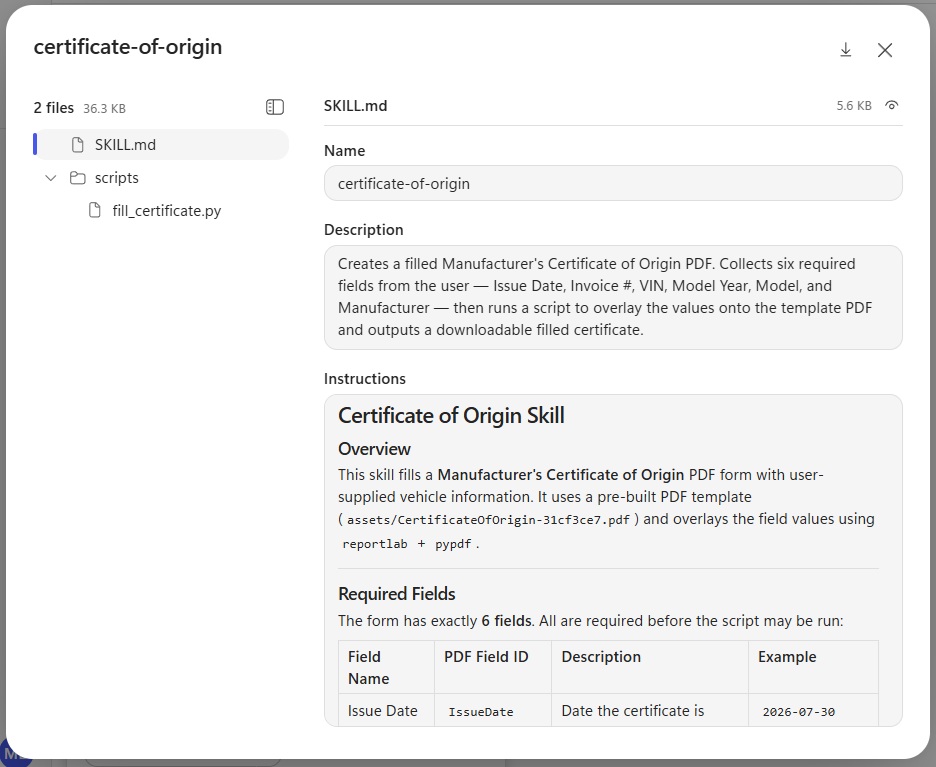
We select the skill to inspect it, and when we do that we see the instructions included in a skill md file and the any included python scripts. The assets folder does not appear in this menu, but it is included in the skill.
Test The Agent Skill And Generate A PDF File
Save and publish the agent. Then go to the preview screen and ask the agent to generate a certificate of origin.
Provide the following information in the message sent to the agent.
| Please generate a certificate of origin with this information: Issue Date Invoice VIN Year Make Model 7/27/2026 10001 3N1CN7APXFL906920 2007 Mazda MX-5 |
The agent responds by dropping the completed certificate of origin into the chat window.
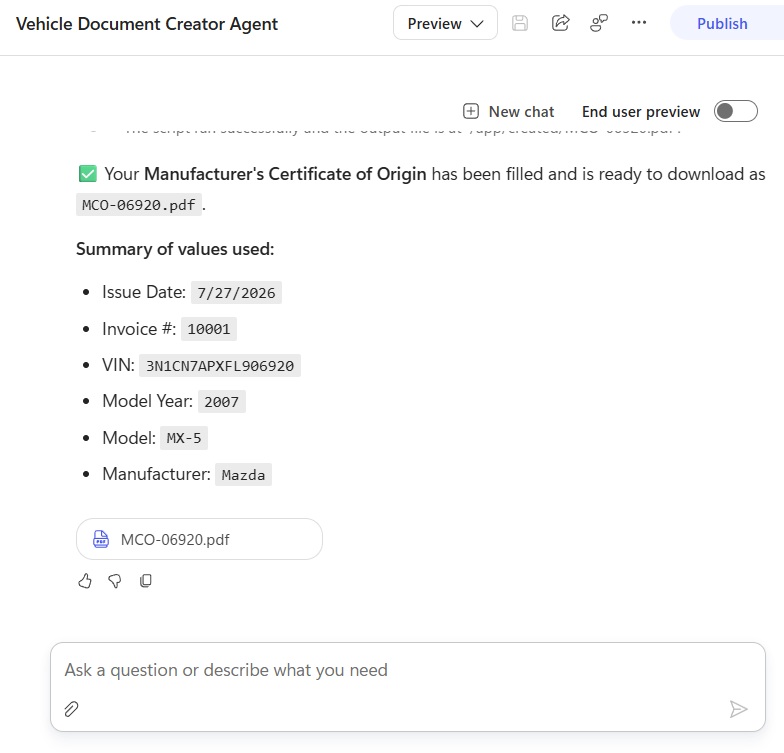
And when we open the pdf file we can see the template has been populated with values.
Give The Agent Incomplete Information To Test Error Handling
We also want to test what happens when the agent is not given all of the information it needs to generate the pdf file.
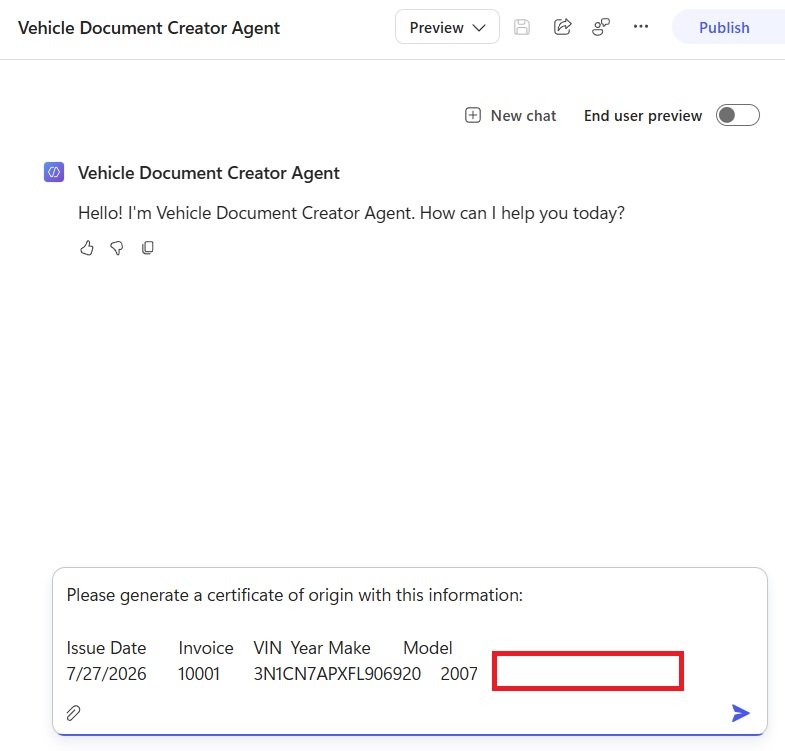
Send the agent this message. It is missing the make and model information.
| Please generate a certificate of origin with this information: Issue Date Invoice VIN Year Make Model 7/27/2026 10001 3N1CN7APXFL906920 2007 |
As expected, the agent detects that the make and model are missing.
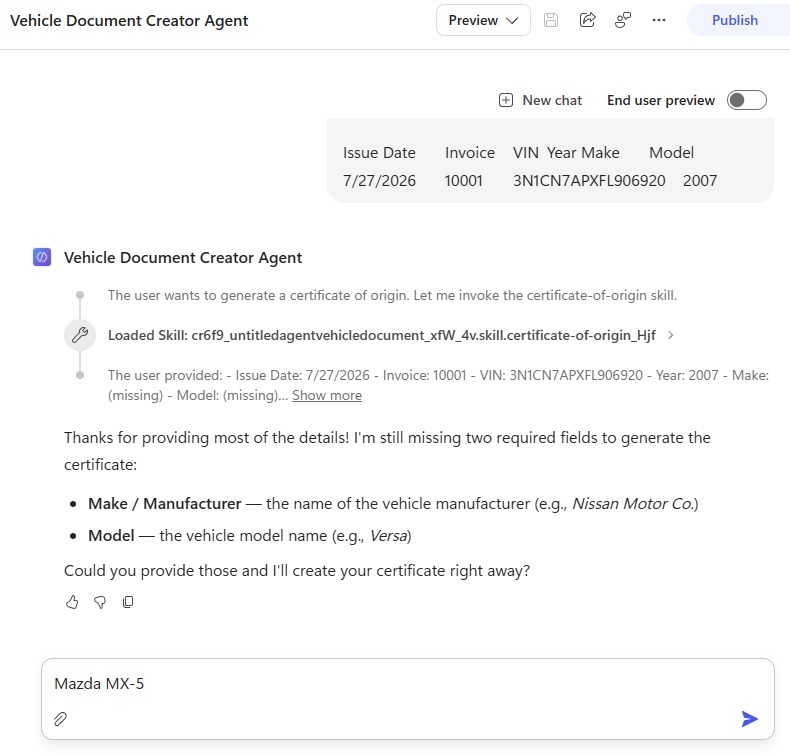
To continue the test, respond with this message.
| Mazda MX-5 |
The agent outputs the certificate of origin PDF file to the chat window now that all information has been supplied.
Video: How To Create Agent Skills In Copilot Studio
Watch the video for a demonstration of how to build the agent shown in this tutorial.
Did You Enjoy This Article? 😺
Subscribe to get new Copilot Studio articles sent to your inbox each week for FREE
Questions?
If you have any questions or feedback about How To Create Agent Skills In Copilot Studio please leave a message in the comments section below. You can post using your email address and are not required to create an account to join the discussion.




Thank you so much for this. I am sharing a link to your blog with my teams. I think it will be most beneficial to their AI learning.
I have found your posts incredibly helpful. Whenever I search for a solution to my Power Automate issues I always add “Matthew Devaney” to my search criteria.
You always explain things in such a clear manner. Thank you so very much. And cats!