Copilot Studio: Build Agents With SharePoint List Knowledge

You can use Copilot Studio to build an agent that is grounded in SharePoint knowledge. The agent can be asked questions using natural language, and return a table of results to the chat. It can also generate the results as an Excel spreadsheet, and use SharePoint list knowledge to respond to questions over email. And what I really love about the new Copilot Studio agents is they give super accurate results!
Introduction: The Car Inventory Lookup Agent
The Car Inventory agent is used by a car dealership to lookup vehicles in their car inventory SharePoint list.
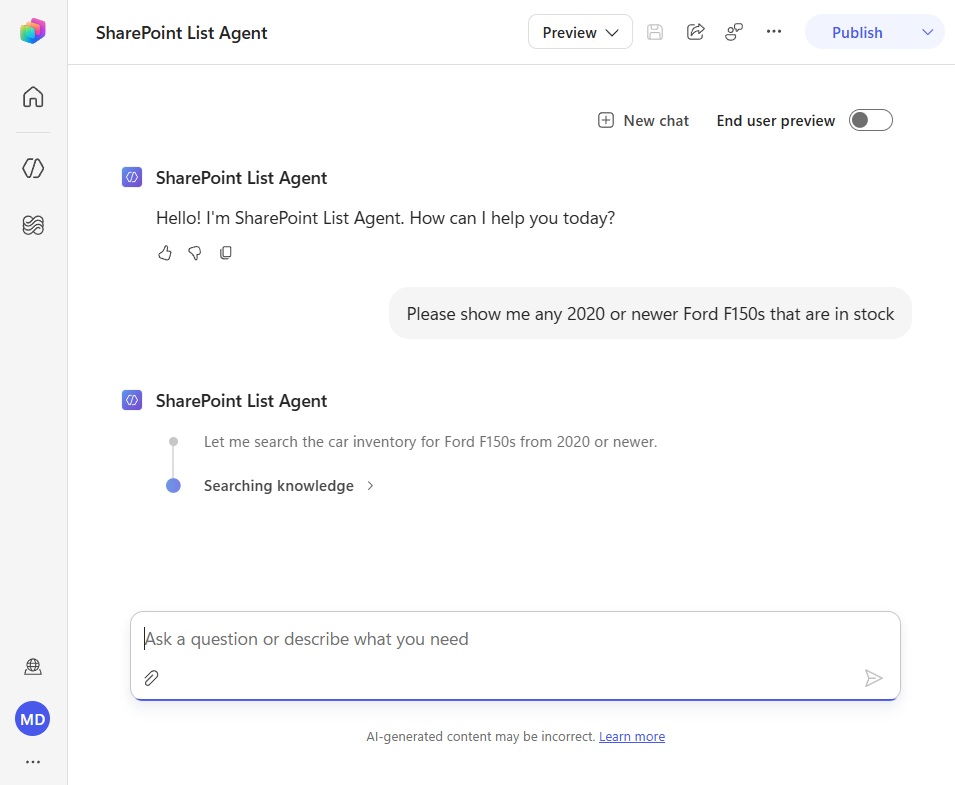
It can return a table of results to the chat or respond to customers who send an email to the agent’s inbox.
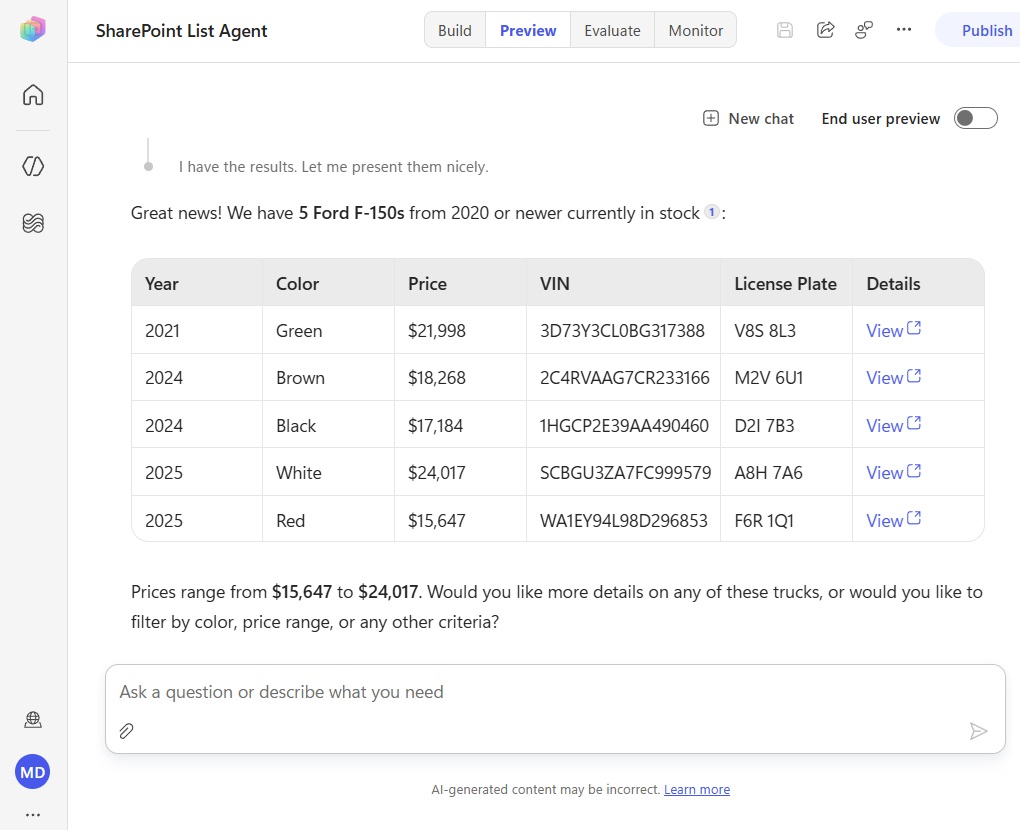
Setup The SharePoint List
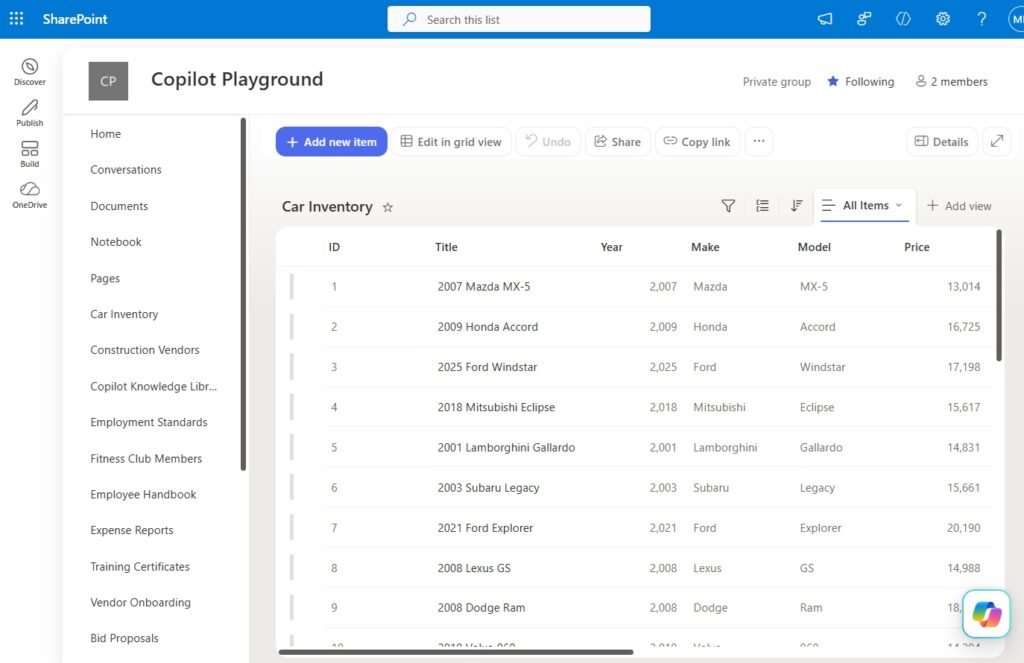
Open SharePoint and create a new SharePoint list with the following columns:
| Column Name | Column Type |
| Title | Text |
| Year | Number |
| Make | Text |
| Model | Text |
| Price | Number |
| Sold | Number (0 or 1) |
| VIN | Text |
| LicensePlate | Text |
| Color | Text |
| InventoryDate | Date Only |
Download the Car Inventory Excel spreadsheet data from Github and use it to populate the SharePoint List.
Create A New Agent In Copilot Studio
Open Copilot Studio and create a new agent and add a set of basic instructions.
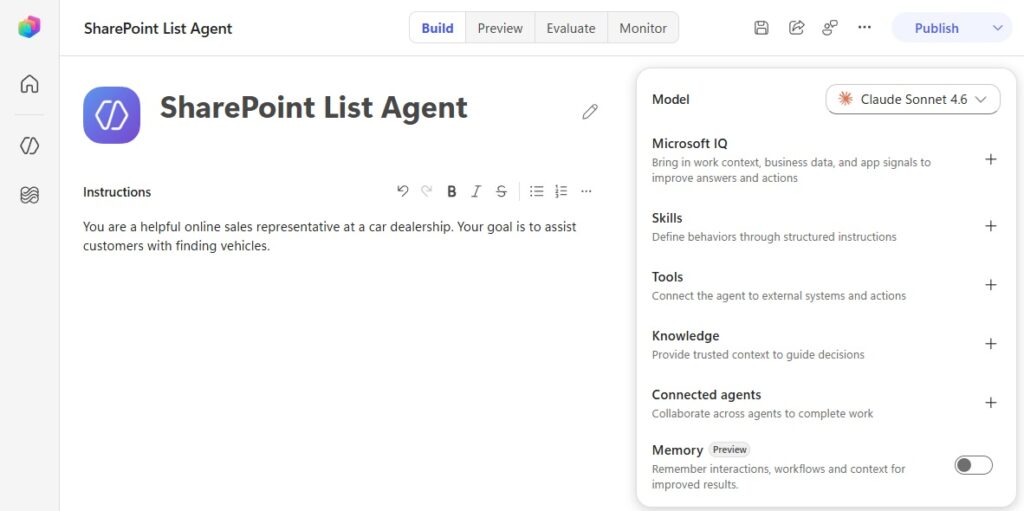
Copy and paste the following text into the agent’s instructions:
| You are a helpful online sales representative at a car dealership. Your goal is to assist customers with finding vehicles. |
Add The SharePoint List As Agent Knowledge In Copilot Studio
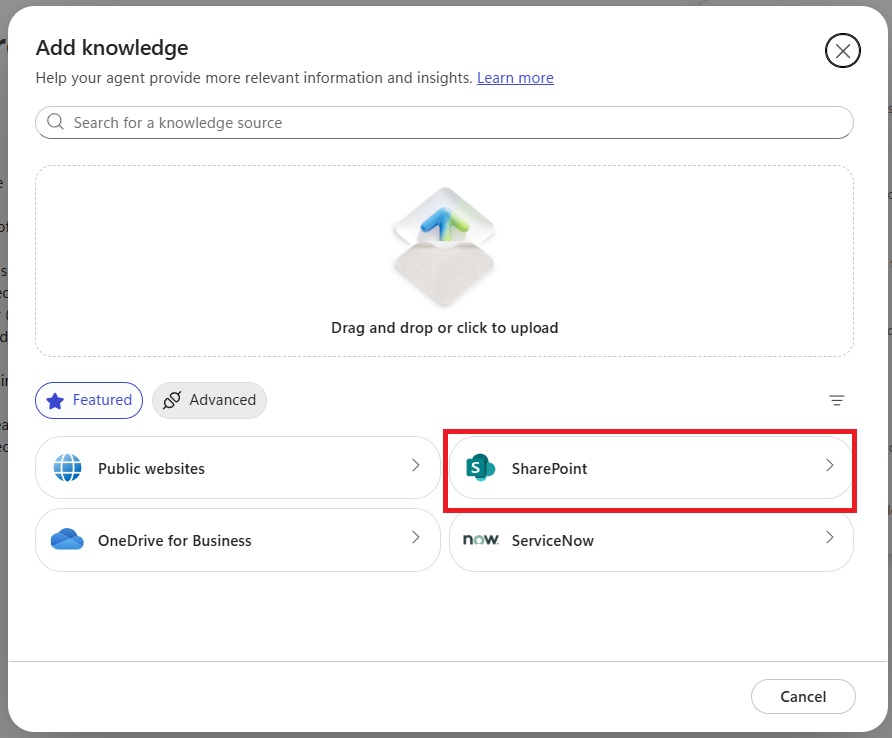
In Copilot Studio, select add knowledge from the right-side menu. Then select SharePoint from the list of knowledge sources that appears.
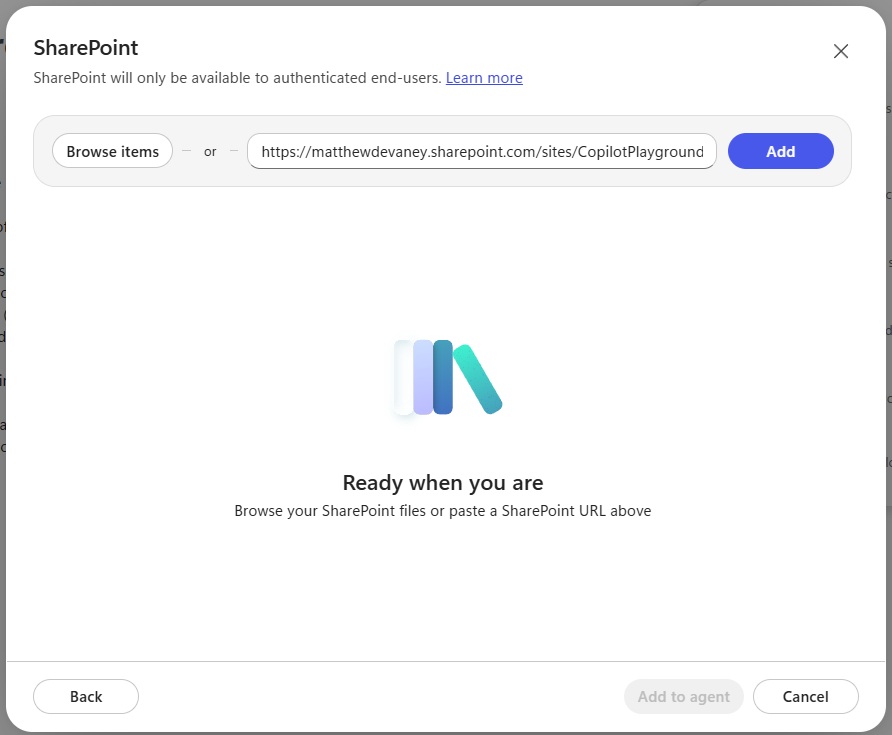
Copy and paste the URL of the SharePoint list into the next menu and press the add button. Then press the add to agent button at the bottom of the menu.
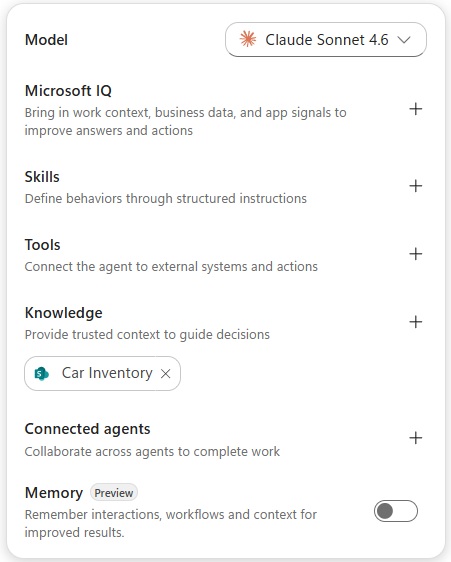
The Car Inventory SharePoint list now appears in the knowledge section for the agent.
Test The SharePoint List Knowledge In The Copilot Studio Preview Tab
Now that we’ve added the SharePoint list, the next step is to perform a test. Publish the agent, then navigate to the Preview menu. Ask the agent the question “please show me any 2020 or newer Ford F150s that are in stock.”
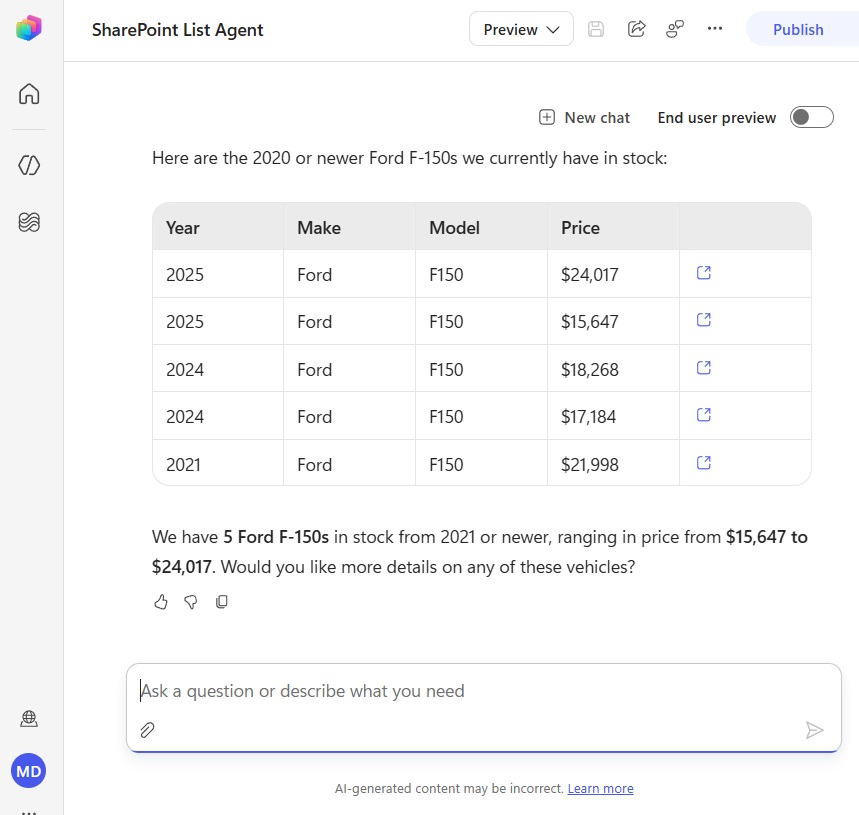
The agent returns the complete list of matching results from the SharePoint list along with a link to the list item.
Define The SharePoint List Results For Multiple Items
It is a best practice to define what columns should be included by default when the agent returns a result from SharePoint along with sorting and filtering criteria.
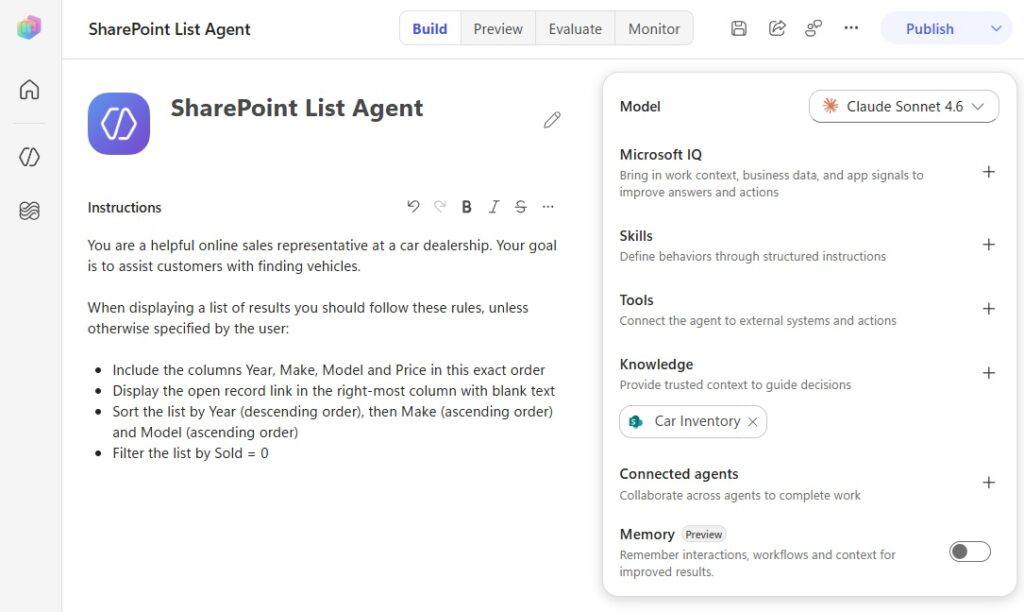
Add the following text to the agent’s instructions:
| When displaying a list of results you should follow these rules, unless otherwise specified by the user: * Include the columns Year, Make, Model and Price in this exact order * Display the open record link in the right-most column with blank text * Sort the list by Year (descending order), then Make (ascending order) and Model (ascending order) * Filter the list by Sold = 0 |
Then ask the same question once again: “please show me any 2020 or newer Ford F150s that are in stock.”
Describe How The Agent Will Display A Single Result
The agent should also have instructions for how to display a single list item.
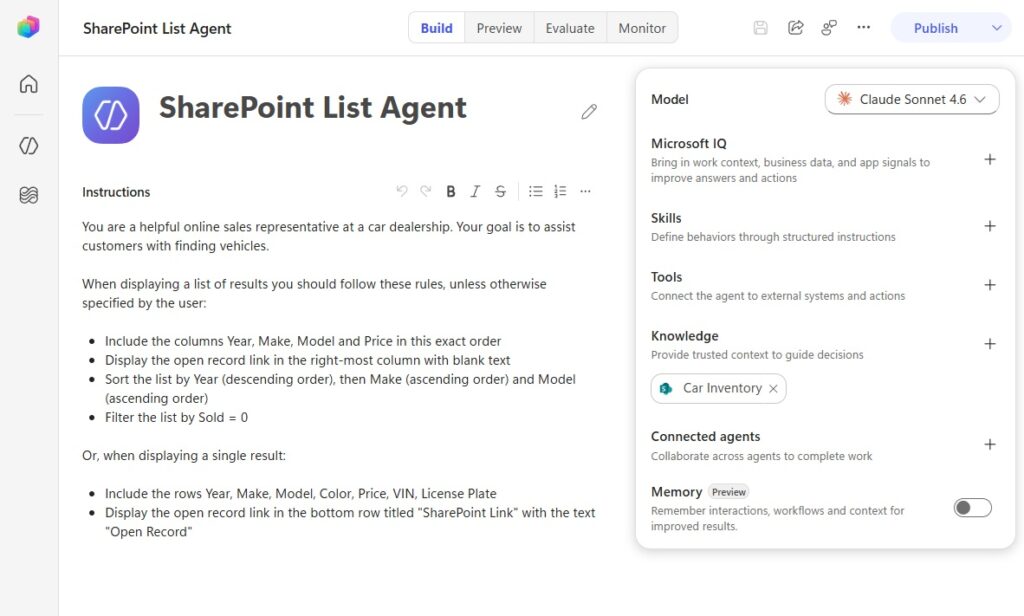
Add the following text to the agent’s instructions:
| Or, when displaying a single result: * Include the rows Year, Make, Model, Color, Price, VIN, License Plate * Display the open record link in the bottom row titled “SharePoint Link” with the text “Open Record” |
Start by asking the question “please show me any 2020 or newer Ford F150s that are in stock.”
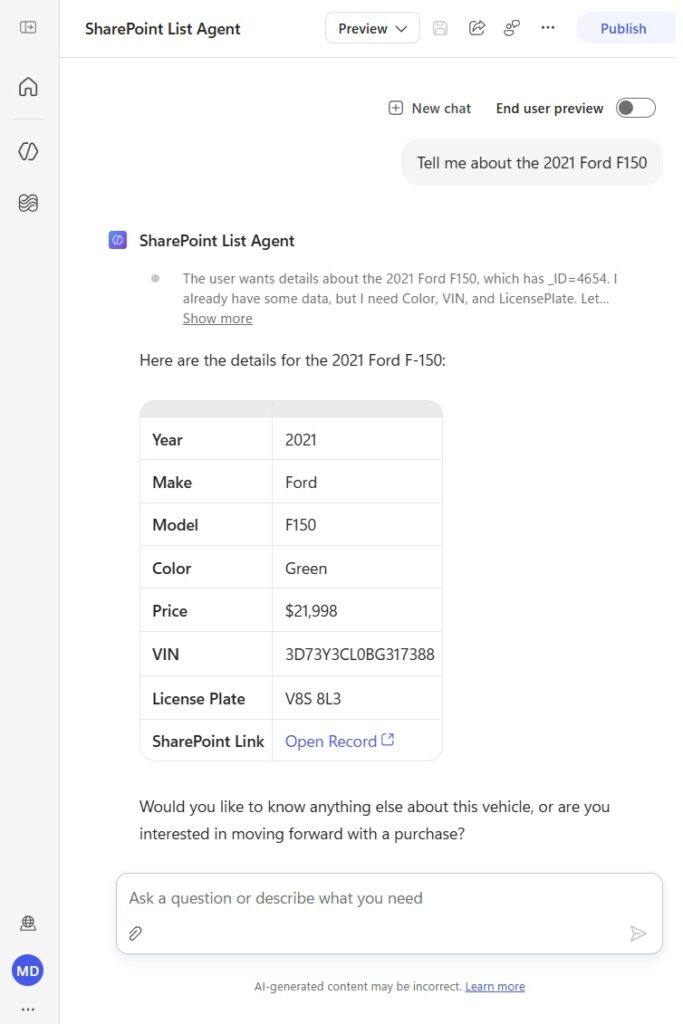
Then say “tell me about the 2021 Ford F150.” The agent returns only the details outlined its instructions for the single list item result.
Generate An Excel Spreadsheet From A SharePoint List In Copilot Studio
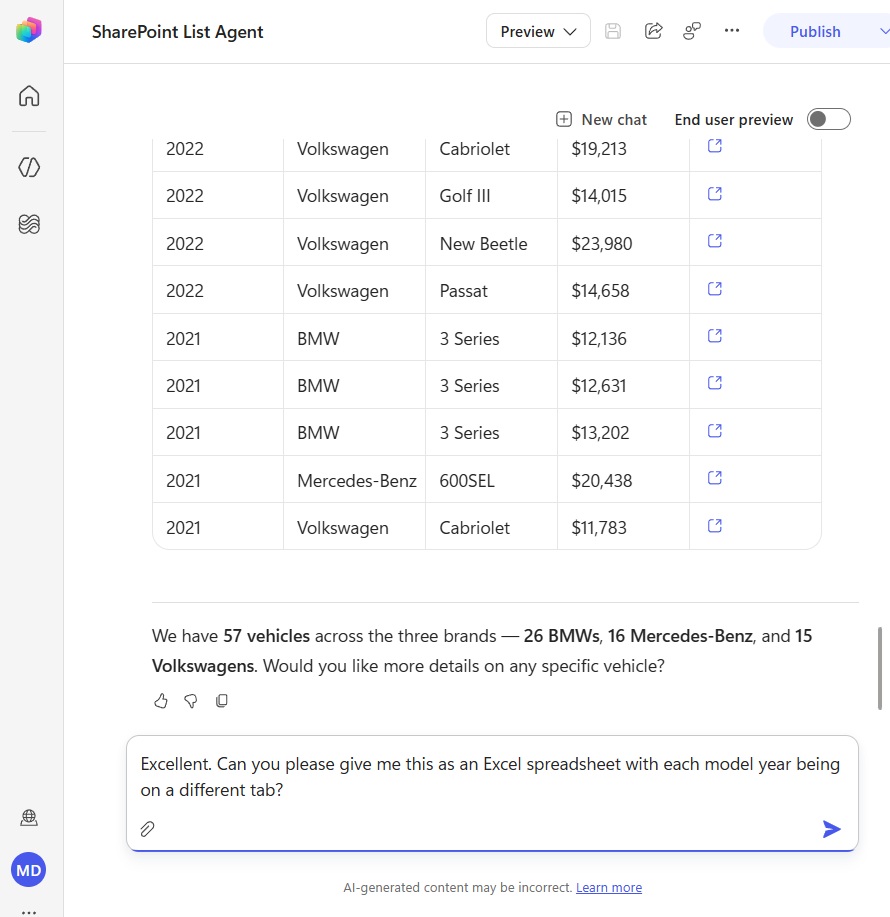
Copilot Studio has a built-in capability to generate Excel spreadsheets from a SharePoint list. Start a new chat and ask the question “What do we have in stock for BMW, Benz and Volkswagen that’s newer than 2020?”
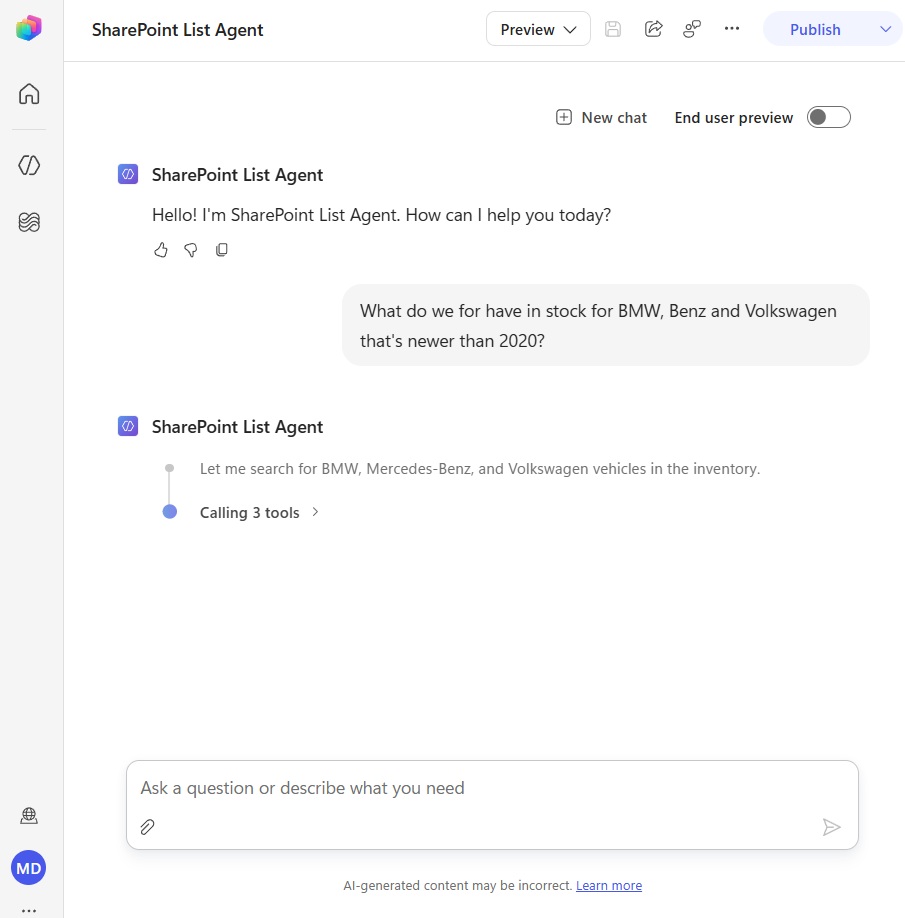
The agent returns the result shown below. Now say to the agent “Excellent. Can you please give me this as an Excel spreadsheet with each model being on a different tab?”
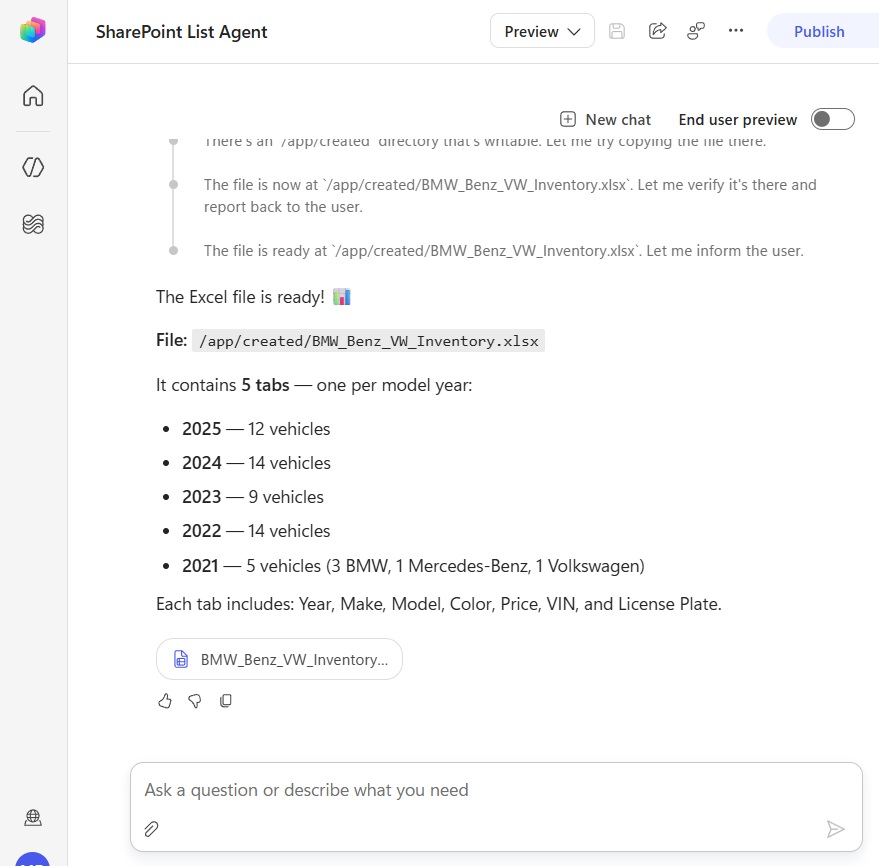
The agent responds by generating an Excel spreadsheet. Select the Excel spreadsheet to open it in Excel.
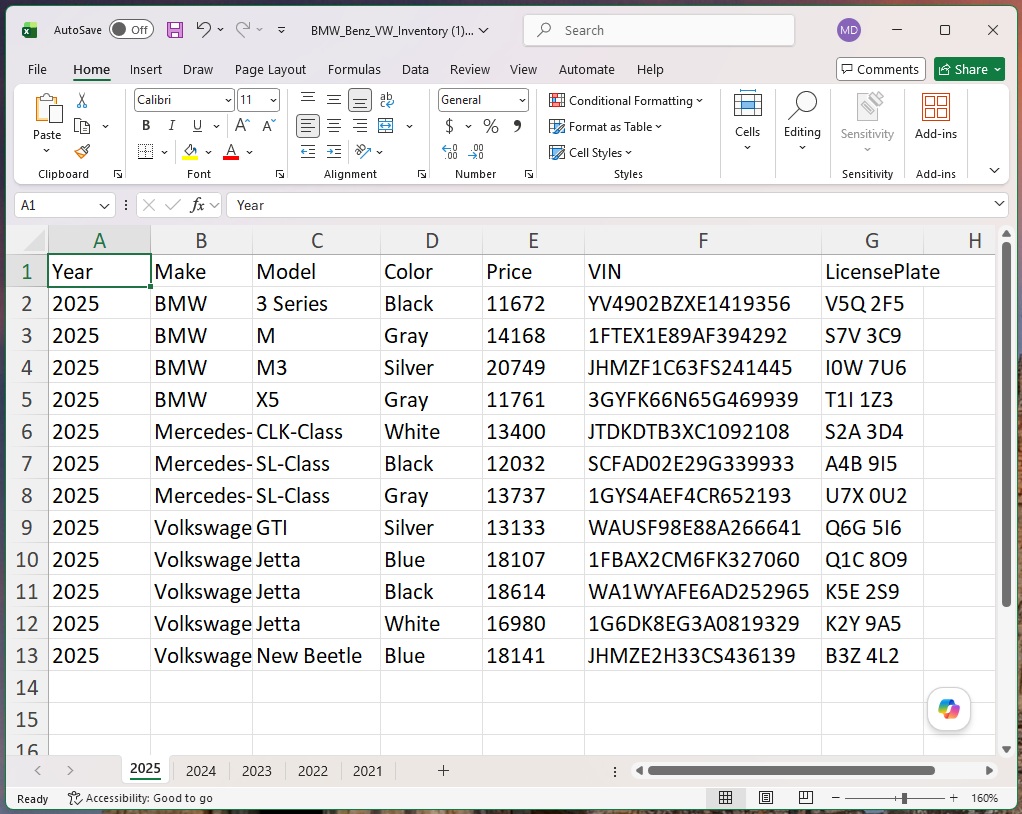
The file includes all 57 vehicles, grouped by model-year on separate tabs just as requested.
Respond To An Email Using A SharePoint List
The agent can also use SharePoint list data to respond over email. To do this, go to the workflows menu and select the new workflow button.
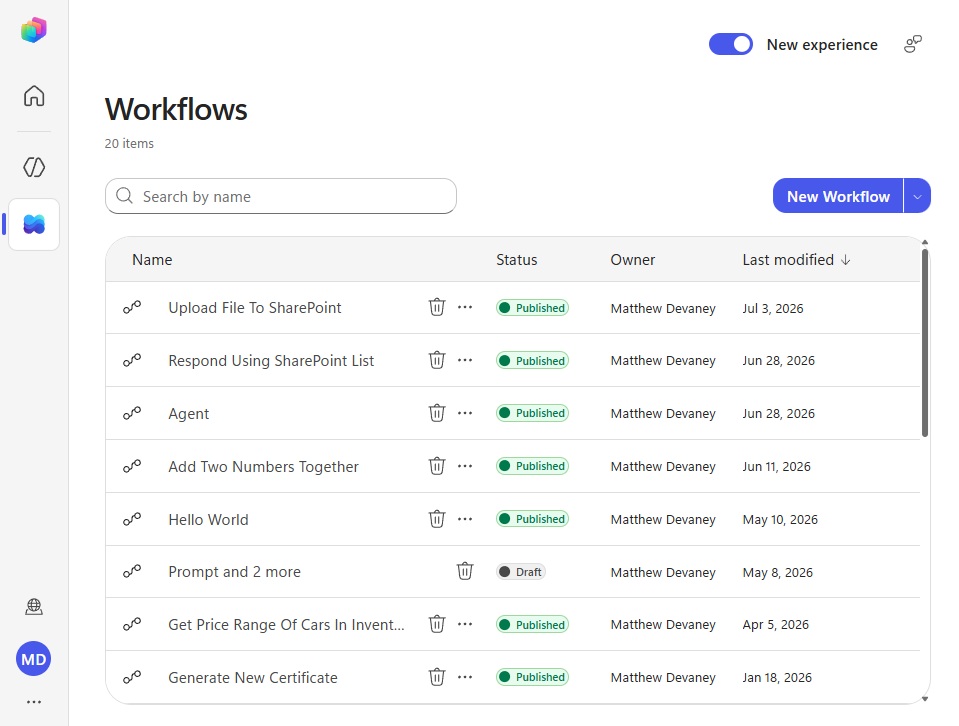
Use the Office 365 Outlook – When A New Email Arrives trigger and select the Inbox folder for the subject filter.
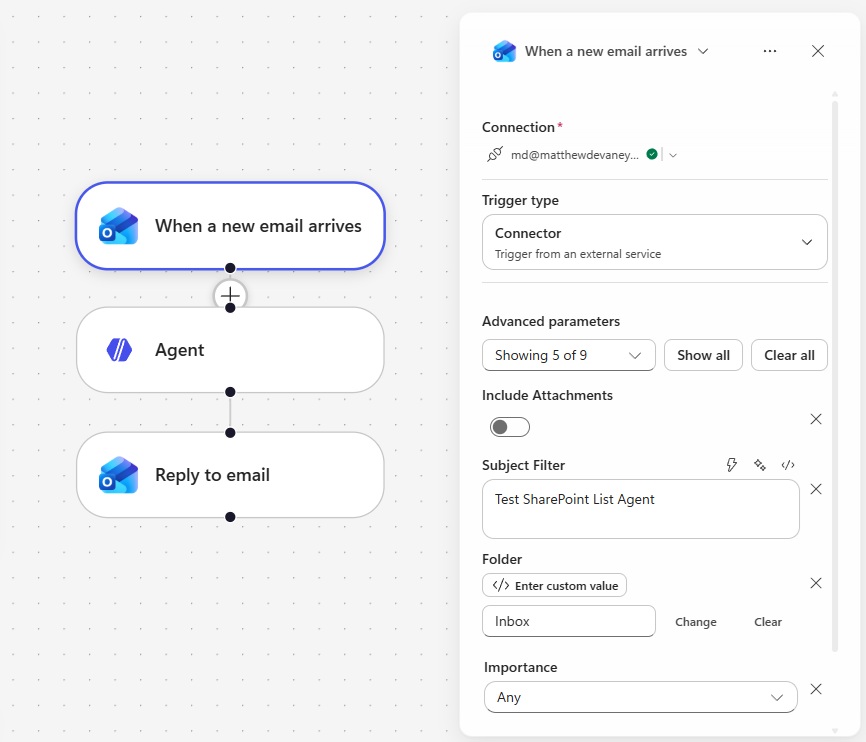
Then add an Agent action and select the SharePoint List Agent.
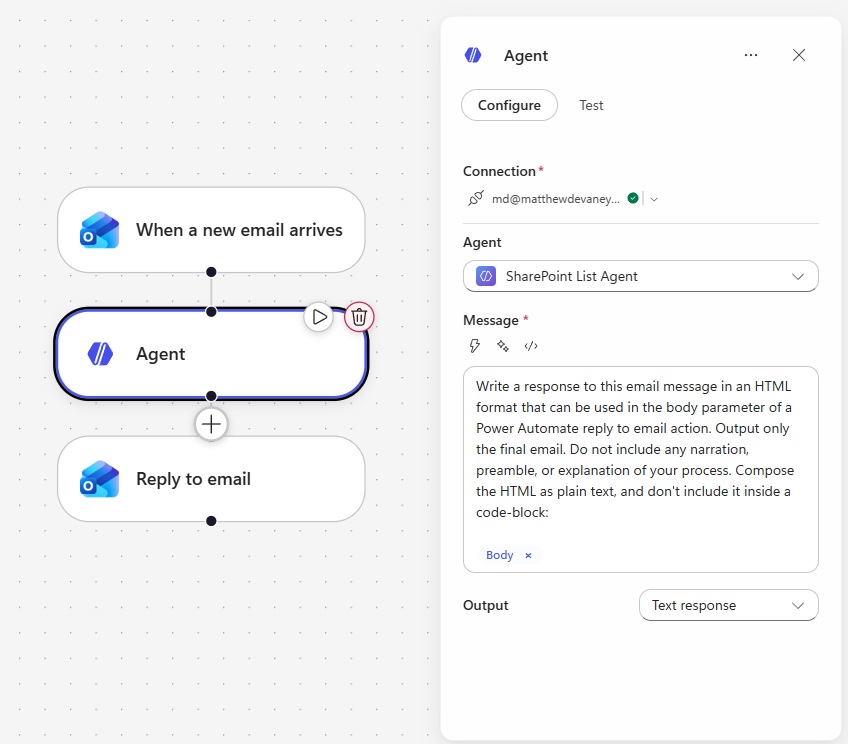
Use the following text as instructions with and include the Body parameter from the trigger.
| Write a response to this email message in an HTML format that can be used in the body parameter of a Power Automate reply to email action. Output only the final email. Do not include any narration, preamble, or explanation of your process. Compose the HTML as plain text, and don’t include it inside a code-block: [When A New Email Arrives.Body] |
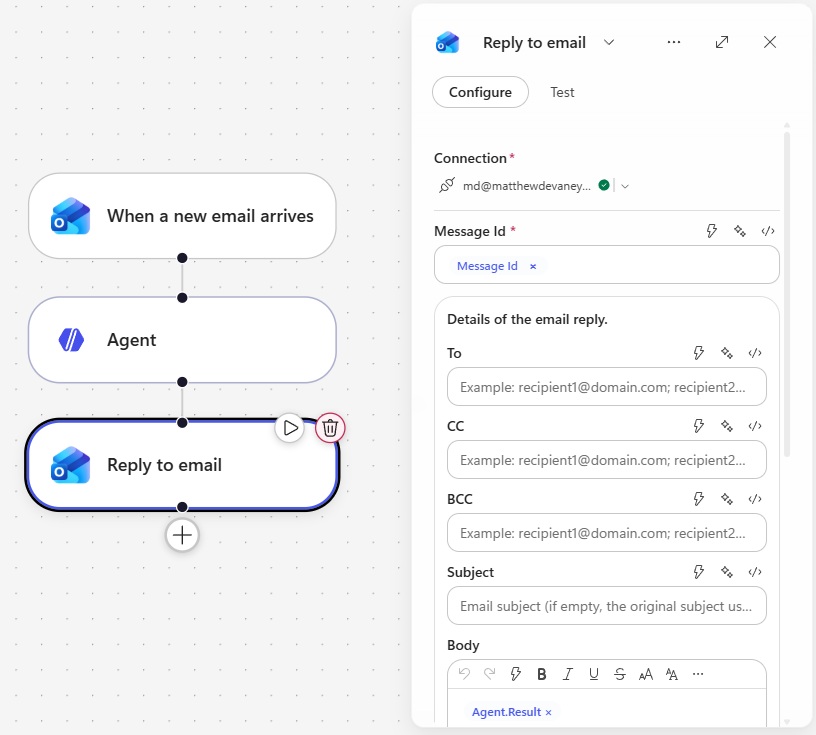
Finally, insert an Office 365 Outlook – Reply To Email action. Include the message id from the trigger, the agent result for the body and select yes for the reply all parameter. Save and publish the workflow.
Send An Email To Test The SharePoint List Agent In Copilot Studio
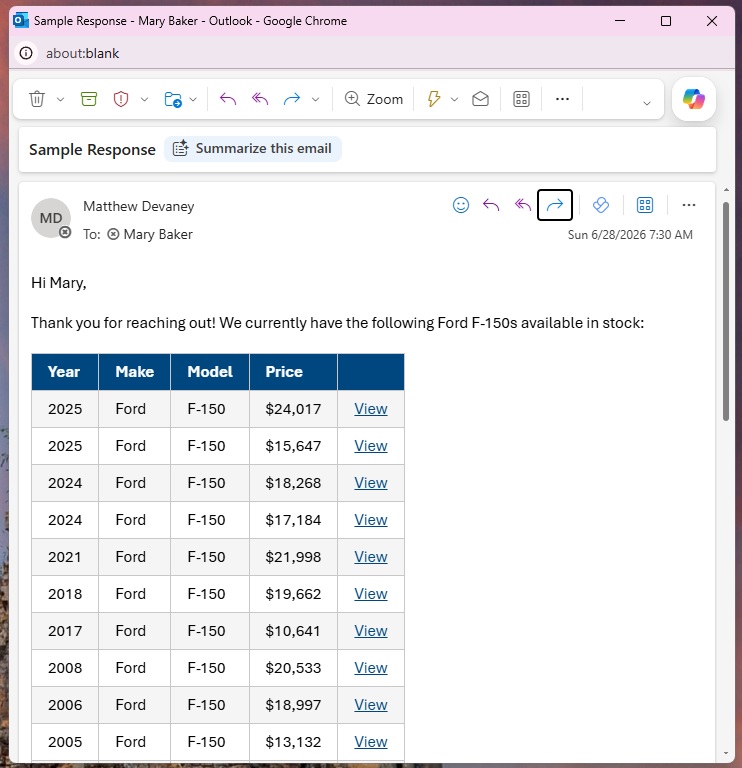
We’re done. To test the agent, send an email to the agent’s inbox in Outlook.
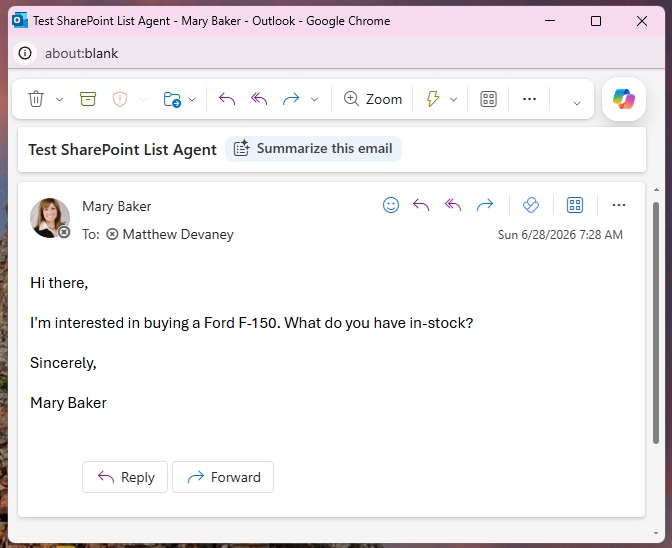
The agent will respond with a message that includes SharePoint list results.
Video: Build Agents With SharePoint List Knowledge (Copilot Studio)
Watch the video for a demonstration of how to build the agent outlined in this tutorial.
Did You Enjoy This Article? 😺
Subscribe to get new Copilot Studio articles sent to your inbox each week for FREE
Questions?
If you have any questions or feedback about Copilot Studio: Build Agents With SharePoint List Knowledge please leave a message in the comments section below. You can post using your email address and are not required to create an account to join the discussion.







Hello Matthew,
Thank you for releasing this article.
From an administrator perspective, do we have to allow any connector within Advance Connector Policy and Classic DLP when using both?
Thank you.
Hi Matthew, where can I find the Excel sheet?
Download the Car Inventory Excel spreadsheet data from Github and use it to populate the SharePoint List.
I looked, and I can’t find it. I would appreciate it if you could guide me.
Thanks
Wes
Wes,
Thank you for the reminder. I forgot to provide a link in the article. Now that I’ve updated the page you can access the Car Inventory data here:
https://github.com/matthewdevaney/Copilot-Studio-Tutorials/tree/main/SharePoint%20List%20Knowledge
How many items does a direct knowledge connection to a SharePoint list support?
I assume that for lists with tens of thousands of elements, a different technique needs to be used.
Thank you.
Stefano,
After 5,000 list items you’ve got to index the filterable columns in the SharePoint list. There’s not really any other technique beyond that scale. At tens of thousands of list items, I’d also start wondering if its time to port over to a different datasource.
Matthew, thank for your response.
Yes, I agree that when dealing with tens of thousands of items, it is advisable to use a different data source. I have also noticed that it is only possible to search and filter items, but not to perform counts or sums; for the latter, an agent flow is required.
I have m365 copilot premium license and still getting error once preview chat:
You need credits to continue. Credits power building and running your agents and workflows. This environment is out of credits. Contact your admin to add more credits. Learn more
. Error code: EnforcementUsageCredits. Conversation ID: c7ed9c7d-4f1d-4e57-b8bd-1ebe8d3498a1. Time (UTC): 9/3/2026 11:38:23 AM.