Extract Website Data With Computer Use In Copilot Studio

In Copilot Studio you can use the Computer Use tool to extract data from a website and run applications. You can describe a task using natural language and watch as the agent connects to a machine. Then, much like a person, it uses a virtual keyboard and mouse to complete the task. Once the task it completed, sends a message to the agent describing the task that was performed.
Introduction: The Request For Proposal Analyzer Agent
A large construction company uses an agent to read email alerts about new opportunities and forward them to the proper bid team. Often, the emails themselves do not contain any details about the bid. Instead, they include a link to a website for a government agency.
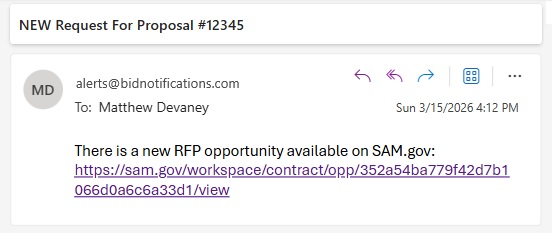
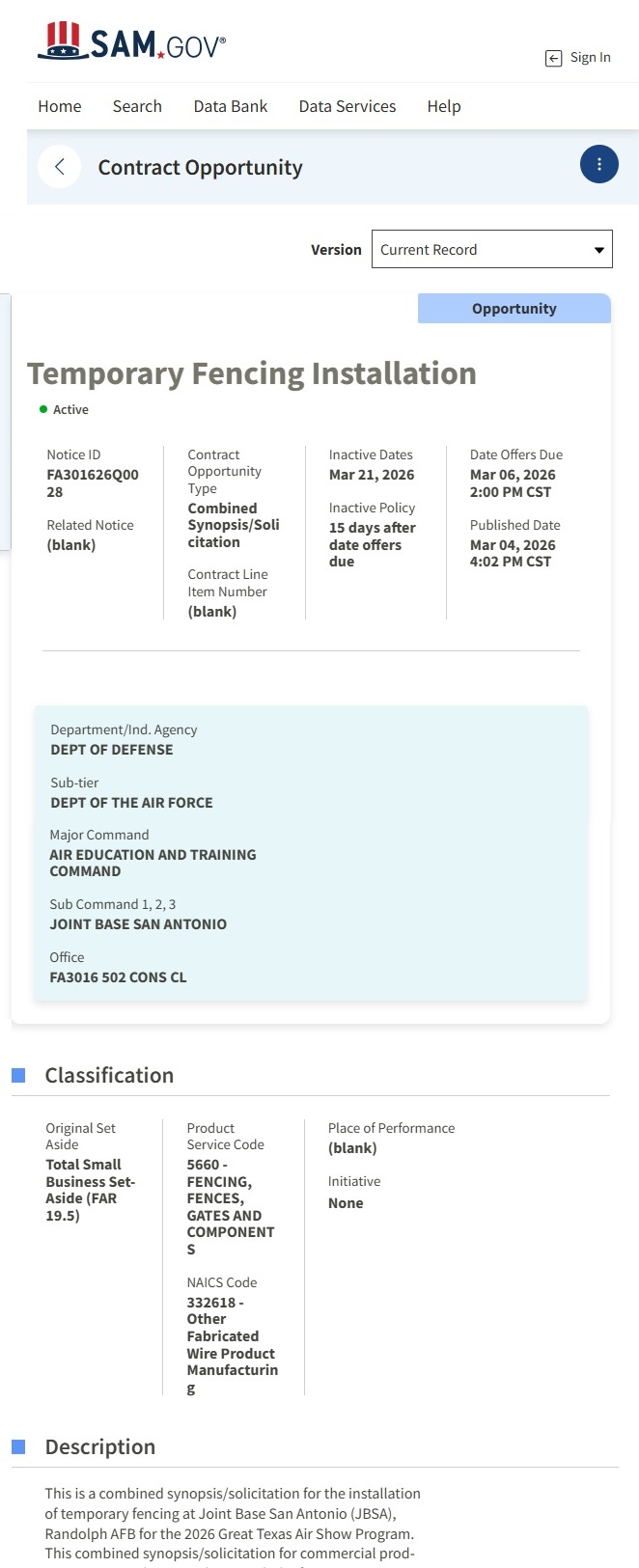
The agent uses a cloud PC and the computer use tool to open a web browser, read the page, and extract bid details. There are many different websites a bid can be found on, but they all contain the same basic types of information: title, id, classification code, due date, and more.
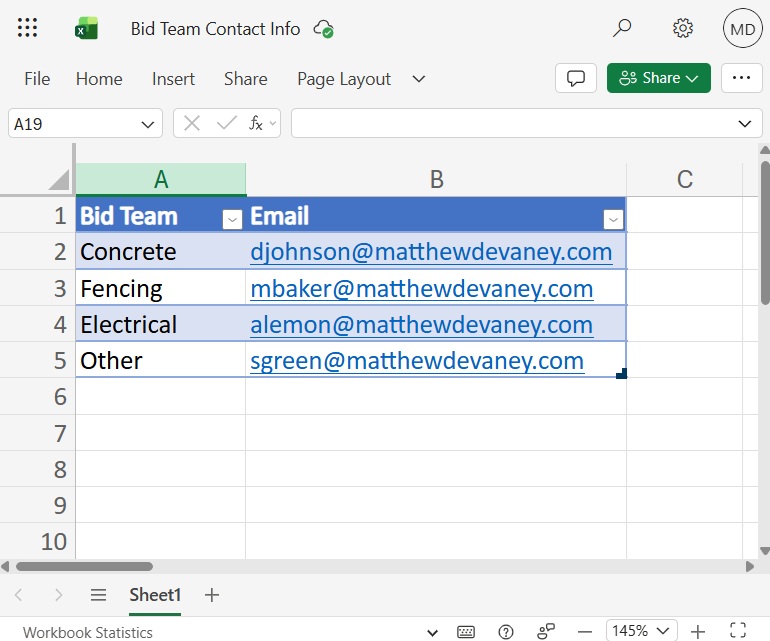
After reading the web page, the agent determines which bid team to forward the opportunity to by referencing an Excel table.
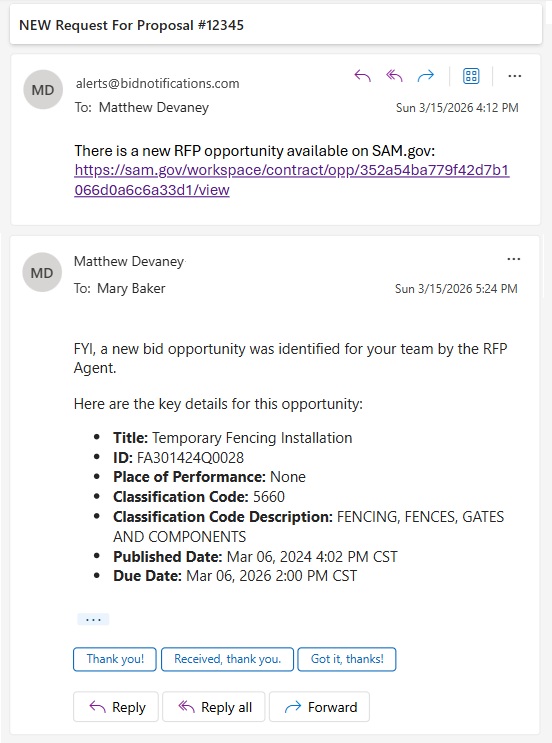
Then it forwards the original email to the selected bid team along with the bid details that were extracted.
Create A New Agent In Copilot Studio
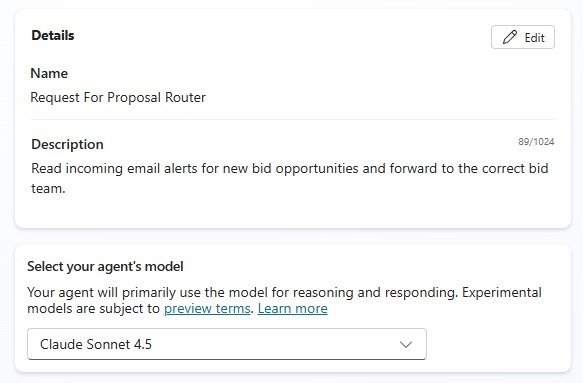
Open Copilot Studio and create a new agent named Request For Proposal Analyzer. Add a description to the agent and choose a model.
Add The Computer Use Tool To The Agent
The computer use tool allows an agent to browse websites and run applications on a windows machine. We will use it to open a web browser and extract data from a webpage containing bid details. Go to the tools menu in Copilot Studio and add the Computer Use tool.
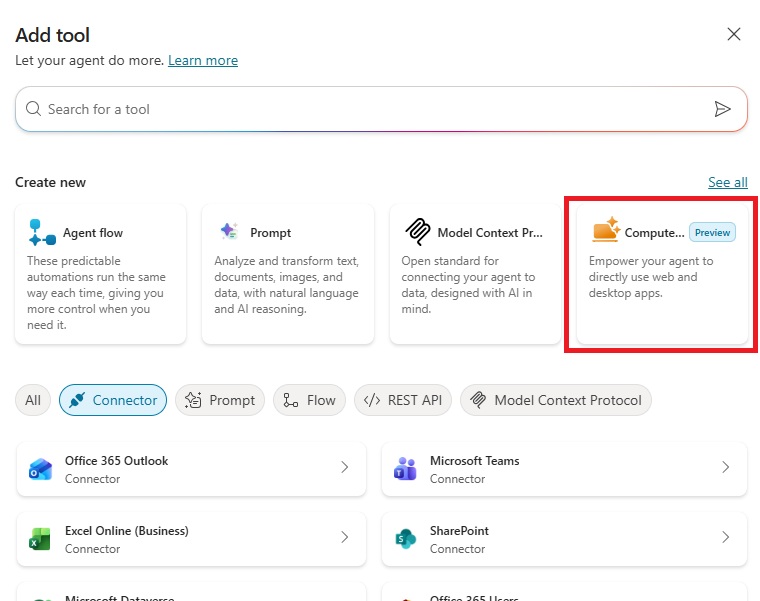
Configure the computer use tool as shown in the image below.
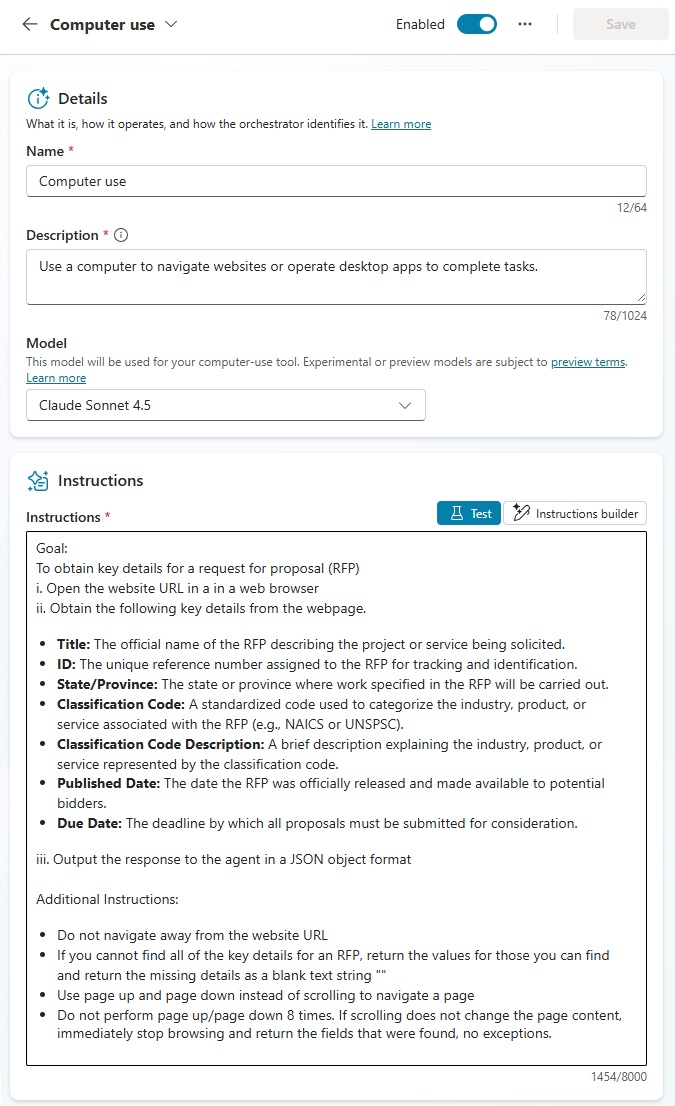
You can copy and paste these instructions directly into the computer use tool’s instructions area.
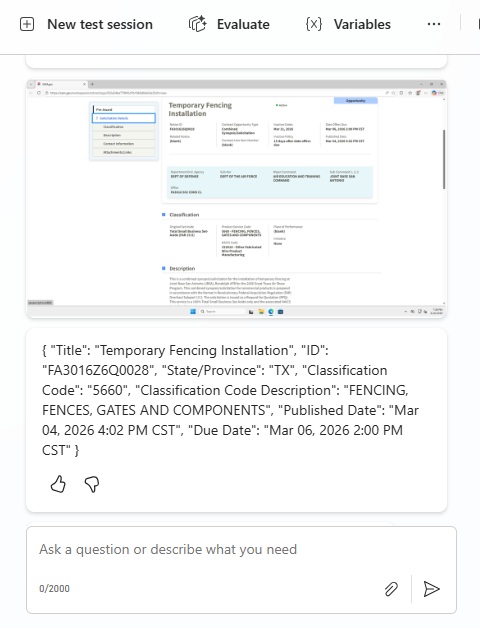
| Goal: To obtain key details for a request for proposal (RFP) i. Open the website URL in a in a web browser ii. Obtain the following key details from the webpage: – Title: The official name of the RFP describing the project or service being solicited. – ID: The unique reference number assigned to the RFP for tracking and identification. – State/Province: The state or province where work specified in the RFP will be carried out. – Classification Code: A standardized code used to categorize the industry, product, or service associated with the RFP (e.g., NAICS or UNSPSC). – Classification Code Description: A brief description explaining the industry, product, or service represented by the classification code. – Published Date: The date the RFP was officially released and made available to potential bidders. – Due Date: The deadline by which all proposals must be submitted for consideration. iii. Output the response to the agent in a JSON object format Additional Instructions: – Do not navigate away from the website URL – If you cannot find all of the key details for an RFP, return the values for those you can find and return the missing details as a blank text string “” – Use page up and page down instead of scrolling to navigate a page – Do not perform page up/page down 8 times. If scrolling does not change the page content, immediately stop browsing and return the fields that were found, no exceptions. |
Define The Computer Use Tool Input Variables
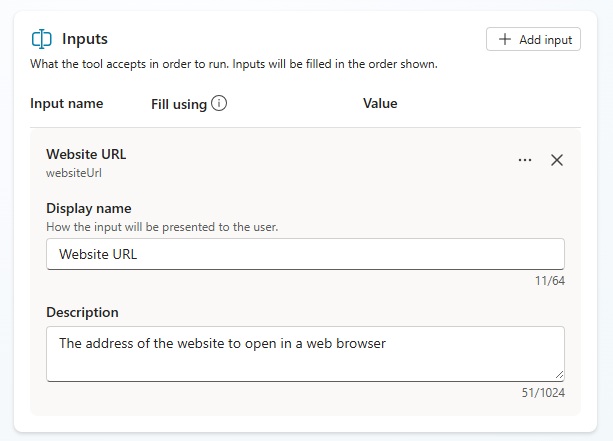
The computer use tool can accept input variables to influence its behaviour. For this agent, we want to provide the web address for a web page containing bid details.
Note: the website used in this tutorial SAM.gov is the official U.S. government website for contracting. It is continuously being updated with new bid opportunities.
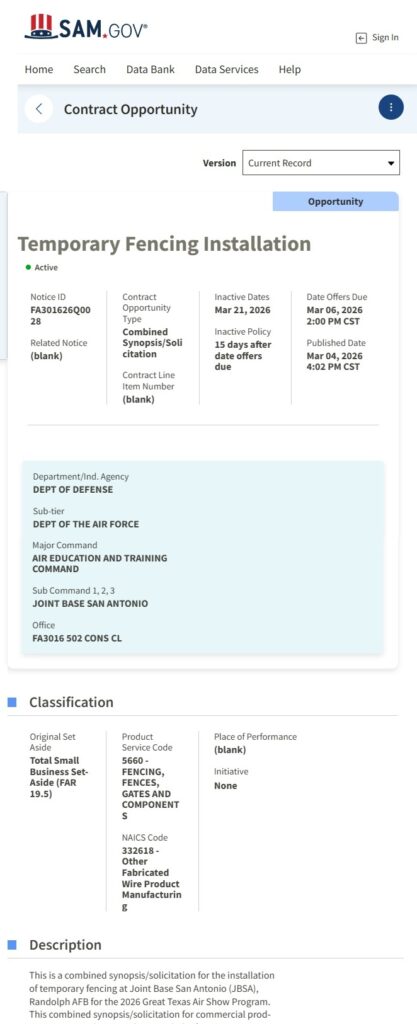
Press the add input button for the Computer Use tool and name the variable Website URL. Give it the description “the address of the website to open in a web browser.”
Select A Machine To Run The Computer Use Tool
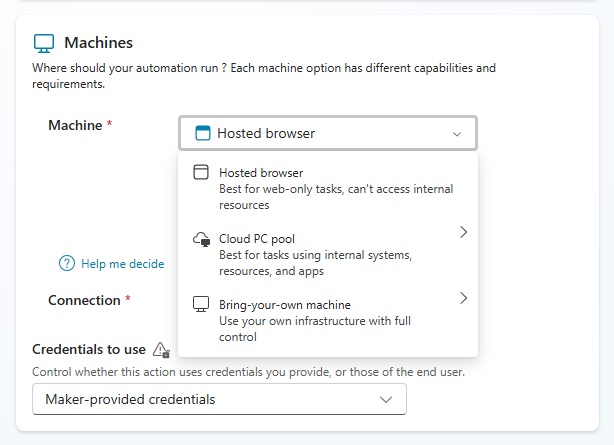
The computer use tool must be run on a machine. This tutorial uses the hosted browser option which is ideal for web browser based tasks. And it doesn’t require the configuration of a machine. If you need to use applications or require more resources, consider using the Cloud PC pool or Bring-your-own machine options instead.
Test The Computer Use Tool In Copilot Studio
Before we go any further, its a good idea to ensure the agent is working as expected. Open the test chat panel and copy & paste a web address for a bid opportunity.
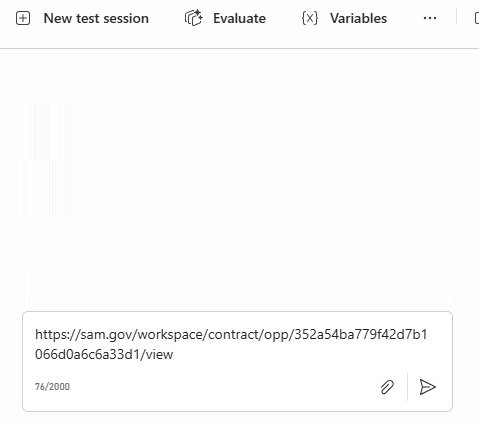
The computer use tool connects to a machine and opens the web page in a web browser.
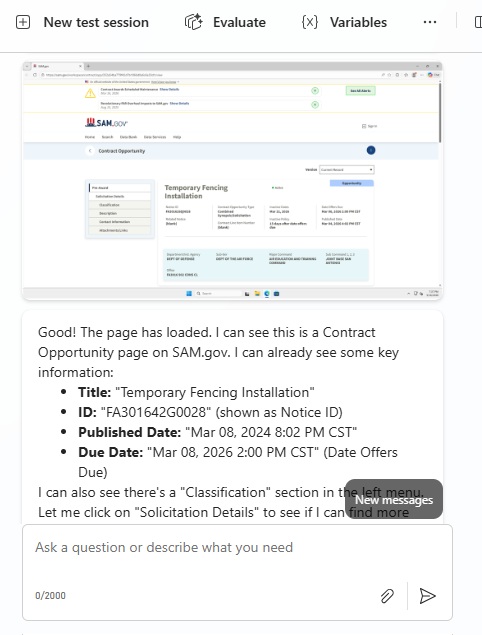
It browses the web page as a human would by scrolling and clicking on navigation elements. The agent’s reasoning as it takes each action is displayed in the activity map.
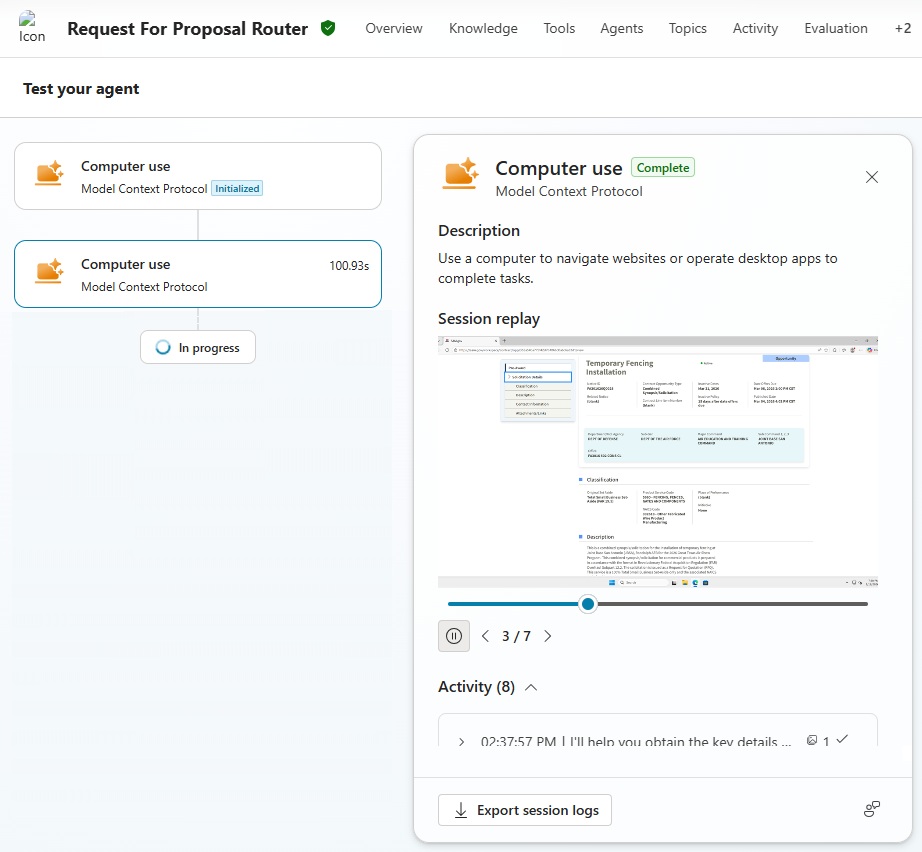
Once the agent has found all of the bid details available on the web page it outputs them in a JSON style format as described by the computer use tool instructions.
Choose An Email Address From An Excel Table
Now that the computer use tool is fully-configured, we will build out the rest of the agent like this:
- When an email is received in Outlook
- Use the computer use tool to read the web page
- Select a bid team’s email address from an Excel file
- Forward the email and bid details to the bid team
Create a new SharePoint document library named Bid Proposals and an Excel file named Bid Team Contact Info.
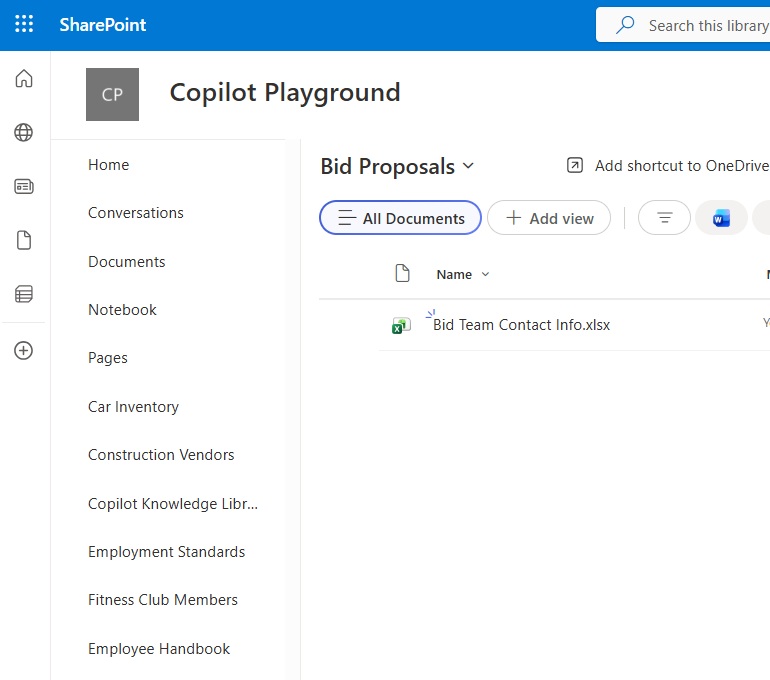
In the Excel file, create a table with Bid Team descriptions and their email addresses.
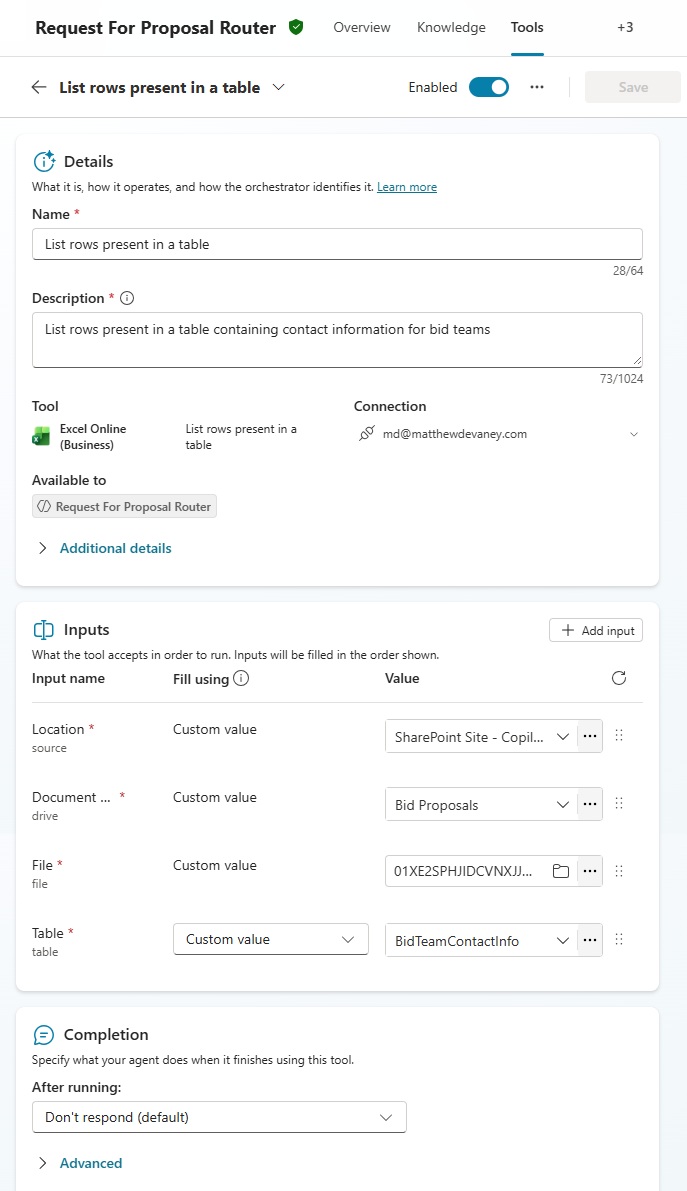
Then go to the agent’s tools and add the Excel – list rows present in a table action. Setup the action as shown below.
Forward The Email Alert To The Bid Team With Outlook
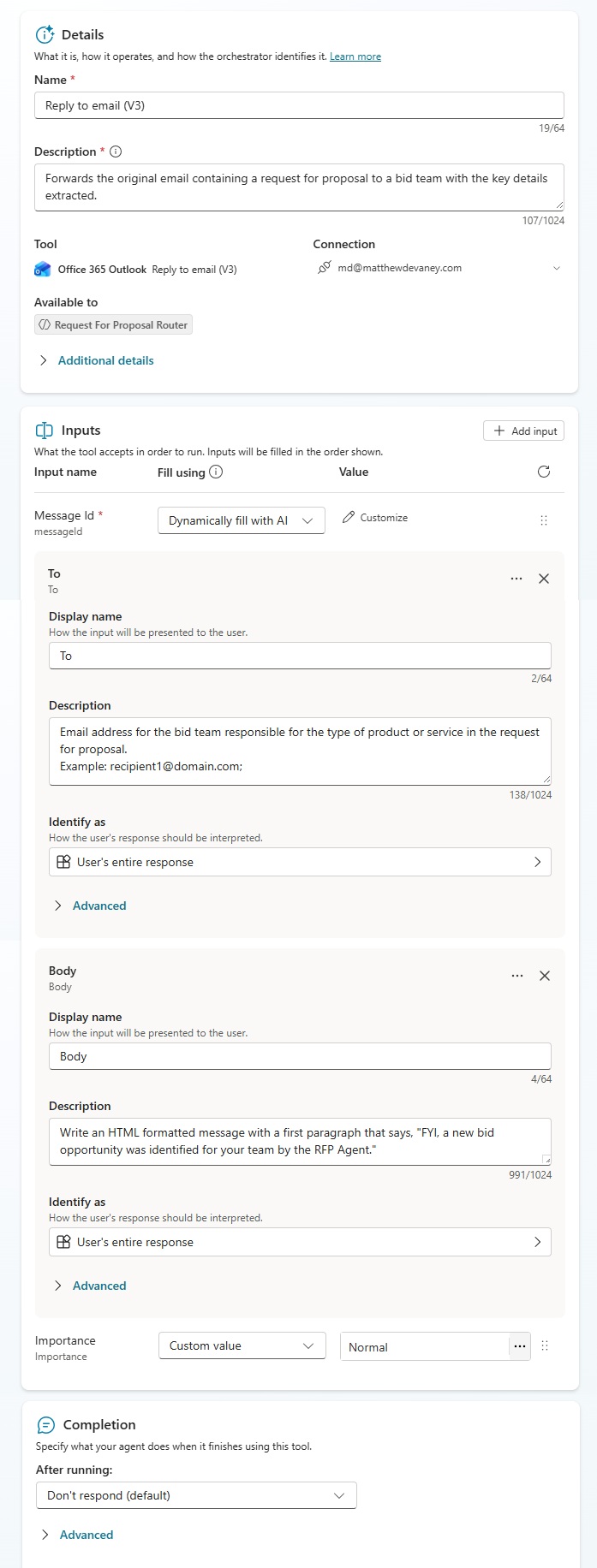
Once a bid team has been chosen, we want to forward the original email message to them along with key bid details. In the agent’s tools menu, add the Outlook – Reply To Email (V3) action and configure it as shown below.
Write The Agent Instructions On The Overview Tab
We’ve created all of the tools the agent needs to read a webpage, determine which bid team should receive the bid opportunity, and forward the original email to the correct bid team.
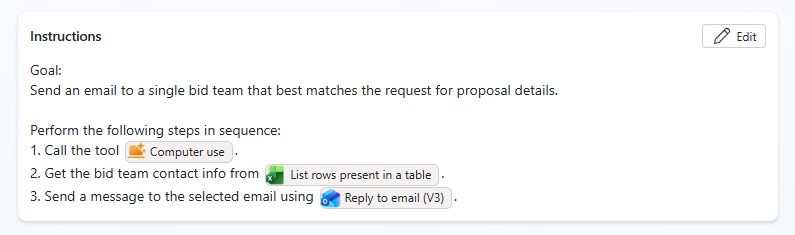
Go to the overview tab and copy & paste these instructions into the agent.
| Goal: Send an email to a single bid team that best matches the request for proposal details. Perform the following steps in sequence: 1. Call the tool [Computer use]. 2. Get the bid team contact info from [List rows present in a table]. 3. Send a message to the selected email using [Reply to email (V3)]. |
Add An Event-Based Trigger To The Agent
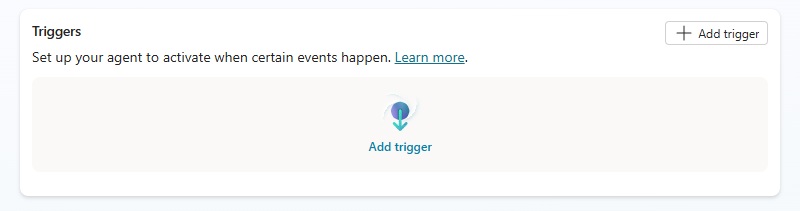
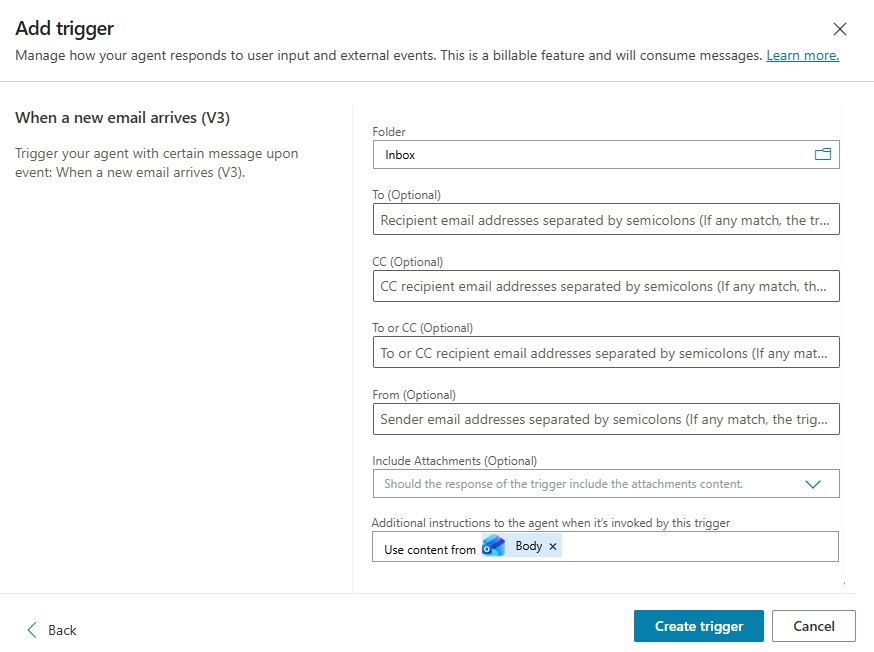
The final step is to add a trigger to the agent to let it read emails. On the overview page, select add trigger.
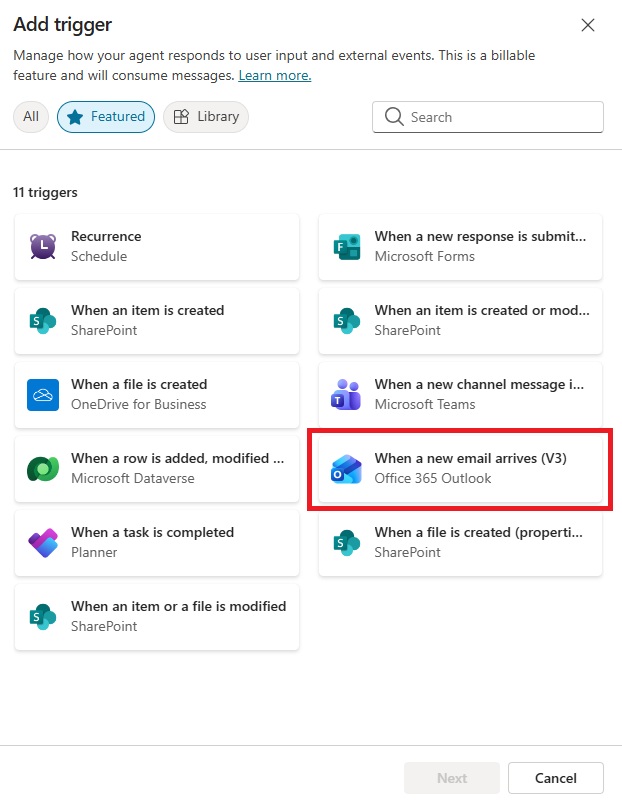
Choose the Outlook – When A New Email Arrives Trigger.
Select the Inbox folder. Optionally provide a subject filter if you only want the agent to trigger on specific email titles. Then press the create trigger button.
Test The Completed Agent By Sending An Email
We’re done. Publish the agent and test it by sending an email to the agent’s inbox.
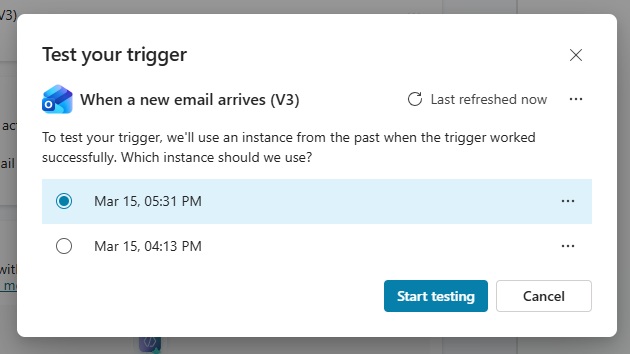
The email should contain a short message and a link to a request for proposal webpage.
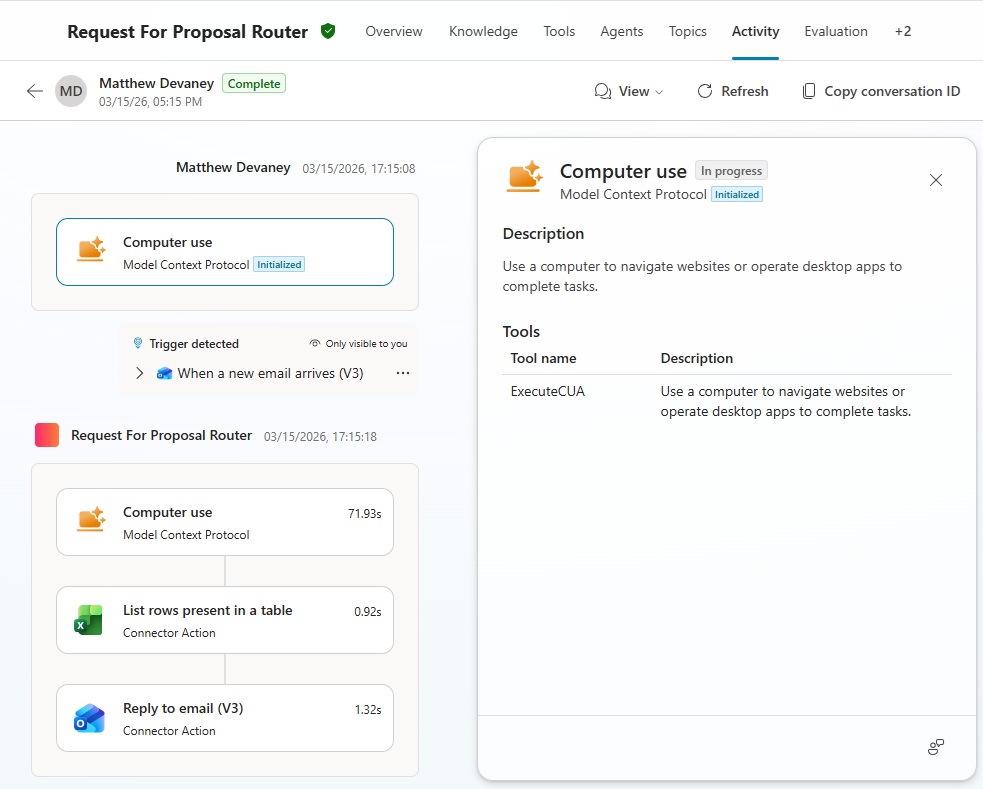
The agent uses the computer use tool to read the webpage. Then it opens the Excel workbook to get the bid team’s email address and forwards the original message using Outlook.
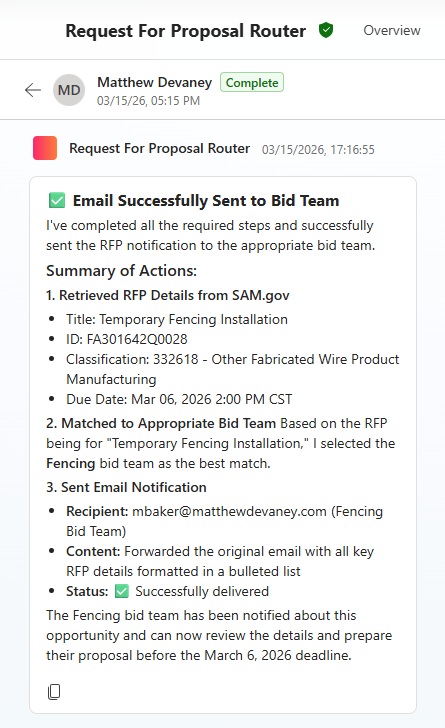
The forwarded message also includes key bid details extracted by the agent.
A summary of actions taken by the agent can be seen in the agent’s activity menu.
Video: Computer Use Agent: Extract Web Page Data In Copilot Studio
Watch this video for a full demonstration of the techniques described in the article.
Did You Enjoy This Article? 😺
Subscribe to get new Copilot Studio articles sent to your inbox each week for FREE
Questions?
If you have any questions or feedback about Extract Website Data With Computer Use In Copilot Studio please leave a message in the comments section below. You can post using your email address and are not required to create an account to join the discussion.







This is a massive step towards business processes without manual data entry. I am seeing the erosion of power apps supported forms with agent tools like this one. Thank you for sharing, Matthew!
Mac,
I’m glad you liked this one. Yes, both the computer use tool and the Power Apps MCP which I didn’t show here make me start to actually believe there’s a world with very little human data entry. Thanks for taking time to write me 🙂