How To Extract Data From PDFs, Word, Excel In Copilot Studio

You can use a Copilot Studio workflow to extract data from any PDF, Word, Excel or PowerPoint file. To do this, add an extract node and choose from a preset document template (e.g. invoices, contracts, etc.) or a custom document type. From there you can add the fields you want to extract and they become content that later workflow steps can use.
Introduction: The Extract Data From Loan Application Workflow
Loan officers at a bank use a Copilot Studio workflow to extract information from a loan application. To trigger the workflow, a loan officer uploads a filled-in loan application to a SharePoint document library.
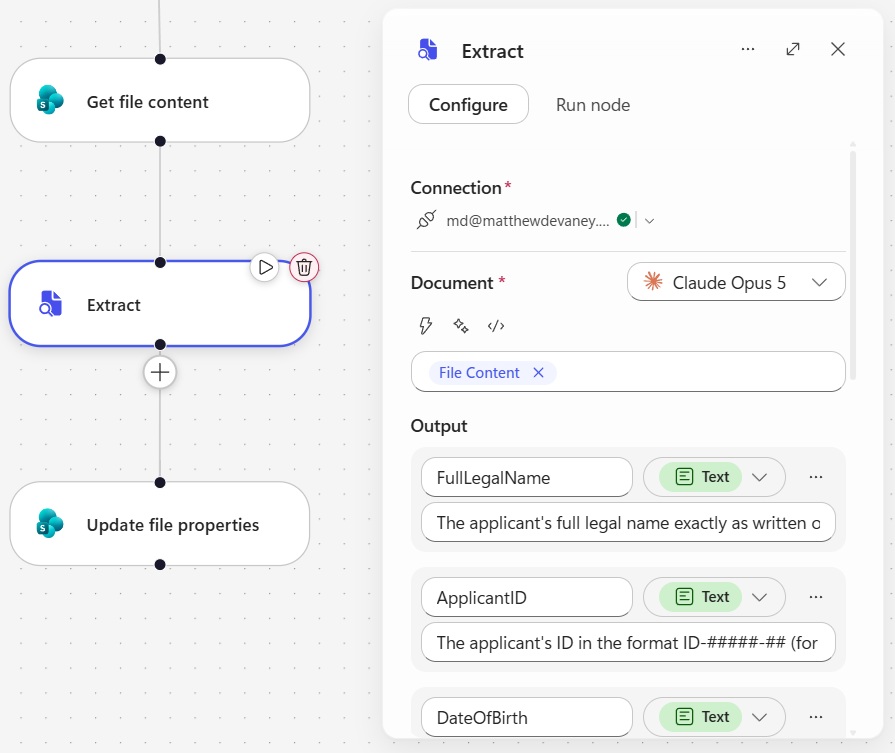
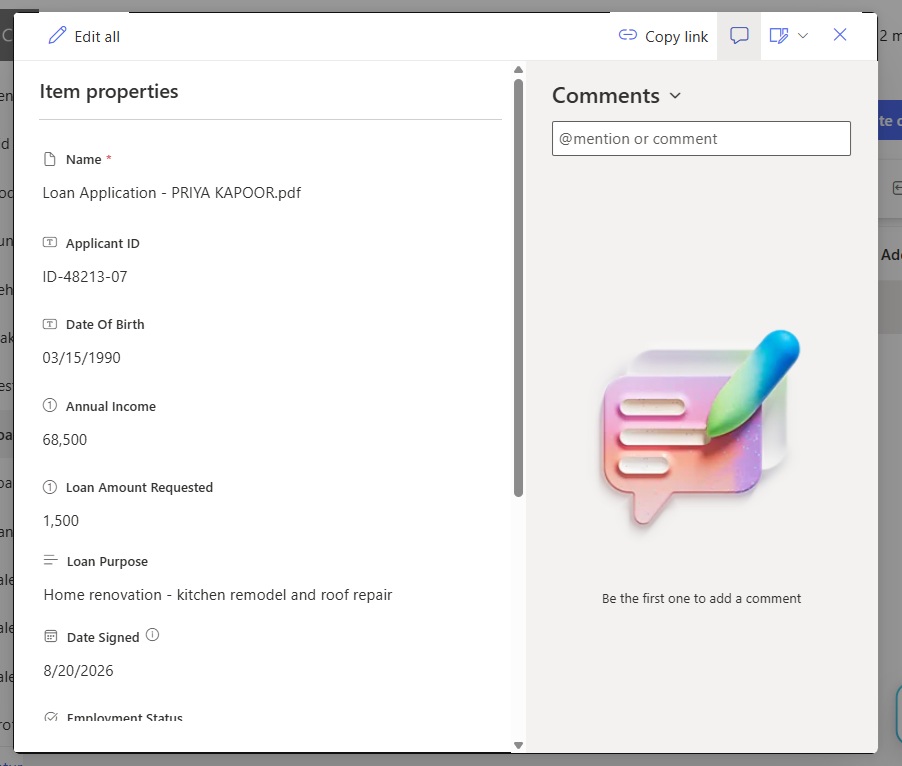
Then the workflow uses a extract node to get information from the PDF document. And the extracted values are used to populate metadata columns for the document in SharePoint.
Review The Loan Application PDF Document
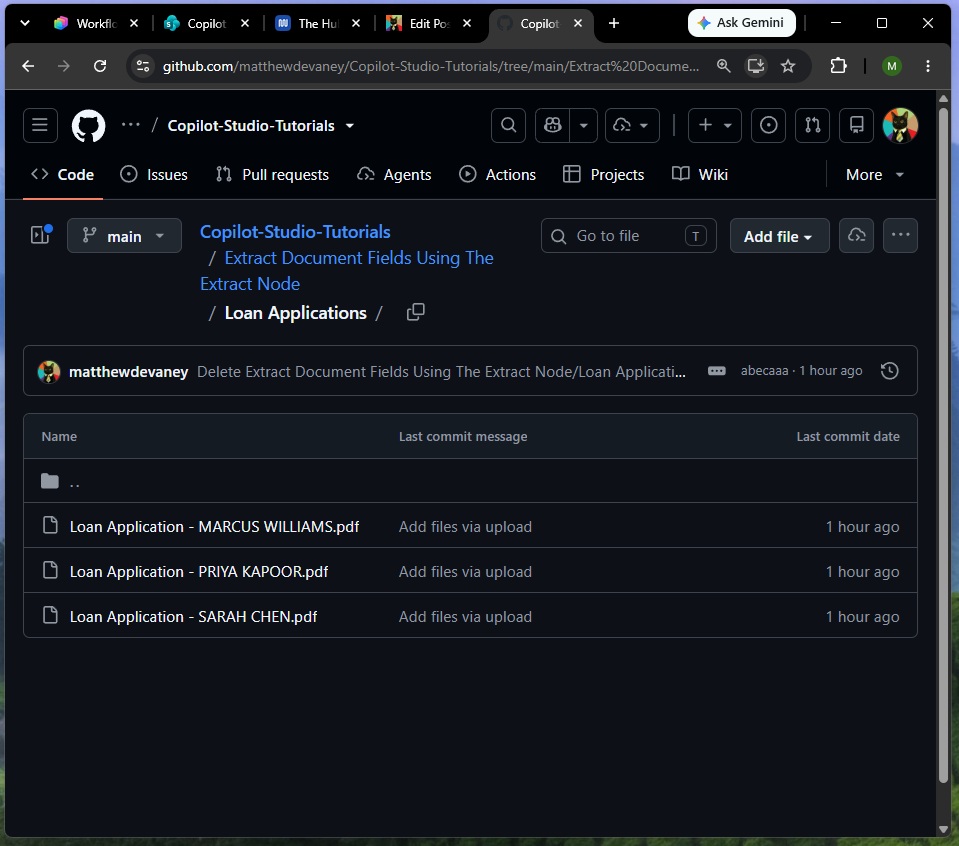
The workflow will extract values from a loan application PDF document. Download a copy of the Loan Application for Priya Kapoor from Github.
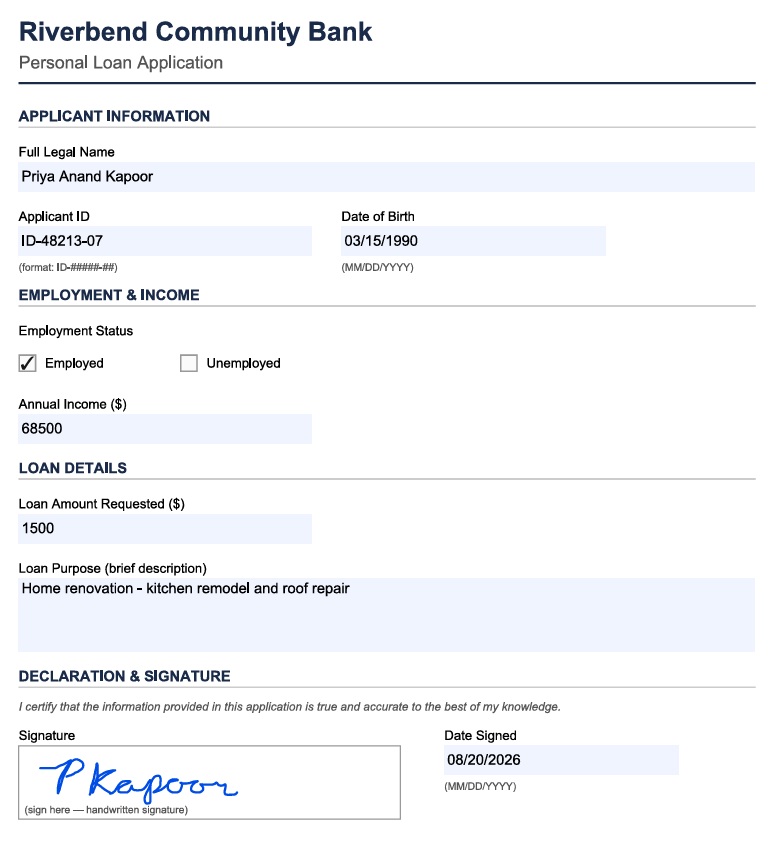
Then open the PDF document and review it to understand what values will be extracted.
Setup A SharePoint Document Library
The workflow will be triggered when a new loan application is uploaded to a SharePoint document library. Go to SharePoint and create a new document library named Loan Applications.
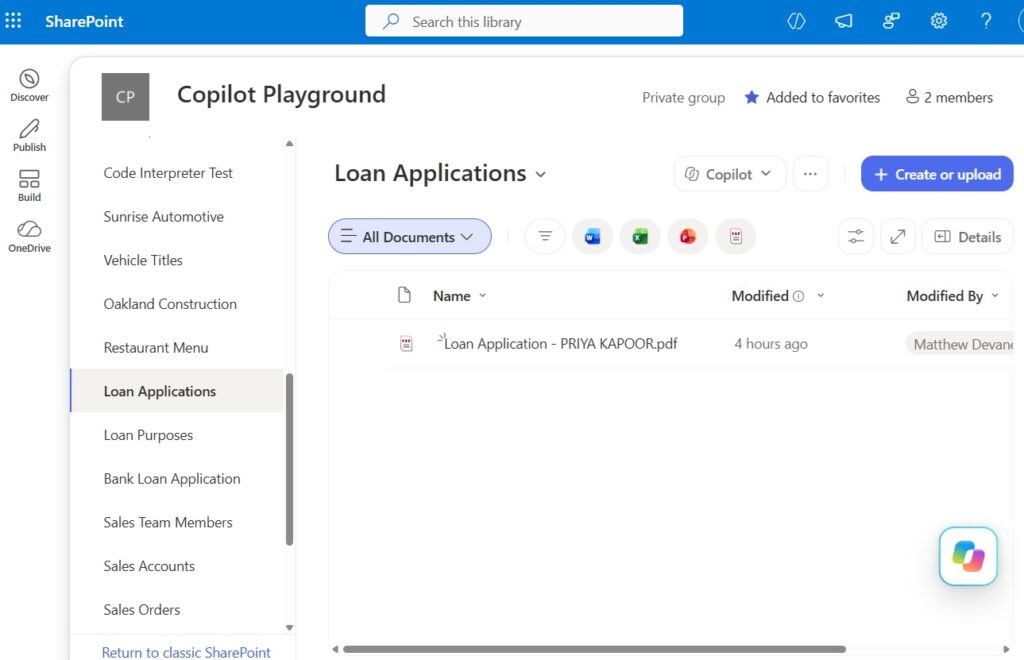
Add the following columns to the Loan Applications SharePoint list. These columns will be populated with values from the uploaded document.
| Property Name | Type |
| Full Legal Name | Text |
| Applicant ID | Text |
| Date Of Birth | Text |
| Is Employed | Choice (Employed, Unemployed) |
| Annual Income | Number |
| Loan Amount Requested | Number |
| Loan Purpose | Text |
| Date Signed | Text |
| Is Signed | Yes/No |
Trigger The Workflow When A File Is Created In SharePoint
Open Copilot Studio and create a new workflow with a connector type trigger. Choose the SharePoint – When A File Is Created (Properties Only) trigger. Then select the SharePoint site and the Loan Applications document library.
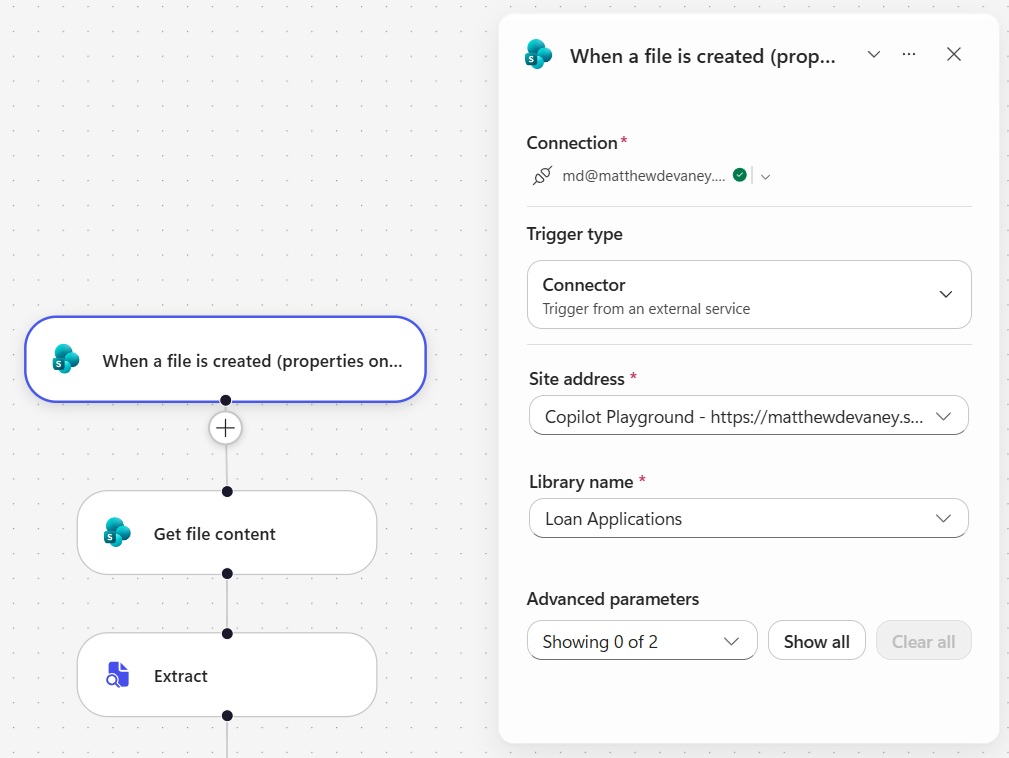
The trigger only includes the PDF file properties. We need the file contact to pass as input to an extract node. Add a get file content action to the workflow and assign the identifier value from the the trigger.
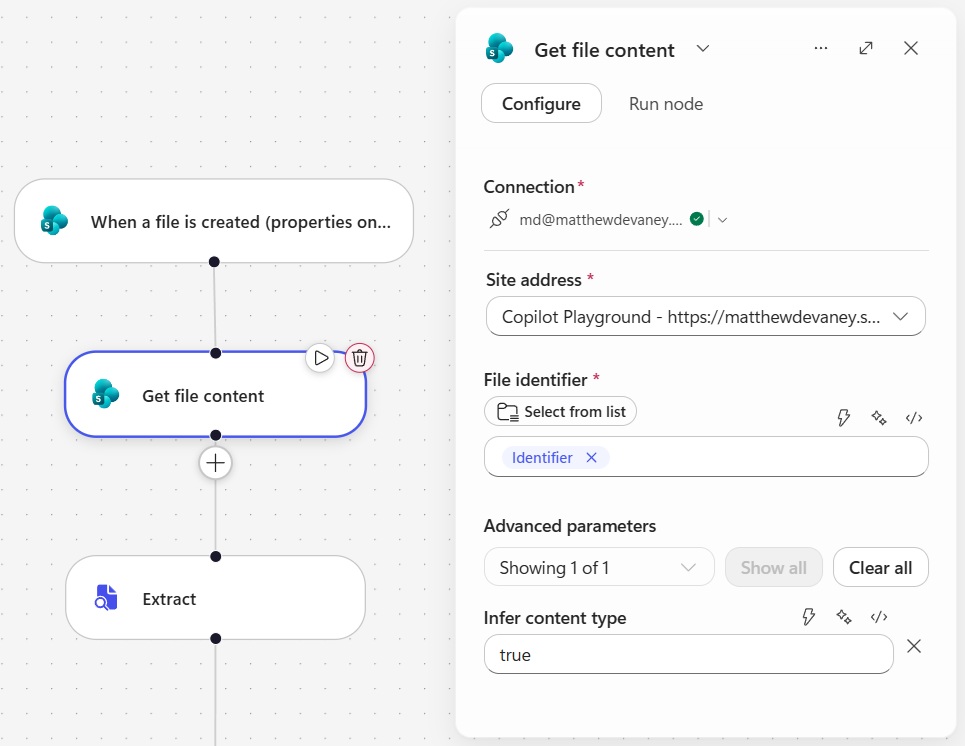
Use An Extract Node To Get Values From A PDF Document
The extract node in Copilot Studio can get values from any PDF, Word, Excel or PowerPoint document. It allows us to choose either a pre-setup document template (e.g. invoices, contracts, etc.) or extract values from our own custom document (i.e. loan applications).
Insert an extract node into the workflow and select File Content for the document field value.
After that, add the following properties, types and descriptions in the output section of the menu. Each of these fields can be found in the loan application PDF.
| Property Name | Type | Description |
| FullLegalName | Text | The applicant’s full legal name exactly as written on the form (first, middle, and last name). |
| ApplicantID | Text | The applicant’s ID in the format ID-#####-## (for example, ID-12345-67). Keep the hyphens and leading zeros. |
| DateOfBirth | Text | The applicant’s date of birth, written on the form as MM/DD/YYYY. Return it exactly as written. |
| IsEmployed | Choice | Yes if the “Employed” checkbox is checked, No if the “Unemployed” checkbox is checked. |
| AnnualIncome | Number | The applicant’s annual income in US dollars. Return digits only, with no currency symbol or commas. |
| LoanAmountRequested | Number | The loan amount requested in US dollars. Return digits only, with no currency symbol or commas. |
| LoanPurpose | Text | The brief description of what the loan is for, as written by the applicant. |
| DateSigned | Text | The date the application was signed, written on the form as MM/DD/YYYY. |
| IsSigned | Yes/No | Yes if a handwritten signature is present in the signature box, No if the box is blank. |
Update SharePoint Columns With Extracted Data
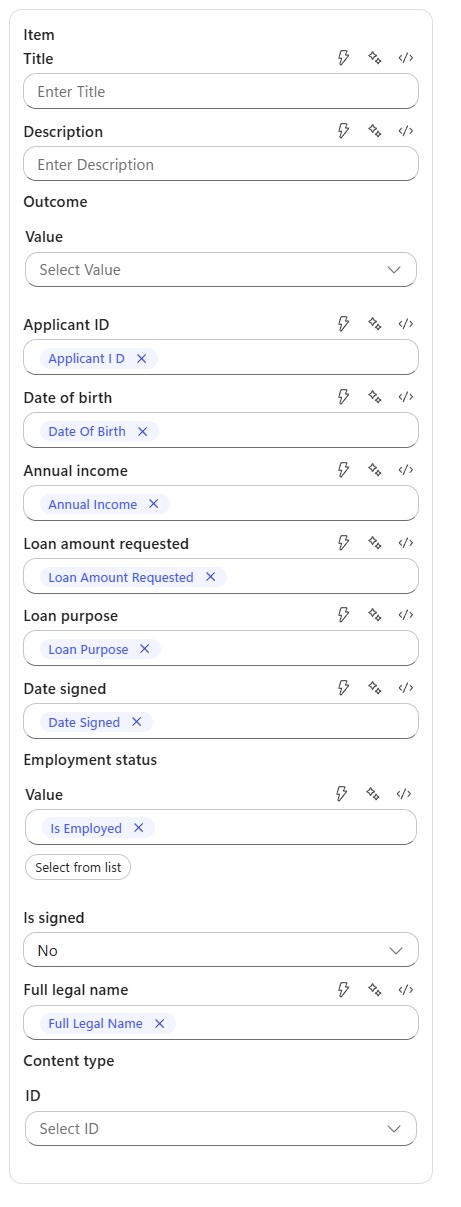
Once the key information is extracted from the PDF we can use it to populate metadata columns for the document in SharePoint. Insert a SharePoint – Update File Properties action and choose the file ID from the workflow trigger.
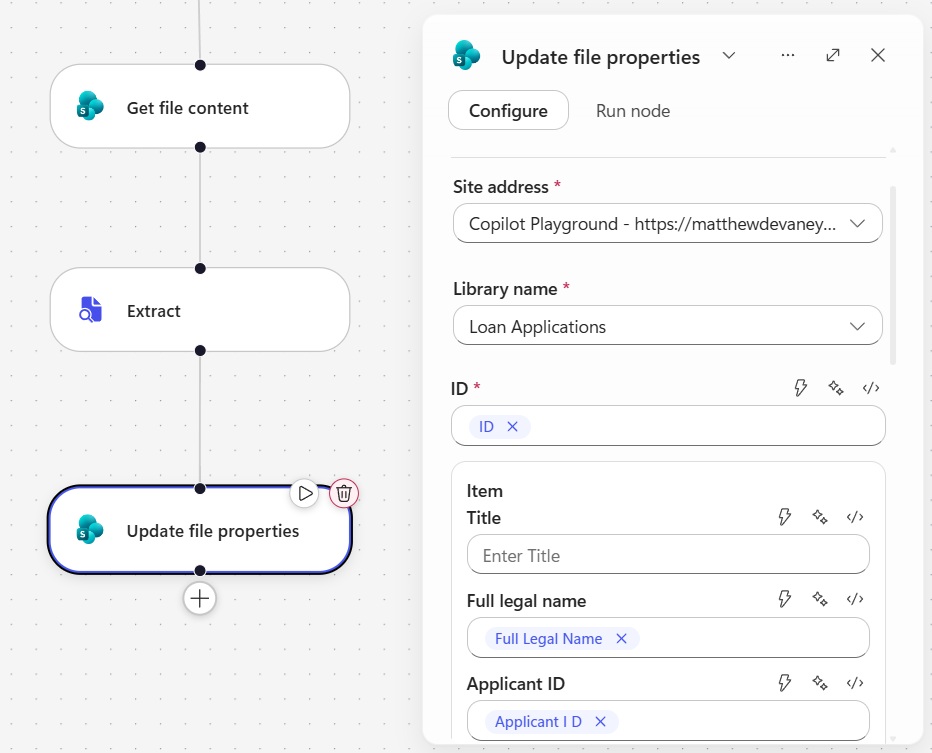
And assign a value from the extract node to each field.
Test The Workflow To Extract Data From A PDF File
That’s all it takes to extract data from any PDF, Word, Excel file, etc. in a Copilot Studio workflow. Save and publish the workflow. Then press the test workflow button and upload the loan application into the SharePoint document library.
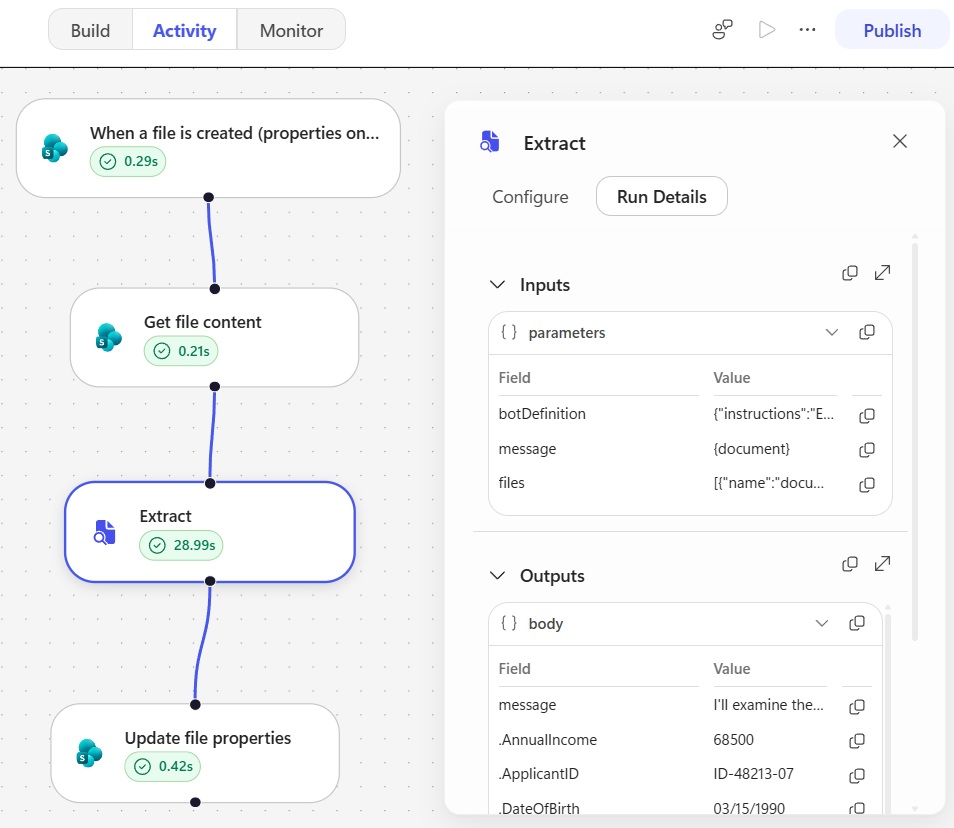
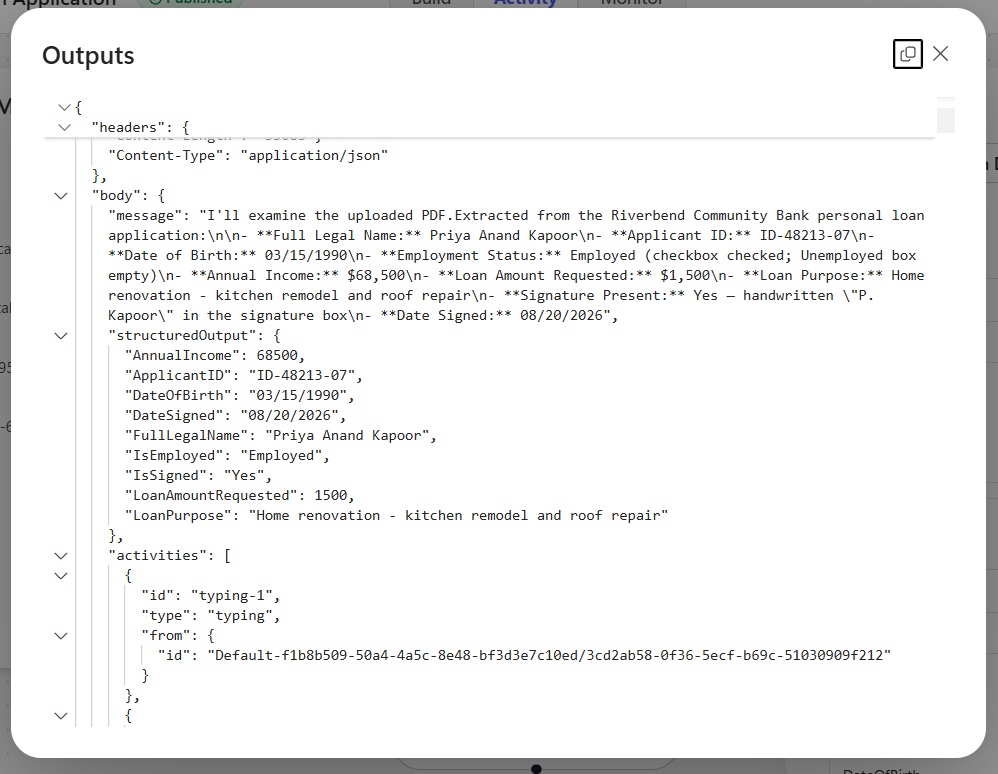
Once the flow is completed, check the extract node to ensure it contains the expected information.
And go to the SharePoint document library to confirm the extracted values have populated the PDF’s metadata columns.
Video: Copilot Studio: Extract Data From Any PDF, Word, Excel File
Watch a complete demonstration of how to build the workflow outlined in this article here.
Did You Enjoy This Article? 😺
Subscribe to get new Copilot Studio articles sent to your inbox each week for FREE
Questions?
If you have any questions or feedback about How To Extract Data From PDFs, Word, Excel In Copilot Studio please leave a message in the comments section below. You can post using your email address and are not required to create an account to join the discussion.