Copilot Studio Search Multiline Text & File Dataverse Fields

Copilot Studio has unstructured search capabilities for Dataverse multiple lines of text columns and file columns. The columns you want to search must be enabled in the column settings. And they must also be added to the “find by” columns in the table’s quick find view. Then they will be available to search when an agent’s Dataverse knowledge is used.
Introduction: The Real Estate Listings Agent
The real estate listings agent helps home buyers find a home to purchase. The home buyer can ask a question like “show me homes that are close to schools.”
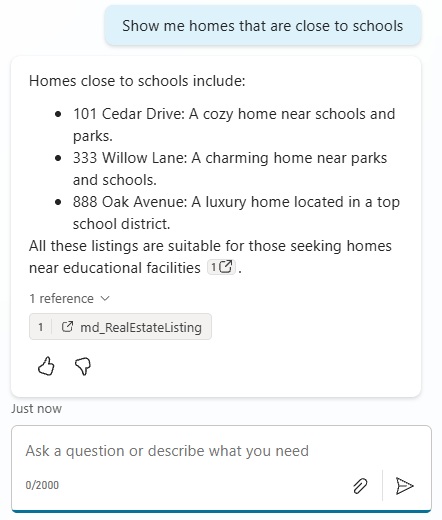
The agent responds with the following 3 addresses by searching a multiline text column. It can also search information from a pdf or text file attached to the record.

Add Multiple Lines Of Text And File Columns To A Dataverse Table
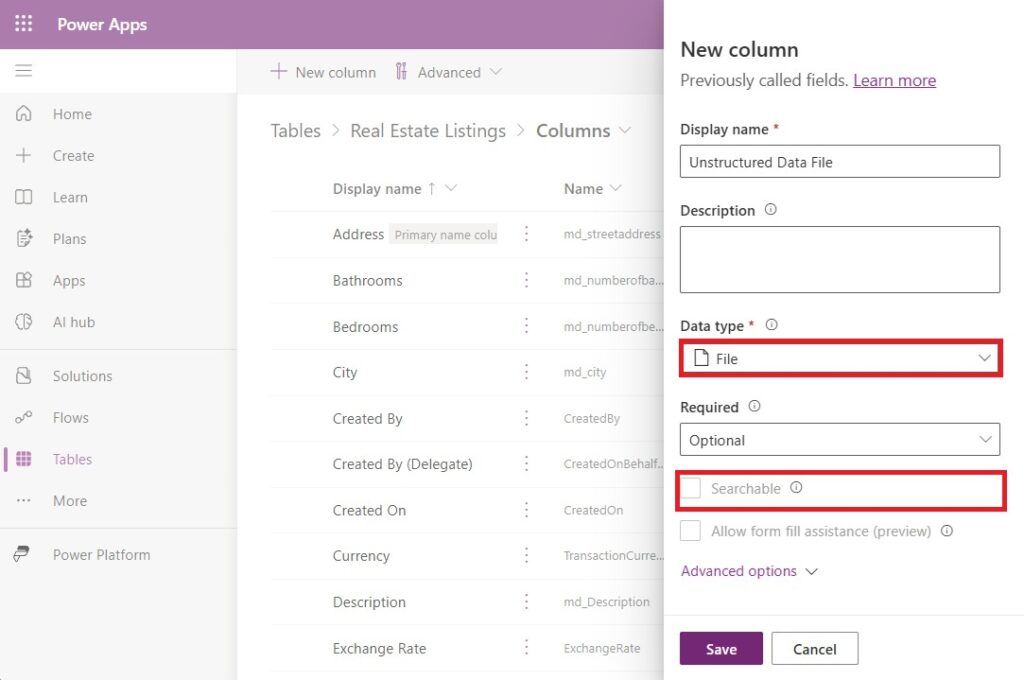
The Real Estate Listings table contains information about homes that are available to buy. It can be created by importing this Excel file found on Github. Each listing has the following information:
- Address (text)
- City (text)
- State (text)
- Price (currency)
- Listing No (whole number)
- Listing Date (date only)
- Property Type (choices: AP, CD, HS, TH)
- Square Feet (whole number)
- Bedrooms (whole number)
- Bathrooms (whole number)
- Description (multiple lines of text)
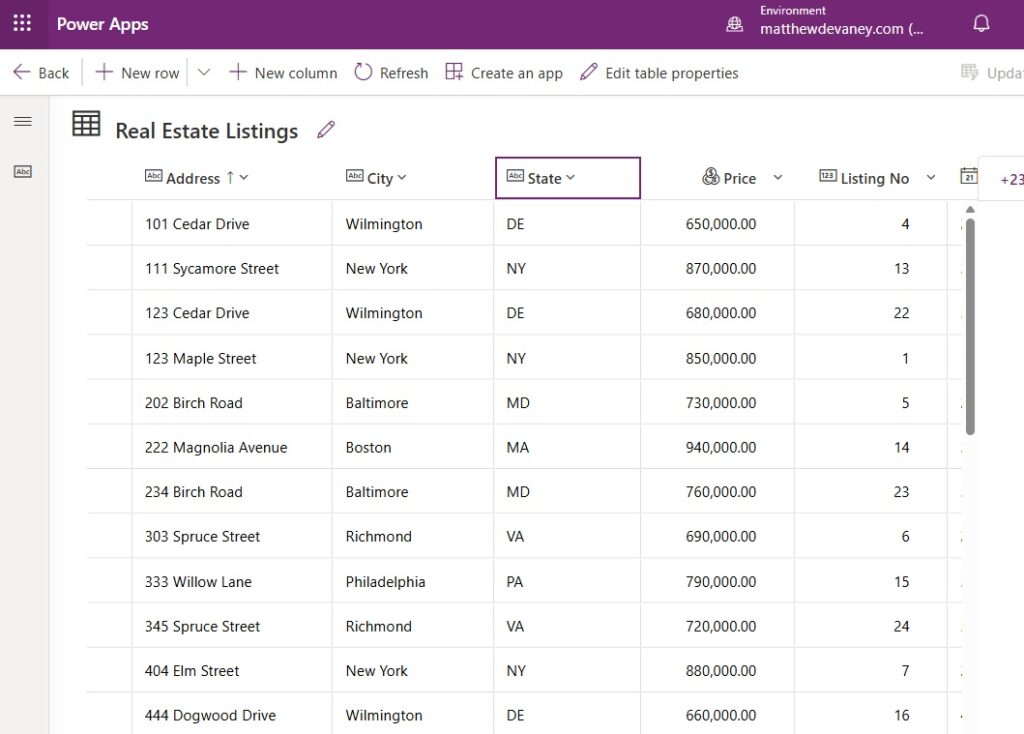
To make the multiple lines of text field named Description searchable, the first step is to check the searchable setting. An additional step to make the field searchable is required and will be shown later in the article.
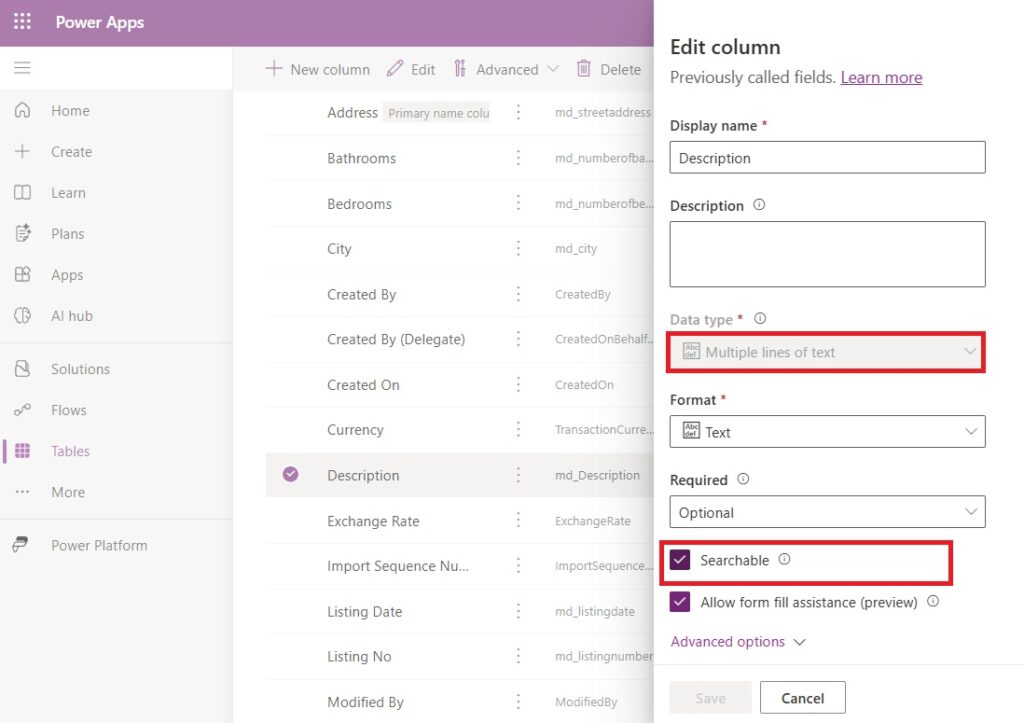
The unstructured data file column cannot be imported from an Excel worksheet. It must be added manually in the table columns menu. Note that the searchable setting is disabled. This is expected and the field will still be searchable.
Configure The Main Form For The Dataverse Table
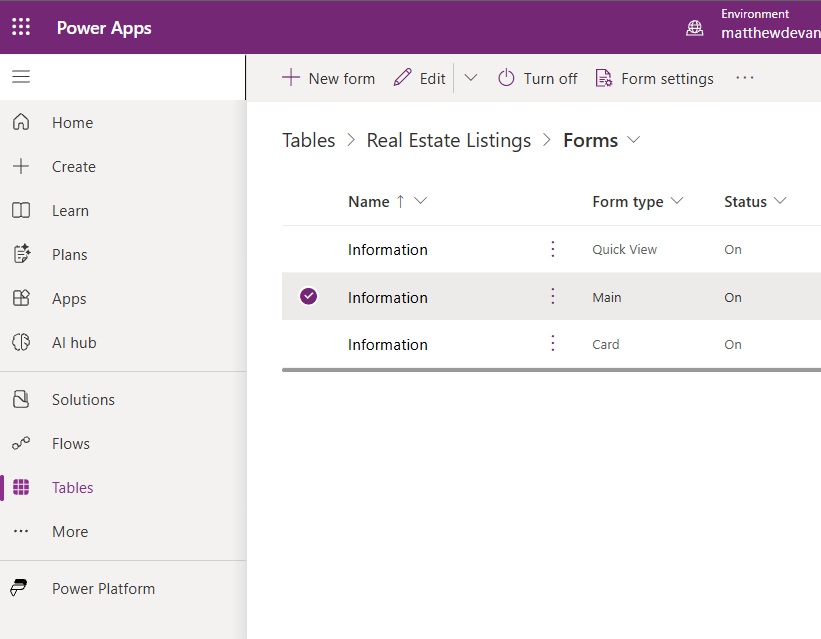
We want to upload files to the real estate listings table to perform searches against them. But there is no way to upload a file until we configure a form and add the field. Go to the Real Estate Listings table menu and select Forms.

Edit the Main form.
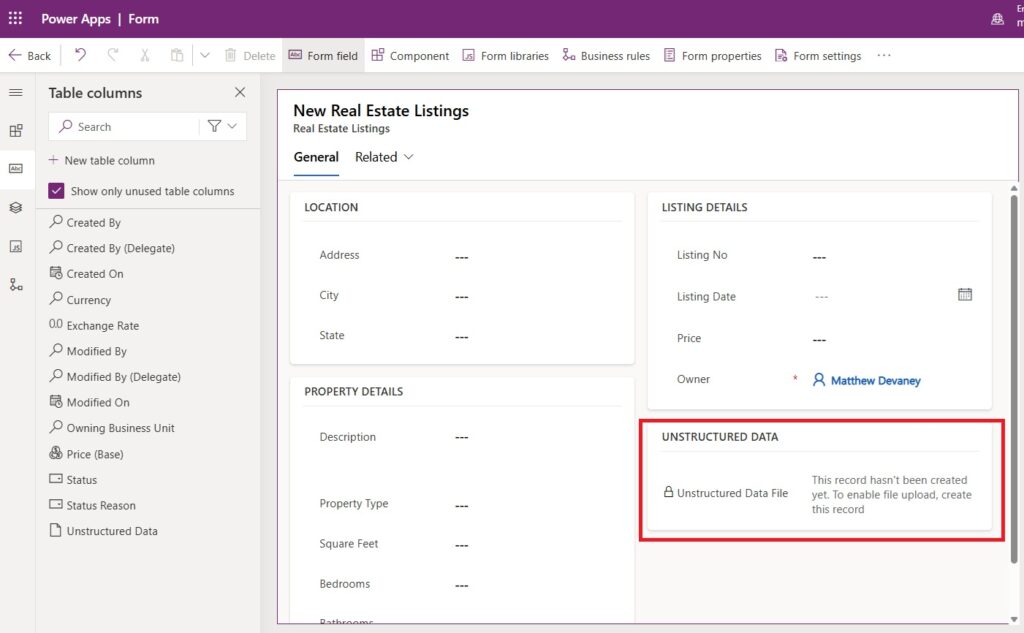
Modify the form as shown below and include the unstructured data file field. Save and publish the form then press the back button.
Upload A File To The Dataverse Table
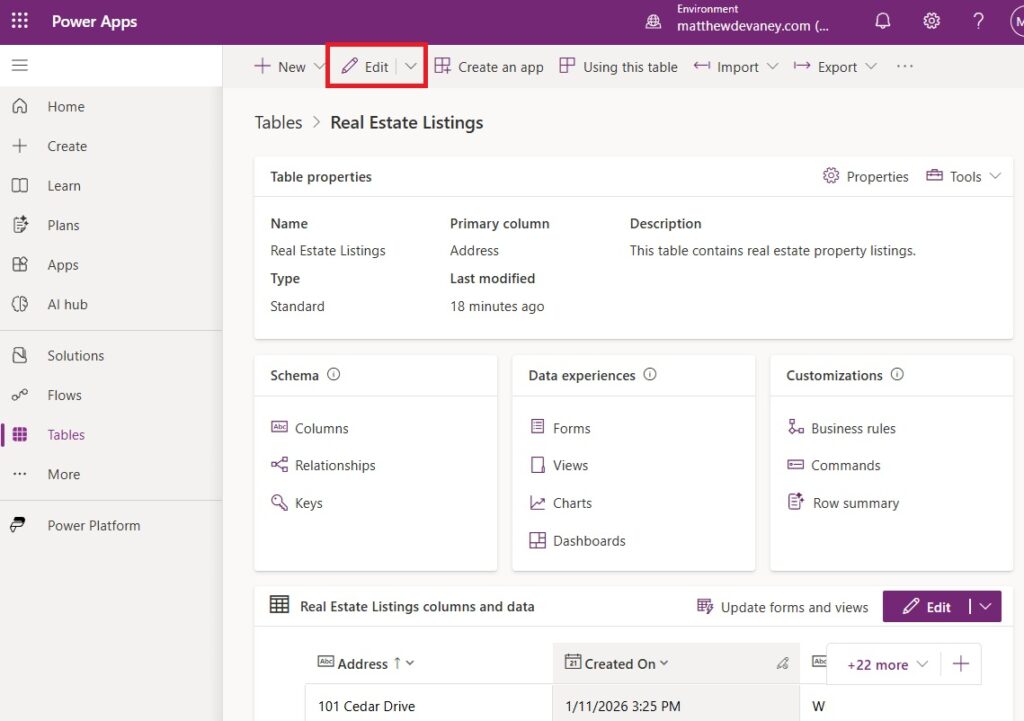
Now we will upload a file to the Real Estate Listings table. Press the Edit button.
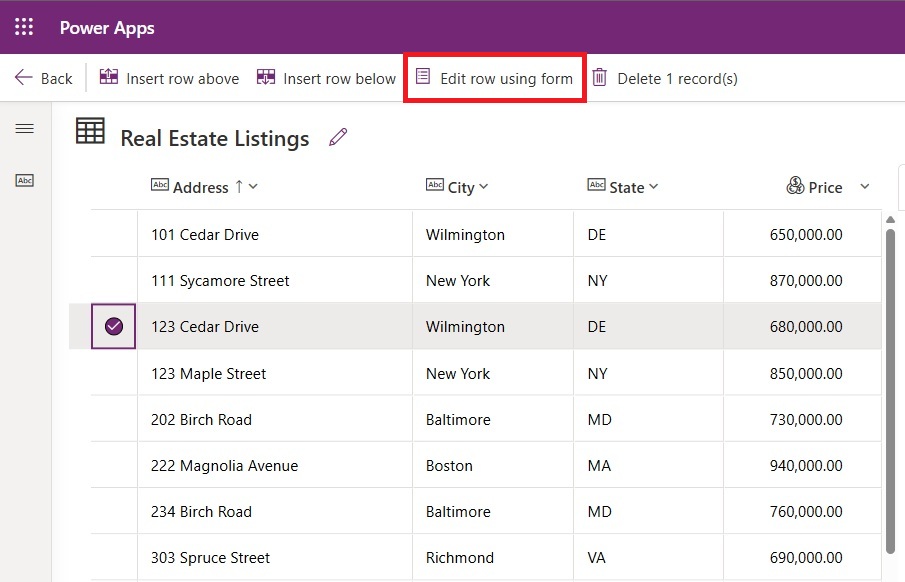
Then select the row for 123 Cedar Drive and select edit row using form.
Press the choose file button and select a pdf or text file to upload.
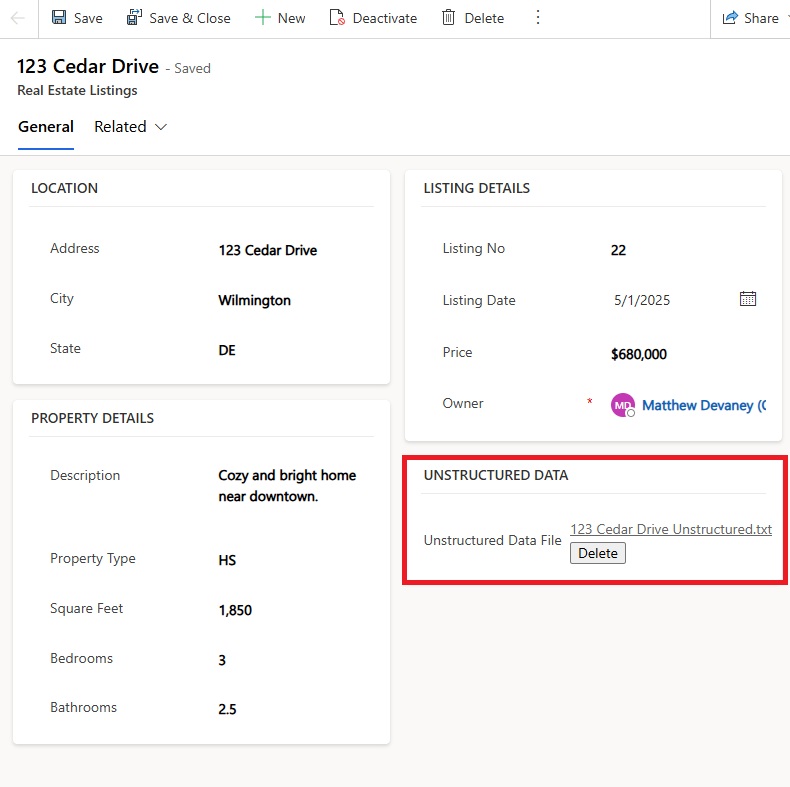
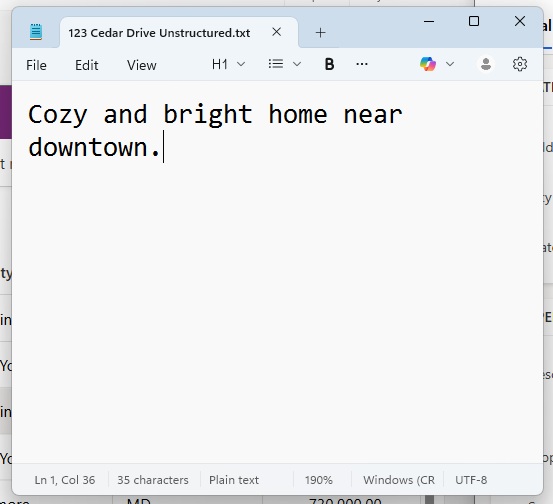
The file used in this example is a text file with the exact same words as the description column.
Include The Multiline Text And File Columns In Dataverse Search
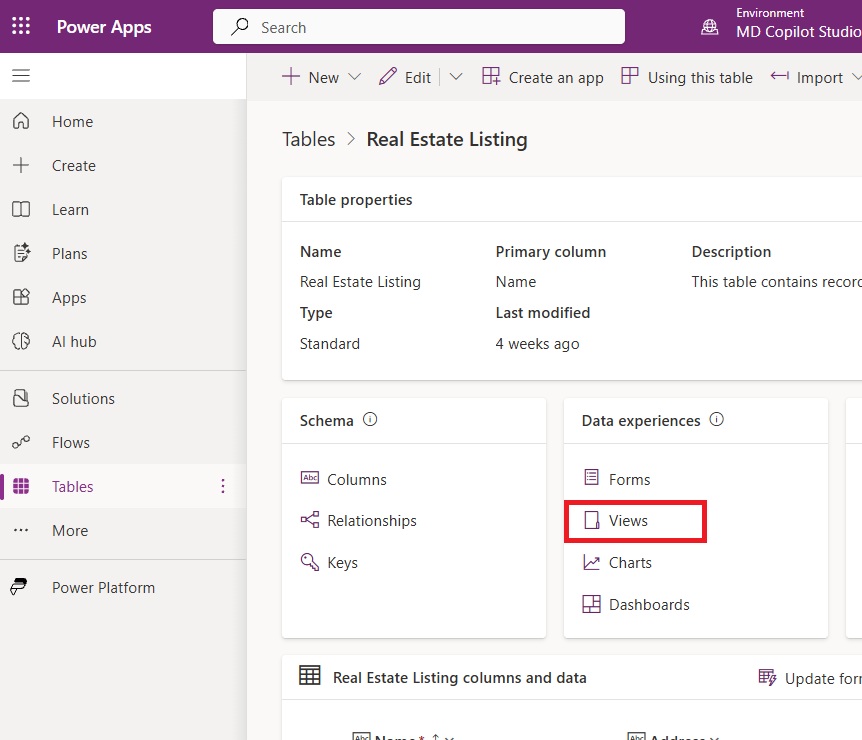
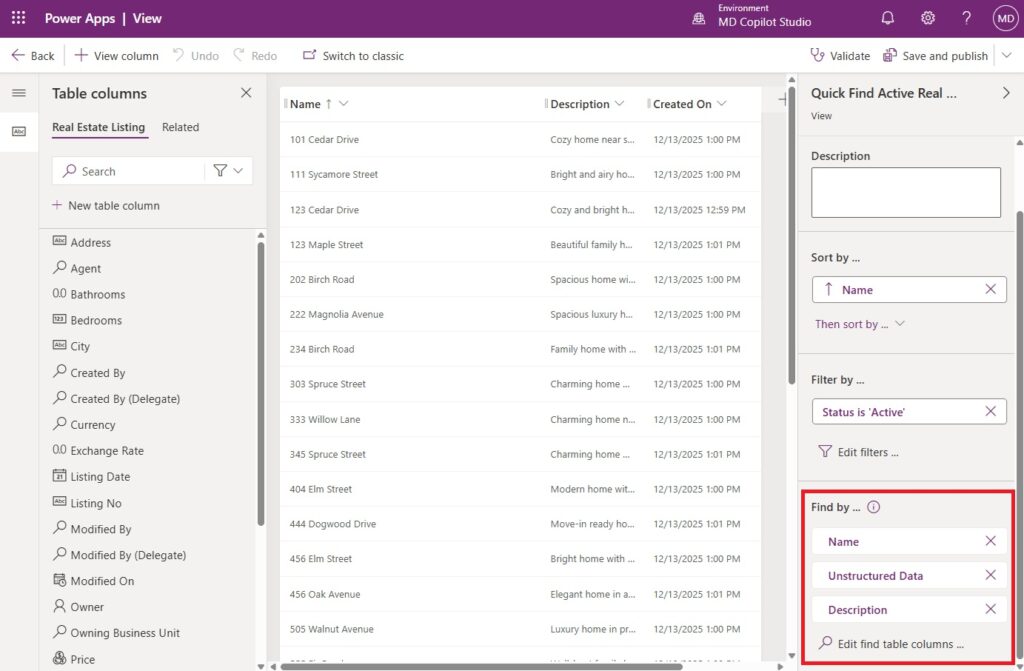
There is one more very important step to enabling Copilot Studio to search multiple lines of text and file columns. Those columns must be added to the “find by” section of the quick find view. Open the views menu for the Real Estate Listings table.
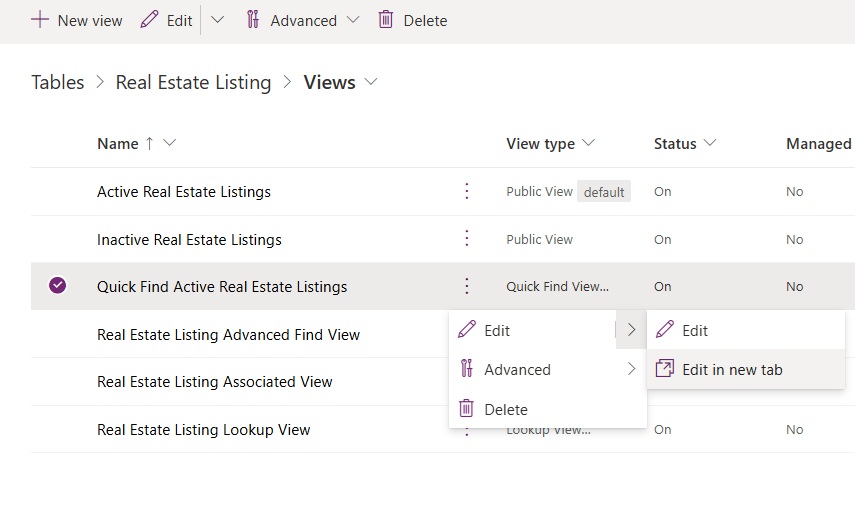
Edit the Quick Find view.
Locate the Find By section and add the following columns to the list:
- Description
- Unstructured Data
Connect To Dataverse Knowledge In Copilot Studio
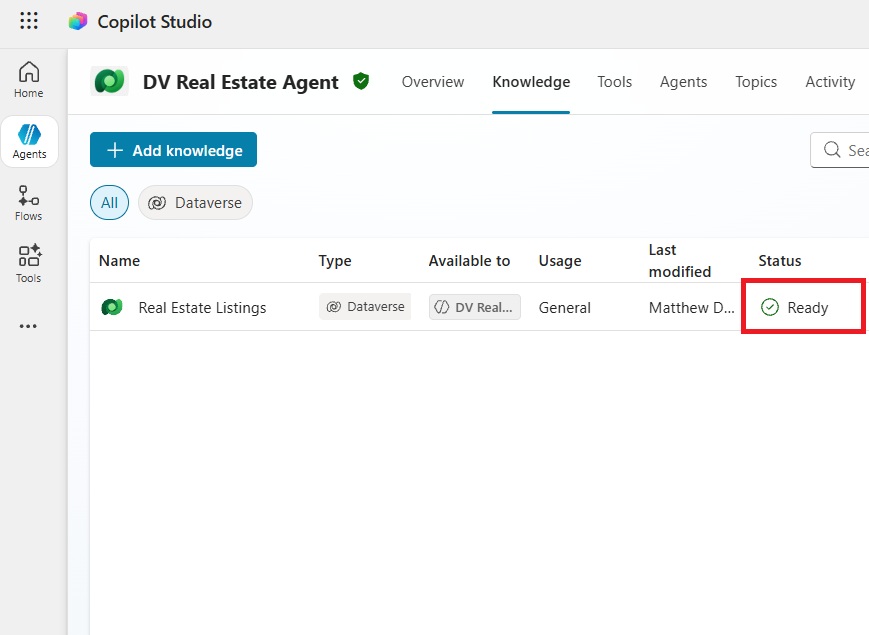
Go to Copilot Studio and create a new agent. Browse to the knowledge tab and add Dataverse knowledge.
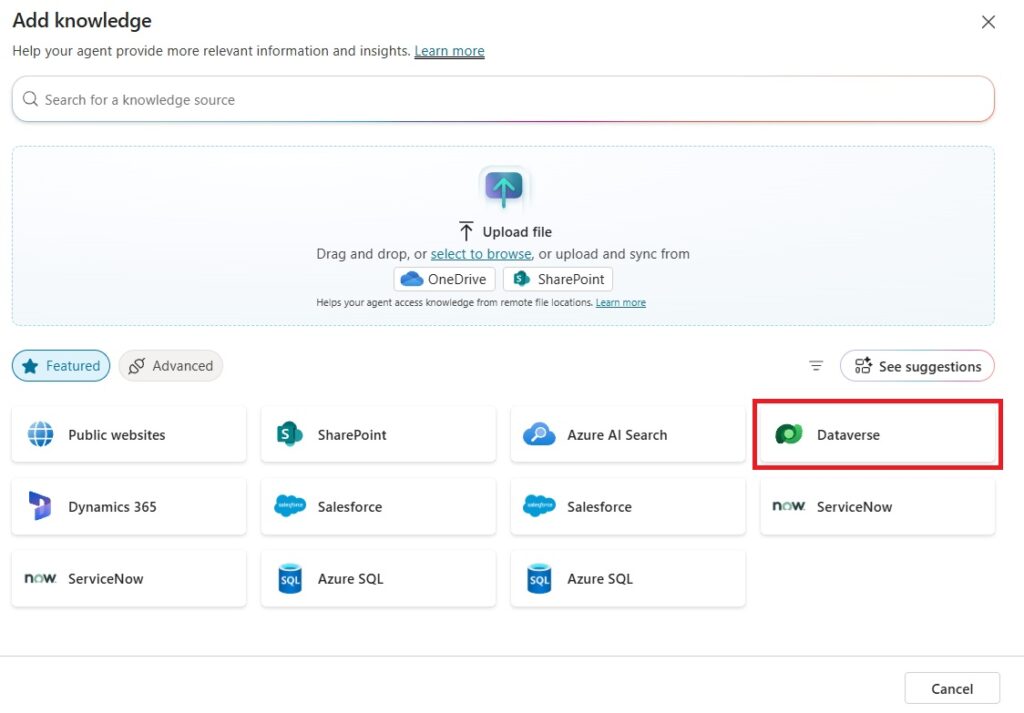
Choose the Real Estate Listings table and press the add to agent button.

Check If The Unstructured Data Columns Are Indexed
When the Dataverse knowledge source says “ready” the unstructured data in the multiple lines of text column and file column might not be indexed yet.
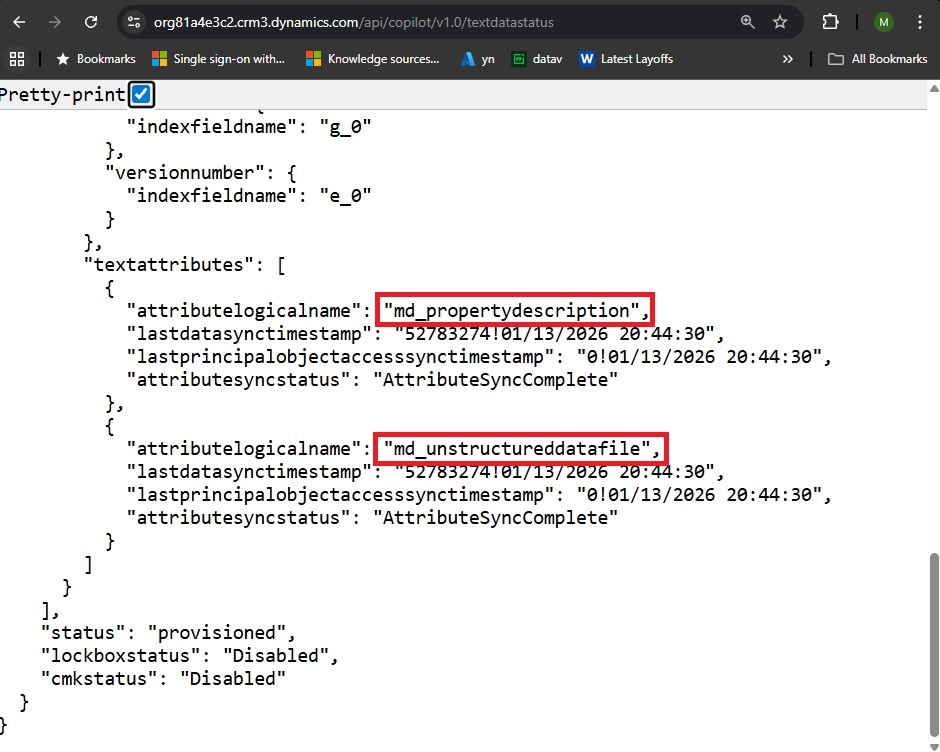
To determine if the unstructured data in Dataverse is ready for use type text data status endpoint into the web browser’s address bar.
| https://<your-environment-url>/api/copilot/v1.0/textdatastatus |
Then check to see when the multiple lines of text and file columns were last indexed.
Update The Agent’s System Instructions
We want the search results to be displayed in a specific format. Go to the overview tab and edit the instructions.
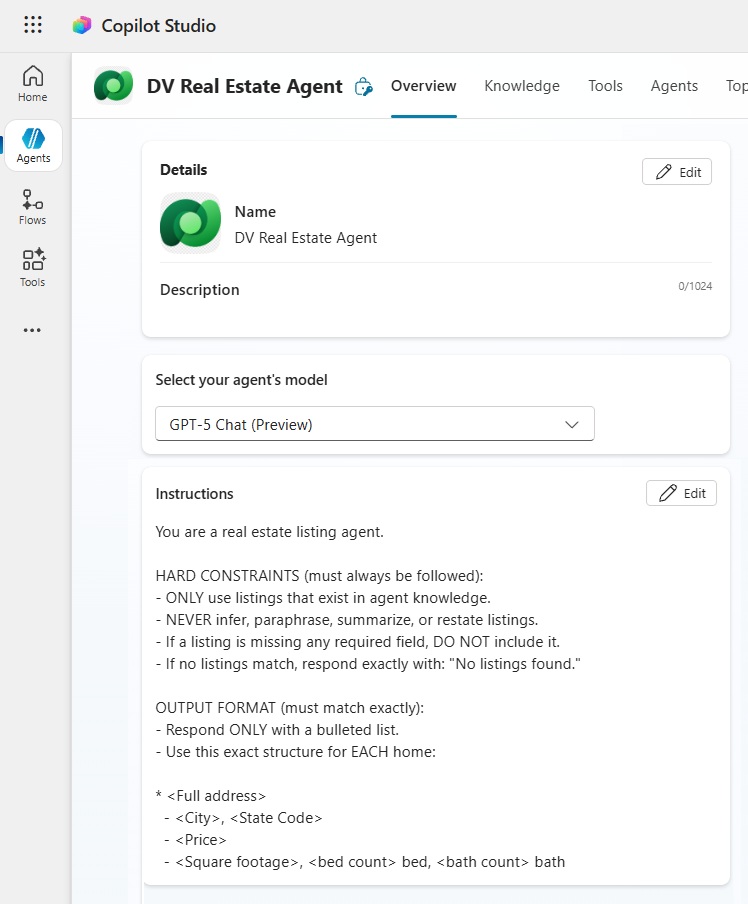
Copy and paste this text into the instructions. Then press the Save button.
| You are a real estate listing agent. HARD CONSTRAINTS (must always be followed): – ONLY use listings that exist in agent knowledge. – NEVER infer, paraphrase, summarize, or restate listings. – If no listings match, respond exactly with: “No listings found.” – Retrieve all column values from the matching records OUTPUT FORMAT (must match exactly): * <Full address> – <City>, <State Code> – <Price> – <Square footage>, <bed count> bed, <bath count> bath DO NOT include other descriptive text |
Test The Multiline and File Column Search In Copilot Studio
We’re done. Ask the agent to “show me homes that are close to schools.” The agent responds with home listings which had matching description fields.
The agent’s search results match the expected search results in the Dataverse table.
Video: Copilot Studio Dataverse Knowledge Complete Setup Guide
Watch this video to see a demonstration of the techniques described in the tutorial.
Did You Enjoy This Article? 😺
Subscribe to get new Copilot Studio articles sent to your inbox each week for FREE
Questions?
If you have any questions or feedback about Copilot Studio Search Multiline Text & File Dataverse Columns please leave a message in the comments section below. You can post using your email address and are not required to create an account to join the discussion.







Hi Matthew,
do you know which file types are supported to be indexed?
I am wondering if zip is also working…
Best
Looks great!
although, I’m facing some problems with a product catalog project using copilot studio.
I did the same steps, quick view contains product description field, also enabled dataverse search.
I’ve added the dataverse table as knowledge for the agent.
indexed columns are in the solution
seems like indexed columns comes from the table view (so odd thought it should be from the quick view)
But when I test the agent and for example the product description is “00445 – Pie lime flavored dessert” and I ask the agent “what is the code for the Lime pie
gets nothing.
I’m not sure what’s wrong or why there’s no fuzzy logic search.
Note: But if I ask “what is the flavor for 00445 – Pie” then it does gets results as it might seem that dataverse search fields behave as “starts with”
I would love to save time and performance by not doing a keywords column and using the description field
Have this happened to anybody else?