Copilot Studio: Generate PowerPoint File From A Template

An agent built-in Copilot Studio can generate a PowerPoint file using a prompt and return it to the chat window. Start by creating a PowerPoint template and assign names to the text boxes which will be filled with dynamic values. Then use an agent flow to get the PowerPoint template, feed inputs into a prompt action, save the output PowerPoint file to SharePoint and return the file path back to the chat window.
Introduction: PowerPoint Generator Agent
Teachers at a school use the PowerPoint Generator Agent built with Copilot Studio to create certificates of completion for their students. The teacher types in the the student’s name, course name and the instructor name.
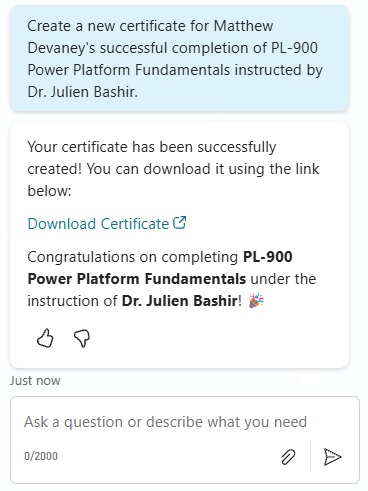
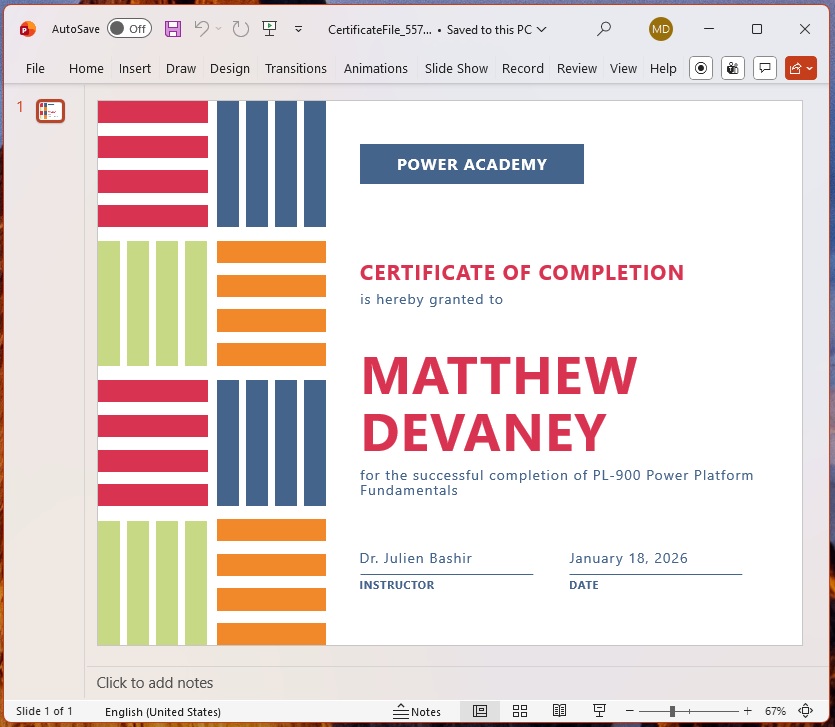
Then the agent outputs a PowerPoint file with the requested values.
Select A PowerPoint Template
The agent will create a certificate of completion based upon a pre-existing PowerPoint template. Open PowerPoint and go to the templates page. Search for certificate and select the color block student certificate design.
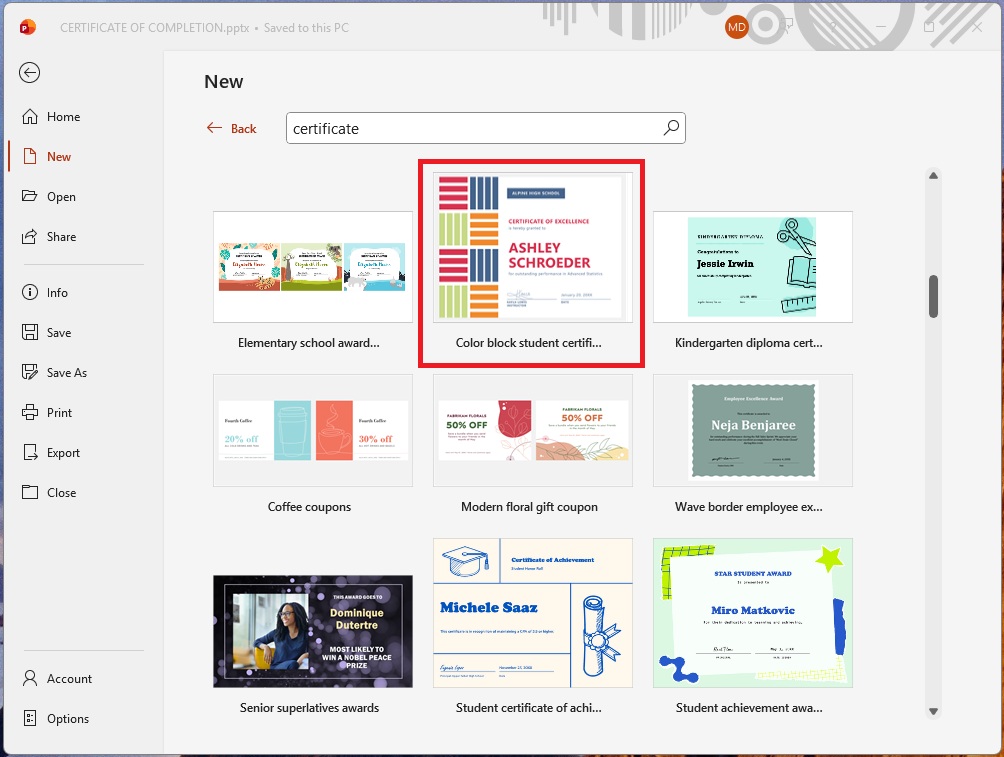
The PowerPoint template looks like the image below. We will modify it to suit our own needs.
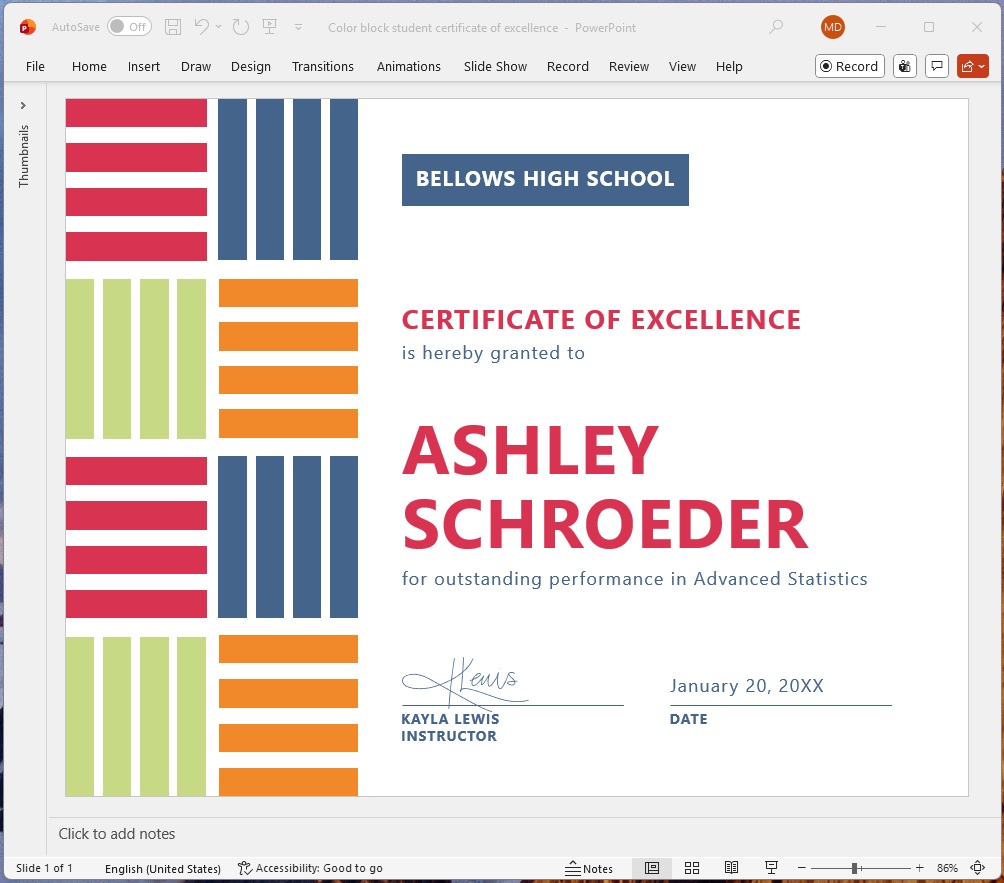
First, open the selection pane to reveal the names of each text box on the slide.
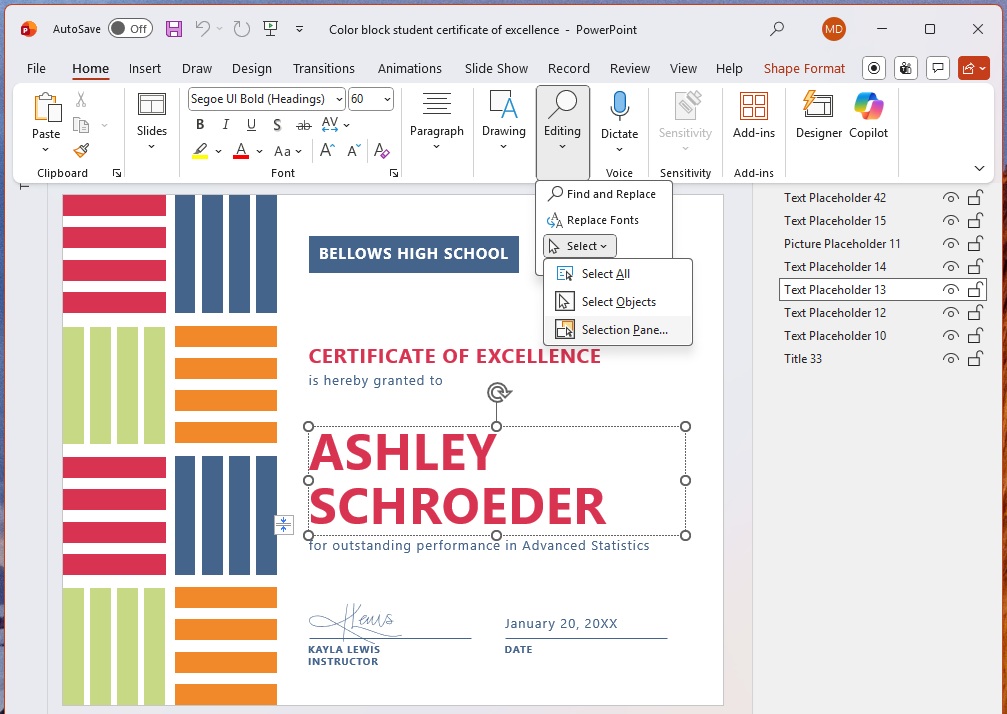
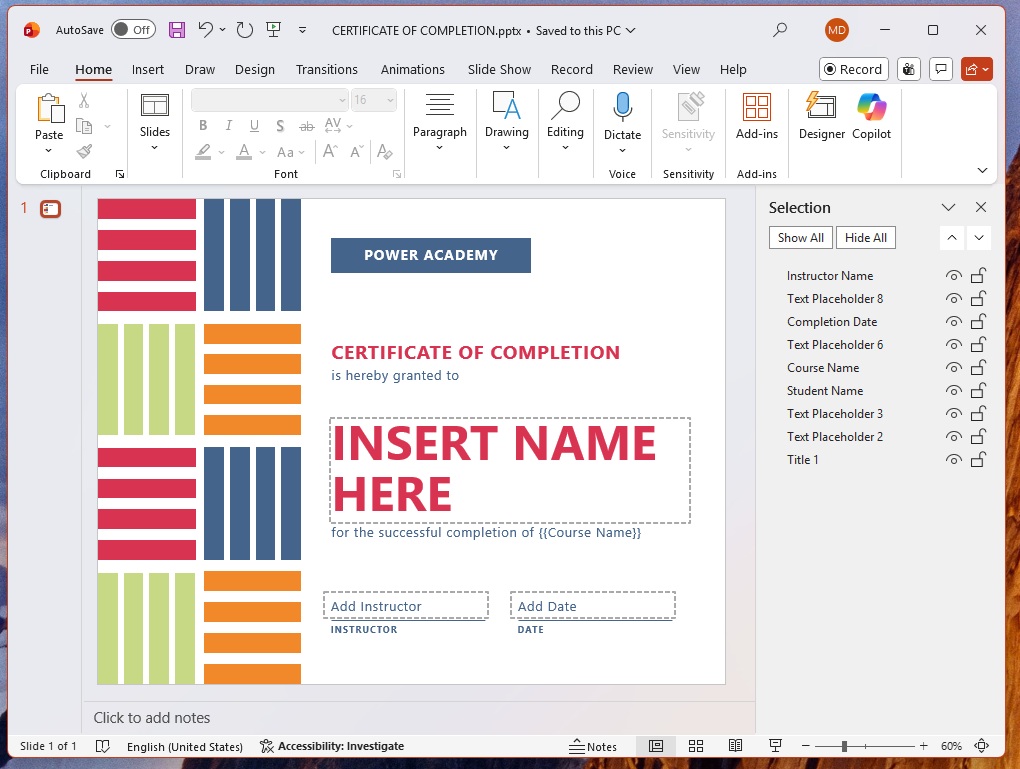
Then, rename the text boxes to these these values and remove their text:
- Completion Date
- Course Name (change the text to “for the successful completion of {{Course Name}}” instead)
- Instructor Name
- Student Name
Save the PowerPoint slide deck as “CERTIFICATE OF COMPLETION.pptx” once finished and and close the file.
Generate A PowerPoint File Using A Copilot Studio Prompt
The PowerPoint file will be created by the agent using a prompt. Go to Copilot Studio and create a new prompt tool named Fill-In PowerPoint Template.
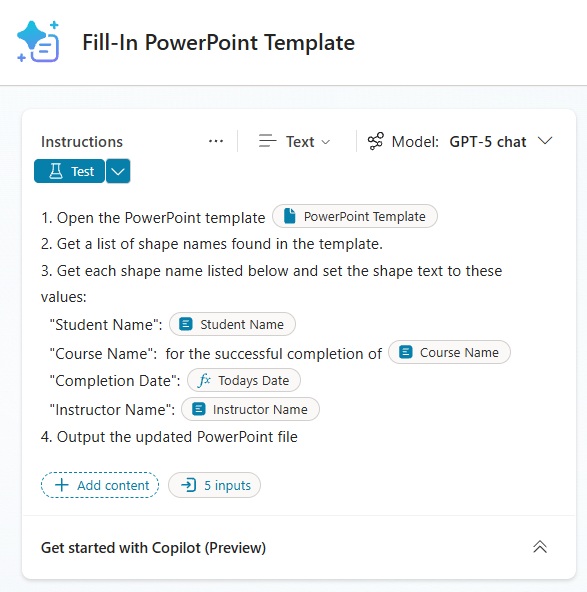
Use the following instructions for the prompt:
| 1. Open the PowerPoint template [PowerPoint Template] 2. Get a list of shape names found in the template. 3. Get each shape name listed below and set the shape text to these values: “Student Name”: [Student Name] “Course Name”: for the successful completion of [Course Name] “Completion Date”: [Today’s Date: Today()] “Instructor Name”: [Instructor Name] 4. Output the updated PowerPoint file |
Supply these sample values to the input fields:
- Course Name: PL-900 Power Platform Fundamentals
- Student Name: Matthew Devaney
- Instructor Name: Dr. Julien Bashir
- PowerPoint Template: CERTIFICATE OF COMPLETION.pptx
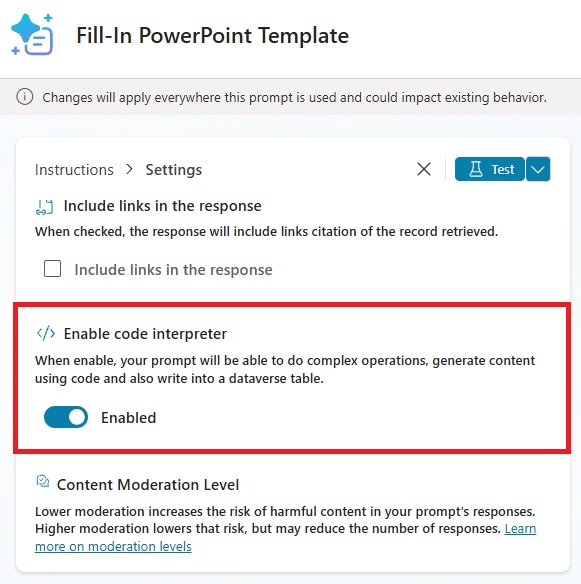
Browse the settings menu and enable code interpreter. This is necessary to accept an PowerPoint file as an input and output a PowerPoint file from the prompt.
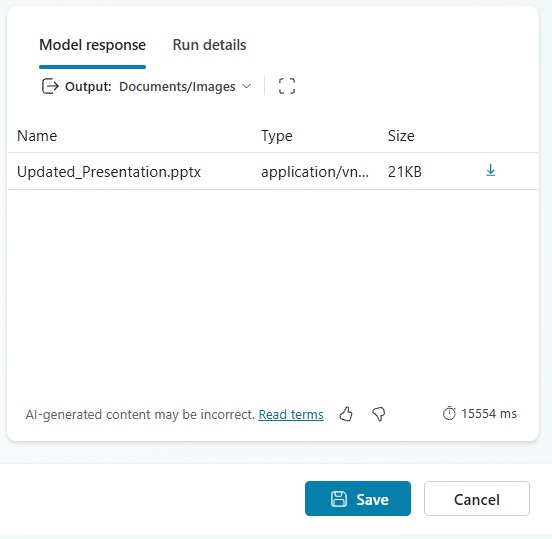
Set the prompt to output Documents/Images and press the Test button. Download the PowerPoint file output by the prompt.
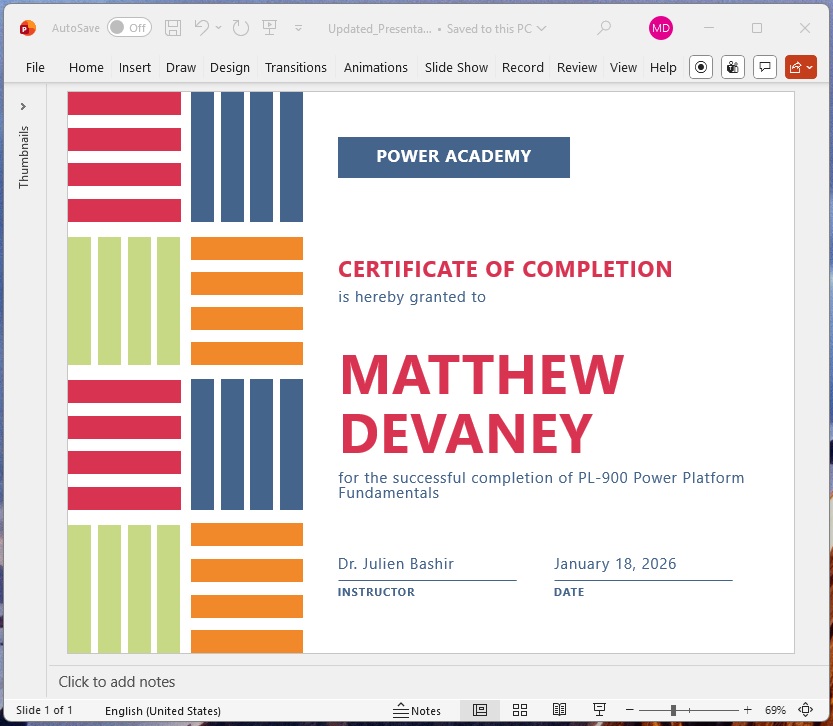
The sample values appear in generated PowerPoint file.
Create An Agent Flow To Generate a PowerPoint File
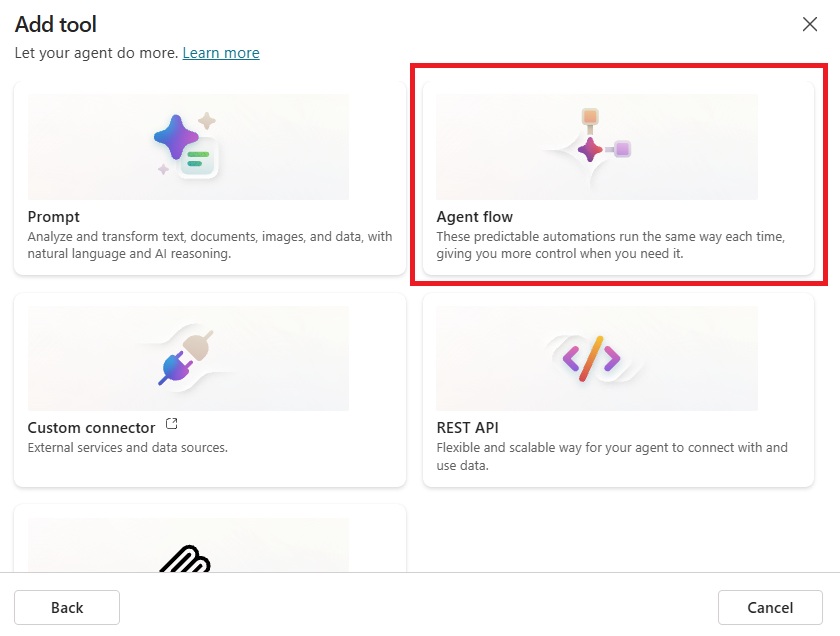
We will create an agent flow to generate the PowerPoint file, save it to the user’s OneDrive and return the file link to the agent. Start a new agent in Copilot Studio named PowerPoint Generator agent and add a new agent flow tool.
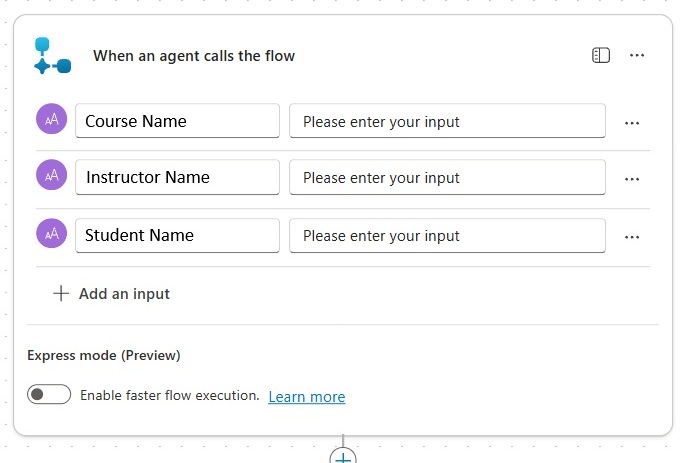
Include the following values as inputs to the agent flow:
- Course Name (text)
- Instructor Name (text)
- Student Name (text)
Get The PowerPoint Template From A SharePoint Site
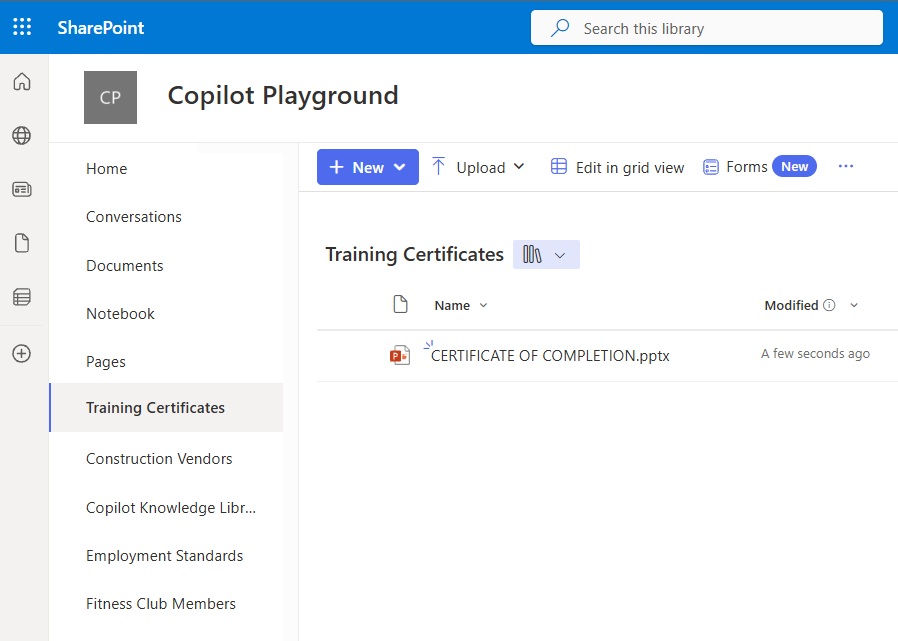
The PowerPoint template must be stored in a central location that every agent user has access to. Create a new document library named Training Certificates and upload the CERTIFICATE OF COMPLETION.pptx.
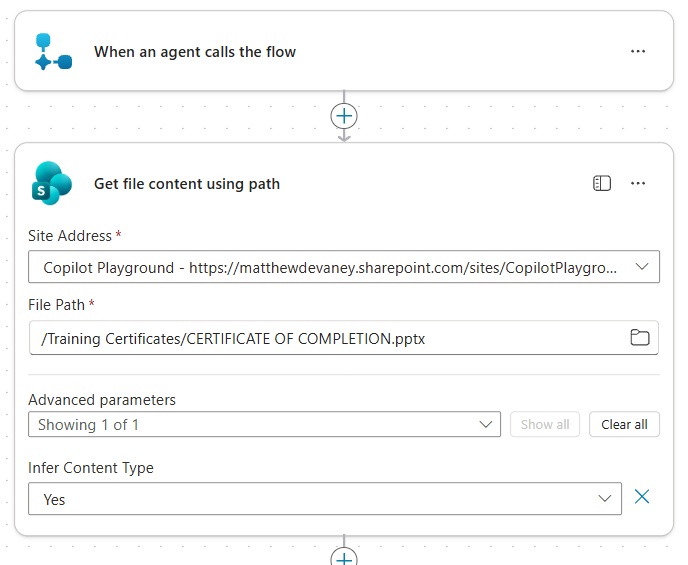
Then add a SharePoint – Get File Content Using Path action to the agent flow and select the PowerPoint template.
Execute A Prompt Action To Generate A PowerPoint File
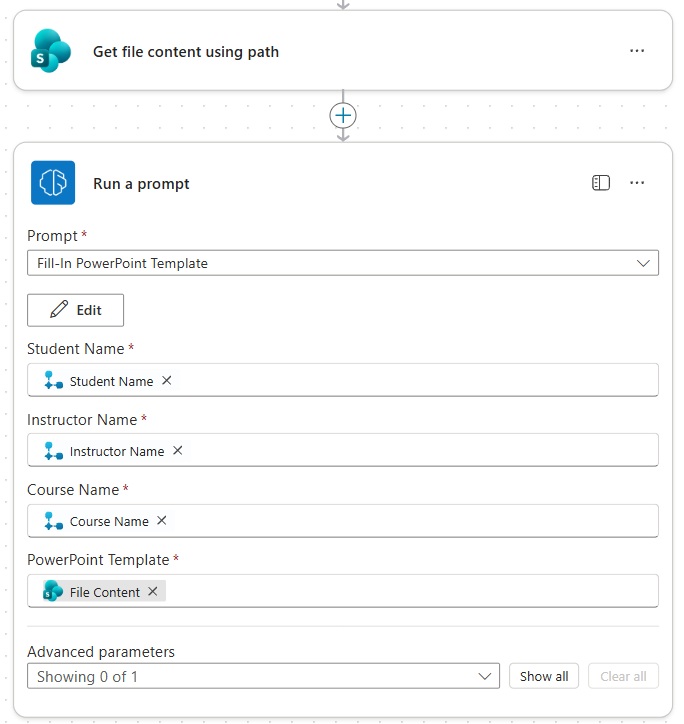
Once the PowerPoint template is obtained by the agent, we will feed it into a prompt action along with the flow inputs to generate a PowerPoint file. Insert a Run A Prompt action to the flow and select the prompt named Fill-In PowerPoint Template that we saved earlier. Fill-in the fields with the trigger inputs and file content of the PowerPoint template.
Construct A Link To The PowerPoint File
Now that we have generated the PowerPoint file , we want to save it to the user’s OneDrive and send a file link back to the Agent in Copilot Studio. It is preferable to pass the link to Copilot Studio rather than the entire file because there are size limits on any response sent to an Agent. These size limits apply to any API, not just Agent Flows.
Begin by inserting a OneDrive – Create file action and specifying a folder path and file name. Include the document output from the Run a Prompt action in the File Content field. Then use an Office 365 Users – Get My Profile (V2) action to get the current user’s user principal name. And Compose the full path to the file as shown in the image below.
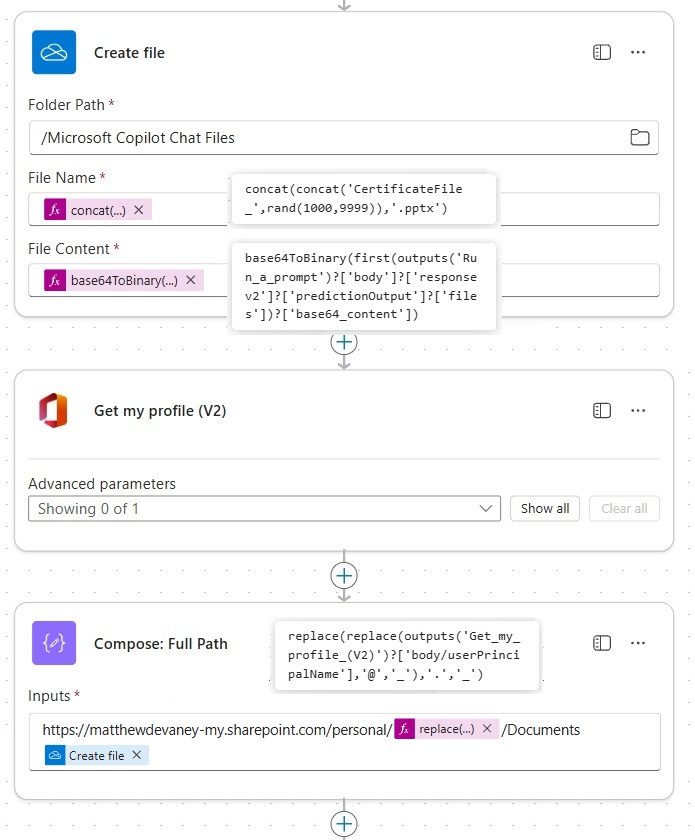
The File Name in the Create File action must be unique. A common technique is to include the timestamp to ensure a unique value. In this example, we will use a random value between 1000-9999 instead.
concat(concat('CertificateFile_',rand(1000,9999)),'.pptx')Code language: JavaScript (javascript)
The File Content field should be populated with the PowerPoint file output by the prompt action. However, we must convert it from Base64 to Binary using the formula below.
base64ToBinary(first(outputs('Run_a_prompt')?['body']?['responsev2']?['predictionOutput']?['files'])?['base64_content'])Code language: JavaScript (javascript)
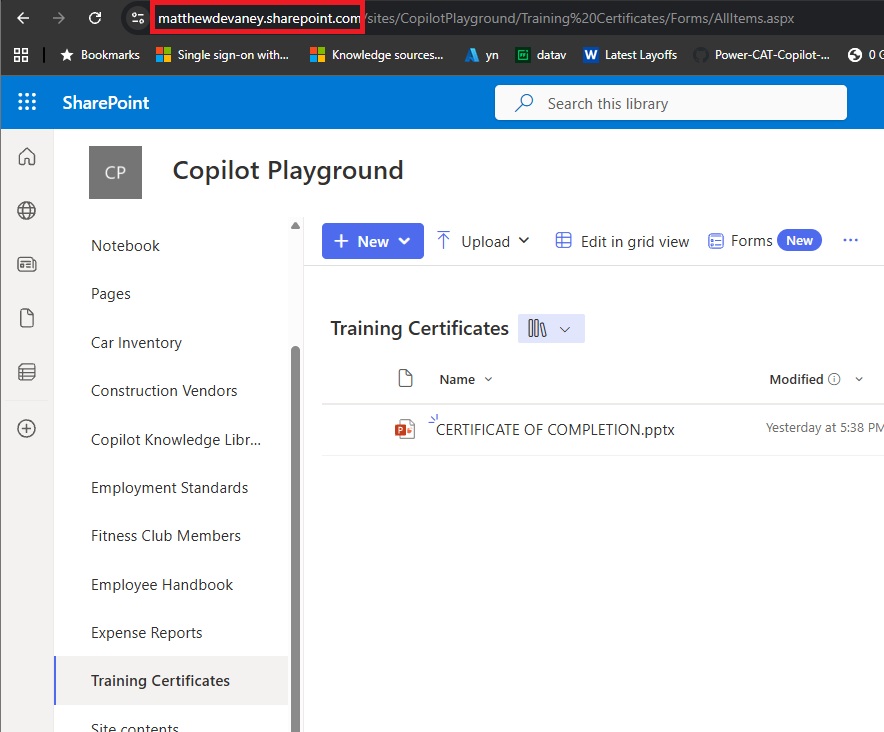
To get the domain name for the full path to the word document, open OneDrive and copy + paste the domain from the web browser’s address bar.
The user principal name contains “@” and “.” symbols which are not safe values for contracting URLs. Convert these characters to “_” symbols using the formula below.
replace(replace(outputs('Get_my_profile_(V2)')?['body/userPrincipalName'],'@','_'),'.','_')Code language: JavaScript (javascript)
Respond To The Agent With The File Path
At the end of the flow, add a Respond To The Agent action and include a text variable named Full Path with the description: a download link for the PowerPoint file output by the Agent.
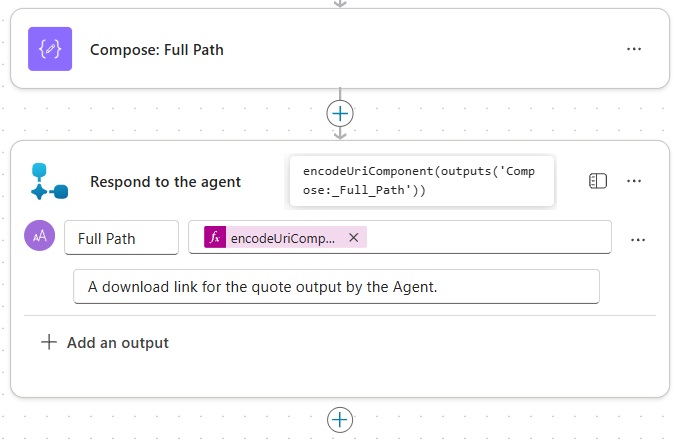
Use the encodeUriComponent function to encode the full path to the PowerPoint file with the proper formatting needed by the agent. Then save and publish the agent flow.
encodeUriComponent(outputs('Compose:_Full_Path'))Code language: JavaScript (javascript)
Configure The Generate PowerPoint Tool In Copilot Studio
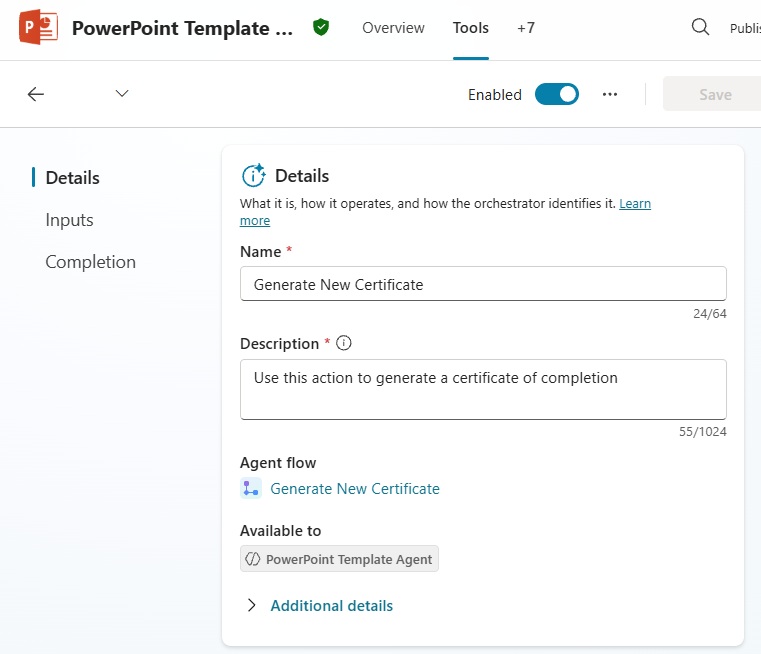
In Copilot Studio, open the Generate New Certificate tool to provide additional context. Start by adding the description “use this action to generate a certificate of completion.”
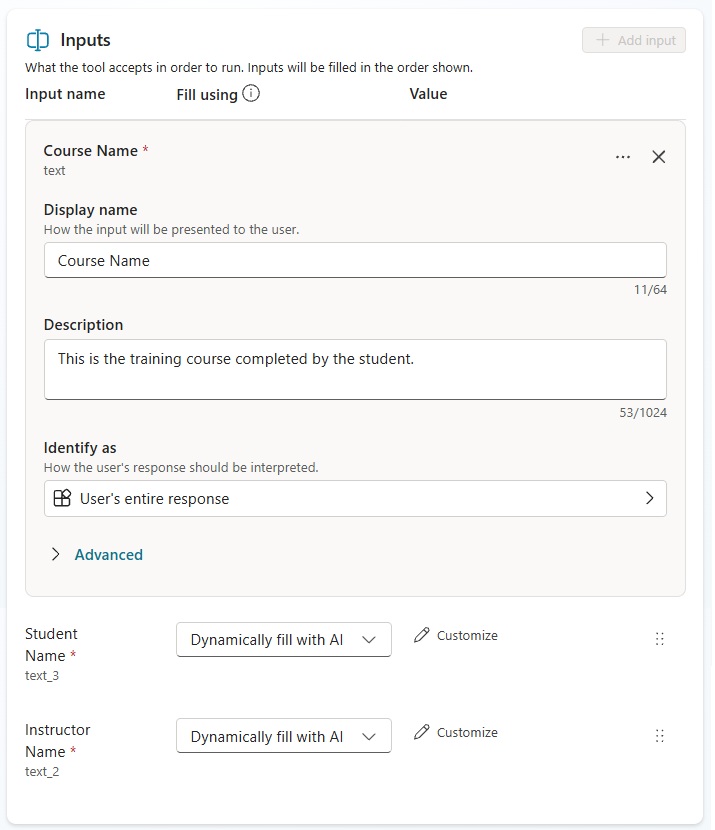
Then configure the User Message variable by adding a description of what information should be passed to the agent flow.
- Course Name: this is the training course completed by the student.
- Student Name: this is the name of the student who completed the training course.
- Instructor Name: this is the name of the instructor who taught the training course.
Go to the overview tab for the PowerPoint Generator agent and update the instructions.
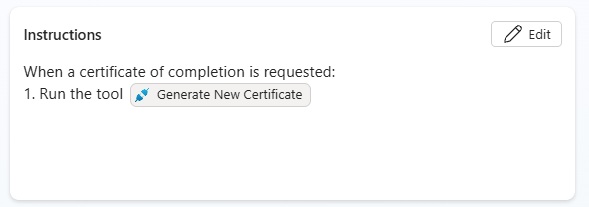
Copy and paste this instructions into the agent. Then save the instructions.
| When a certificate of completion is requested: 1. Run the tool [Generate New Certificate] |
Test The Agent To Generate A PowerPoint File In Copilot Studio
It’s time to test our agent. Write this message in the test chat window. The Agent returns a text-based summary of along with a download link to the PowerPoint file.
Select the download link to open the PowerPoint file.
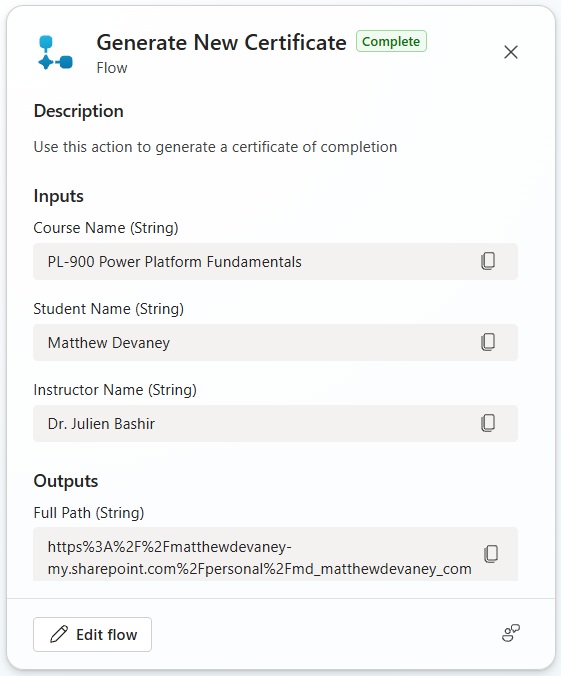
In the Agent’s activity map, we can see the information passed to the agent flow to create the PowerPoint file. It follow’s the format we supplied in the tool description.
Video: Copilot Studio Generate A PowerPoint File Using A Prompt
Watch this video for a full demonstration of the techniques described in this article.
Did You Enjoy This Article? 😺
Subscribe to get new Copilot Studio articles sent to your inbox each week for FREE
Questions?
If you have any questions or feedback about Copilot Studio: Generate PowerPoint File From A Template please leave a message in the comments section below. You can post using your email address and are not required to create an account to join the discussion.