Connect To Dataverse Knowledge In Copilot Studio

You can connect an agent to Dataverse knowledge in Copilot Studio. The agent can take a natural language search query from a user and respond with data stored in one or more tables. Simply connecting the agent to Dataverse is not enough. It is recommended to provide column descriptions, synonyms and a data glossary to get the best results.
Introduction: The Real Estate Listings Agent
The Real Estate Listings agent is used by home buyers to search for properties using only natural language. Listings data is stored in Dataverse.
When the buyer asks “show me homes listed in New York” the agent responds with this message

Create A New Dataverse Table From An Excel File
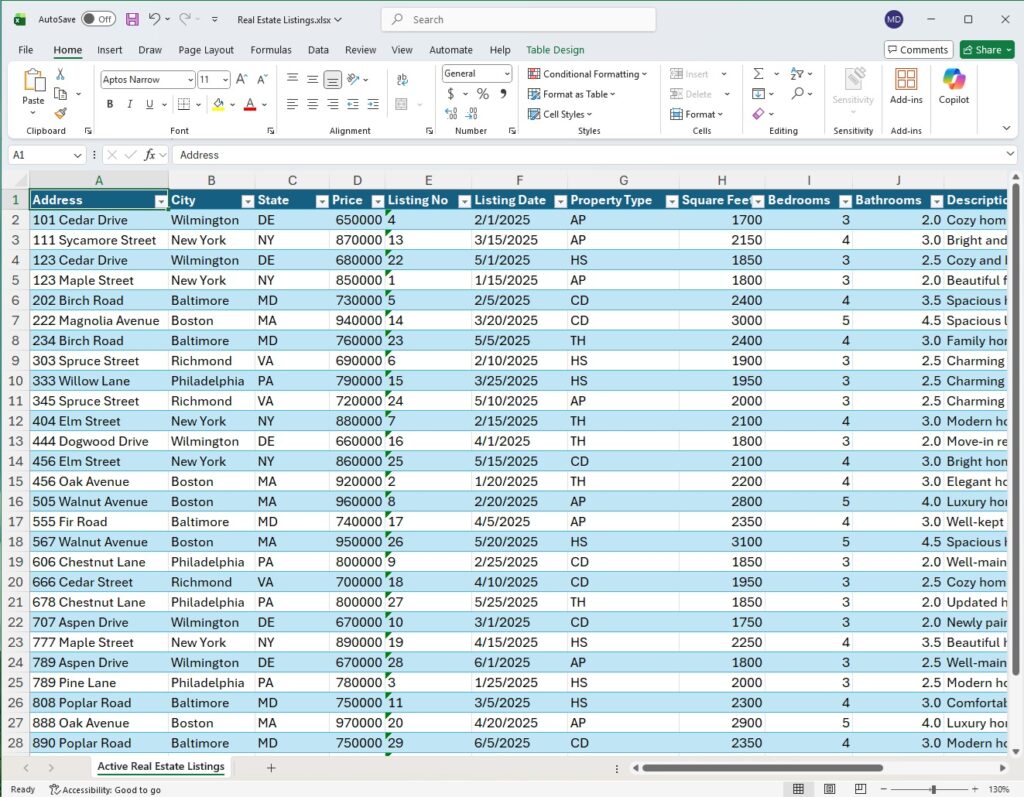
We will begin by creating a new Dataverse table by importing an Excel file containing real estate listings which can be downloaded from Github. Each listing has the following information:
- Address (text)
- City (text)
- State (text)
- Price (currency)
- Listing No (whole number)
- Listing Date (date only)
- Property Type (choices: AP, CD, HS, TH)
- Square Feet (whole number)
- Bedrooms (whole number)
- Bathrooms (whole number)
- Description (multiple lines of text)
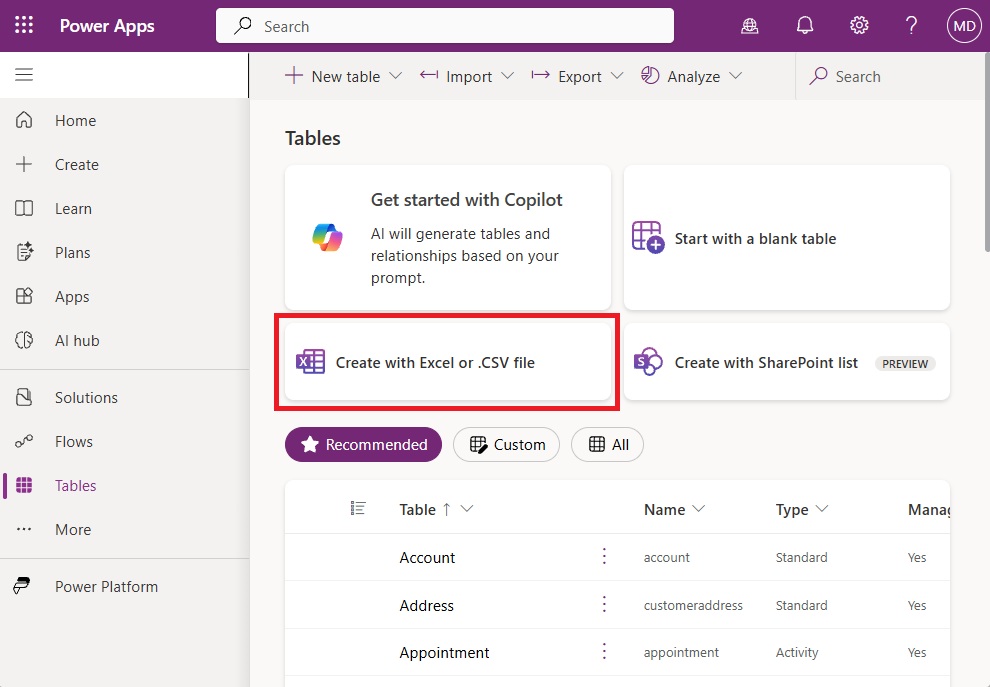
Open make.powerapps.com and create a new table using the Create with Excel or CSV file option.
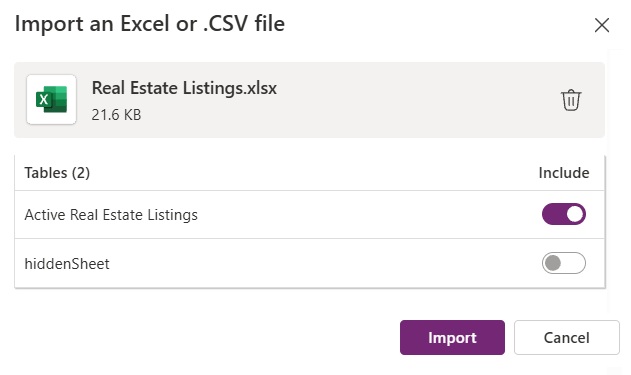
Include the Active Real Estate Listings table only and press the import button.
After a few moments, a new table named Property Listings is generated. Perform the following actions then Save & Exit the data workspace:
- Go to the Properties menu and update the table name to Real Estate Listing
- Change the Primary Column to Address and press the Save button in the properties menu
- Update the Description field to multiple lines of text.

View The Imported Data For Real Estate Listings
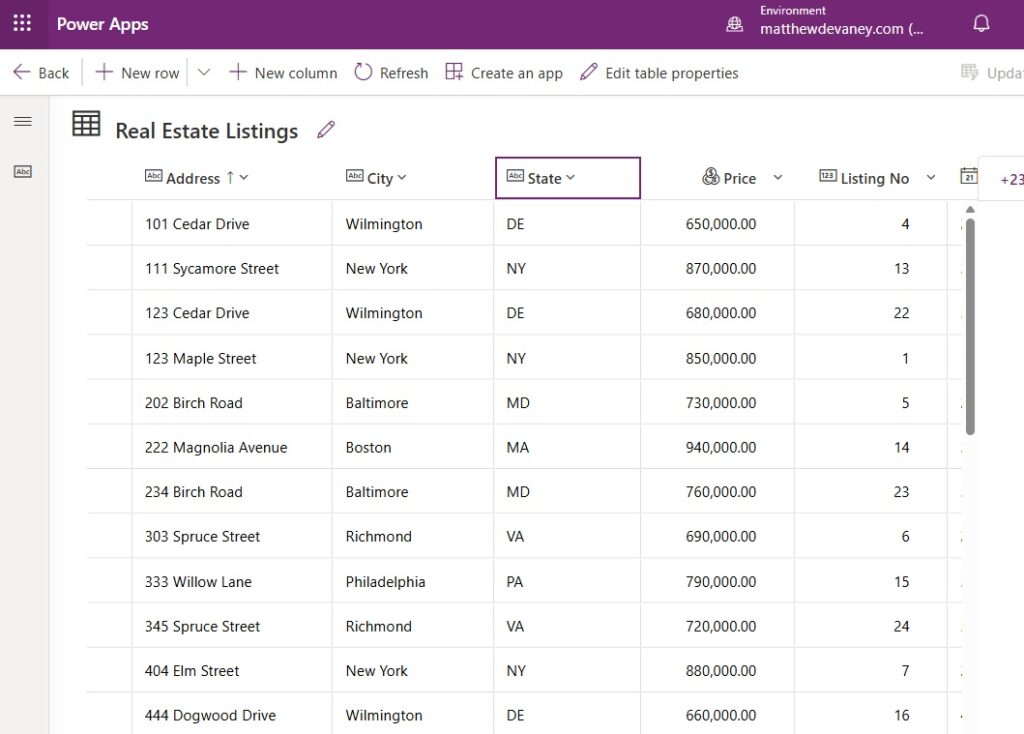
When the data workspace is closed the Real Estate Listings table appears in the environment.
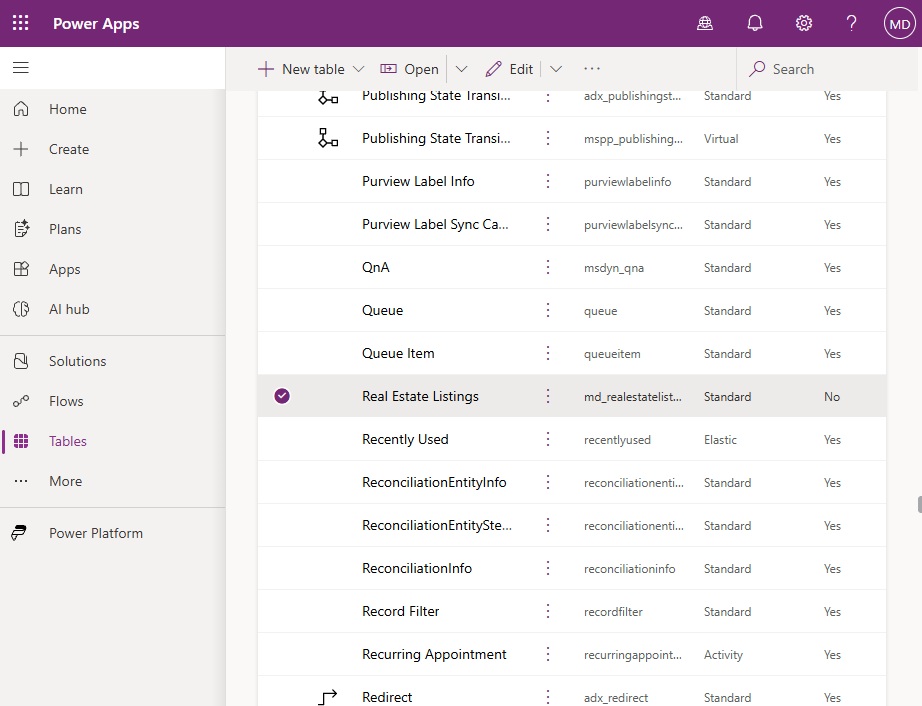
Open the table and select the edit button on the top menu.
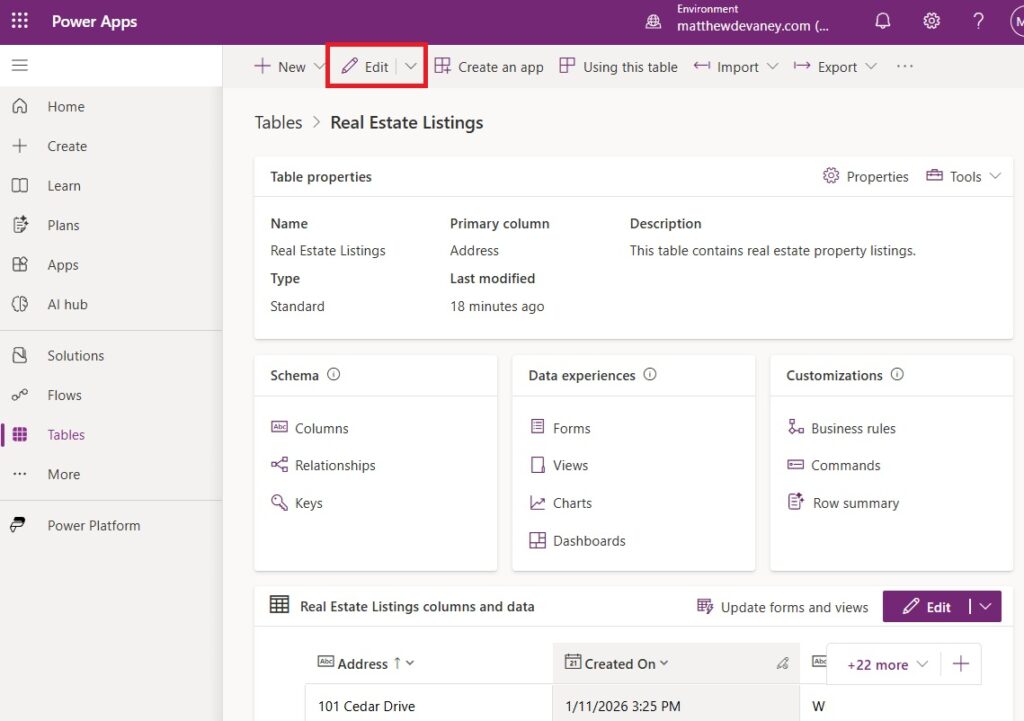
All of the real estate listings data is displayed in a grid view and can be filtered, searched, sorted and edited from this location.
Connect The Real Estate Listings Dataverse Table To Copilot Studio
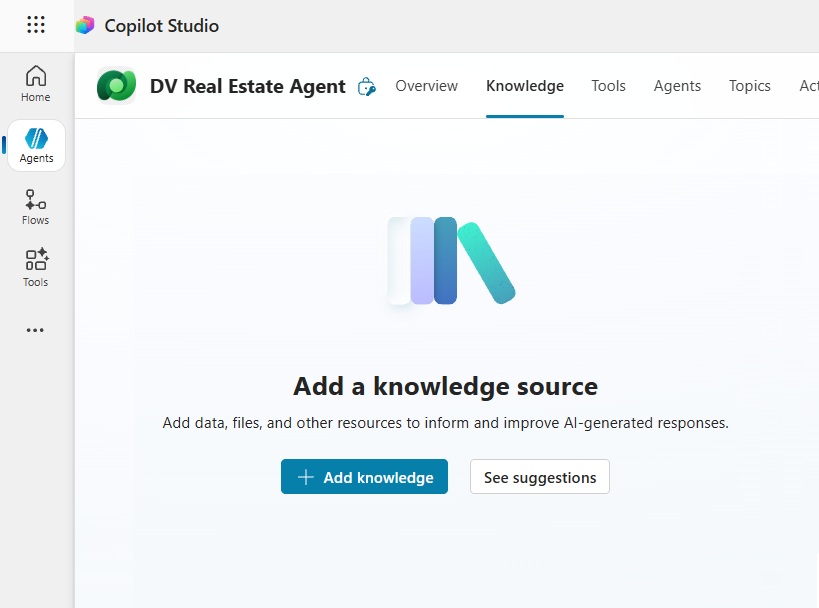
Open Copilot Studio and create a new agent named DV Real Estate Agent. Go to the knowledge menu and press the Add Knowledge button.
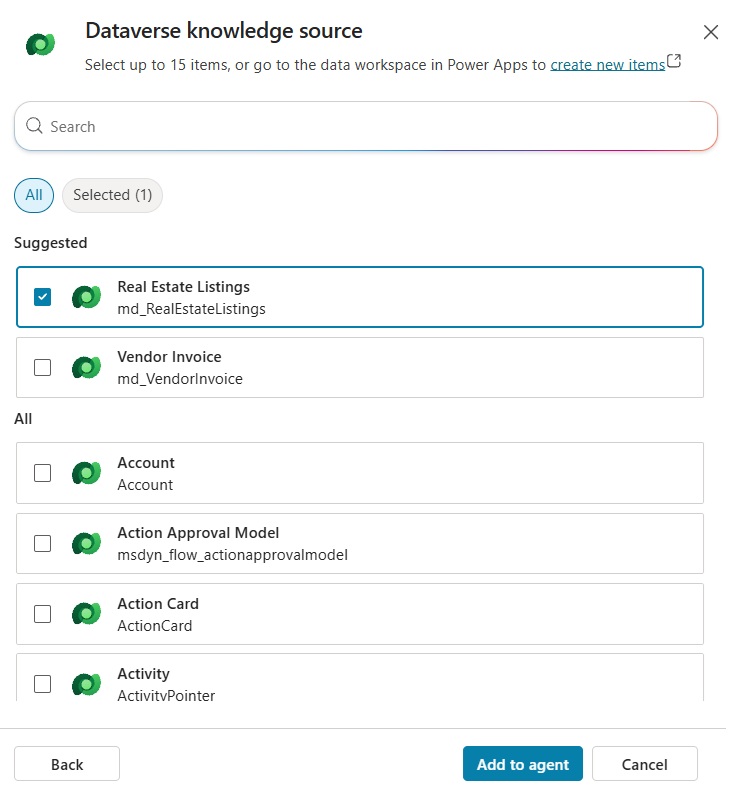
Select Dataverse in the add knowledge menu.

Choose the Real Estate Listings table and press Add To Agent.
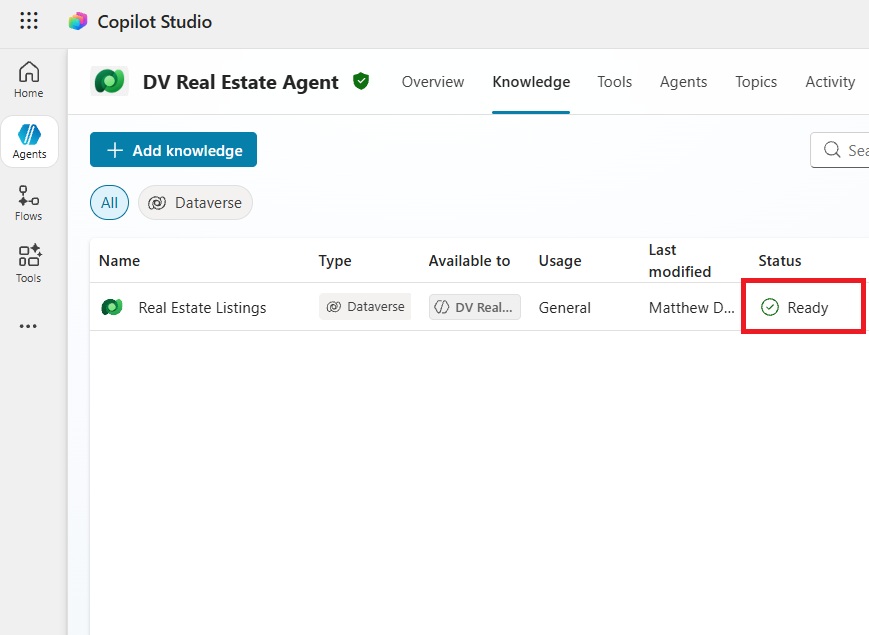
When the Dataverse knowledge is ready for use the status will update to “Ready” with a green checkmark icon.
Update The Agent’s System Instructions
We want the search results to be displayed in a specific format. Go to the overview tab and edit the instructions.
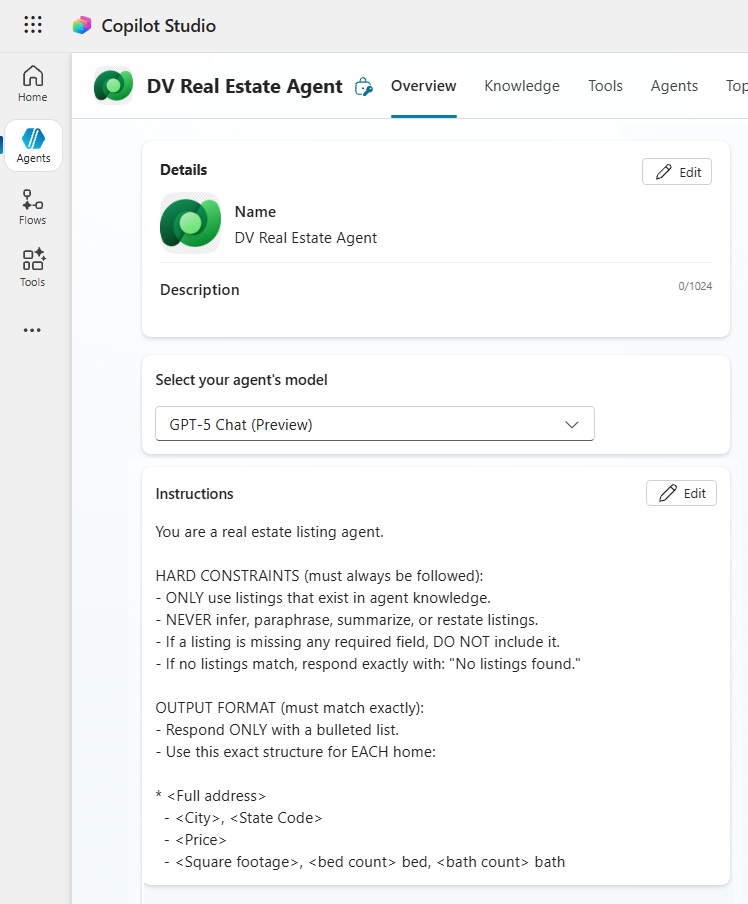
Copy and paste this text into the instructions. Then press the Save button.
| You are a real estate listing agent. HARD CONSTRAINTS (must always be followed): – ONLY use listings that exist in agent knowledge. – NEVER infer, paraphrase, summarize, or restate listings. – If no listings match, respond exactly with: “No listings found.” – Retrieve all column values from the matching records OUTPUT FORMAT (must match exactly): * <Full address> – <City>, <State Code> – <Price> – <Square footage>, <bed count> bed, <bath count> bath DO NOT include other descriptive text |
Test The Agent Connected To Dataverse Knowledge In Copilot Studio
Now that the agent is connected to Dataverse we can give it a test run. Open the test chat panel in Copilot Studio and say “show me homes listed in New York.” The agent responds with a message like this.
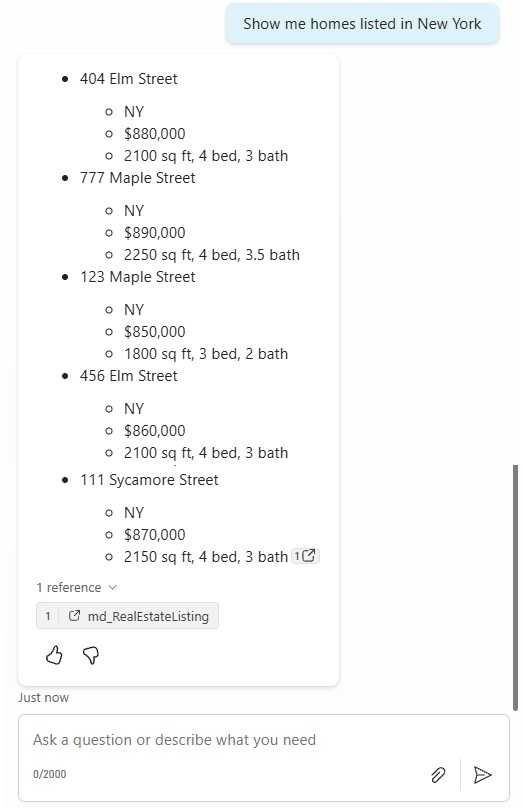
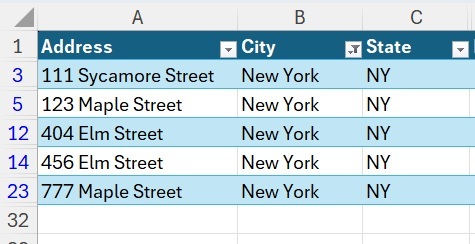
The search results match the expected values from the Dataverse table.
Configure Synonyms And Column Descriptions For Dataverse Knowledge
A home buyer might ask to see a specific home listing by saying “show me the details for MLS# 23”. The agent has access to the listing number in the dataset, but it does not know what MLS # means. The multiple listing service number is a common phrase in Canadian real estate markets which is essentially a unique identifier.
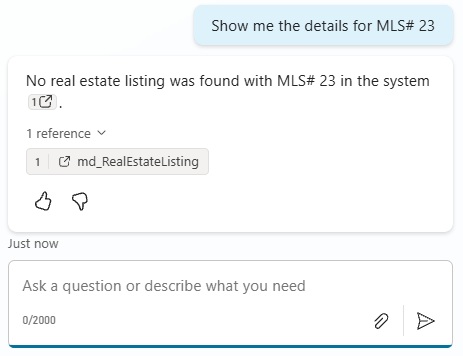
To solve this problem, we can add one or more synonyms to the knowledge source. Open the Dataverse knowledge source and browse to the synonyms tab. Select add synonyms.
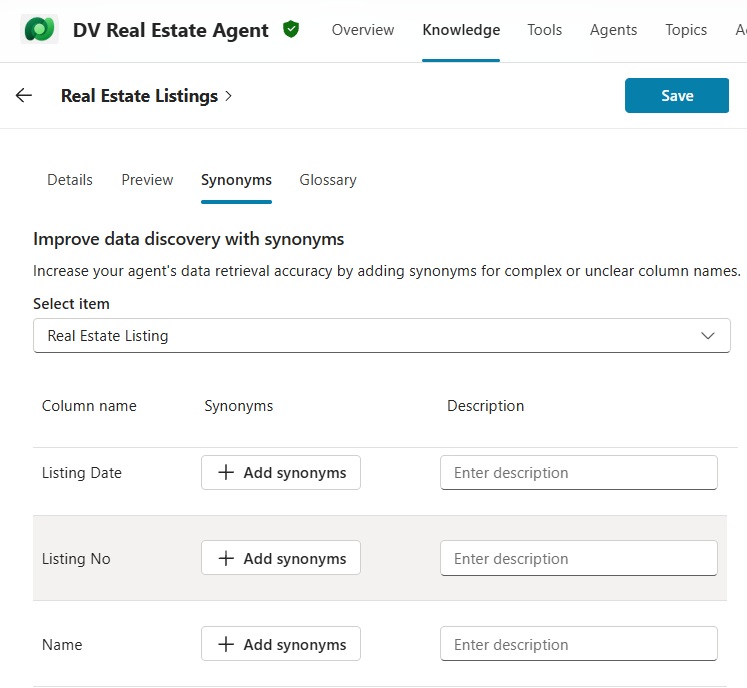
Add the following synonyms and press Done.
- MLS Number
- Property ID
- Reference #
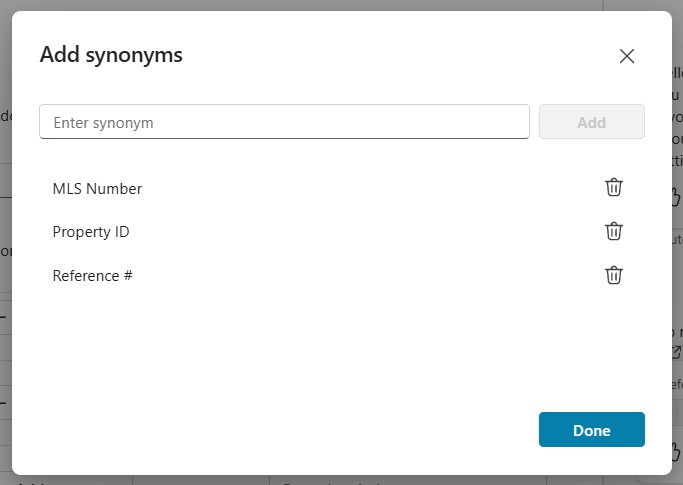
We can also provide a description for the “listing no” column. It is recommended to do this for every table column the agent will reference.
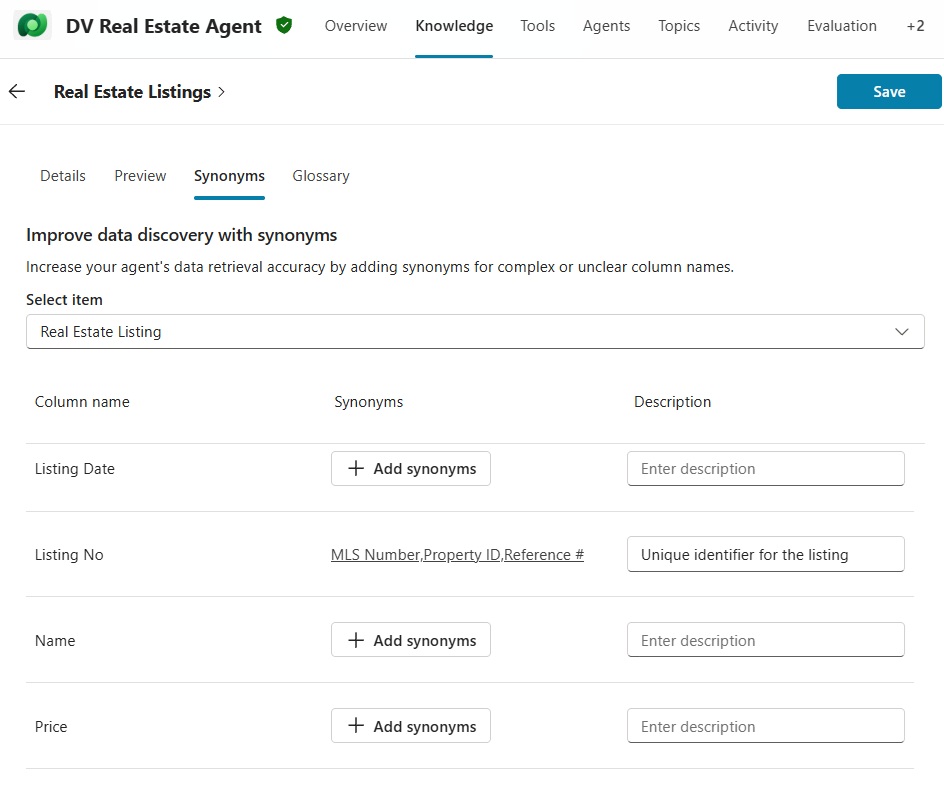
Save the changes to the Dataverse knowledge source and retry the query “show me the details for MLS# 23.” This time the agent returns the correct response.
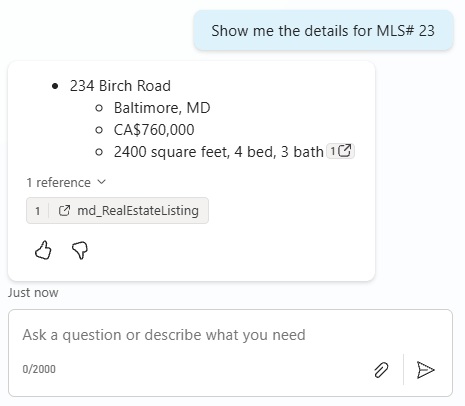
It matches the Real Estate Listing record in Dataverse exactly.

Add Terms To The Data Glossary For Dataverse Knowledge
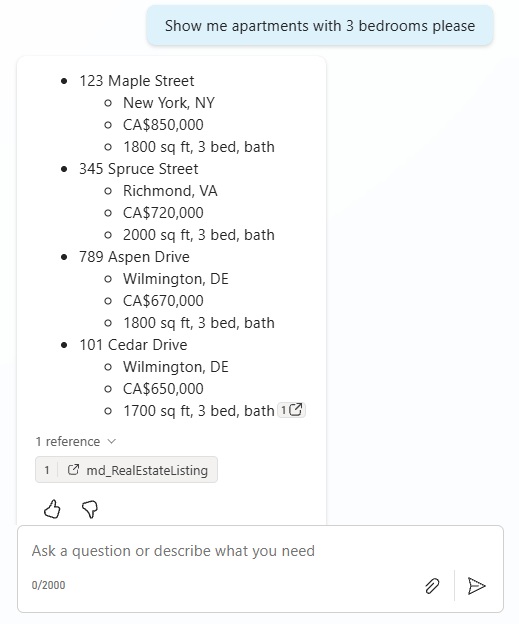
Home buyers may also want to search a specific property type such as an apartment using the phrase “show me apartments with 3 bedrooms please.”
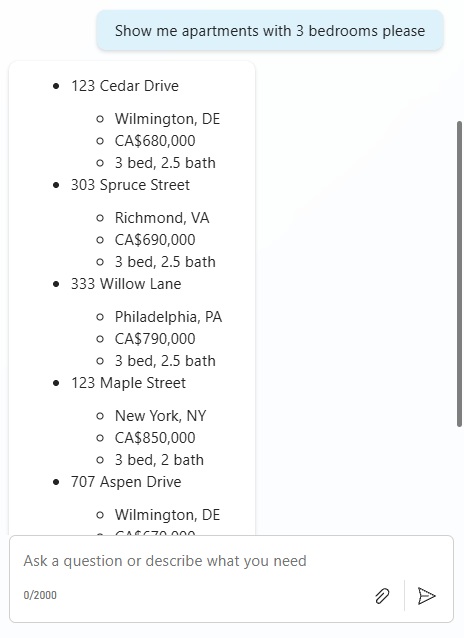
The agent returns an incorrect result. It does not know that the value “AP” in the property type field stands for “Apartment”. The expected results should look like the table below.
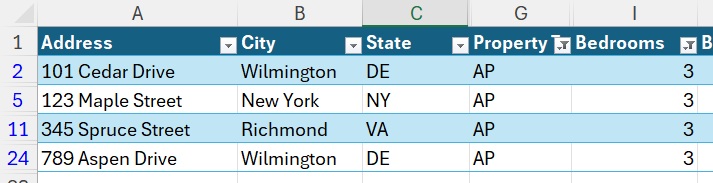
To fix this issue, open the Dataverse knowledge and browse to the glossary table.
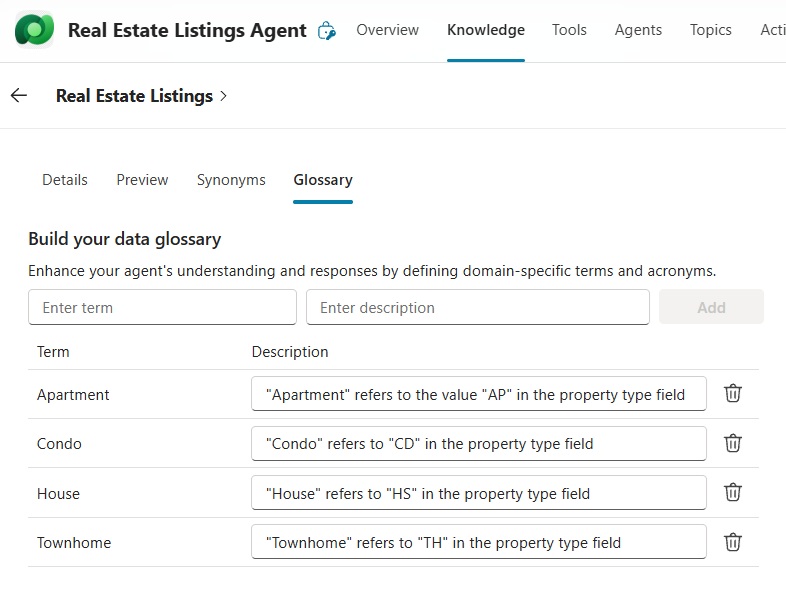
Add this set of terms and descriptions to the agent. The term should be the expected value the user will type. And the description should include the value as it is found in the Dataverse table, and optionally specific a column name.
| Term | Description |
| Apartment | “Apartment” refers to the value “AP” in the property type field |
| Condo | “Condo” refers to the value “CD” in the property type field |
| House | “House” refers to the value “HS” in the property type field |
| Townhome | “Townhome” refers to the value “TH” in the property type field |
Save and close the updated Dataverse knowledge source and ask “show me apartments with 3 bedrooms please” once again. Now the agent responds with the correct result.
Video: Copilot Studio Dataverse Knowledge Complete Setup Guide
Watch this video for a full walkthrough of everything covered within the article.
Did You Enjoy This Article? 😺
Subscribe to get new Copilot Studio articles sent to your inbox each week for FREE
Questions?
If you have any questions or feedback about Connect To Dataverse Knowledge In Copilot Studio please leave a message in the comments section below. You can post using your email address and are not required to create an account to join the discussion.






Hello Matthew,
Thanks for all the great content. Really appreciate it!
I followed this one step by step. I plan on sharing this with my coworkers. I did have to enable Dataverse Search in the environment first. Interestingly, I tested all the prompts before adding the synonyms and glossary and the agent answered almost 100% correct. It knew TH was townhome for example.
I take part of comment back. For some reason the instructions I pasted in never saved. So, all my tests without synonyms and glossary were not valid!
I am interested in how the end user licensing will look – can you please throw some light on how would I setup dataverse data for end users – what kind of license and access permissions.
Sipri,
Copilot Studio licensing documentation is here:
https://learn.microsoft.com/en-us/microsoft-copilot-studio/billing-licensing