M365 Agents Toolkit: Add A Custom API To An Agent

With the M365 Agents Toolkit you can add any API to your agents. You are no longer limited to the standard list of connectors in Agent Builder. To add an API simply provide an OpenAPI 3.0 specification or make your own in Postman and the M365 Agents Toolkit will add the necessary code to read or write data from the service. And if your users have an M365 Copilot User license then all usage is included.
Introduction: The National Parks Assistant Agent
The National Parks Assistant agent provides answers about national parks located in the United States. It uses a free API which provides authoritative National Park Service data to ensure high-quality responses.
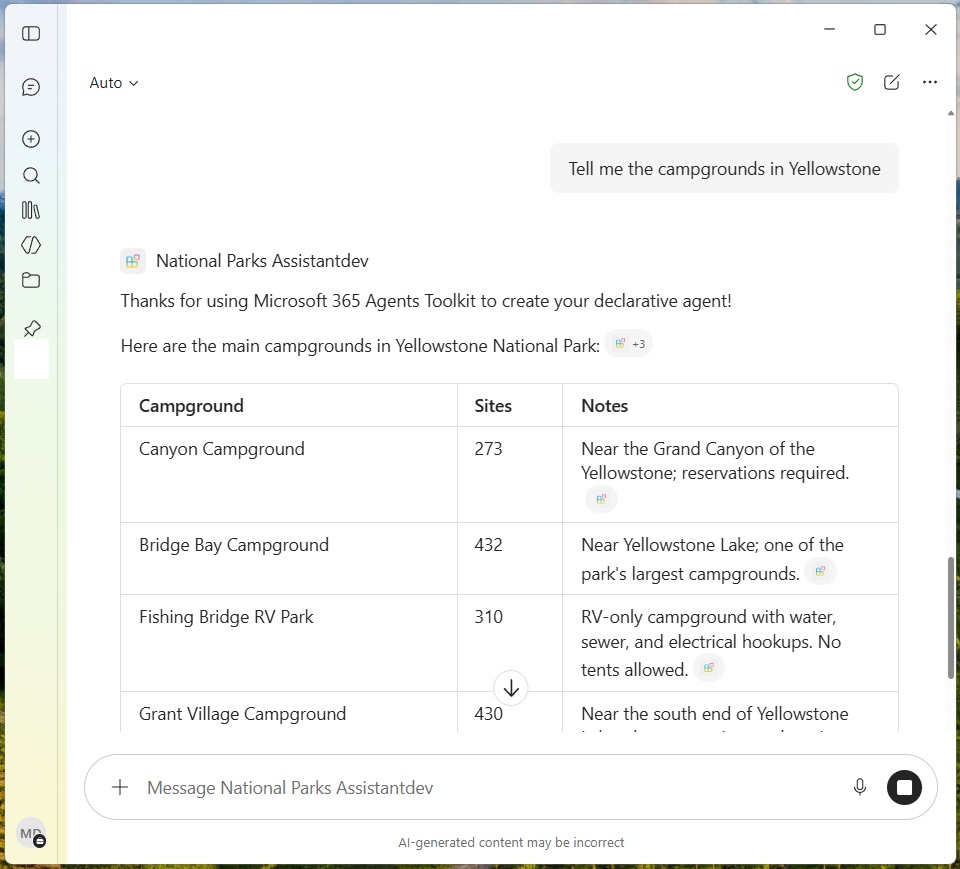
Users can chat with the agent in Microsoft 365 Copilot.
Start A New Declarative Agent With The M365 Agents Toolkit
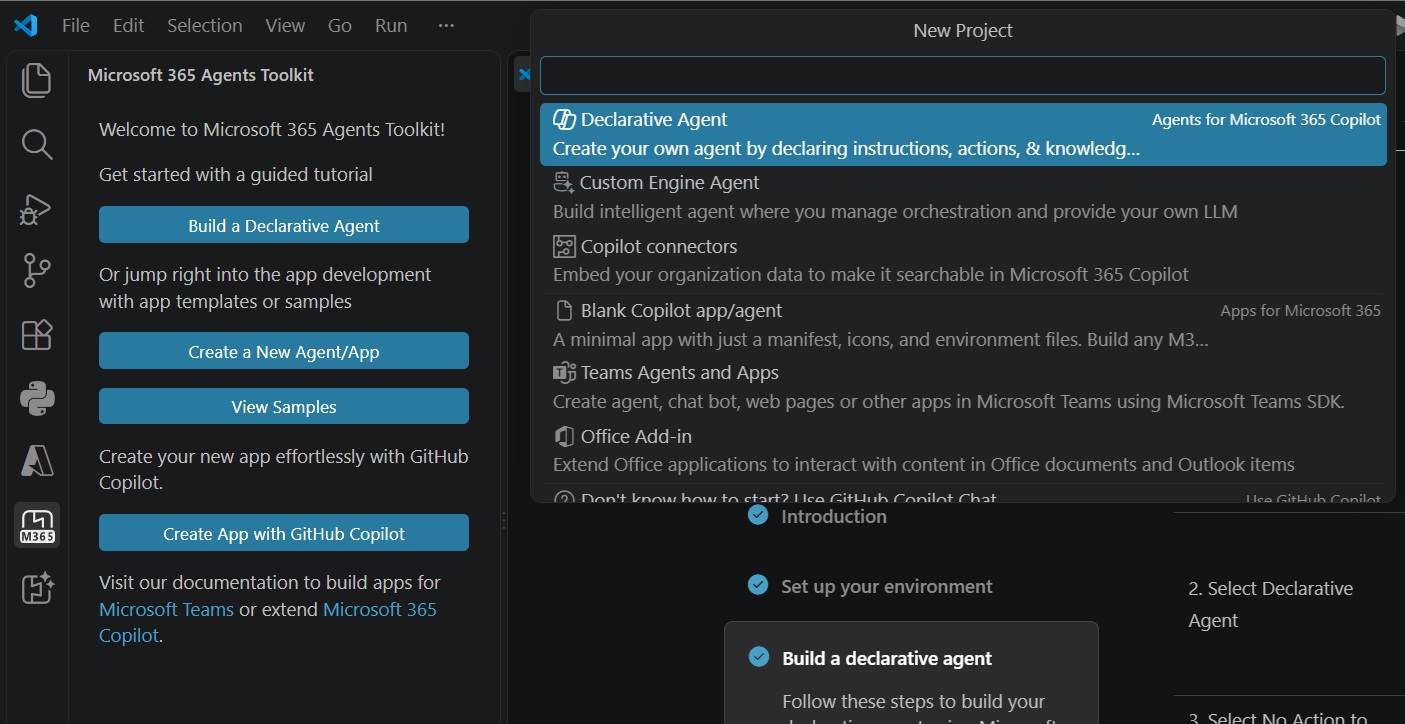
We will begin by creating a new declarative agent using the M365 Agents Toolkit. Open VS code with the M365 Agents Toolkit installed and select build a declarative agent. Choose the option No Action and then select a folder where the project root folder will be located.
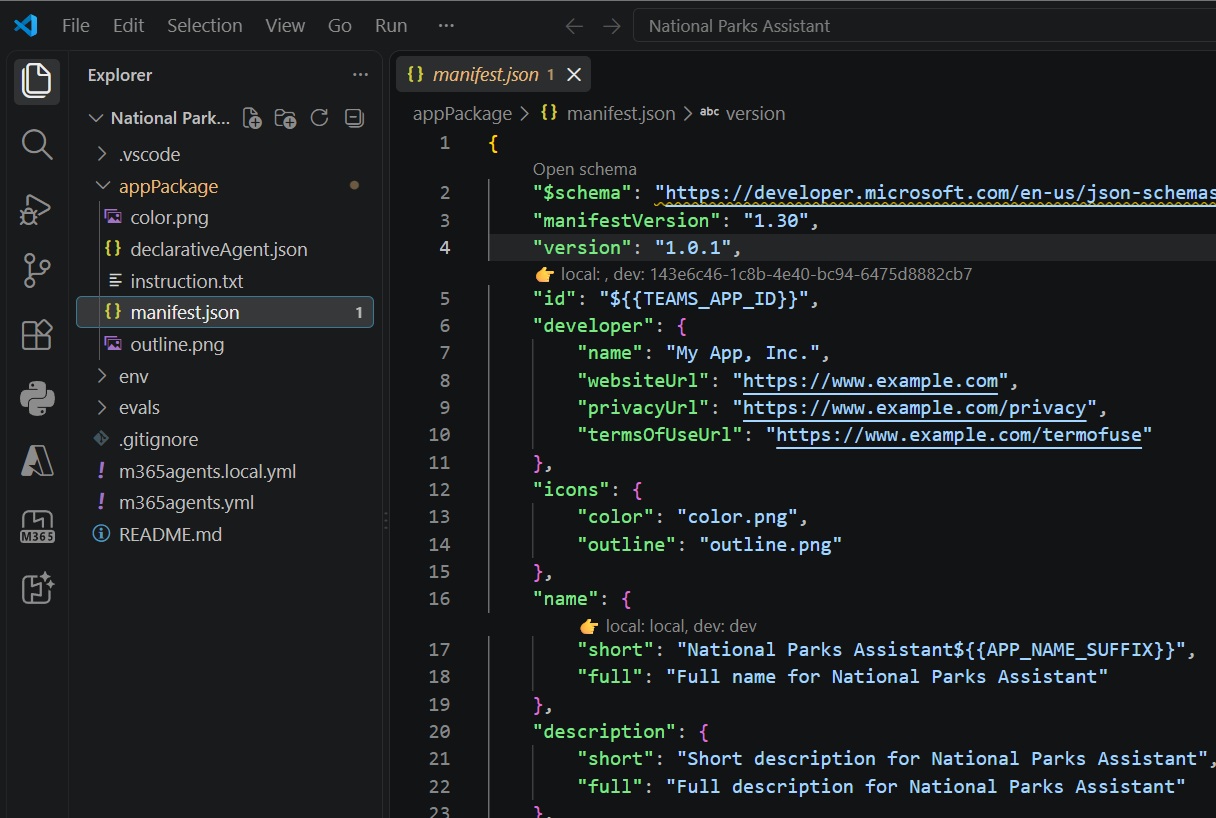
Once all of the declarative agents options are selected the project looks like this:
Download The Postman Desktop App
We need to use an app named Postman to map out the National Parks Service API. Go to the Postman download page and get it for free.
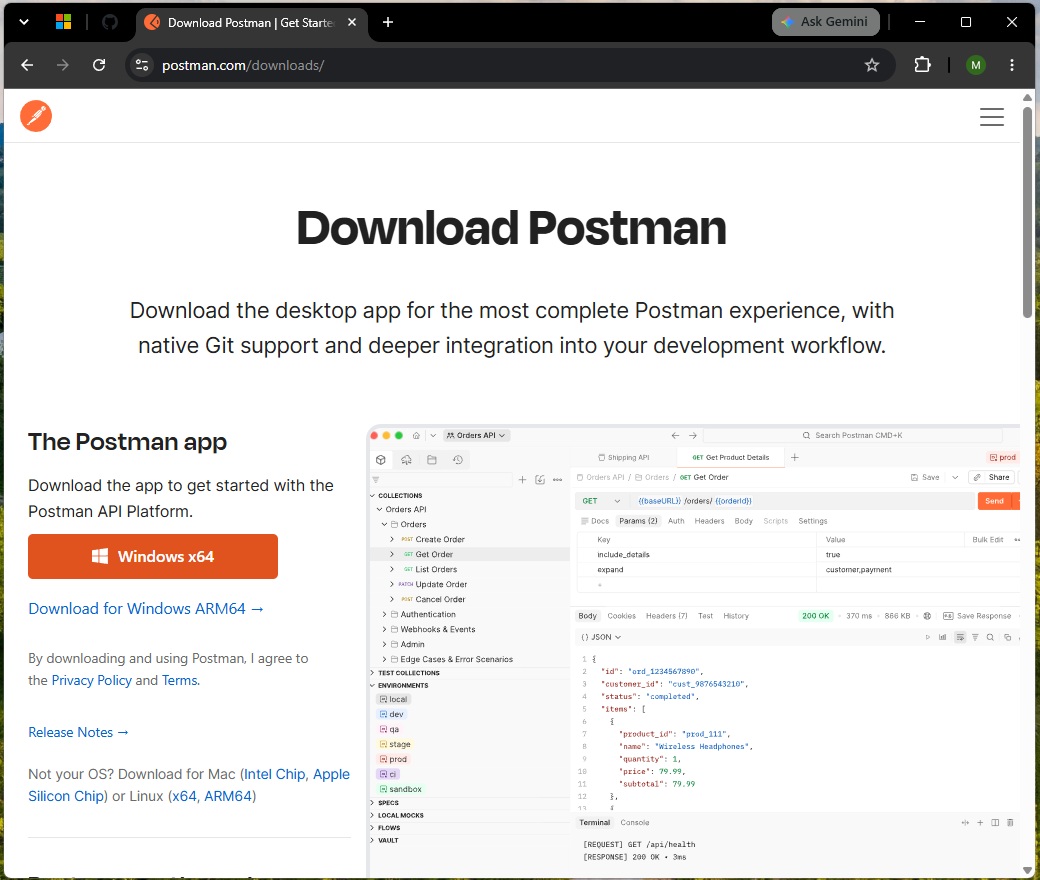
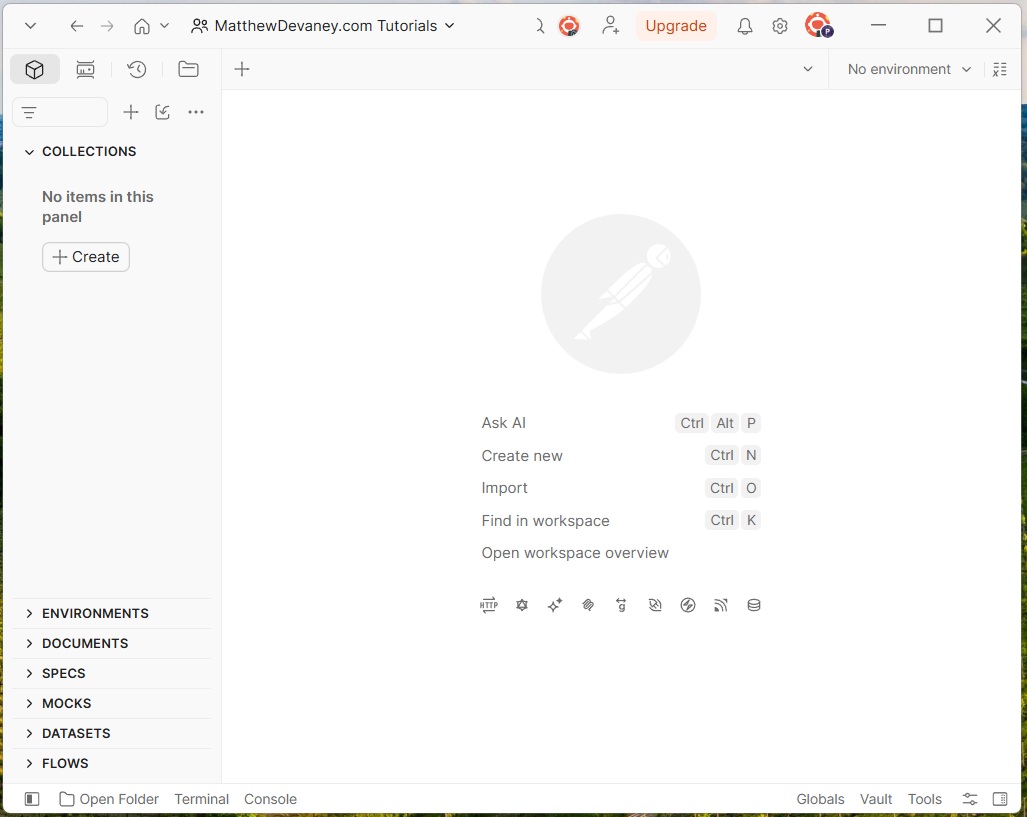
After installation is completed launch the Postman app.
Authenticate Using An API Key In The Request Header
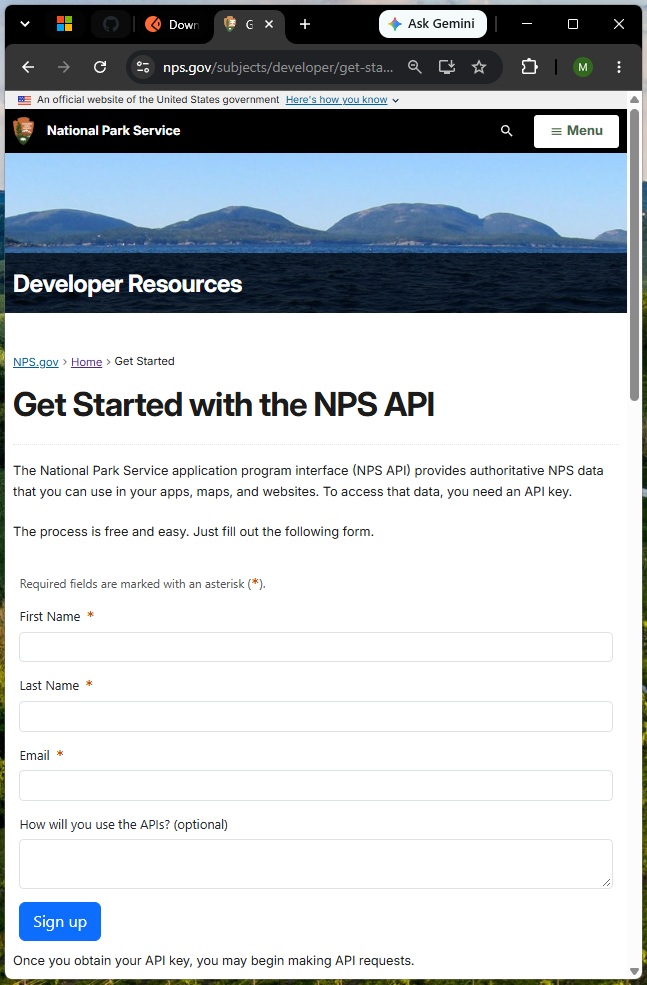
To get information from the National Parks Service API we need to supply a password called an API key. Complete the form on the Get Started with the NPS API page to get a free API key mailed to your inbox.
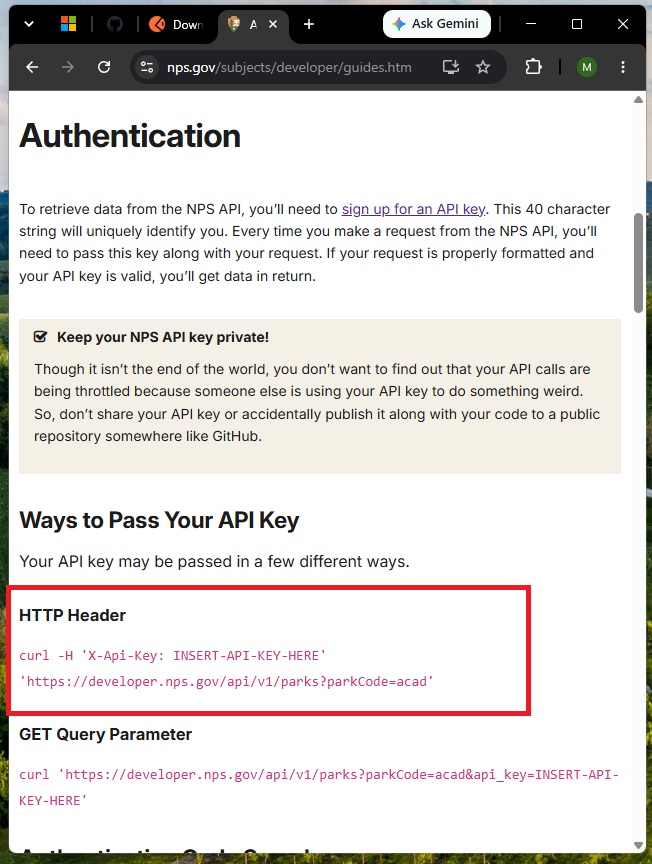
On the National Park Service API guides page we can see there are two possible ways to supply the API key: in the HTTP header and as a query parameter. We will pass the API key in the HTTP header because this method is generally more secure.
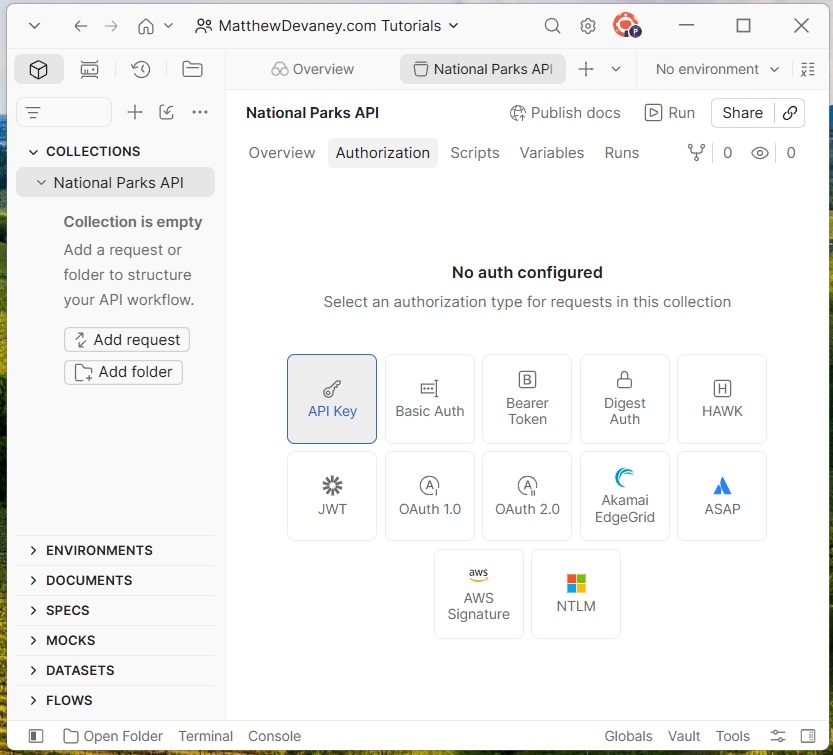
We want to use the same API key for all requests to the National Park Service. In Postman, create a new collection named National Parks API and go to the authorization tab. Select the option named API Key.
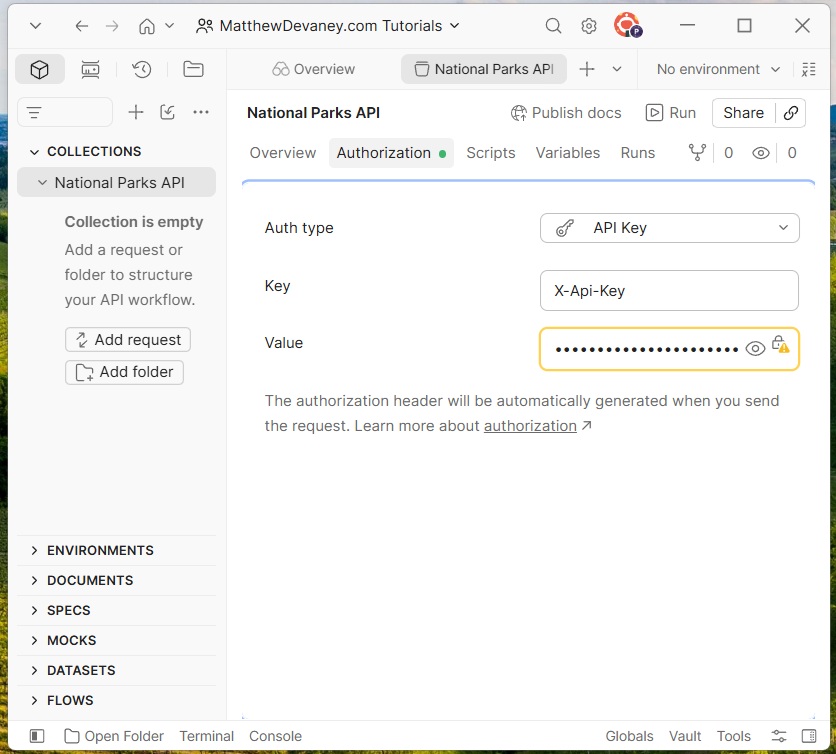
Fill-in the key field with X-Api-Key and supply your API key in the value field.
Add A New Get Request For The Parks Endpoint
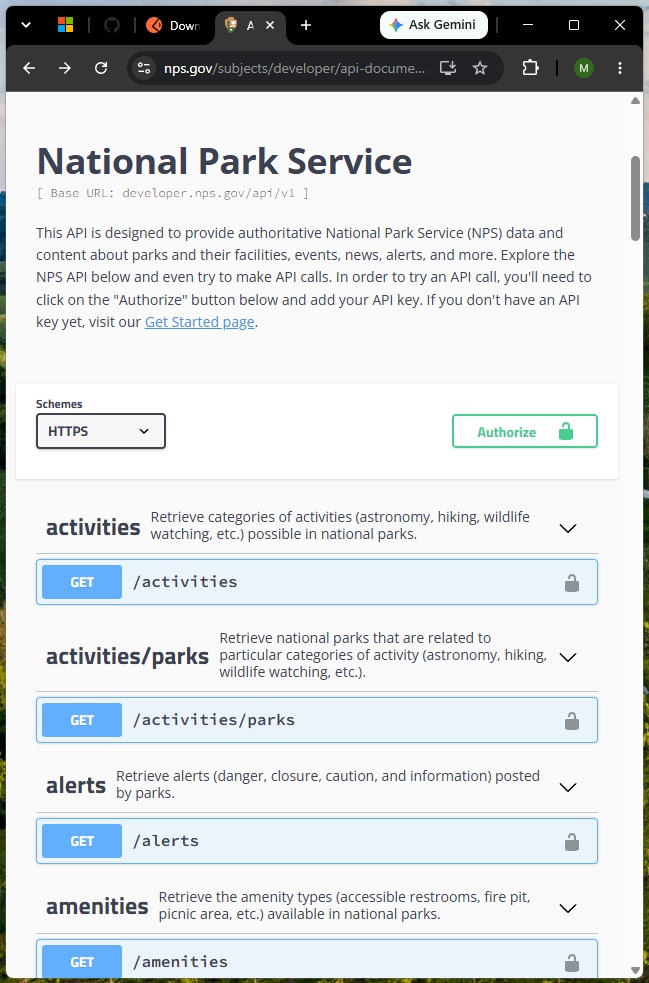
On the National Park Service API documentation page we can see a list of all the available endpoints. It is possible to map out all of the endpoints on this page and include them in the agent, but in this tutorial we will only focus on the Parks endpoint and the Campgrounds endpoint.
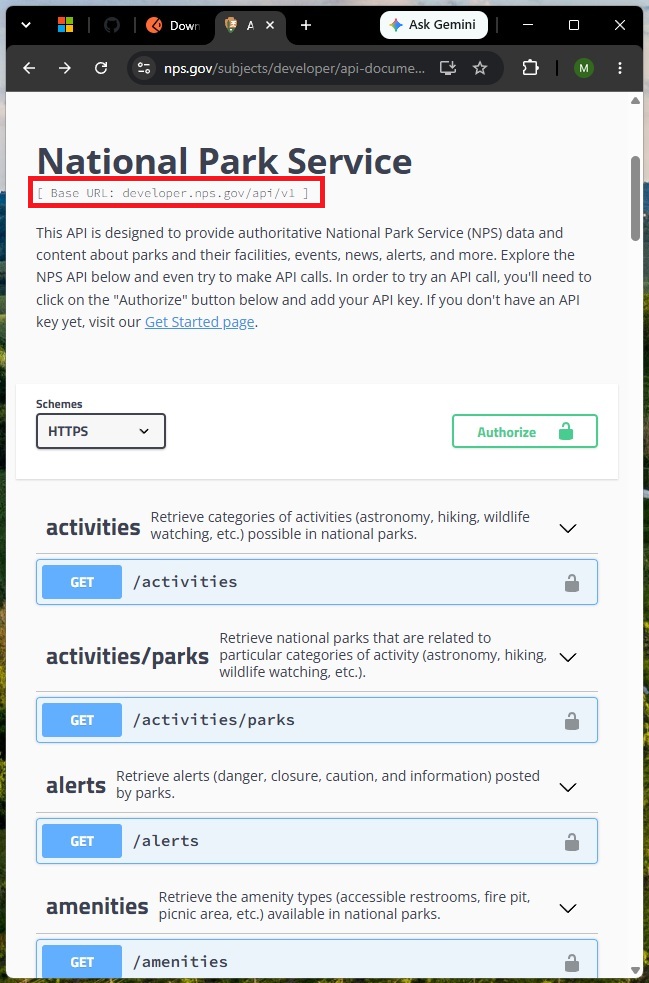
The base URL for all requests is located at the top of the document page.
The Parks endpoint retrieves data about national parks such as addresses, contacts, description, hours of operation, etc. We can find the endpoint path and query parameters for the Parks endpoint lower down in the documentation.
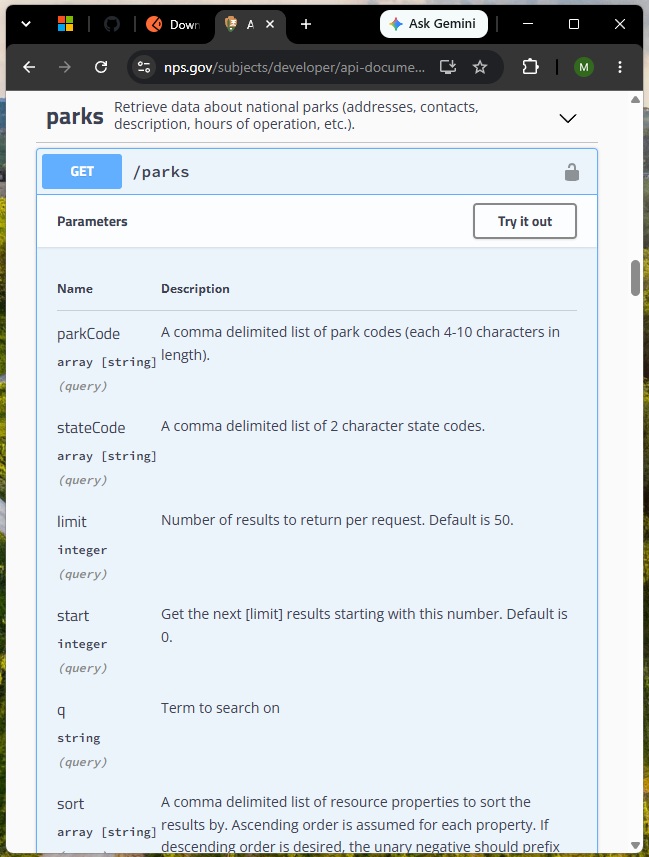
Add a new GET request to the National Parks API collection named Parks.
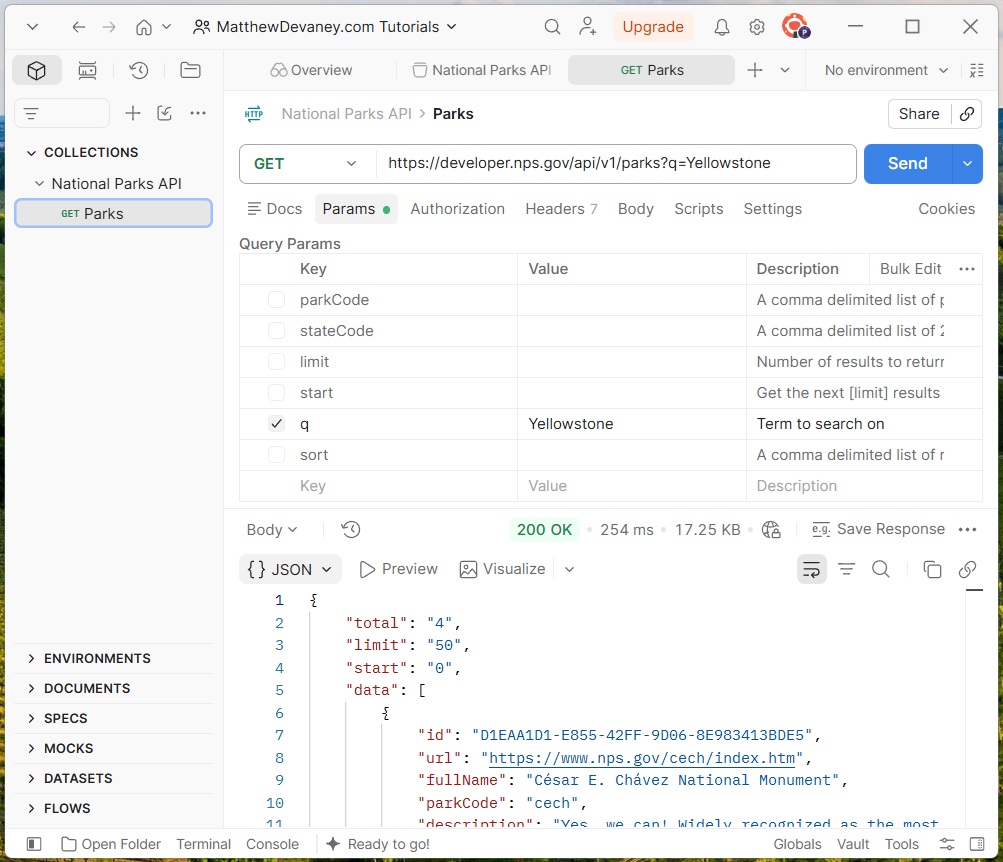
Then combine the base URL and Parks endpoint path to form the request URL:
https://developer.nps.gov/api/v1/parksCode language: JavaScript (javascript)
Then copy and paste all query parameter keys and descriptions from the documentation into the request and perform a search for Yellowstone to ensure the request is working:
- parkCode
- stateCode
- limit
- start
- q
- sort
Add Another GET Request For The Campgrounds Endpoint
The campgrounds endpoint retrieves campground information including addresses, contacts, description, hours of operation etc. We will add the Campgrounds endpoint to the agent as well.
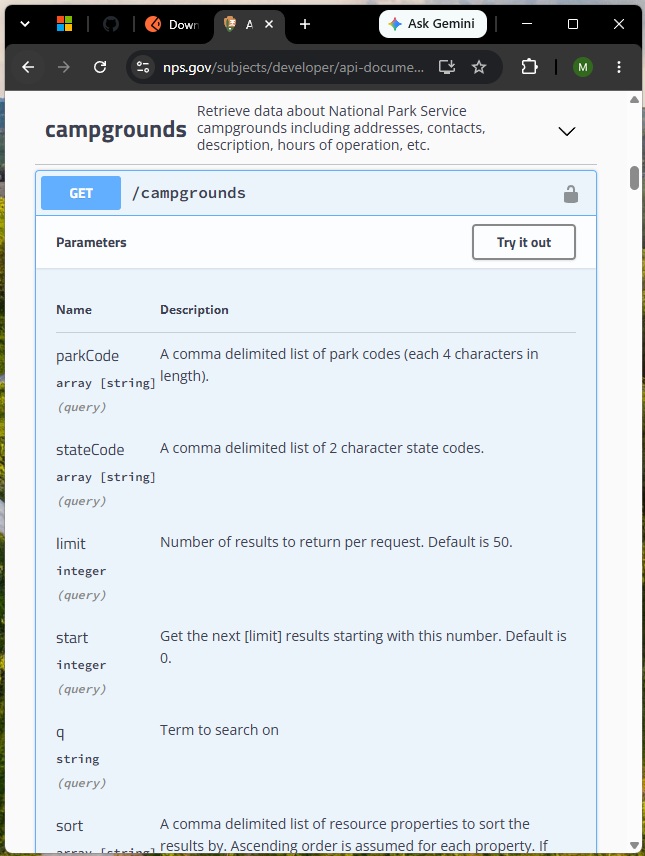
In Postman, add a 2nd GET request named Campgrounds.
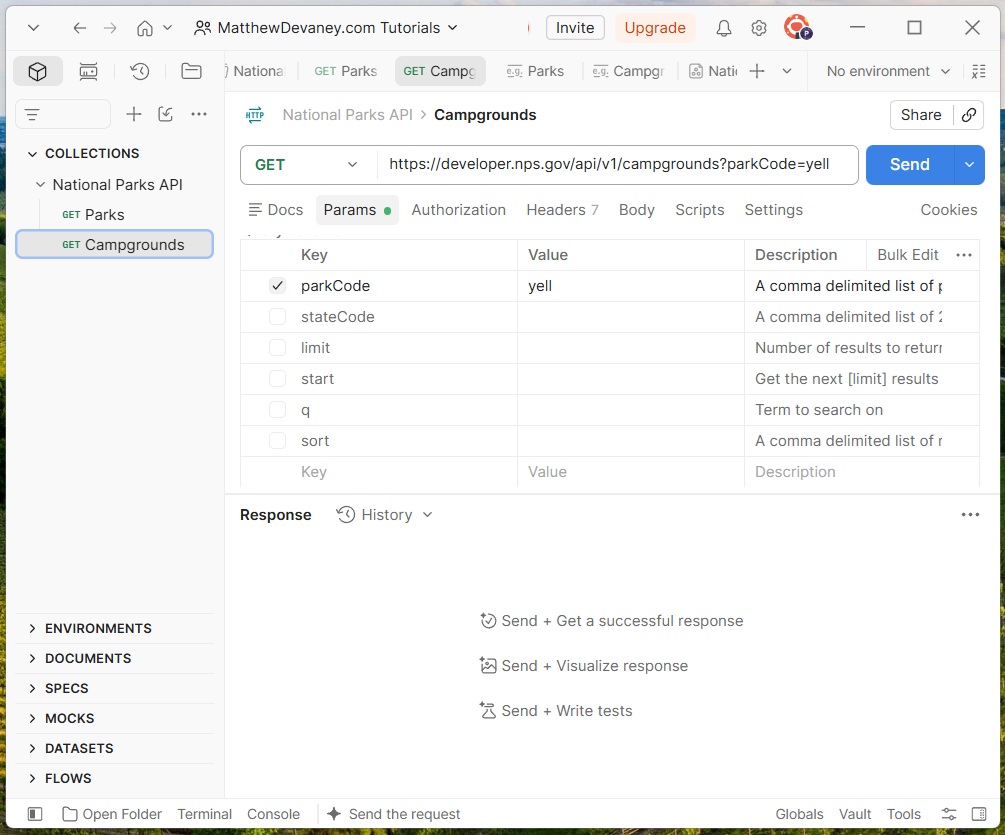
Then combine the base URL and Campgrounds endpoint path to form the request URL:
https://developer.nps.gov/api/v1/campgroundsCode language: JavaScript (javascript)Then copy and paste all query parameter keys and descriptions from the documentation into the request and perform a search on the parkCode yell to ensure the request is working:
- parkCode
- stateCode
- limit
- start
- q
- sort
Generate An Open API 3.0 Specification For The API
The agent requires an API specification to understand how-to retrieve information from the National Park Service. We can generate the specification once all endpoints are mapped out in Postman.
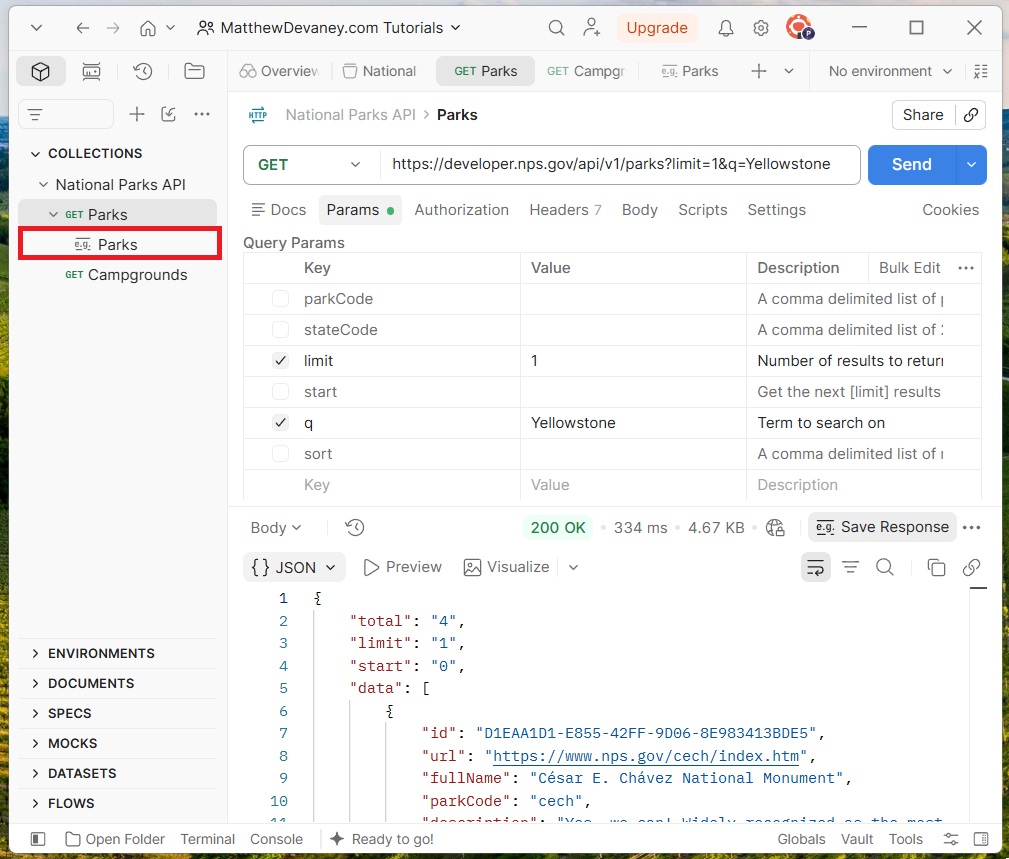
Before generating the specification we need to create sample responses for each endpoint. This will help the agent understand what the data might look like prior to making a request. Send a request to the Parks endpoint with the paramters q=Yellowstone and limit=1 and press Save Response.
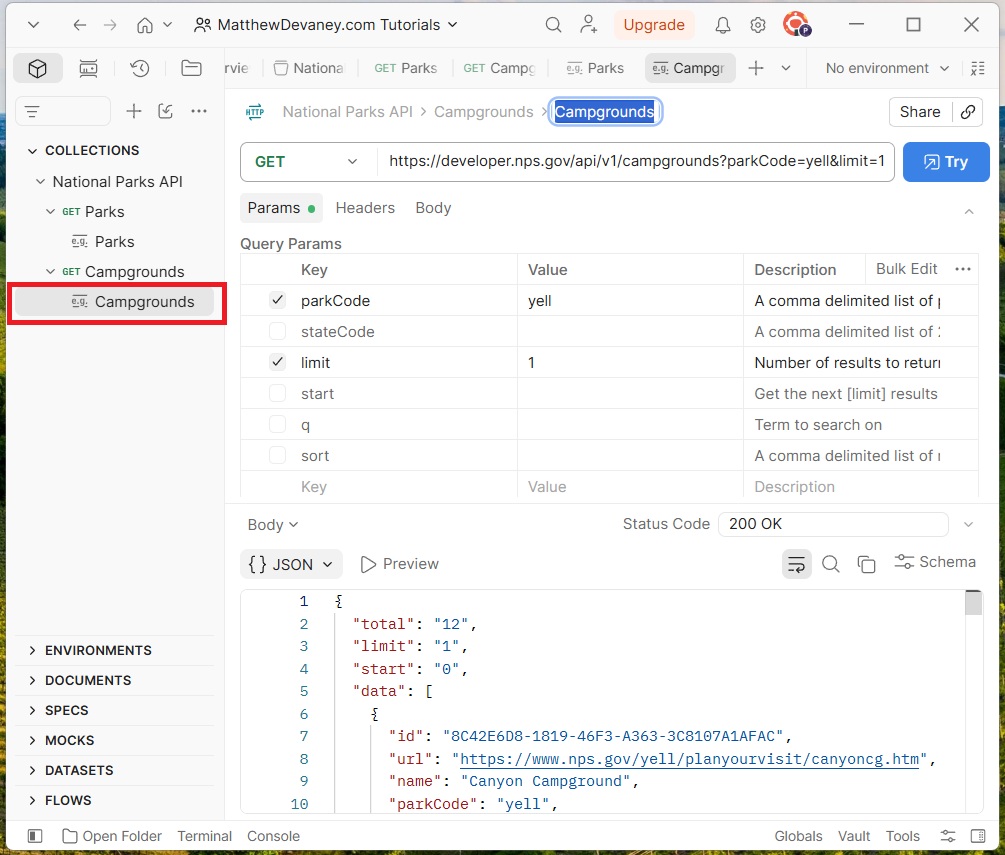
Then send a request to the Campgrounds endpoint with the parameters parkcode=yell and limit=1 and press Save Response.
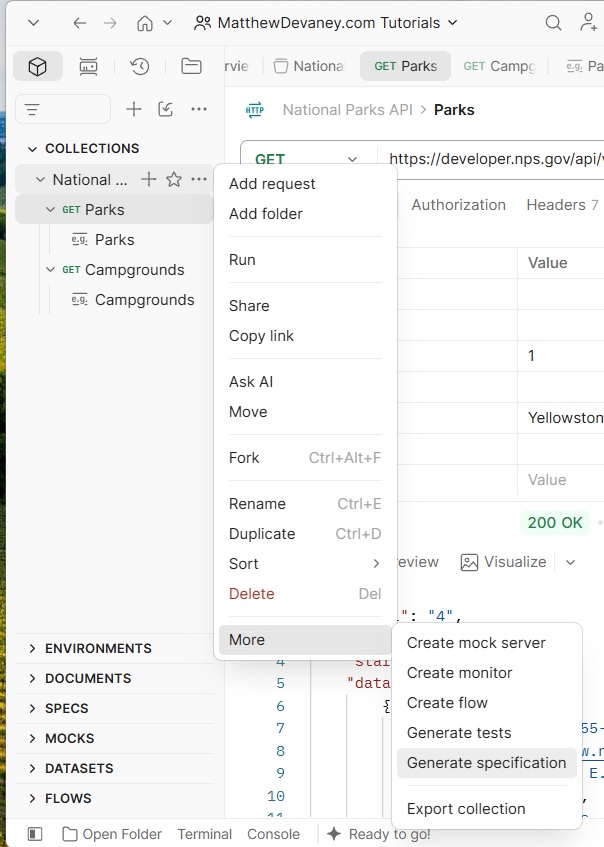
Once all sample requests are created, select the three dots beside the collection name and choose Generate Specification.
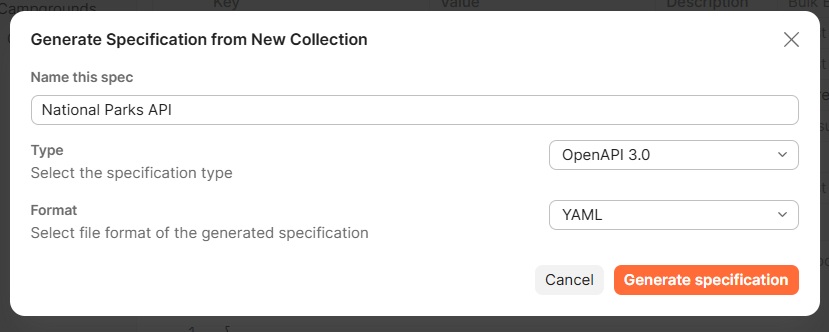
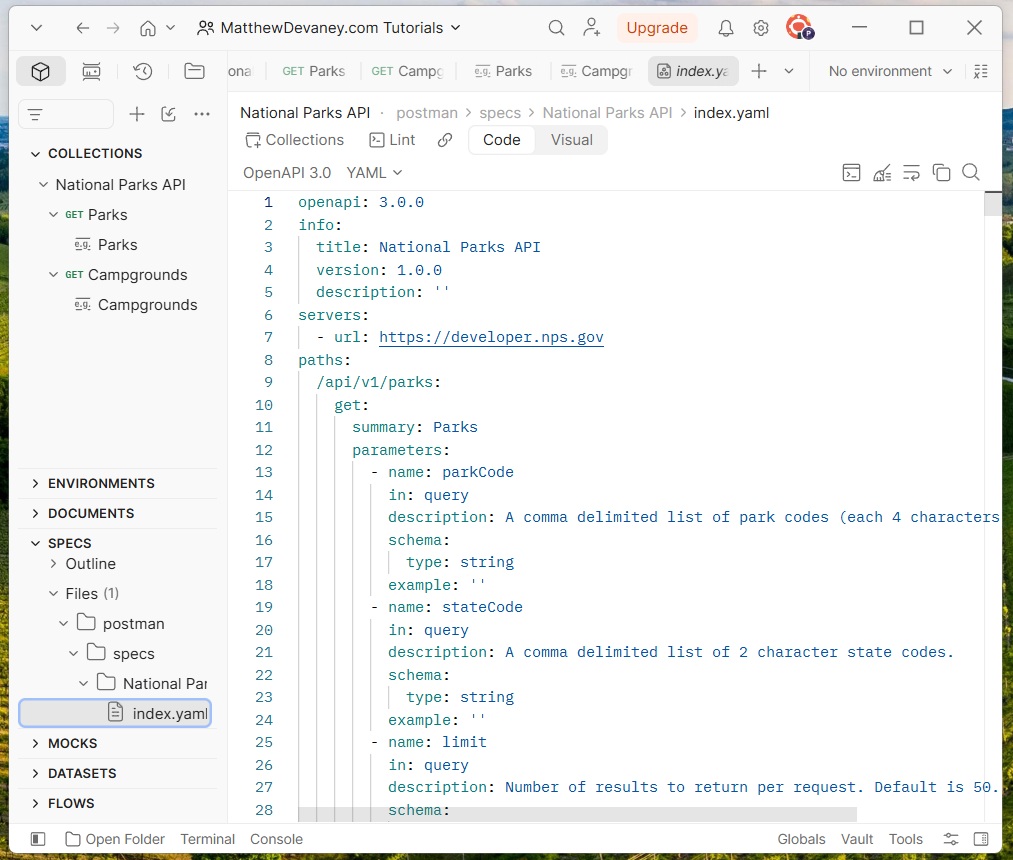
Name the specification National Parks API and choose the type OpenAPI 3.0 and the format YAML.
After waiting a few moments Postman generates OpenAPI specification for the National Park Service.
Insert A Security Scheme YAML Snippet Into The API Specification
The OpenAPI specification generated by Postman does not include any information about the security scheme required by the API. We must add this for ourselves manually.
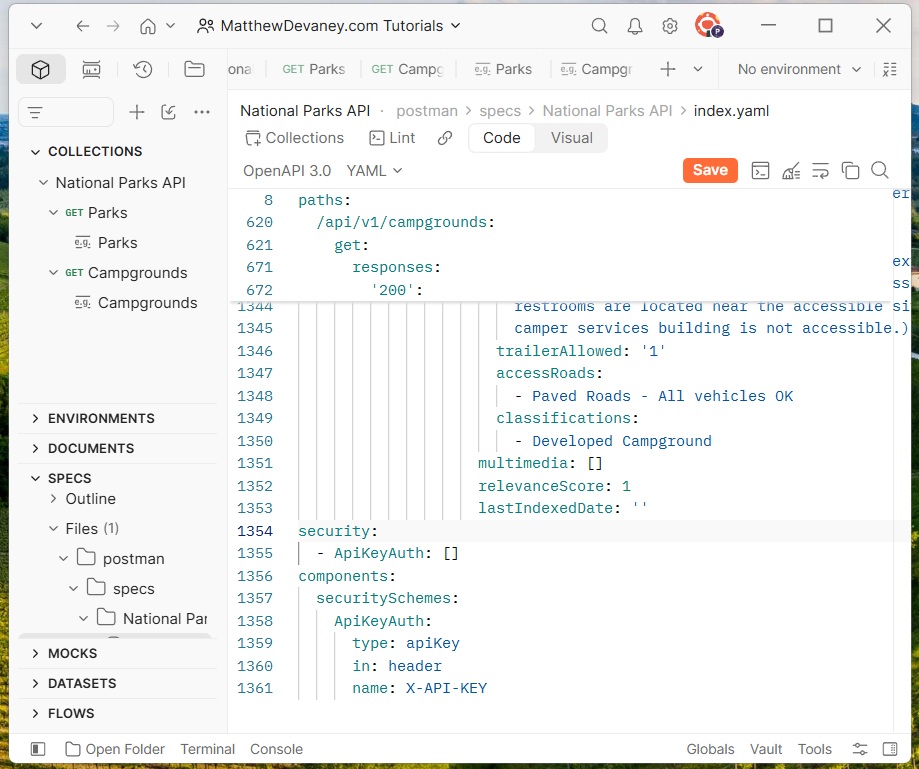
Scroll to the bottom of the specification and insert this YAML snippet. It defines the security requirements for all endpoints as needing an API key to be inserted into the HTTP Header.
security:
  - ApiKeyAuth: []
components:
  securitySchemes:
    ApiKeyAuth:
      type: apiKey
      in: header
      name: X-API-KEYCode language: YAML (yaml)
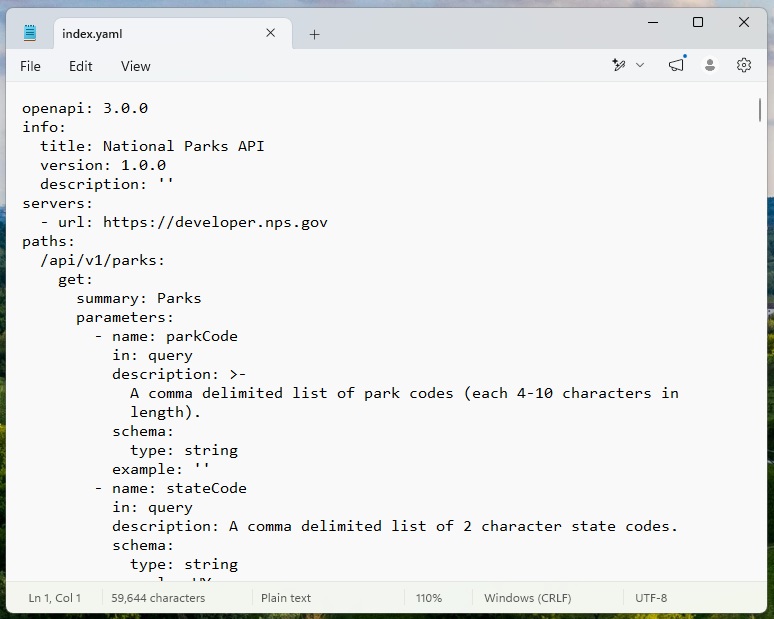
Copy and paste the entire OpenAPI specification into Windows Notepand and save it as a YAML file. We will need this file to import into our declarative agent.
Import The OpenAPI Specification Using The M365 Agents Toolkit
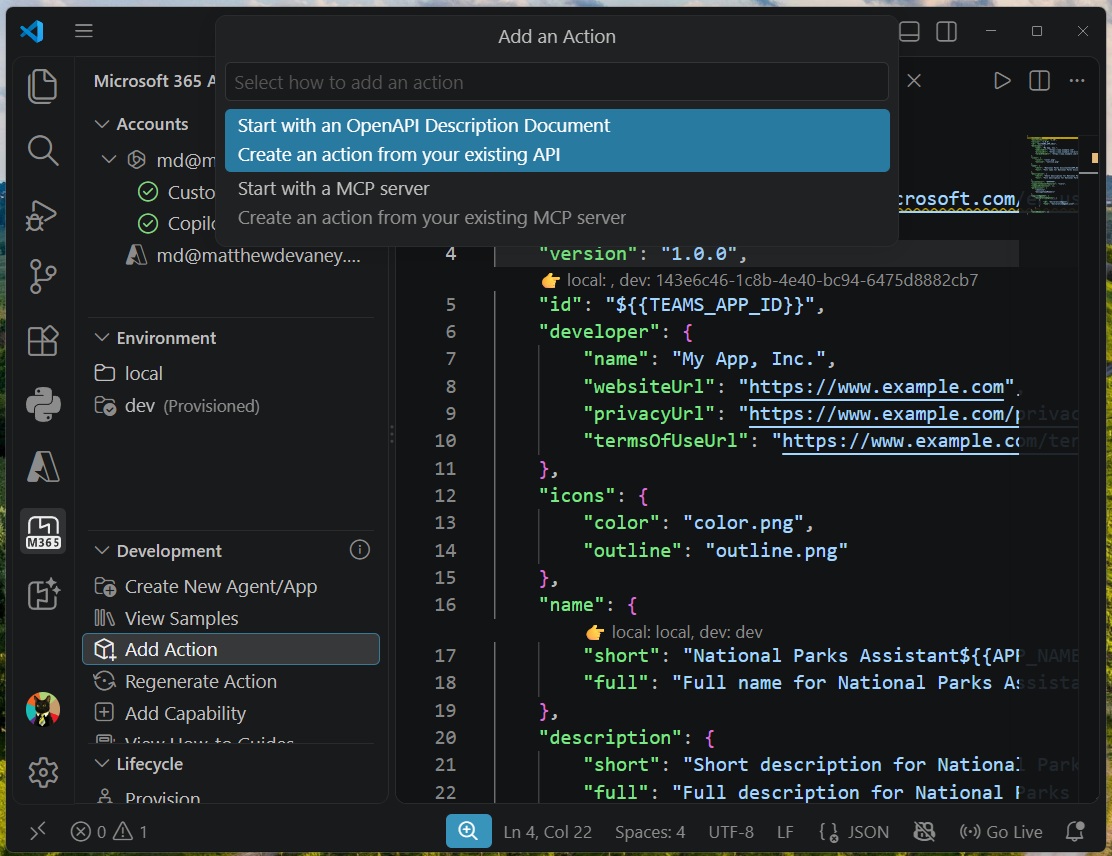
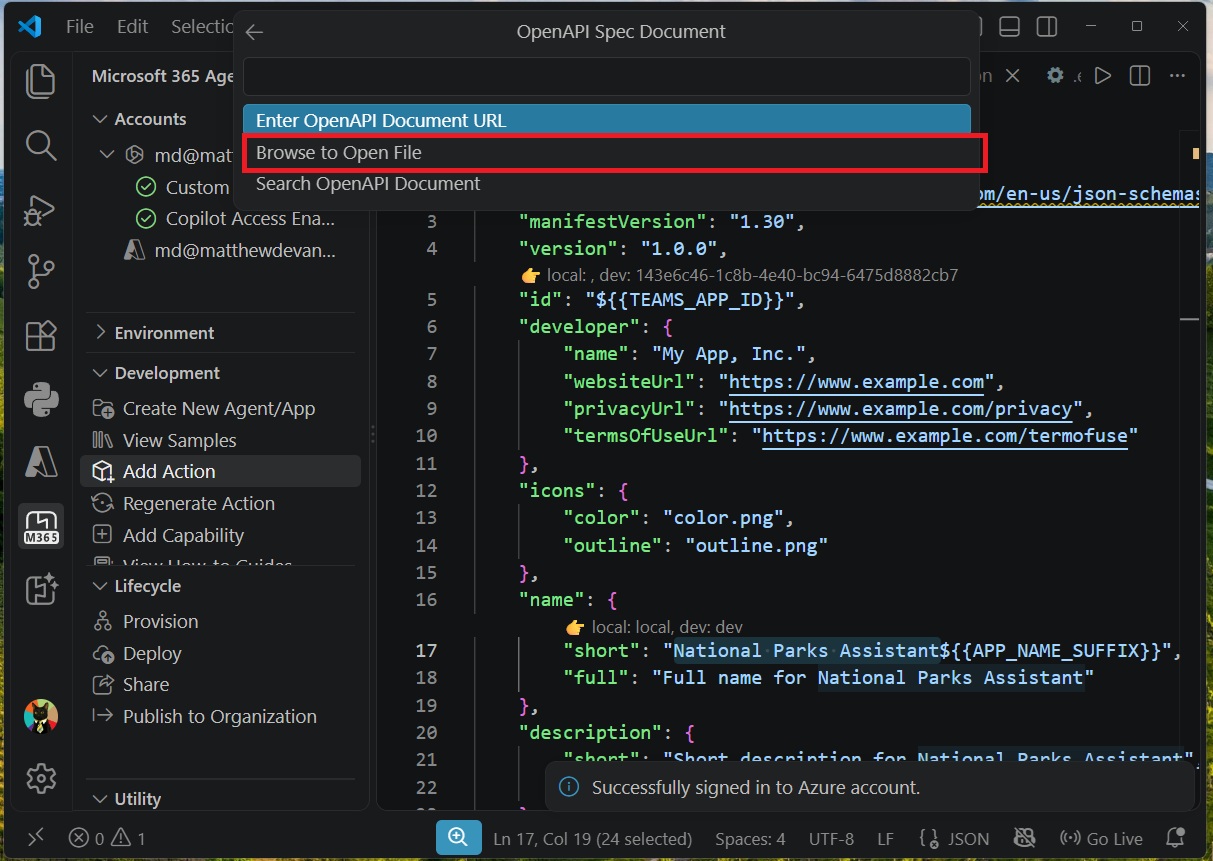
Now we are ready to add the National Parks Service API to our agent in VS Code. Open the M365 Agents Toolkit extension and select the Add Action menu item. Choose the option Start with an OpenAPI Description Document.
The select browse to Open File and open the the YAML file we saved in Windows Notepad.
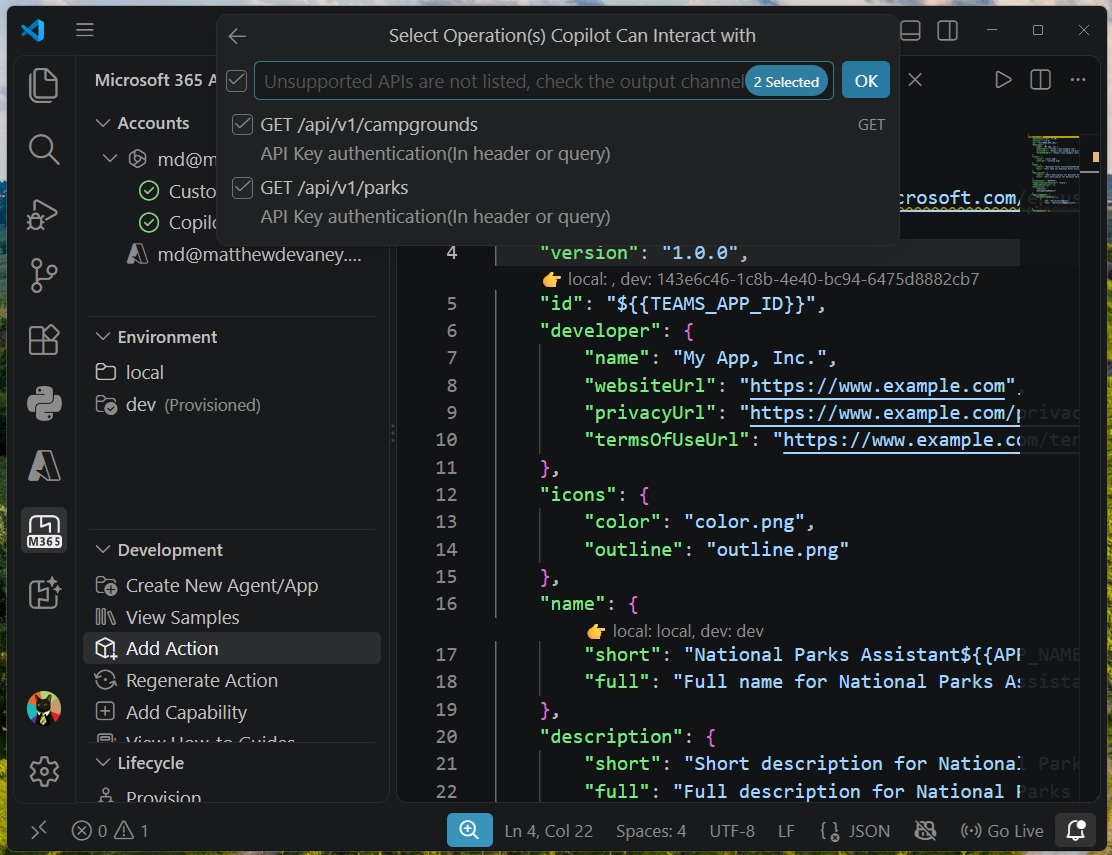
Check the checkboxes for the campgrounds and parks endpoints and press OK to complete the import process.
Review The Changes Made By Adding The OpenAPI Specification
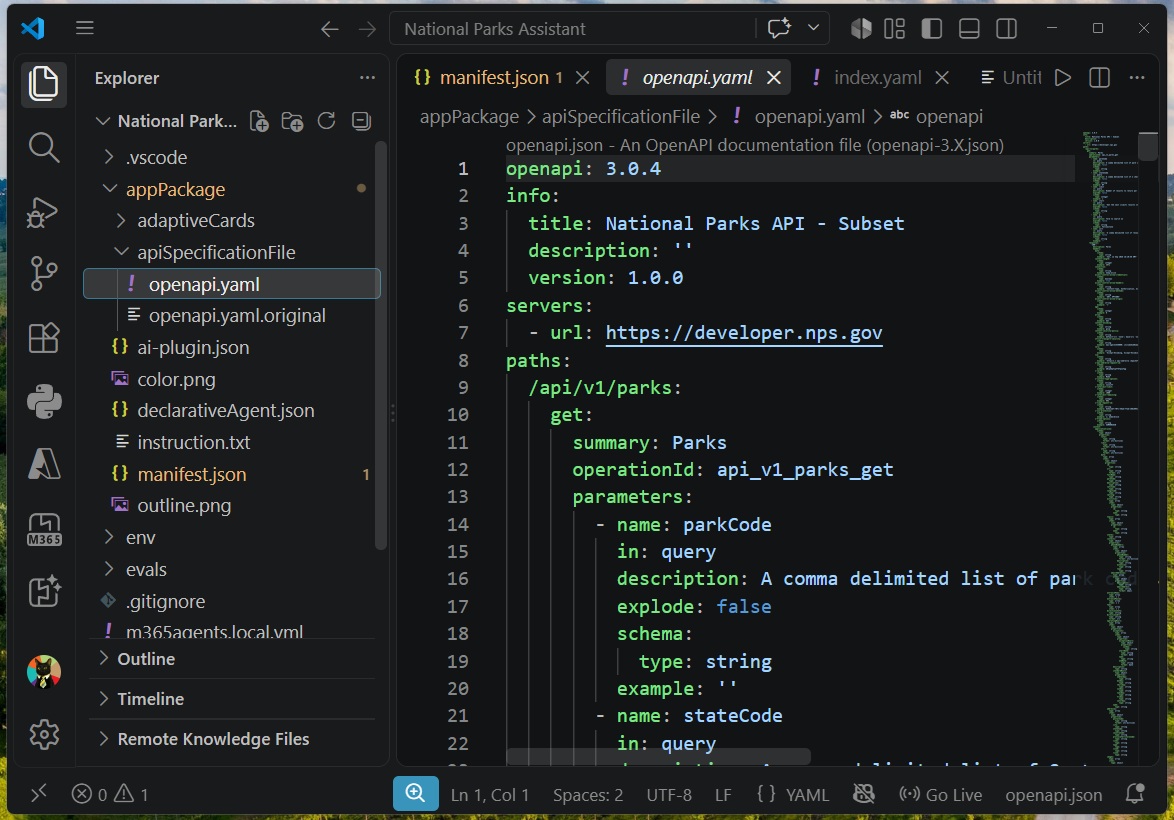
The declarative agent now includes the OpenAPI specification file and has the ability to use the National Park Service API. There should by two files in the apiSpecificationFolder
- openapi.yaml.original: this is the exact YAML file we imported with no changes
- openapi.yaml: this is the YAML file the agent actually uses, and it has some modifications from the original
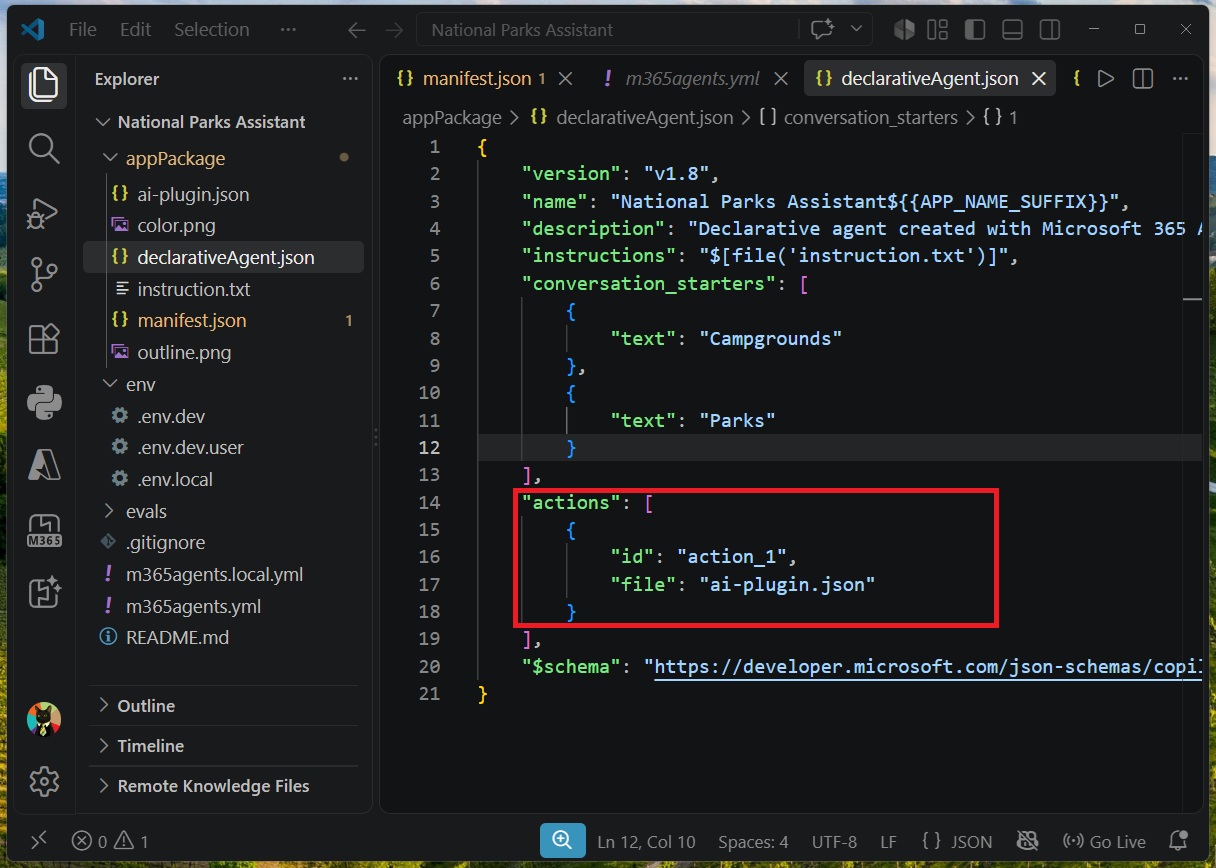
The file declarativeAgent.json details what capabilities the agent has. It has been updated with a new action making reference to the file ai-plugin.json.
ai-plugin.json defines a REST API or MCP Server the agent can interact with. In this case it is the REST API for the National Park Service.
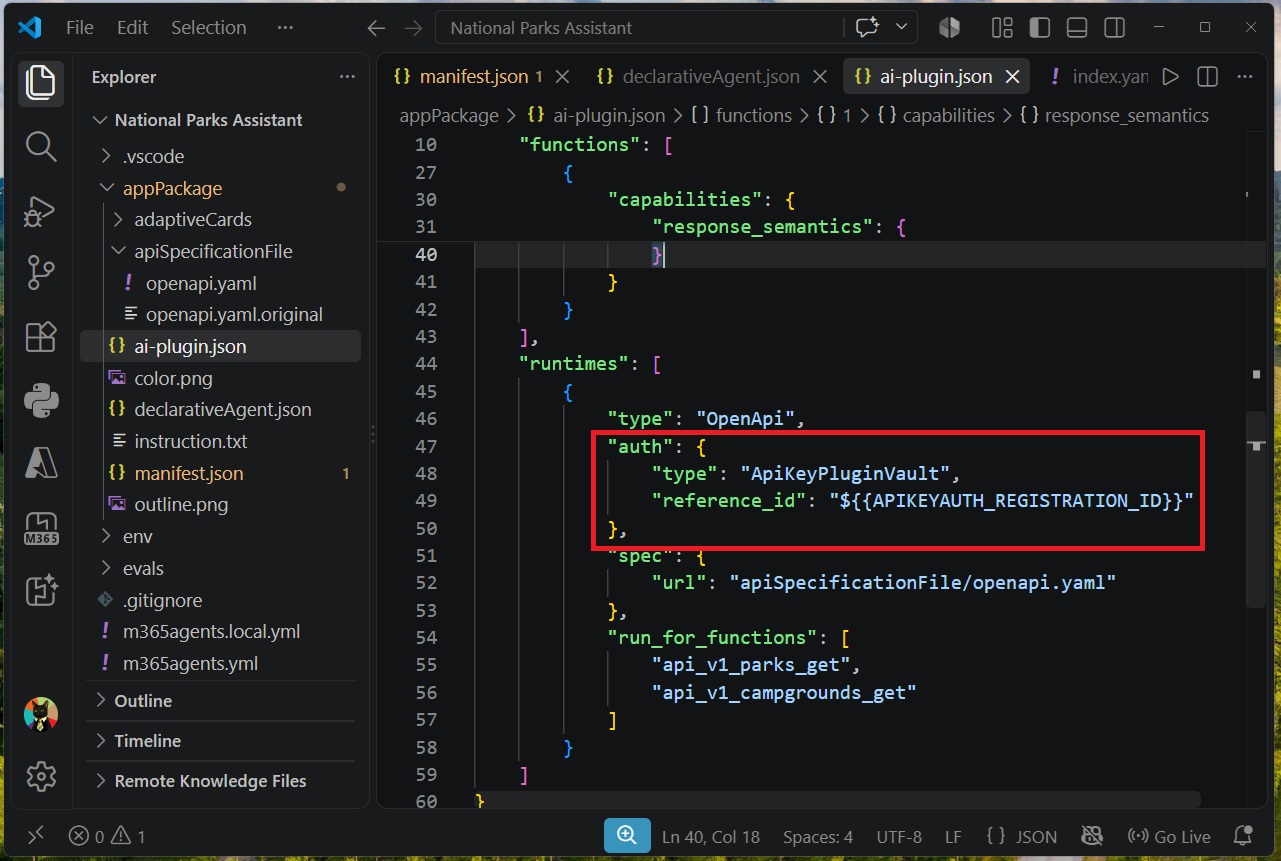
Included in ai-plugin.json is the authorization object which declares the authorization type. In this example we are using an API key but other authentication methods are possible and require different configuration. The type ApiKeyPluginVault means the key will not be hardcoded into the agent. It will be stored in the Teams developer portal instead.
"auth": {
  "type": "ApiKeyPluginVault",
  "reference_id": "${{APIKEYAUTH_REGISTRATION_ID}}"
}Code language: JSON / JSON with Comments (json)
Finally, the m365agents.yml file defines all steps that will be taken to provision the agent. A new step was added to register the API key.
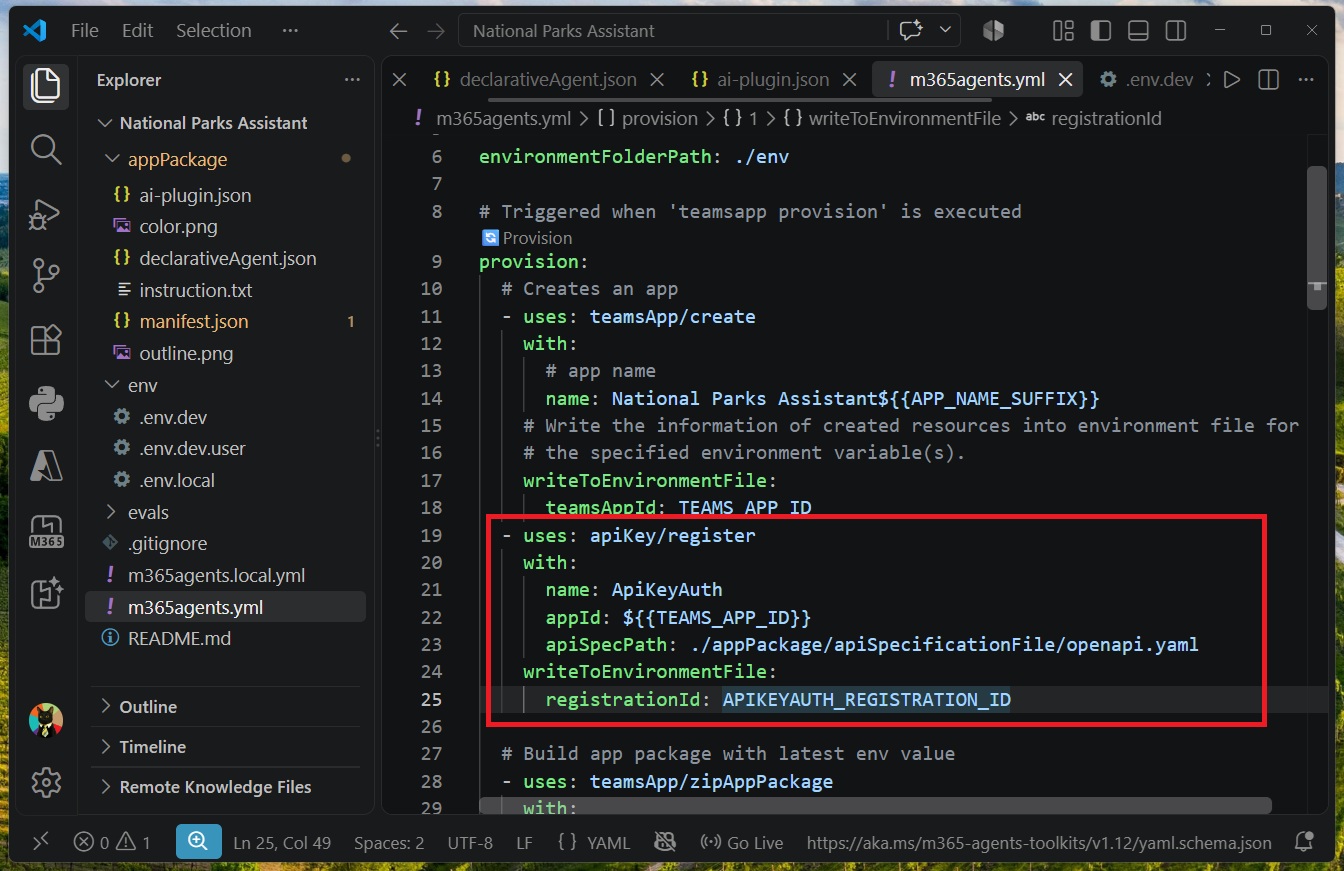
If this code was not automatically inserted into the m365agents.yml, copy and paste it directly beneath the teamsApp/create step.
- uses: apiKey/register
    with:
      name: ApiKeyAuth
      appId: ${{TEAMS_APP_ID}}
      apiSpecPath: ./appPackage/apiSpecificationFile/openapi.yaml
    writeToEnvironmentFile:
      registrationId: APIKEYAUTH_REGISTRATION_IDCode language: YAML (yaml)
Update The Agent Scope To Personal In The Environment Settings File
The agent scope sets who can access the agent. It has two possible values: shared or personal. By default, the agent scope is set to shared and allows the developer to grant others access to agent. The personal agent scope restricts usage to the person who created it.
When an agent has the agent scope shared and includes a custom API its deployment must be approved by an administrator. Set the agent scope to personal instead to test the agent before production deployment.
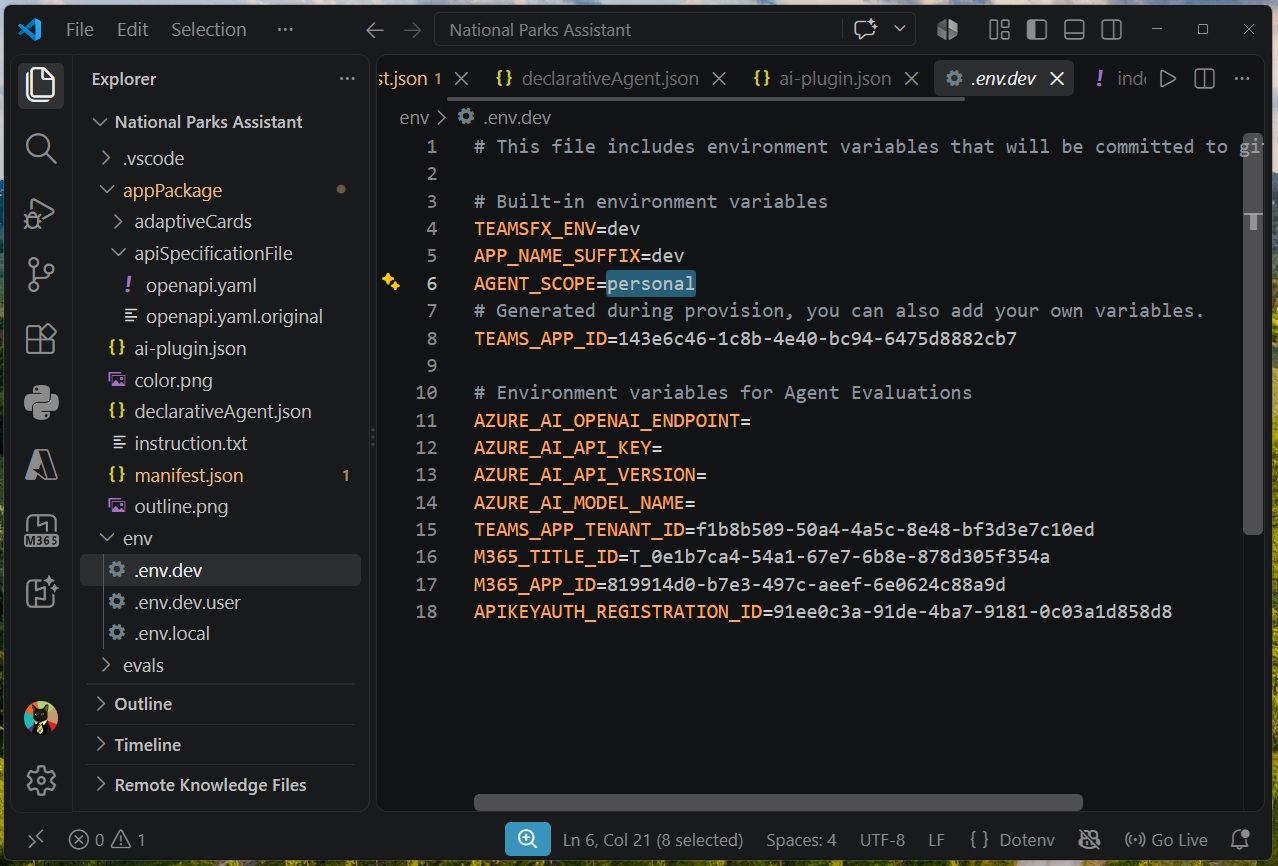
Go the .env.dev file and update this setting as shown:
| AGENT_SCOPE=personal |
Provision The Declarative Agent With The M365 Agents Toolkit
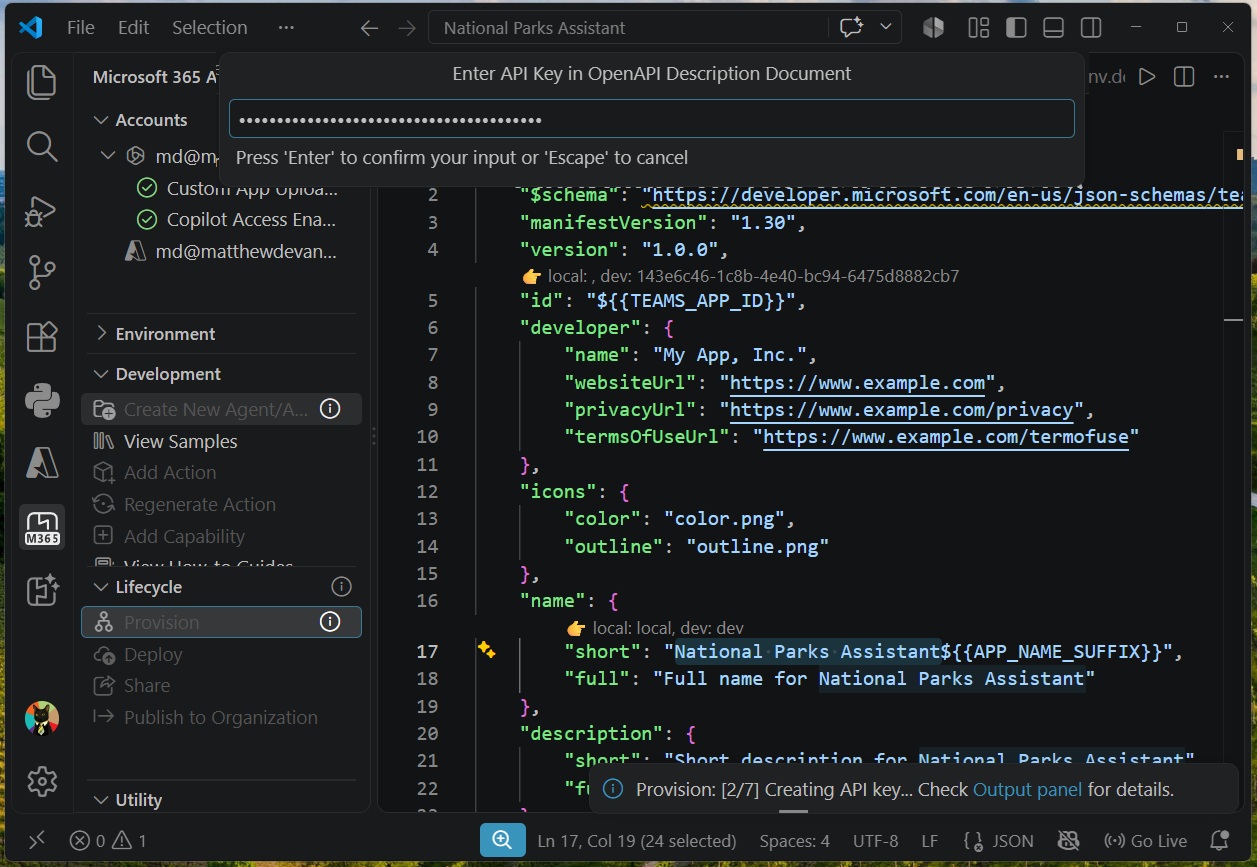
Now we are ready to provision our agent and begin testing. Go to the M365 Agents Toolkit and select Provision.
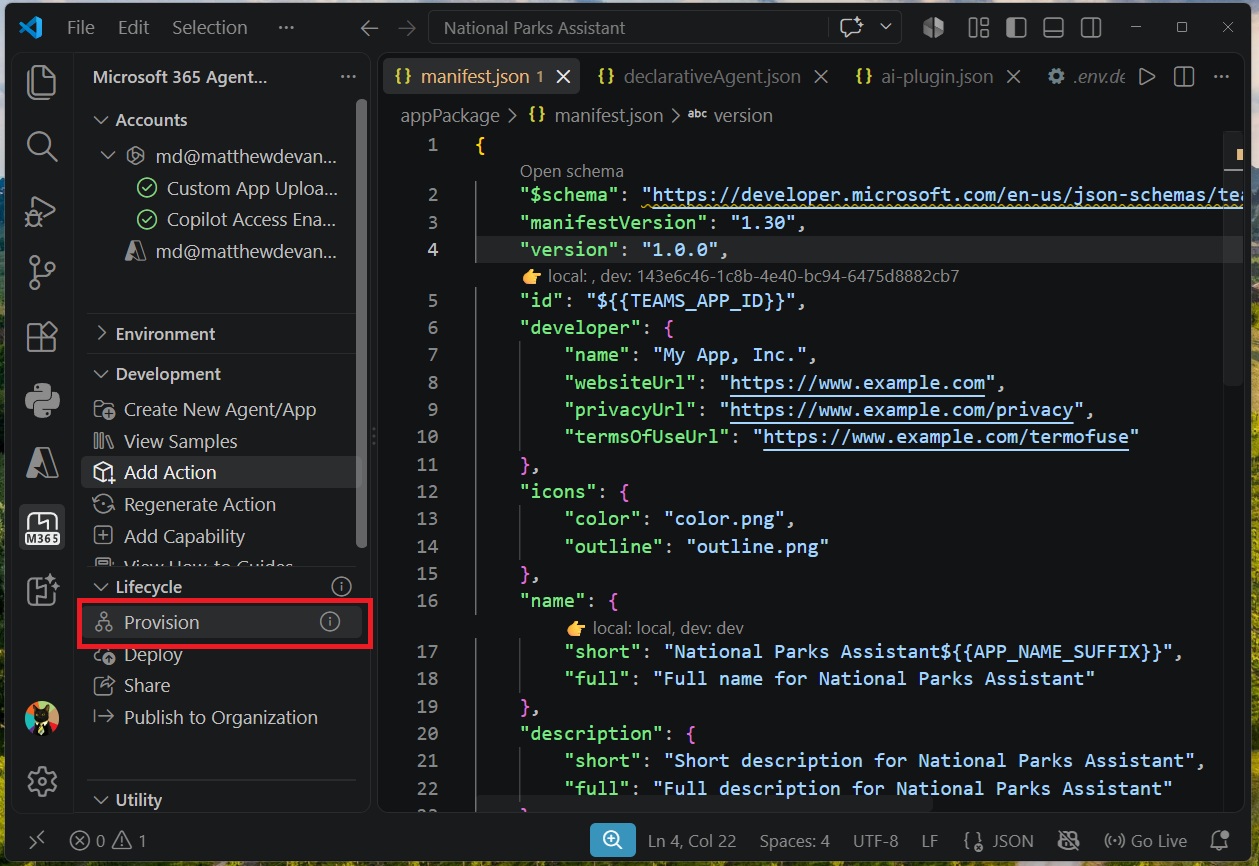
Supply the National Park Service API key when prompted. After a few more moments the provisioning process is completed.
Test The National Parks Assistant Declarative Agent In M365 Copilot
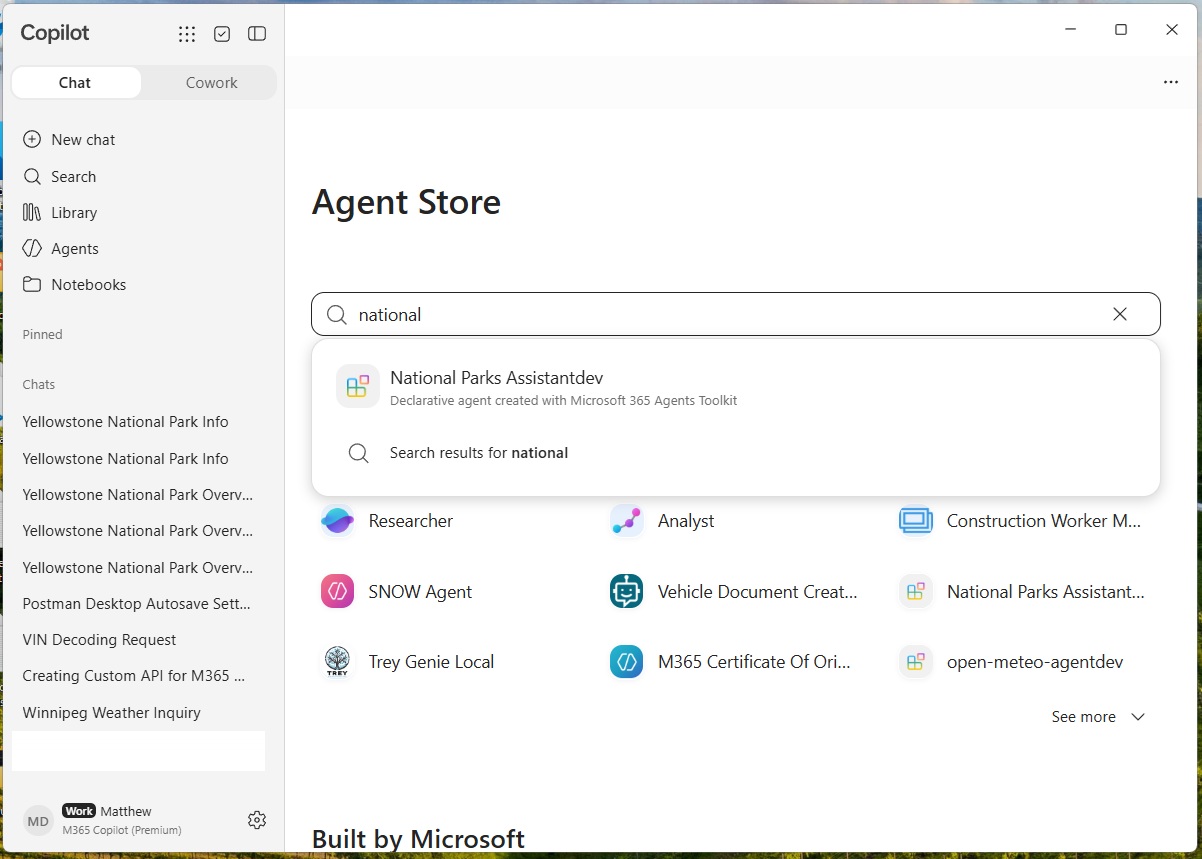
The provisioned agent is now available for personal use in M365 Copilot. Open M365 Copilot and go to the Agents menu. Select the National Parks Assistantdev agent.
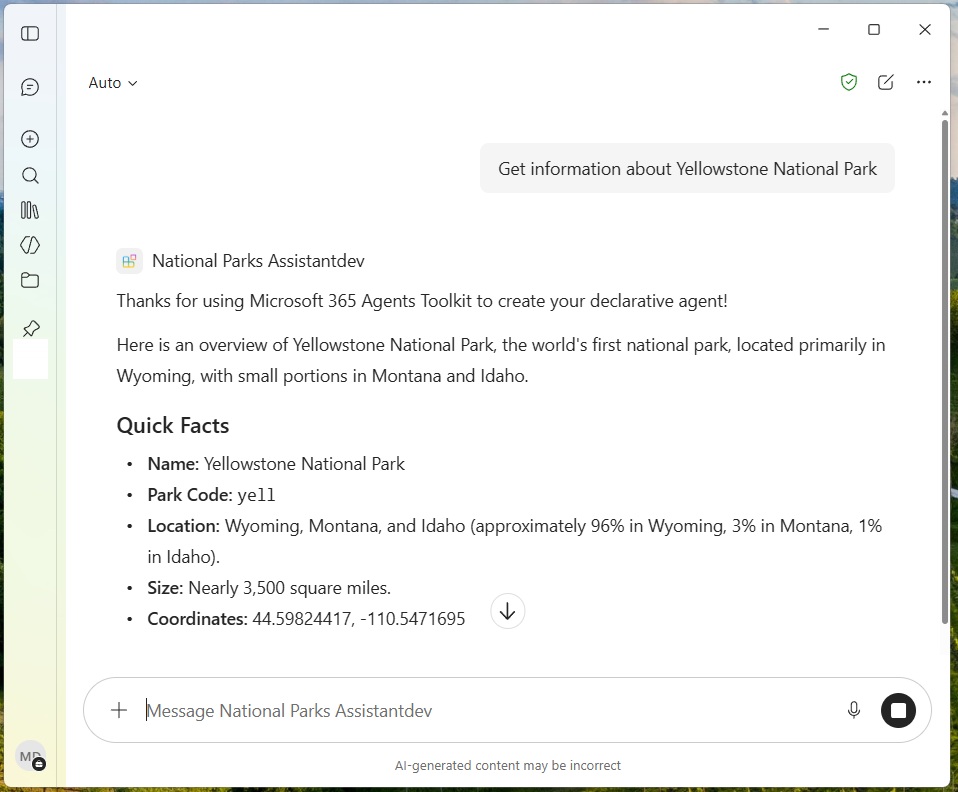
Ask the agent to get information about Yellowstone National Park. The agent will respond with the same information we saw in Postman.
Then ask the agent about campgrounds in Yellowstone. The agent returns a table of campgrounds, and provides the number of sites along with some notes.
Video: M365 Agents Toolkit Add A Custom API To A Declarative Agent
Watch this video for a complete demonstration of the techniques described in the article.
Did You Enjoy This Article? 😺
Subscribe to get new Copilot Studio articles sent to your inbox each week for FREE
Questions?
If you have any questions or feedback about M365 Agents Toolkit: Add A Custom API To A Declarative Agent please leave a message in the comments section below. You can post using your email address and are not required to create an account to join the discussion.