Copilot Studio: Generate Word Document From A Template

An agent built-in Copilot Studio can generate a Word document from natural language and return it to the chat window. To output a standardized document type such as a sales quote or an invoice, you can create a template in Microsoft word then upload it to the agent. Then, the agent can use its knowledge (Excel, SharePoint, Dataverse) to fill in the Word document with detailed information, based on the user’s message
Introduction: The Sales Quote Generator Agent
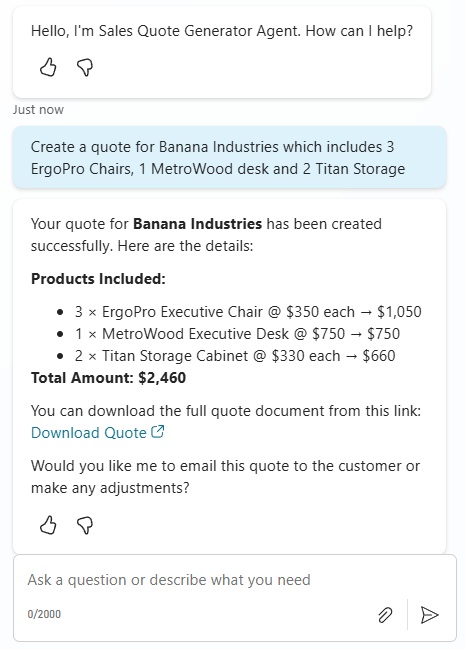
Salespeople at an office furniture retailer chat with a Sales Quote Generator agent to create a Word document. They ask for a sales quote on a set of products and the agent returns a message in the chat.
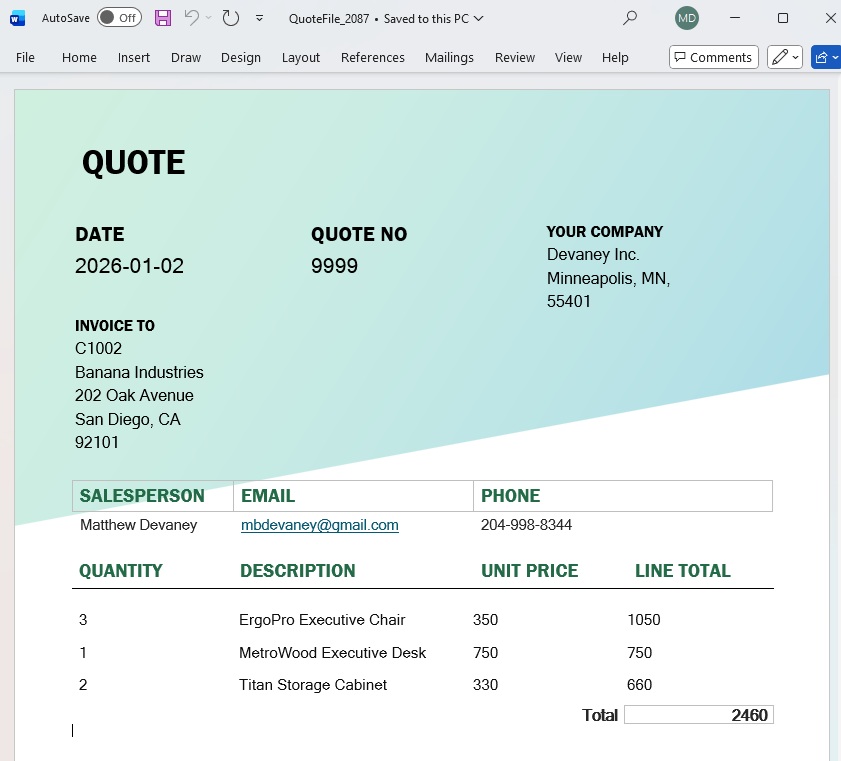
When the download quote link is selected the salesperson sees an editable word document with all of the quote details.
Start A New Agent In Copilot Studio
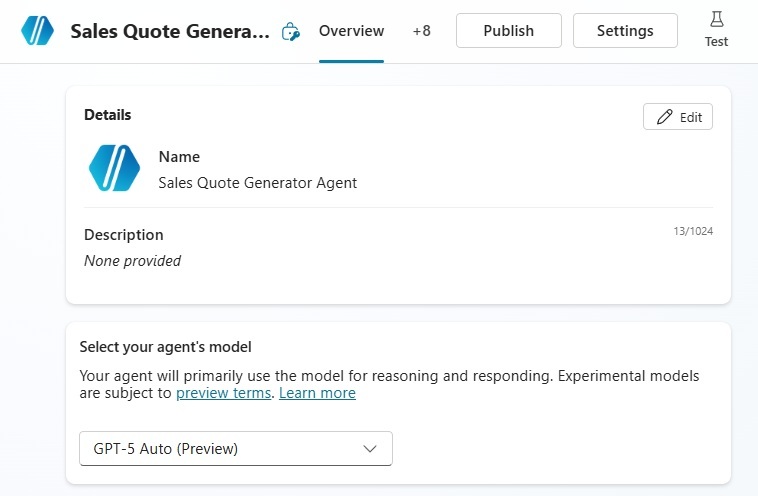
Open Copilot Studio and start a new Agent named Sales Quote Generator Agent. Select the model GPT-5 Auto.
Define A Quote Template In Microsoft Word
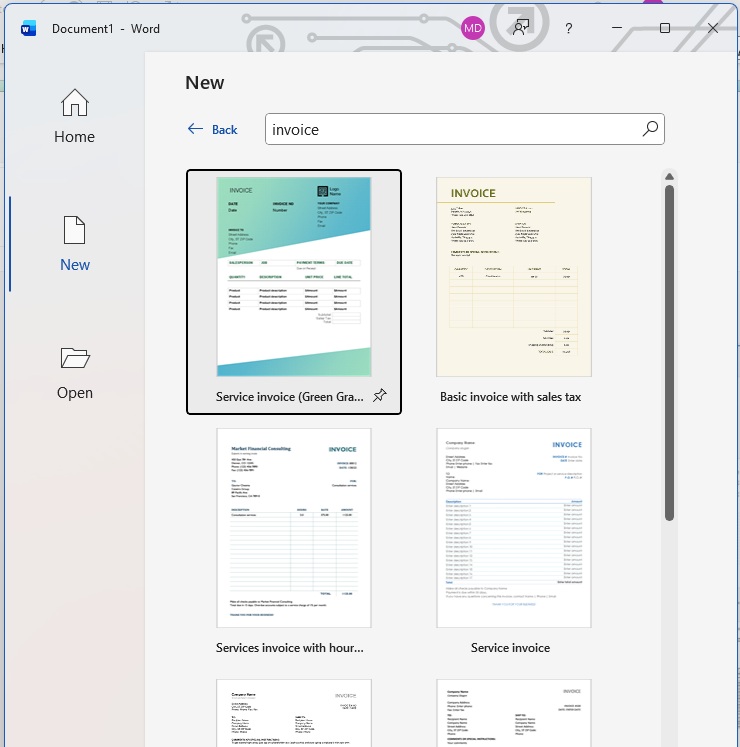
The sales quote generated by the agent in Copilot Studio requires a standardized format. To do this, we can use a pre-built template from Microsoft Word. Open Microsoft word and search for the templates with the word “invoice.” Select the option named Service Invoice (Green Gradient design).
The Microsoft word service invoice template initially looks like the image below.
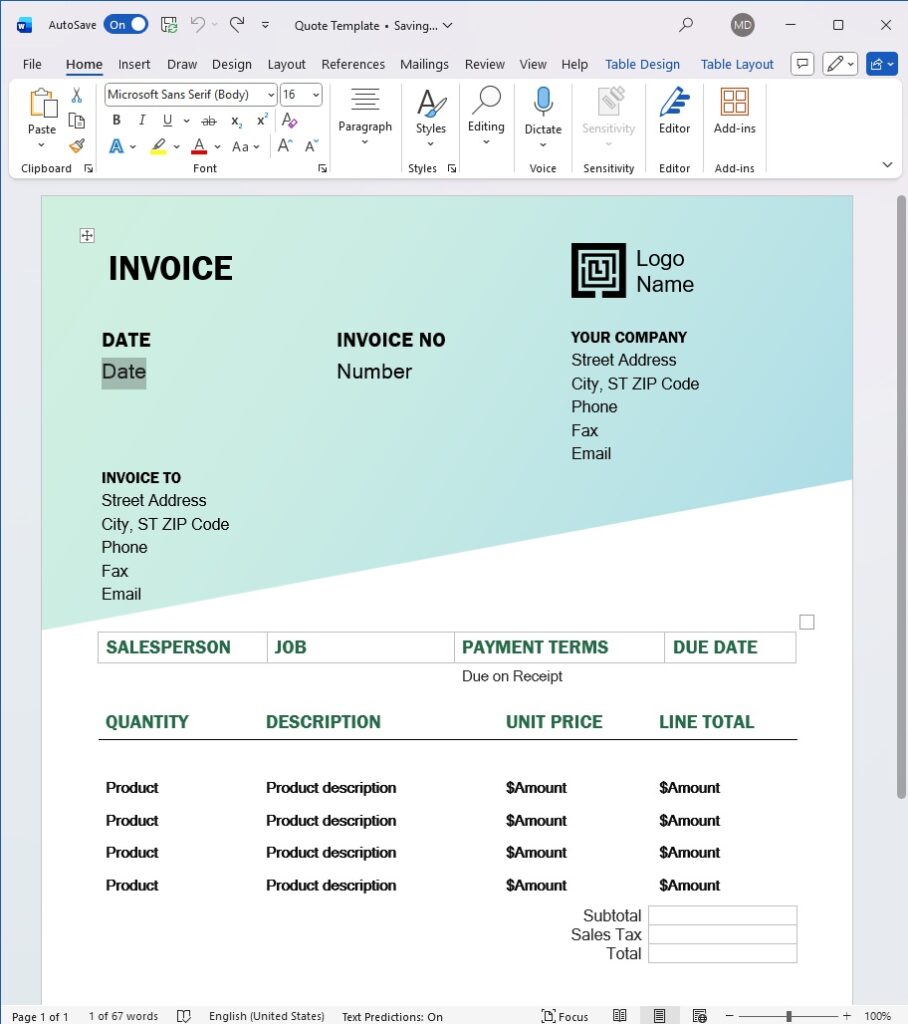
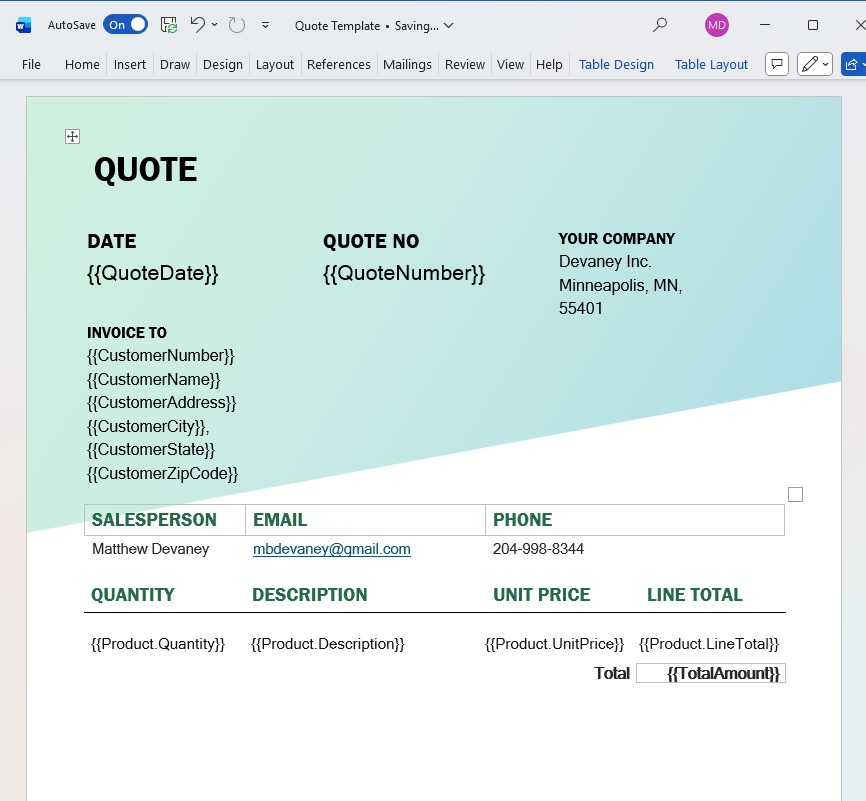
We must modify the service invoice to include placeholders for any dynamic values the agent needs to fill-in. To create a placeholder, type the field name in the format {{FieldName}} anywhere within the document. Each field name must be unique.
For any fields in a table the placeholder format changes to {{TableName.FieldName}}. The placeholders must be inside of a Word document table.
Update the service invoice template to include these fields or download the sales quote template from my Github:
- QuoteDate
- QuoteNumber
- CustomerNumber
- CustomerName
- CustomerAddress
- CustomerCity
- CustomerState
- CustomerZipCode
- Product
- Quantity
- Description
- Unit Price
- Total
- TotalAmount
Create An Agent Flow To Generate A Word Document
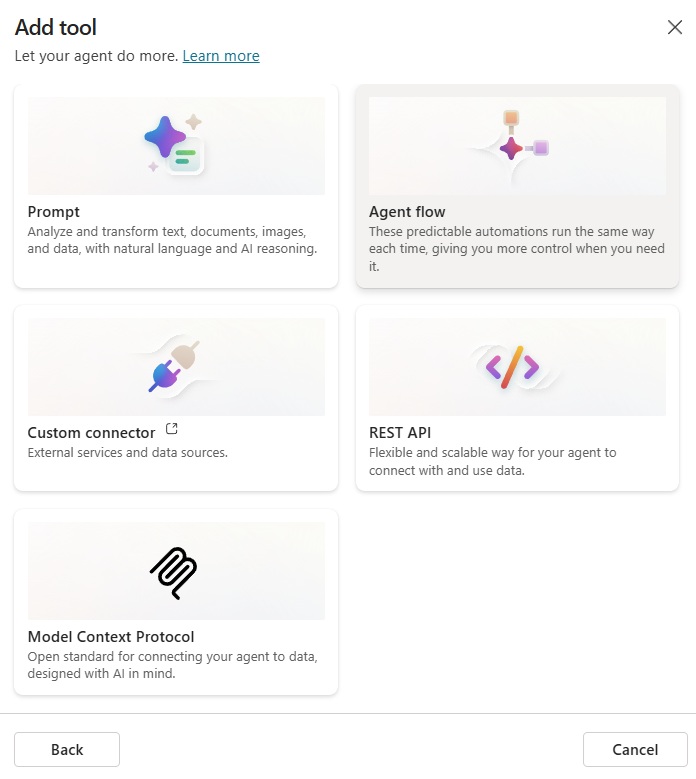
In Copilot Studio, go to the tools menu and add a new tool. Select the Agent flow tool type.
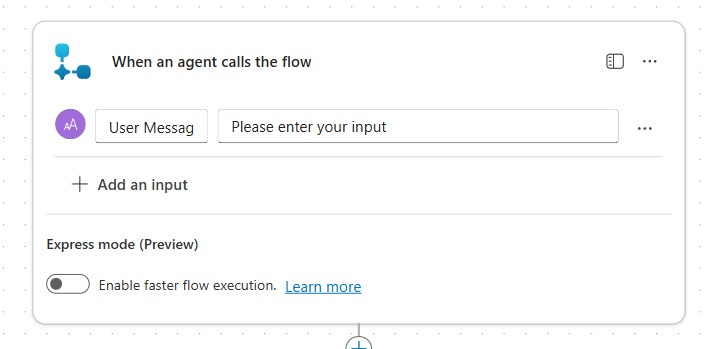
Add a text input to the trigger named user message. This will allow the agent to pass any information needed to generate the word document to the flow.
Generate A Word Document Using A Copilot Studio Prompt
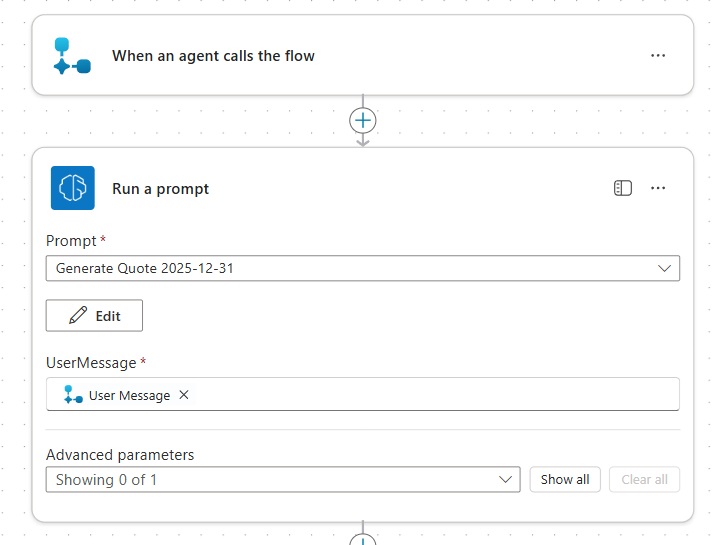
The word document will be generated based on the request made in the user’s message. To do this, add a Run a Prompt action to the flow and select new custom prompt.
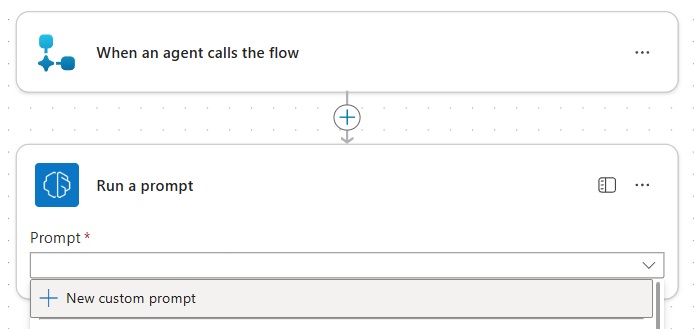
Name the flow Generate Quote and use the prompt:
| Create a quote based on the user’s message [User Message]. |
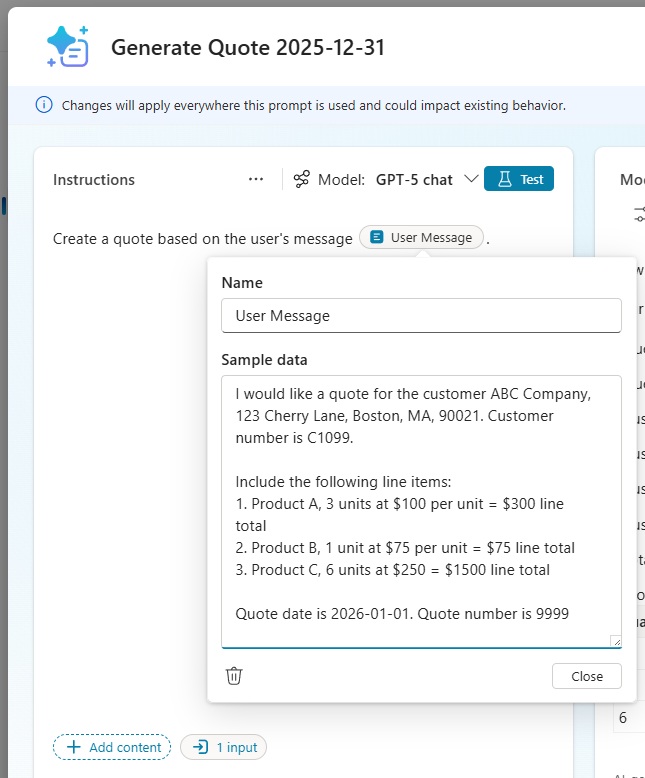
Include the following sample data for the user message variable. Notice that the message includes all of the dynamic values needed to create the quote for the purposes of testing. However, the user would never send such a detailed message like this. Later on, we will ground our agent with customer and pricing knowledge to return detailed information given only a customer name or product name.
| I would like a quote for the customer ABC Company, 123 Cherry Lane, Boston, MA, 90021. Customer number is C1099. Include the following line items: Product A, 3 units at $100 per unit = $300 line total Product B, 1 unit at $75 per unit = $75 line total Product C, 6 units at $250 = $1500 line total Quote date is 2026-01-01. Quote number is 9999 |
Test the prompt and review the document output. All of the values from the user’s message have been assigned to placeholders in the Word document.
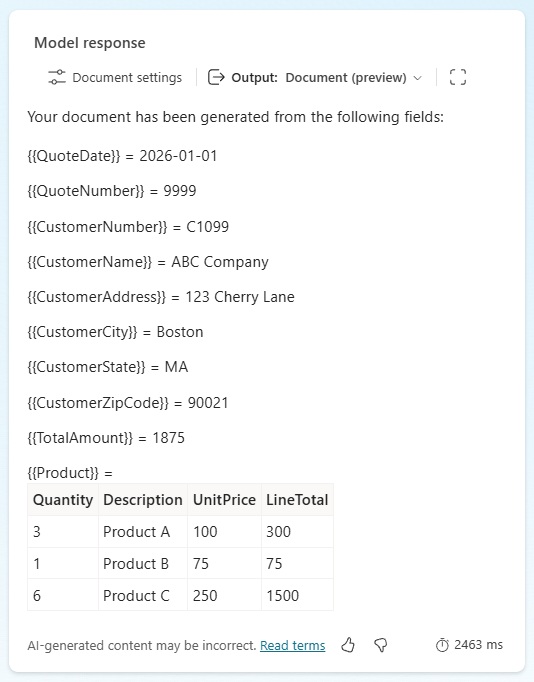
Click on the link in the document output menu to open the word document. All placeholders in the template have been filled-in with values here too.
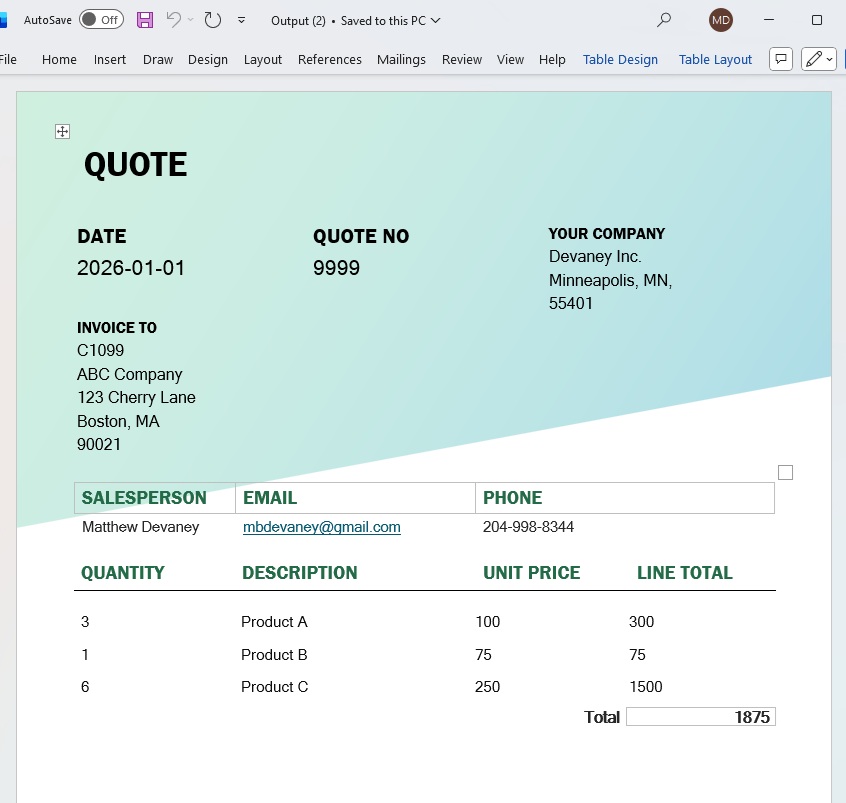
Save and close the prompt. Add the User Message input variable to the User Message field in the prompt action.
Construct A Link To The Word Document
Now that we have generated the word document, we want to save it to the user’s OneDrive and send a document link back to the Agent in Copilot Studio. It is preferable to pass the link to Copilot Studio rather than the entire file because there are size limits on any response sent to an Agent. These size limits apply to any API, not just Agent Flows.
Begin by inserting a OneDrive – Create file action and specifying a folder path and file name. Include the document output from the Run a Prompt action in the File Content field. Then use an Office 365 Users – Get My Profile (V2) action to get the current user’s user principal name. And Compose the full path to the file as shown in the image below.
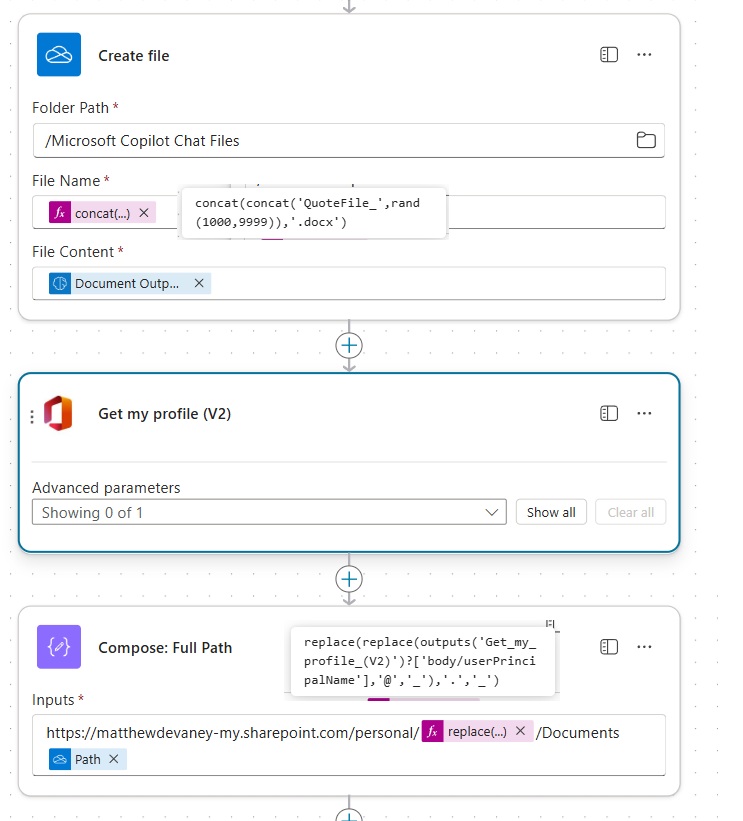
The File Name in the Create File action must be unique. A common technique is to include the timestamp to ensure a unique value. In this example, we will use a random value between 1000-9999 instead.
concat(concat('QuoteFile_',rand(1000,9999)),'.docx')Code language: JavaScript (javascript)
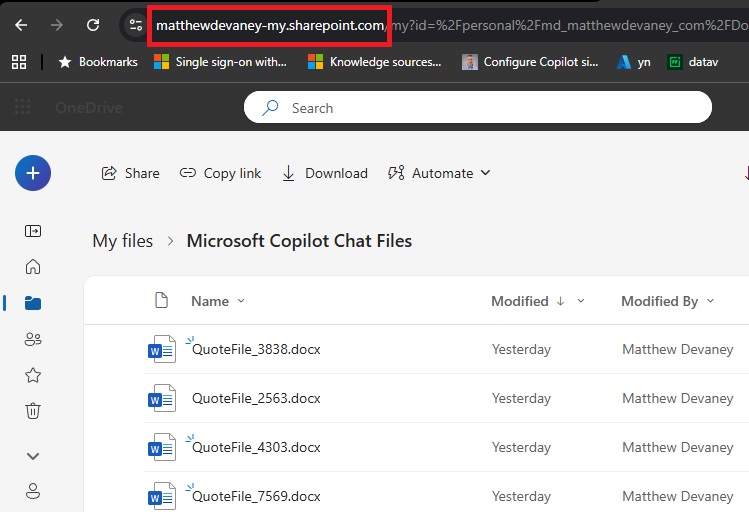
To get the domain name for the full path to the word document, open OneDrive and copy + paste the domain from the web browser’s address bar.
The user principal name contains “@” and “.” symbols which are not safe values for contracting URLs. Convert these characters to “_” symbols using the formula below.
replace(replace(outputs('Get_my_profile_(V2)')?['body/userPrincipalName'],'@','_'),'.','_')Code language: JavaScript (javascript)
At the end of the flow, add a Respond To The Agent action and include a text variable named Full Path with the description: a download link for the quote output by the Agent.
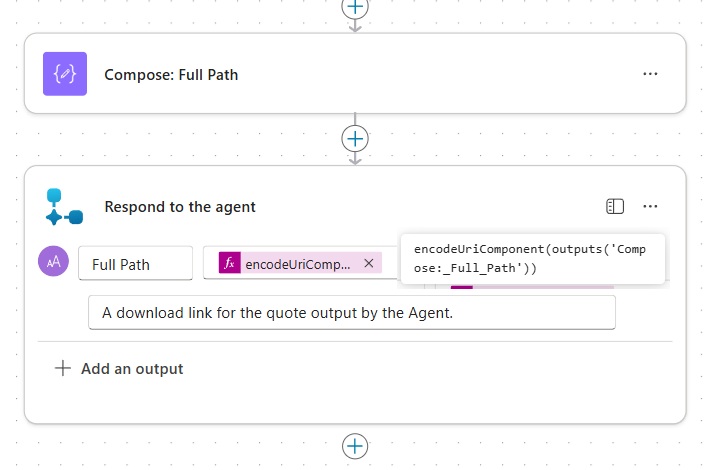
Use the encodeUriComponent function to encode the full path to the Word document with the proper formatting needed by the agent. Then save and publish the agent flow.
encodeUriComponent(outputs('Compose:_Full_Path'))Code language: JavaScript (javascript)
Configure The Generate Sales Quote Agent Flow
In Copilot Studio, open the Generate New Quote tool to provide additional context. Start by adding the description “use this action to generate a quote.”
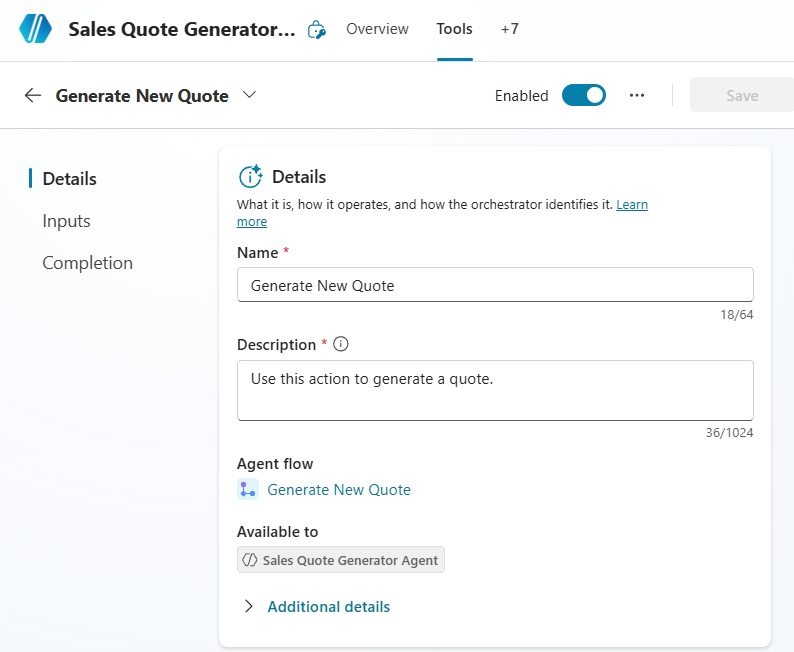
Then configure the User Message variable by adding a description of what information should be passed to the agent flow.
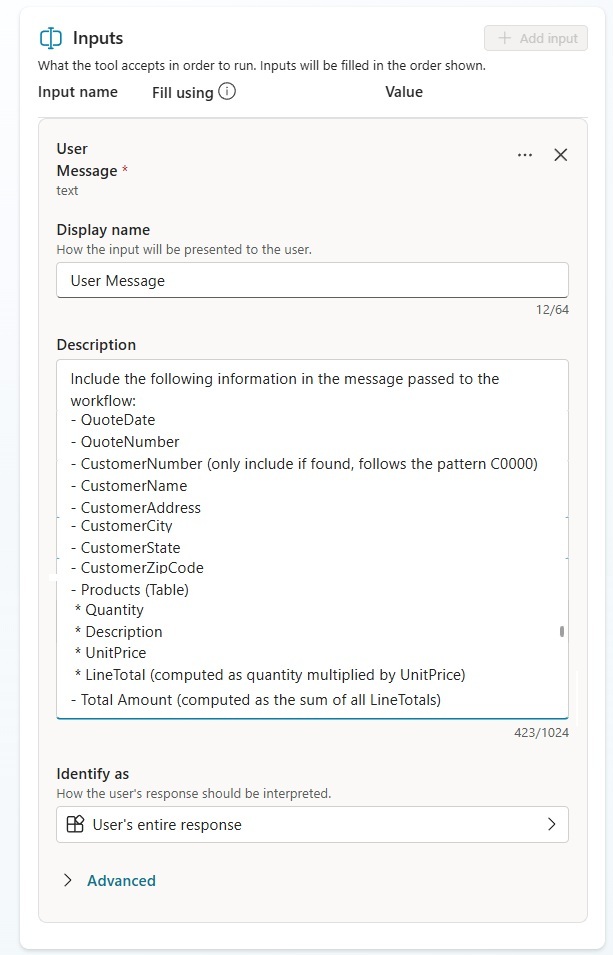
Copy and paste this information into the User Message description field. Then save and close the tool.
| Include the following information in the message passed to the workflow: – QuoteDate – QuoteNumber – CustomerNumber (only include if found, follows the pattern C0000) – CustomerName – CustomerAddress – CustomerCity – CustomerState – CustomerZipCode – Products (Table) * Quantity * Description * UnitPrice * LineTotal (computed as quantity multiplied by UnitPrice) – Total Amount (computed as the sum of all LineTotals) |
Go to the overview tab for the Sales Quote Generator agent and update the instructions.
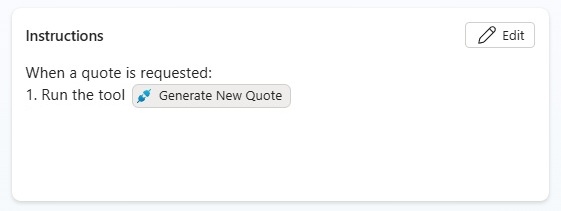
Copy and paste this instructions into the agent. Then save the instructions.
| When a quote is requested: 1. Run the tool [Generate New Quote] |
Test The Agent To Generate A Word Document In Copilot Studio
It’s time to test our agent. Write this message in the test chat window.
| I would like a quote for the customer ABC Company, 123 Cherry Lane, Boston, MA, 90021. Customer number is C1099. Include the following line items: Product A, 3 units at $100 per unit = $300 line total Product B, 1 unit at $75 per unit = $75 line total Product C, 6 units at $250 = $1500 line total Quote date is 2026-01-01. Quote number is 9999 |
The Agent returns a text summary of the quote along with a download link.
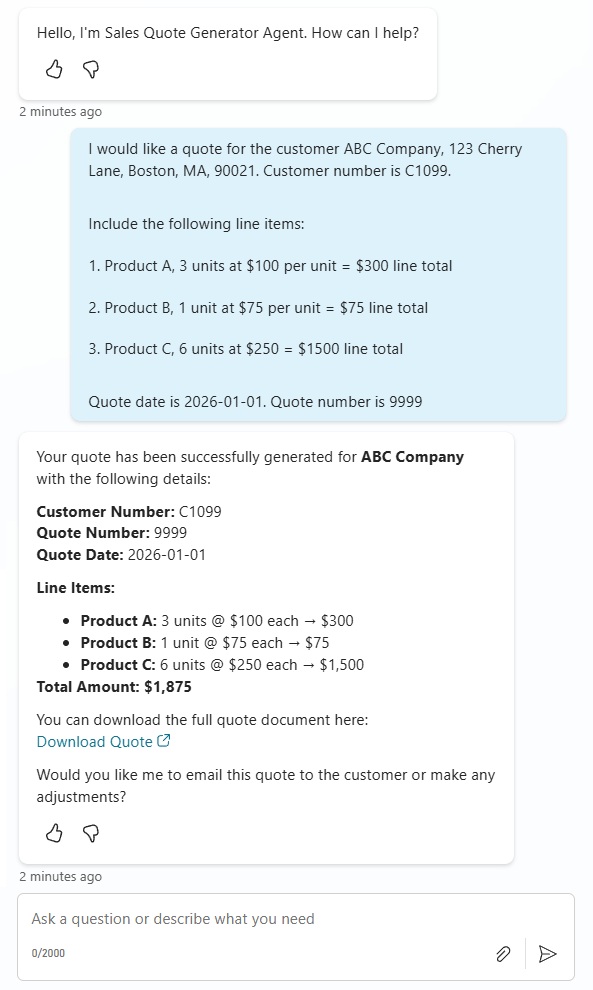
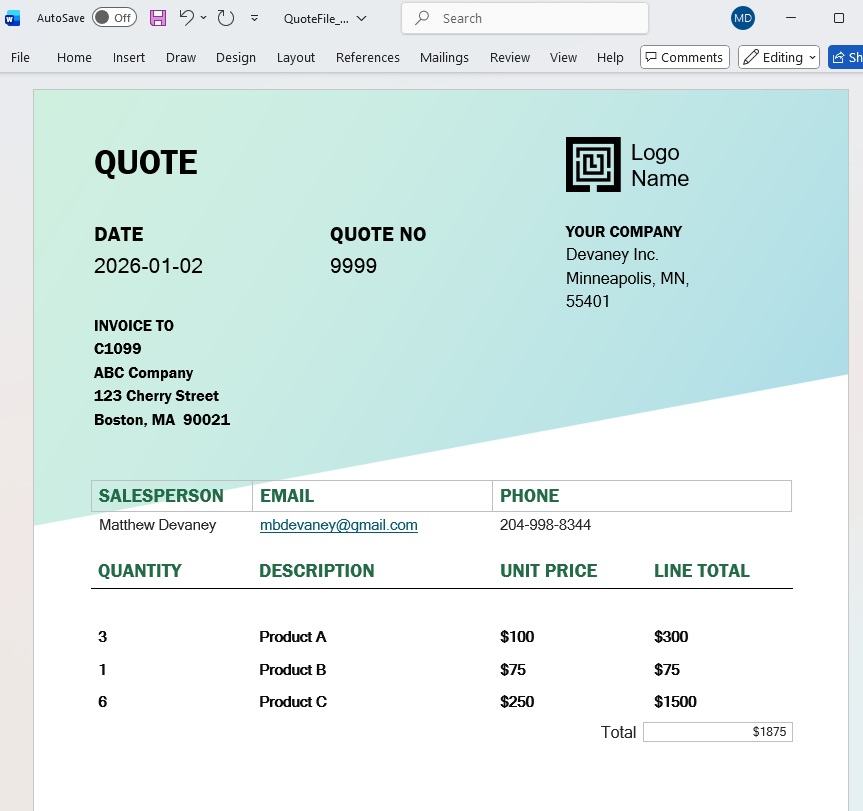
Select the download link to open the Word document.
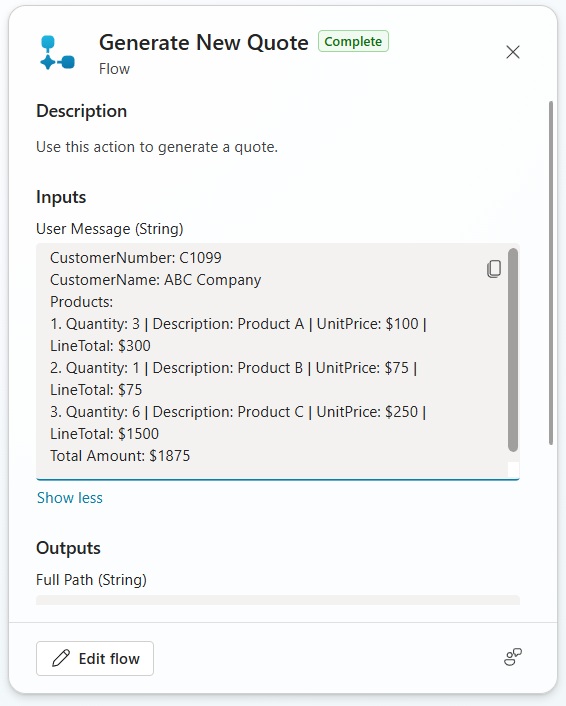
In the Agent’s activity map, we can see the information passed to the agent flow to create the quote. It follow’s the format we supplied in the tool description.
Ground The Agent With Excel Product List
We have created the basic functionality to generate a quote. Now we will ground the agent with data so the user can type in a product name, and the agent can retrieve the list price from its knowledge.
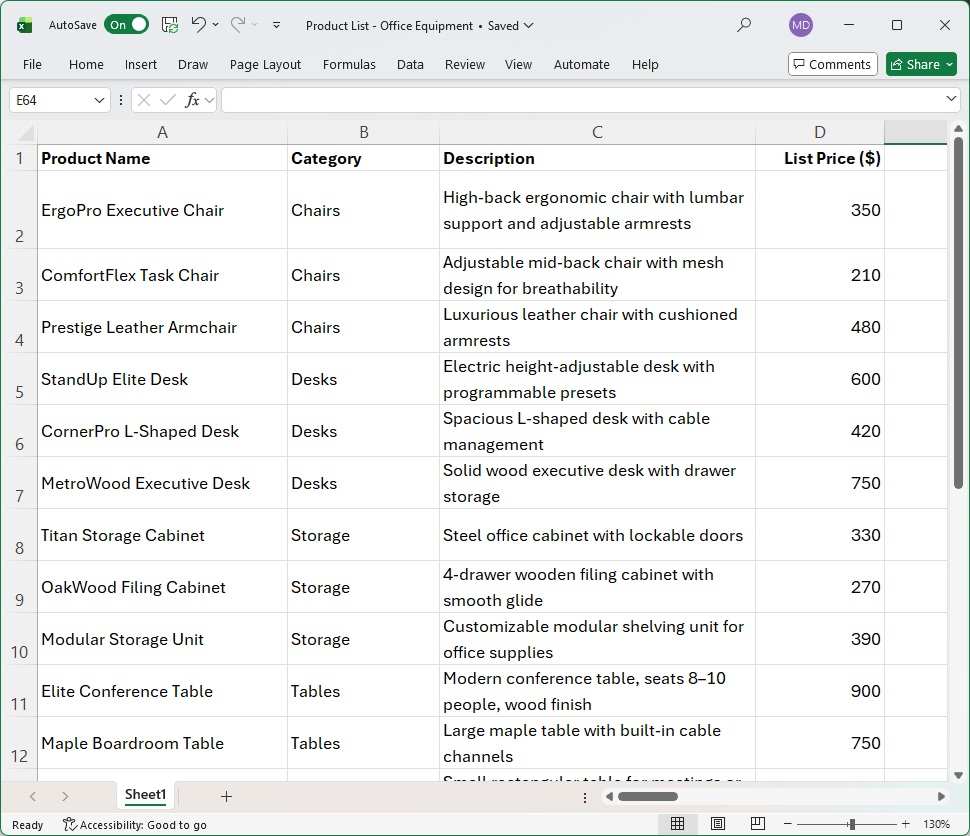
Create a Products List in an Excel file as shown below or download it from my Github repo.
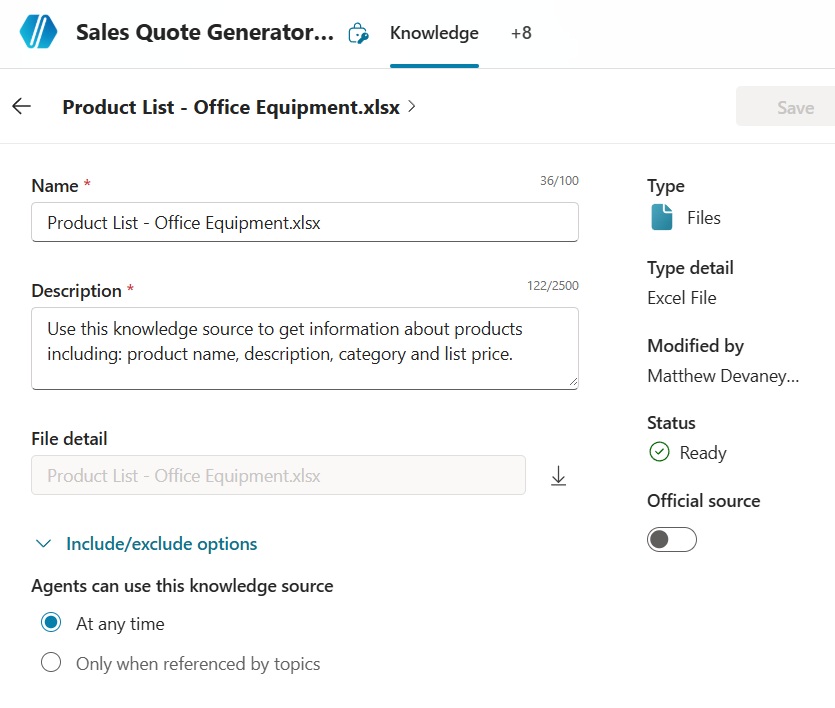
Add the Excel product list to the agent as knowledge.
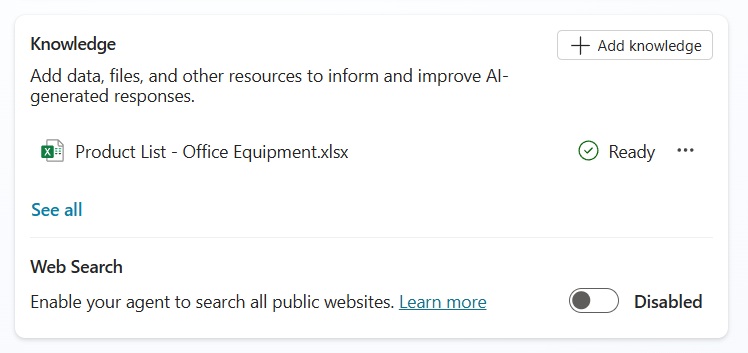
Update the Excel file description in knowledge to “use this knowledge source to get information about products including: product name, description, category and list price.”
Ground The Word Document Prompt With Dataverse Customer Accounts
Another set of information needed for the agent is a customer accounts list. We will use the Accounts table in Dataverse for this purpose. Create several accounts in Dataverse to be used by the agent including these fields:
- Account Number
- Account Name
- Address 1: Street 1
- Address 1: City
- Address 1: State/Province
- Address 1: Zip Code
A sample customer list can be found in my Github repo.
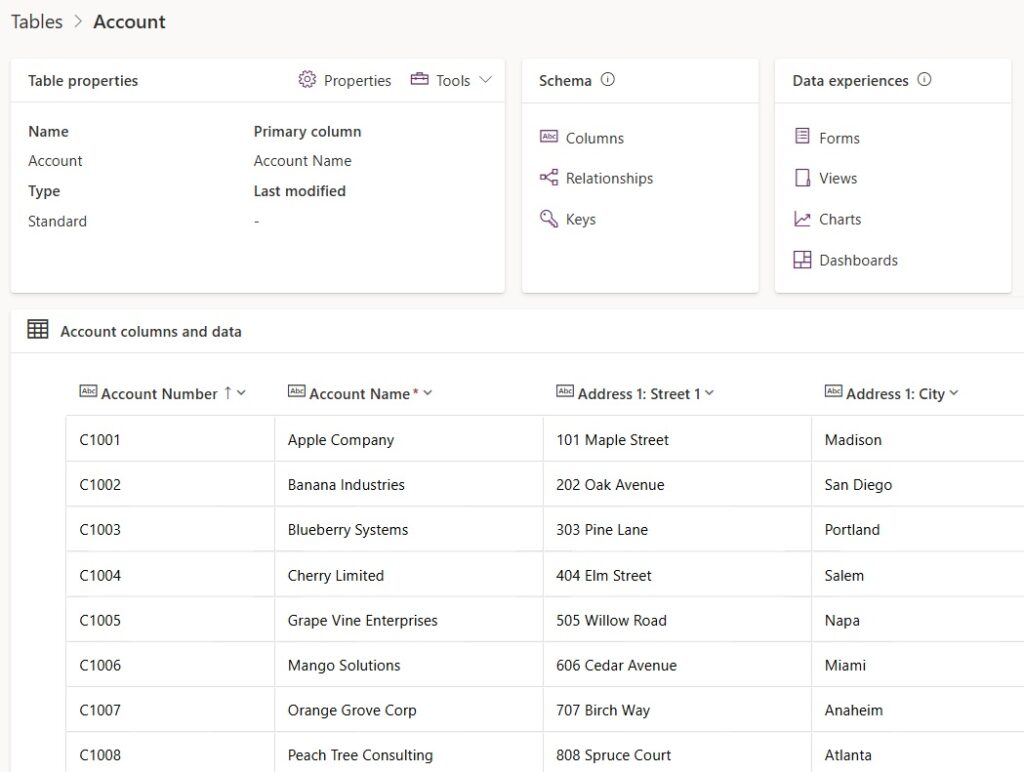
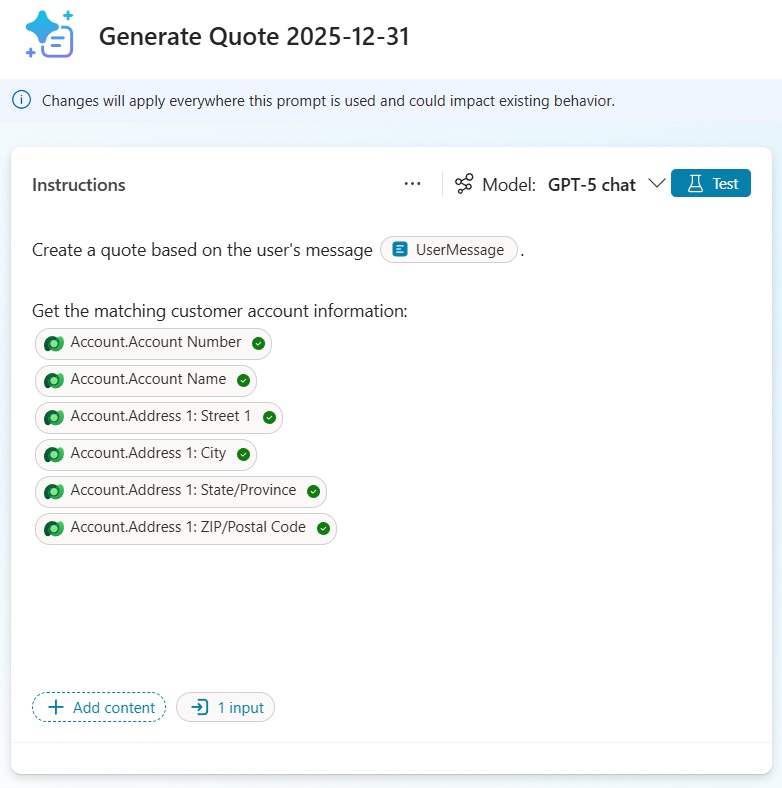
Once the data is loaded in the Accounts table, go to the Generate Quote prompt action and add the Dataverse fields as shown below. In the prompt settings, increase the maximum record count for Dataverse grounding to 1000 records.
Ground The Prompt With A PowerFx Formula
The quote date should always be set to the current date. Add an additional phrase to the prompt saying “the quote date is [TodaysDate].”
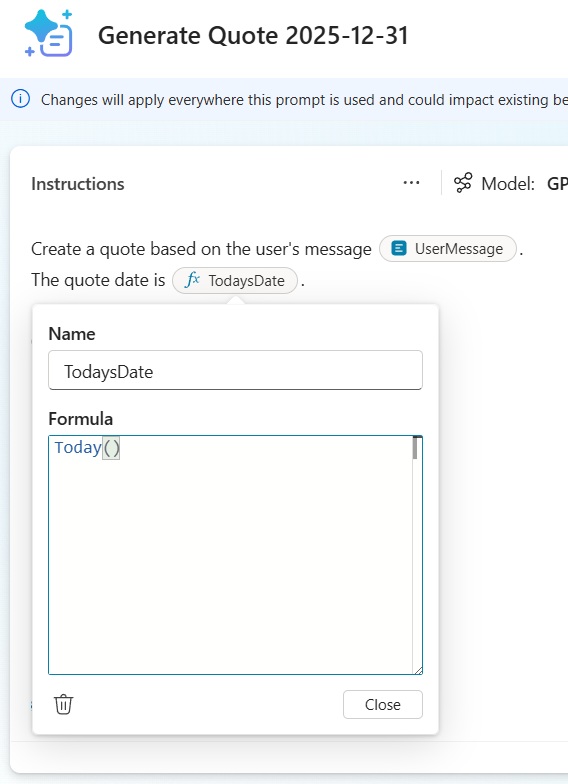
And use the Today() PowerFx function to determine the date.
Today()
Ground The Prompt With A Manual Input
Finally, we want to supply a quote number to the prompt. We will do this with a manual input. Add the phrase “The quote number is [QuoteNumber]” and save the prompt.
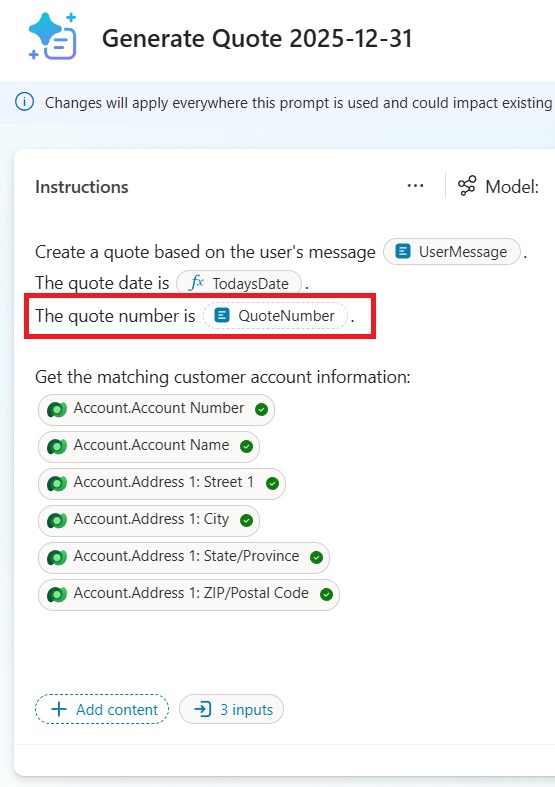
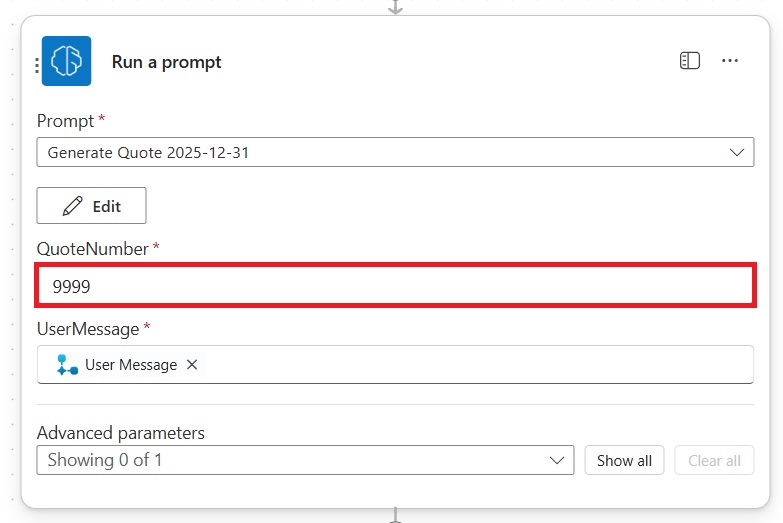
Supply a quote number using the QuoteNumber field in the Run a Prompt action. We will hardcode the number here as 9999, however, we should come back at a later time and generate a unique number for this field.
Update The Tool Descriptions and Agent Instructions
Before testing the Agent one last time, update the user message description for the Agent flow in the Tools tab.
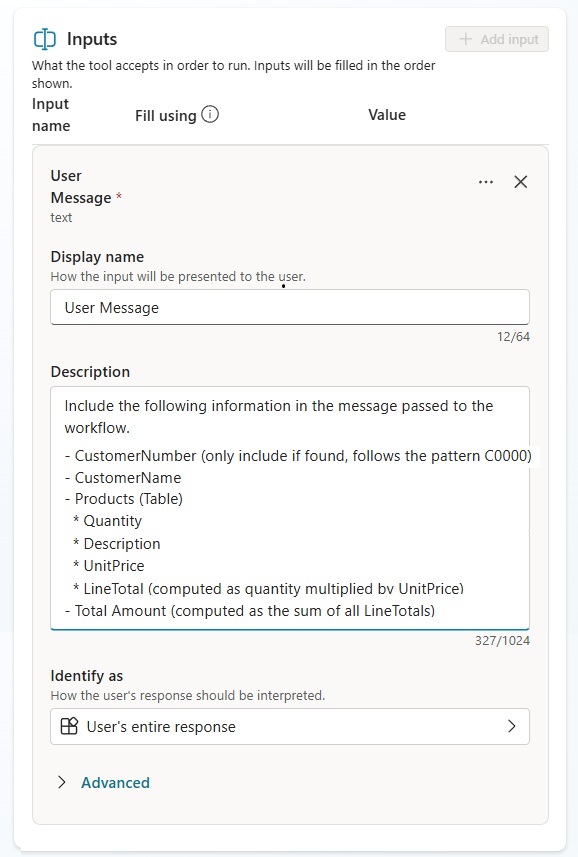
Only include these fields in the description so the agent can use its knowledge fill-in the rest of the details.
| Include the following information in the message passed to the workflow: – CustomerNumber (only include if found, follows the pattern C0000) – CustomerName – Products (Table) * Quantity * Description * UnitPrice * LineTotal (computed as quantity multiplied by UnitPrice) – Total Amount (computed as the sum of all LineTotals) |
Also, update the instructions on the overview tab.
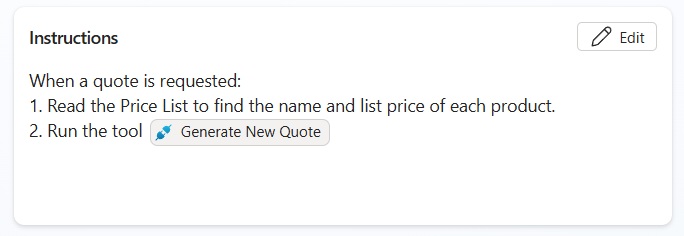
Copy and paste these instructions into the agent and press the save button.
| When a quote is requested: 1. Read the Price List to find the name and list price of each product. 2. Run the tool [Generate New Quote] |
Test Creating A Word Document Grounded By Agent Knowledge
We’re done. Open the test chat window and type this prompt:
| Create a quote for Banana Industries which includes 3 EgroPro Chairs, 1 MetroWood desk and 2 Titan Storage. |
The Agent responds with the correct customer, full product details and a link to the Word document.
Click on the Word document to find all of the placeholder fields filled-in.
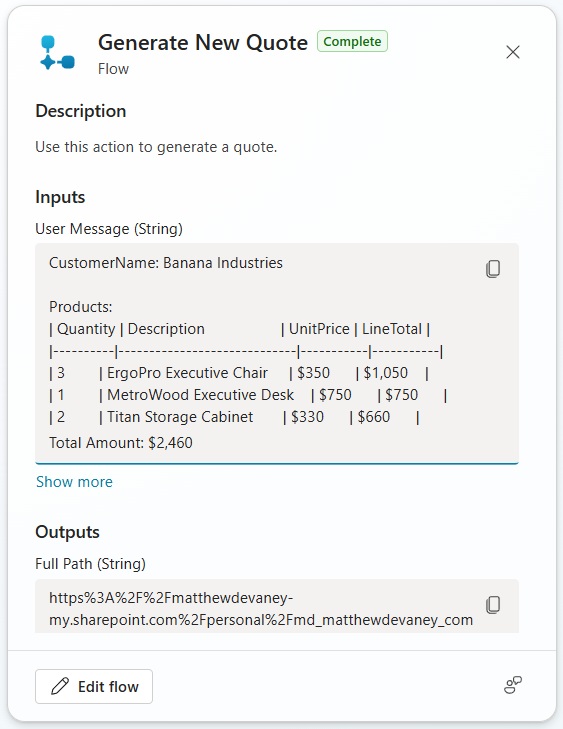
The activity map shows how the Generate New Quote action interpreted the user’s request to create the Word document.
Video: Copilot Studio Generate Word Document Grounded In Knowledge
Watch this video for a full walkthrough of everything covered within the article.
Did You Enjoy This Article? 😺
Subscribe to get new Copilot Studio articles sent to your inbox each week for FREE
Questions?
If you have any questions or feedback about Copilot Studio: Generate Word Document From A Template please leave a message in the comments section below. You can post using your email address and are not required to create an account to join the discussion.







Is it feasible to configure Copilot to lead the conversation and, upon user confirmation, proceed to generate the document? For instance, if a user requests a product quote without specifying the quantity, the agent would prompt for the quantity, capture the response, and then provide the estimate.
yes, you can do
I’m trying to build a copilot agent that will assess and mark a bunch of student assignment submissions so that each submission delivers a standard Report assigning marks with comments in specific Report Sections. I’ve managed to create each Report based on a Report example that I’ve uploaded into the knowledge base, but at the moment the Report is delivered to the Agent via chat. I then manualy create WORD Documents using copy and paste, and manually save them to SharePoint. In the future, I’d like to create each Report in WORD and have them automatically saved in a named SharePoint Library.
Can you help ?
I’m currently trying to build the flow in its simplest form (input → generate document → store to OneDrive → return download link).
I’m having trouble with the “Save file” step. I select the document output from the previous step, but when I open the generated file, it only contains a JSON structure like this:
{"@odata.type":"#Microsoft.Dynamics.CRM.expando",
"mimeType":"application/vnd.openxmlformats-officedocument.wordprocessingml.document",
"fileName":"Template_SW-Factsheet_Copilot.docx",
"contentBytes":"....... (looks like base64)......"
}
any ideas how to fix it so the .docx becomes a valid file?
Can this same process be used for a standard proposal generator. What if I want AI to generate some parts of the proposal